
1. Introduction
This manual provides detailed instructions for the installation, operation, maintenance, and troubleshooting of your Gigastone 22-inch VA LED Monitor. Please read this manual thoroughly before using the product to ensure proper setup and optimal performance. Keep this manual for future reference.
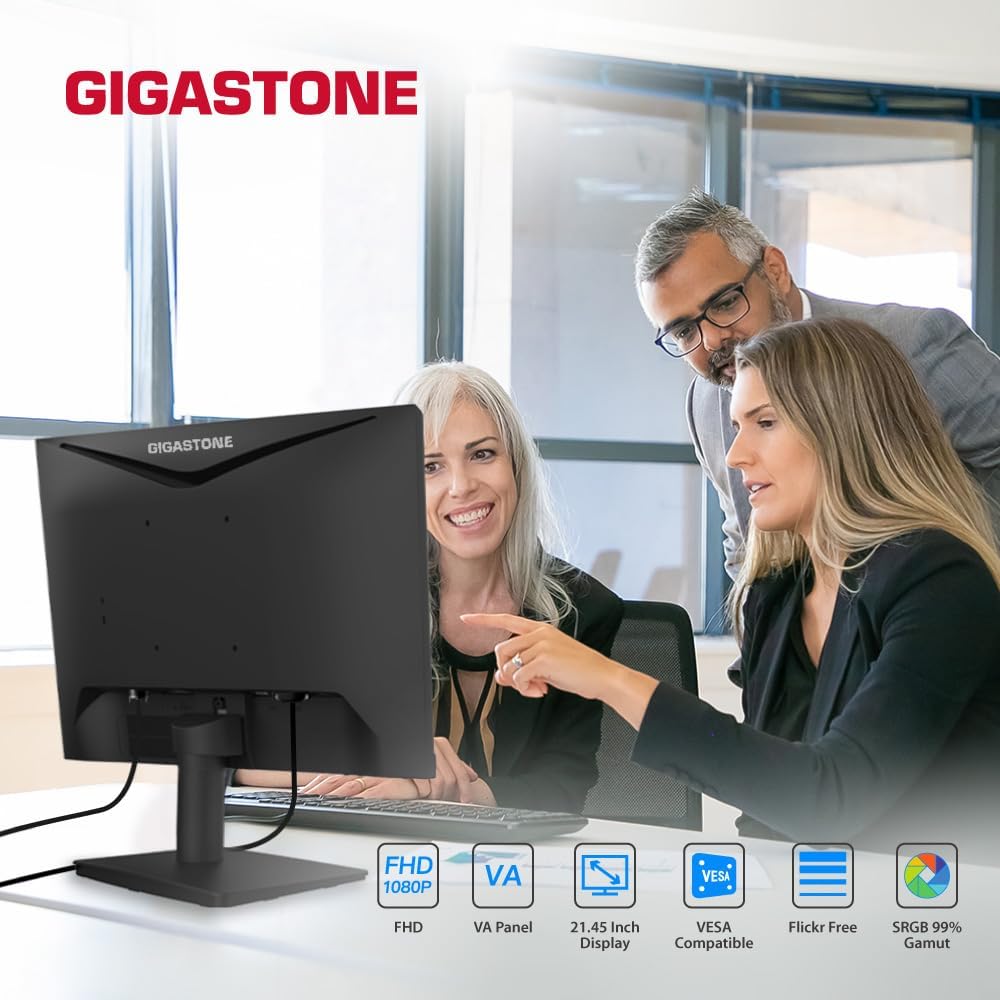
Figure 1.1: Gigastone 22-inch VA LED Monitor in use.
Key Features:
- Full HD (FHD) 1920x1080p Resolution: Delivers crisp and clear visuals.
- 75Hz Refresh Rate: Provides smoother image transitions and reduced screen tearing.
- VA Panel Technology: Offers superior contrast ratios and wide viewing angles of 178°.
- Eye Care Technology: Features Low Blue Light and Anti-Flicker technologies to reduce eye strain during extended use.
- Frameless Design: Maximizes screen space and provides a sleek appearance.
- Versatile Connectivity: Includes HDMI and VGA ports.
- VESA Mount Compatible: Allows for flexible mounting options (100x100mm).
- Adaptive-Sync (FreeSync) Compatible: Synchronizes the display's refresh rate with the graphics card's frame rate to eliminate screen tearing and stuttering.
2. Setup Instructions
2.1 Unpacking the Monitor
Carefully remove all components from the packaging. Ensure all items listed in the packing list are present and undamaged. Retain the original packaging for future transport or service needs.
2.2 Assembling the Stand
- Place the monitor face down on a soft, clean surface to prevent scratches.
- Attach the stand base to the stand neck. Secure it with the provided screw(s) by turning clockwise until firm.
- Align the assembled stand with the mounting slot on the back of the monitor. Push firmly until it clicks into place or secure with the provided screw(s). Ensure the stand is securely fastened to prevent instability.
- Carefully lift the monitor and place it on a stable, flat surface.
2.3 Connecting Cables
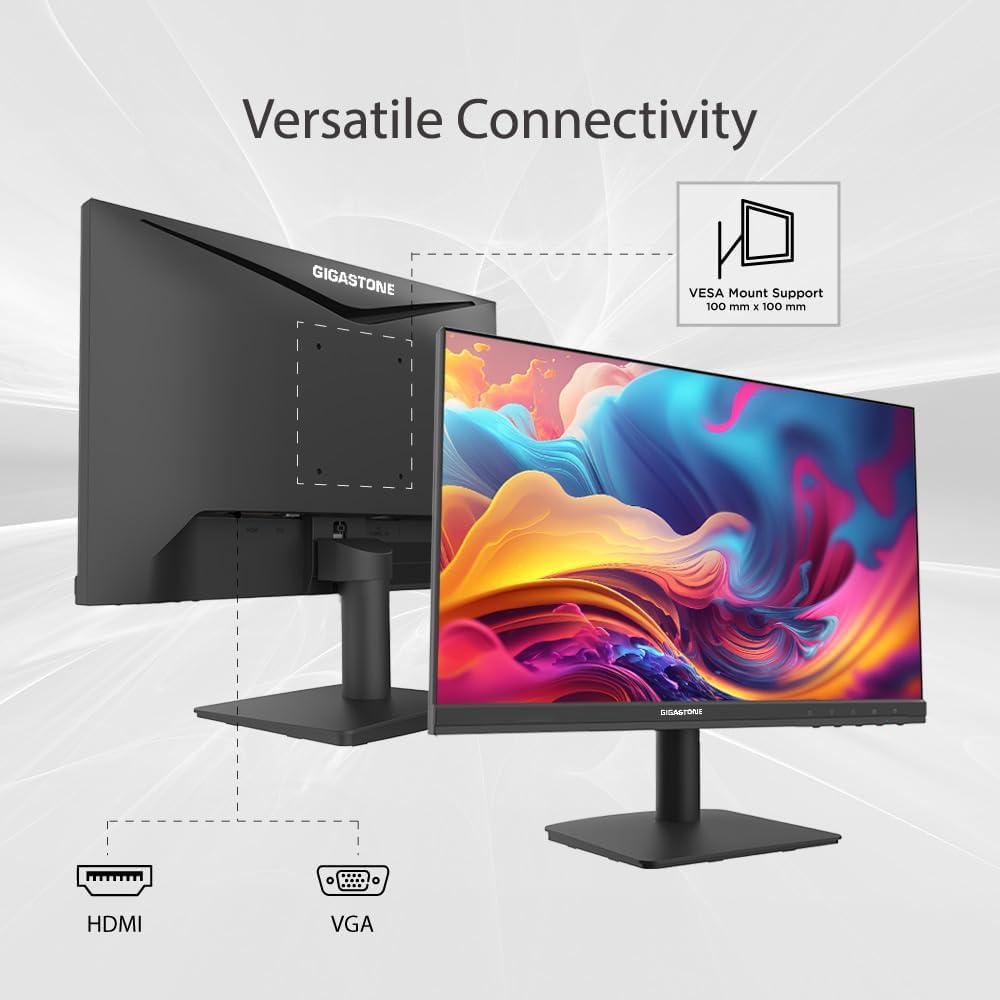
Figure 2.1: Monitor connectivity ports and VESA mount.
- Power Cable: Connect one end of the power cable to the monitor's power input and the other end to a power outlet.
- Video Cable: Choose one of the following connections:
- HDMI: Connect one end of the HDMI cable to the monitor's HDMI port and the other end to the HDMI output port on your computer.
- VGA: Connect one end of the VGA cable to the monitor's VGA port and the other end to the VGA output port on your computer.
- Ensure all connections are secure.
2.4 VESA Mounting (Optional)
The monitor supports VESA mounting (100x100mm). To mount the monitor on a wall or an articulating arm, first remove the stand. Follow the instructions provided with your VESA-compatible mounting kit for proper installation.
3. Operating Instructions
3.1 Power On/Off
Press the power button, usually located on the bottom right side of the monitor, to turn the monitor on or off. The power indicator light will illuminate when the monitor is on.
3.2 On-Screen Display (OSD) Menu
The OSD menu allows you to adjust various monitor settings. Use the buttons located on the bottom right of the monitor to navigate and select options.
Common OSD Menu Options:
- Brightness/Contrast: Adjust the overall luminance and difference between light and dark areas.
- Color Settings: Modify color temperature, hue, and saturation.
- Input Source: Manually select between HDMI and VGA inputs.
- Picture Mode: Choose from preset display modes (e.g., Standard, Game, Movie).
- Eye Care Mode: Activate Low Blue Light and Anti-Flicker features.
- Adaptive-Sync (FreeSync): Enable or disable this feature for compatible graphics cards.
3.3 Eye Care Technology
The monitor incorporates Low Blue Light and Anti-Flicker technologies to minimize eye strain. These features can be enabled or adjusted through the OSD menu. Reducing blue light can help alleviate eye fatigue, especially during prolonged use.
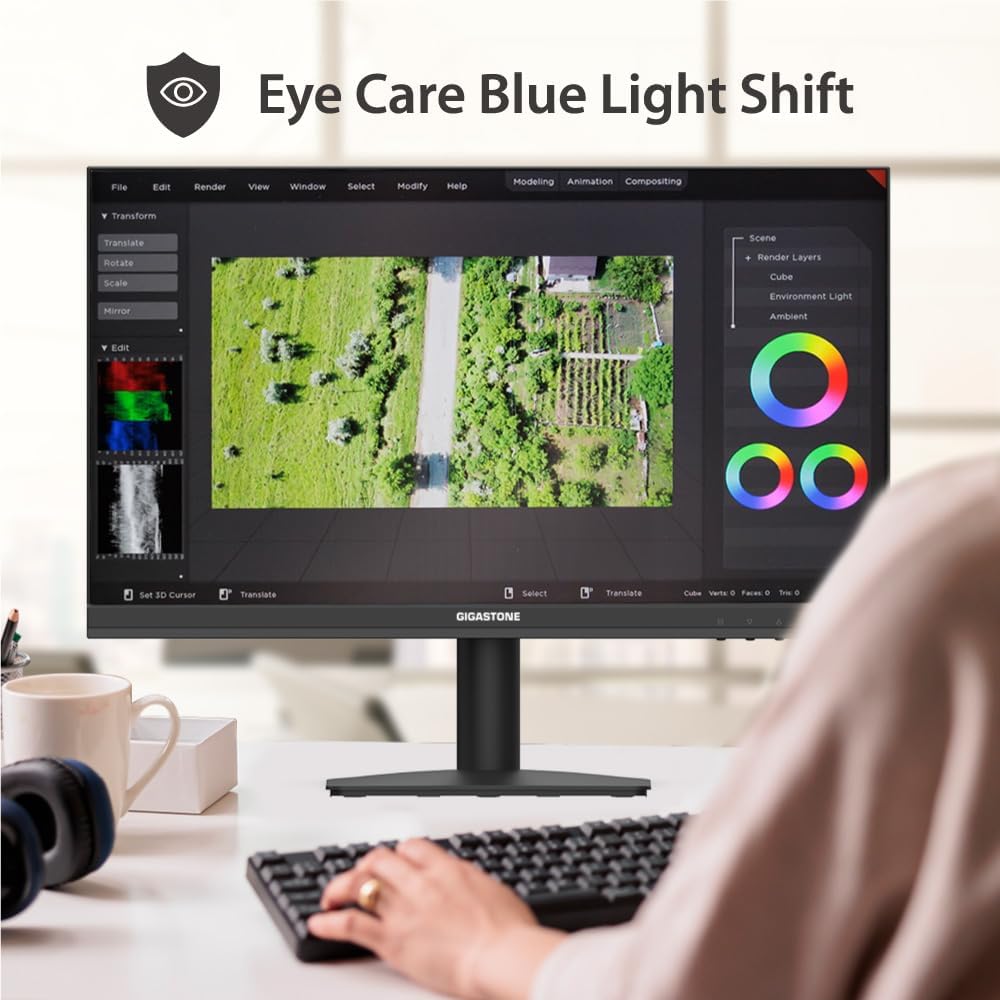
Figure 3.1: Eye Care Blue Light Shift feature in action.
3.4 Adaptive-Sync (FreeSync)
This monitor is compatible with Adaptive-Sync technology, which helps eliminate screen tearing and stuttering by synchronizing the monitor's refresh rate with your graphics card's frame rate. To use this feature, ensure your graphics card supports Adaptive-Sync/FreeSync and enable it in both your graphics card settings and the monitor's OSD menu.
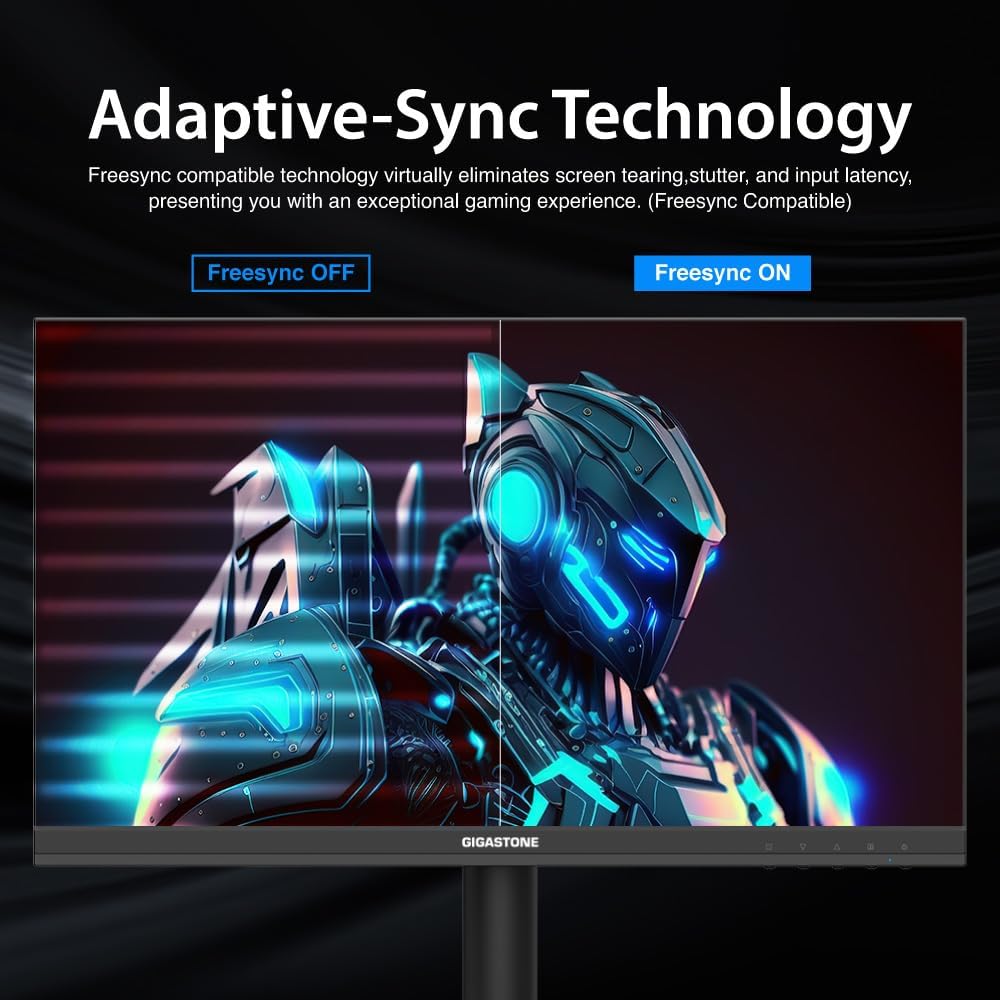
Figure 3.2: Visual representation of Adaptive-Sync (FreeSync) technology.
4. Maintenance
4.1 Cleaning the Monitor
- Always unplug the monitor from the power outlet before cleaning.
- Use a soft, lint-free cloth lightly dampened with water or a non-abrasive screen cleaner.
- Do not spray cleaner directly onto the screen or casing.
- Avoid using benzene, thinner, ammonia-based cleaners, or abrasive materials, as these can damage the monitor's surface.
4.2 General Care
- Keep the monitor away from direct sunlight, excessive heat, and humidity.
- Ensure adequate ventilation around the monitor to prevent overheating.
- Do not place heavy objects on the monitor or its cables.
5. Troubleshooting
If you encounter issues with your monitor, refer to the following troubleshooting guide. If the problem persists, contact customer support.
| Problem | Possible Cause | Solution |
|---|---|---|
| No power | Power cable not connected; Power outlet faulty; Monitor off | Ensure power cable is securely connected; Test power outlet; Press power button on monitor |
| No signal | Video cable not connected; Incorrect input source selected; Computer not outputting signal | Check video cable connections (HDMI/VGA); Select correct input source via OSD; Ensure computer is on and outputting video |
| Image flickering or distorted | Loose video cable; Incorrect resolution/refresh rate; Graphics card driver issue | Secure video cable; Set display resolution to 1920x1080 and refresh rate to 75Hz; Update graphics card drivers |
| OSD menu not responding | Buttons are locked; Temporary software glitch | Refer to monitor's specific instructions for unlocking OSD buttons (if applicable); Power cycle the monitor |
| Adaptive-Sync (FreeSync) not working | Feature not enabled; Graphics card not compatible; Outdated drivers | Enable FreeSync in monitor OSD and graphics card control panel; Ensure compatible graphics card; Update graphics drivers |
6. Product Specifications
| Feature | Specification |
|---|---|
| Brand | Gigastone |
| Model Number | GS-LM-27FF2 |
| Screen Size | 22 Inches |
| Resolution | FHD 1080p (1920 x 1080 Pixels) |
| Aspect Ratio | 16:9 |
| Refresh Rate | 75Hz |
| Response Time | 4 Milliseconds |
| Display Technology | VA LED Back Light |
| Viewing Angle | 178 Degrees |
| Brightness | 250 cd/m2 |
| Contrast Ratio | 1000:1 |
| Connectivity | HDMI, VGA |
| Adaptive Sync | FreeSync |
| Mounting Type | VESA Wall Mount (100x100mm) |
| Item Dimensions (D x W x H) | 1.85"D x 19.4"W x 6.7"H |
7. Warranty Information
This Gigastone monitor is covered by a 3-year manufacturer's warranty from the date of purchase. This warranty covers defects in materials and workmanship under normal use. It does not cover damage caused by misuse, accidents, unauthorized modifications, or external factors.
Please retain your proof of purchase for warranty claims.
8. Customer Support
For technical assistance, warranty claims, or any other inquiries, please contact Gigastone customer service. We offer 24/7 world-wide customer service to assist you.
For the most up-to-date contact information, please visit the official Gigastone website or refer to the contact details provided with your product packaging.
You can also visit the Gigastone Store on Amazon for more product information and support resources.