
ELECTCOM PRO WJS-219
ELECTCOM PRO 18 inch Sound Bar User Manual
Model: WJS-219
Introduction
Thank you for choosing the ELECTCOM PRO 18 inch Sound Bar. This compact home audio speaker is designed to enhance your audio experience across various devices, including TVs, PCs, laptops, tablets, and projectors. With multiple connectivity options and customizable sound modes, it delivers clear and immersive sound for your entertainment needs. Please read this manual carefully to ensure proper setup, operation, and maintenance of your sound bar.
What's in the Box?
Upon opening the package, please verify that all the following components are included:
- ELECTCOM PRO 18 inch Sound Bar
- Remote Control
- Power Adapter
- HDMI Cable
- Optical Cable
- RCA to 3.5mm AUX Cable
- RCA to RCA Cable
- User Manual (this document)

Image: All components included in the ELECTCOM PRO Sound Bar package.
Setup
Follow these steps to connect your sound bar to your desired device.
1. Power Connection
Connect the power adapter to the DC IN port on the back of the sound bar and then plug it into a wall outlet.
2. Audio Connections
The sound bar offers multiple ways to connect to your audio source. Choose the method that best suits your device.
- HDMI (ARC): For optimal audio quality and control via your TV remote, connect an HDMI cable from the HDMI (ARC) port on the sound bar to the HDMI ARC port on your TV. Ensure your TV's ARC function is enabled.
- Optical: Connect an optical cable from the OPTICAL port on the sound bar to the optical output port on your TV or other audio device.
- Coaxial: Connect a coaxial cable from the COAXIAL port on the sound bar to the coaxial output port on your audio device.
- AUX (3.5mm): Use the 3.5mm AUX cable to connect the AUX IN port on the sound bar to the headphone jack or AUX output on your device (e.g., PC, laptop, tablet).
- RCA: Use the RCA to RCA cable or RCA to 3.5mm AUX cable to connect the RCA ports on the sound bar to the corresponding audio output ports on your device.
- USB: Insert a USB drive into the USB port to play audio files directly from the drive.
- Bluetooth: For wireless connection, refer to the "Bluetooth Pairing" section under Operating.

Image: Rear panel of the sound bar displaying all available connectivity ports.

Image: Example of connecting an HDMI cable to the sound bar for lossless audio output.
Operating Instructions
Power On/Off
- Press the Power button on the sound bar or remote control to turn the unit on or off.
Input Source Selection
- Press the Input button on the sound bar or remote control repeatedly to cycle through available input sources: HDMI, Optical, Coaxial, AUX, USB, Bluetooth. The selected input will be displayed on the sound bar's LED screen.
Volume Control
- Press the Volume + button to increase volume.
- Press the Volume - button to decrease volume.
- Press the Mute button to mute or unmute the sound.
Bluetooth Pairing
- Turn on the sound bar and select Bluetooth input mode. The LED display will show "BLUE" and flash, indicating it's in pairing mode.
- Enable Bluetooth on your device (smartphone, tablet, etc.) and search for "ELECTCOM PRO Sound Bar".
- Select the sound bar from the list of available devices to pair. Once connected, the "BLUE" indicator will stop flashing.
- You can now play audio from your device through the sound bar.
EQ Modes
The sound bar features 4 Equalizer (EQ) modes to optimize your listening experience:
- Song: Optimized for music playback.
- Flat: Provides a neutral sound profile.
- Cinema: Enhances movie dialogue and effects for an immersive experience.
- Entertainment: General mode suitable for various content.
Press the EQ button on the remote control to cycle through these modes.

Image: The sound bar's display showing "CINE" for Cinema EQ mode.
Bass and Treble Adjustment
Use the BASS +/- and TREBLE +/- buttons on the remote control to fine-tune the low and high frequencies to your preference.

Image: The sound bar integrated into a home entertainment system, providing enhanced audio for TV viewing.
Maintenance
To ensure the longevity and optimal performance of your sound bar, follow these maintenance guidelines:
- Cleaning: Use a soft, dry cloth to wipe the surface of the sound bar. Do not use liquid cleaners or aerosol sprays, as they may damage the finish or internal components.
- Placement: Place the sound bar on a stable, flat surface. Avoid placing it in direct sunlight, near heat sources, or in areas with high humidity.
- Ventilation: Ensure adequate ventilation around the sound bar to prevent overheating. Do not block any ventilation openings.
- Power Off: If the sound bar will not be used for an extended period, unplug it from the power outlet.
Troubleshooting
If you encounter issues with your sound bar, refer to the following common problems and solutions:
| Problem | Possible Cause | Solution |
|---|---|---|
| No sound from the sound bar. |
|
|
| Bluetooth device won't pair. |
|
|
| Remote control not working. |
|
|
Specifications
Detailed technical specifications for the ELECTCOM PRO 18 inch Sound Bar:
| Model Name | WJS-219 |
| Brand | ELECTCOM PRO |
| Speaker Type | Soundbar |
| Speaker Size | 18 Inches |
| Speaker Maximum Output Power | 50 Watts |
| Connectivity Technology | Bluetooth, Coaxial, HDMI, RCA, USB |
| Wireless Communication Technology | Bluetooth |
| Product Dimensions (WxHxD) | 17.68"D x 5.04"W x 3.54"H |
| Item Weight | 2.88 pounds |
| Color | Black |
| Power Source | Corded Electric |
| Included Components | Remote (and cables as listed in "What's in the Box") |
| Recommended Uses | For Computers, For Music Players, For Televisions |
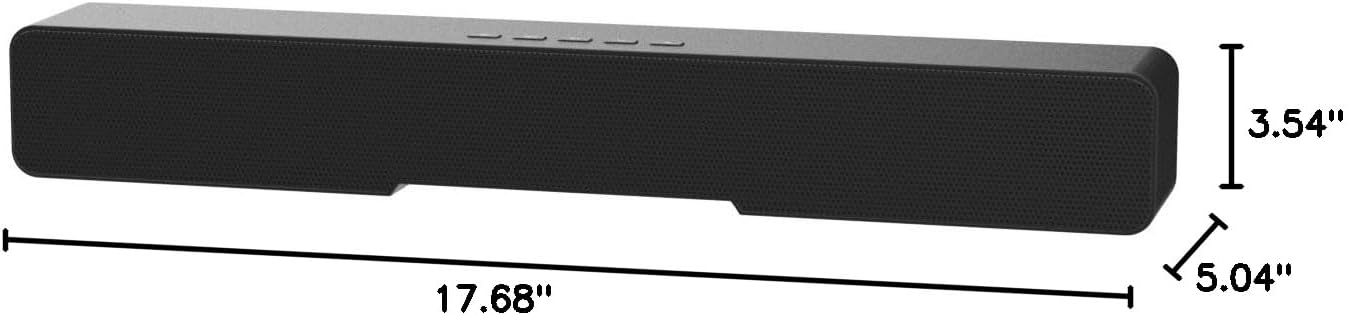
Image: Dimensional overview of the sound bar.
Warranty and Support
For warranty information and technical support, please refer to the documentation included with your product or visit the official ELECTCOM PRO website. If you require assistance with setup, troubleshooting, or have questions about your sound bar, please contact ELECTCOM PRO customer service.
For the latest support information and contact details, please visit: ELECTCOM PRO Store on Amazon
Ask a question about this manual
Ask about setup, troubleshooting, compatibility, parts, safety, or missing instructions. Manuals+ will review the question and use this page’s manual context to help answer it.