
1. Product Overview
The SOLAKAKA K21 is a versatile 21-key mechanical number pad featuring tri-mode connectivity (Bluetooth, 2.4GHz wireless, and Type-C wired), RGB backlighting, and hot-swappable switches. It is designed for compatibility with various devices including PCs, laptops, MacBooks, and mobile phones.

Image 1.1: Overview of the SOLAKAKA K21 Mechanical Number Pad.

Image 1.2: Visual representation of the K21's main features.
2. Package Contents
Please verify that all items are present in the package:
- SOLAKAKA K21 Mechanical Number Pad
- USB Type-C Cable
- 2.4GHz USB Dongle
- Customization Software (downloadable)
3. Setup and Connection
The K21 number pad supports three connection modes: 2.4GHz wireless, Bluetooth, and wired via USB Type-C. It can save up to 5 devices simultaneously.
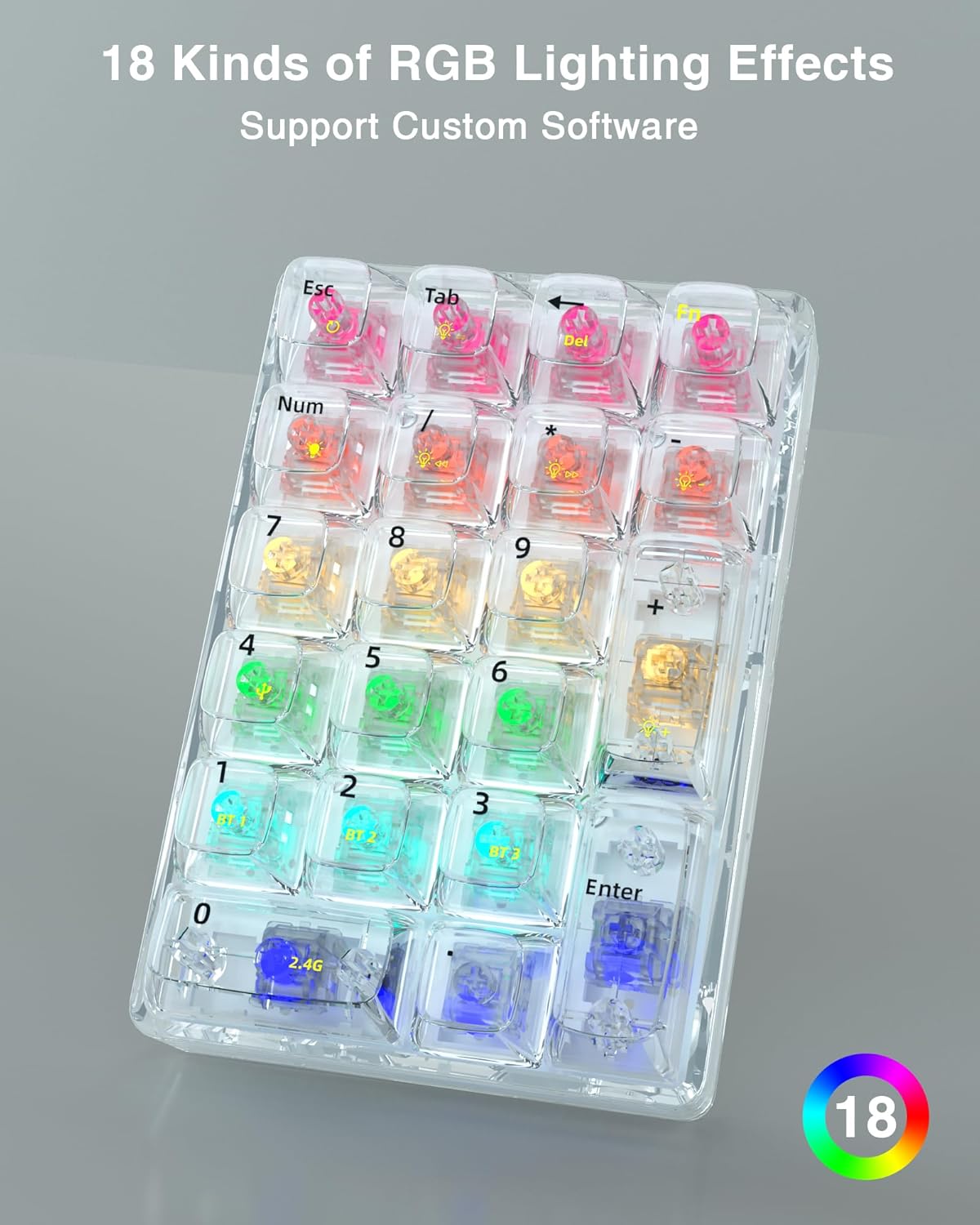
Image 3.1: Illustration of the three connection modes and key combinations.
3.1. 2.4GHz Wireless Connection
- Insert the 2.4GHz USB dongle into an available USB port on your computer.
- On the K21 number pad, press FN + 0 to switch to 2.4GHz mode. The indicator light will confirm the connection.
3.2. Bluetooth Connection
The K21 supports up to three Bluetooth connections (BT1, BT2, BT3).
- On the K21 number pad, press FN + 1 (for BT1), FN + 2 (for BT2), or FN + 3 (for BT3) to select a Bluetooth channel.
- Hold down the selected FN + (1/2/3) key combination for 3-5 seconds until the indicator light flashes rapidly, indicating pairing mode.
- On your device (PC, laptop, MacBook, mobile phone), navigate to Bluetooth settings and search for "K21" or a similar device name.
- Select the K21 to pair. The indicator light on the number pad will become solid once connected.
3.3. Wired Connection
- Connect the provided USB Type-C cable to the K21 number pad and to an available USB port on your computer.
- The number pad will automatically switch to wired mode. No additional drivers are typically required.
4. Operation
4.1. RGB Backlighting
The K21 features 18 RGB lighting effects. These can be cycled through and adjusted using specific key combinations. Refer to the keycap legends for specific lighting control functions, often accessed via the FN key in combination with other keys.

Image 4.1: Examples of RGB lighting effects on the K21 number pad.
4.2. Customization Software
The K21 supports macro settings and personalized keyboard customization through dedicated software. This software allows users to remap keys, create macros, and adjust lighting effects.

Image 4.2: Interface of the K21 customization software.
To download the software:
- Visit the official download page: bit.ly/m/solakaka
- Select the "K21" model.
- Download and install the provided software.
The software is compatible with Windows 7, 8, 10, XP, VISTA, and MAC OS. Basic functionality does not require the software, but it is necessary for advanced customization.
5. Hot-Swappable Switches
The K21 features a 3-pin and 5-pin hot-swappable design, compatible with Cherry-style switches. This allows users to easily replace both keycaps and mechanical switches to customize the typing feel and sound according to personal preference.

Image 5.1: The hot-swappable design of the K21, showing removable keycaps and switches.
5.1. Replacing Switches
- Gently remove the keycap using a keycap puller (not included).
- Use a switch puller (not included) to carefully extract the existing switch from the PCB.
- Align the pins of the new switch with the holes on the PCB and press firmly until it clicks into place. Ensure pins are not bent.
- Re-attach the keycap.
6. Maintenance
6.1. Cleaning
- Disconnect the number pad from your device before cleaning.
- Use a soft, dry cloth to wipe the surface of the number pad.
- For deeper cleaning, remove keycaps and use compressed air to clear debris from between switches.
- Avoid using harsh chemicals or abrasive materials.
6.2. Battery Care
- The K21 uses a built-in Lithium Ion battery.
- Charge the device using the provided USB Type-C cable.
- Avoid exposing the battery to extreme temperatures.
7. Troubleshooting
7.1. Connectivity Issues
- Number pad not connecting via 2.4GHz: Ensure the USB dongle is securely plugged in and the number pad is set to 2.4GHz mode (FN + 0). Try a different USB port.
- Bluetooth pairing failure: Ensure the number pad is in pairing mode (rapidly flashing indicator light after holding FN + 1/2/3). Remove previous pairings from your device's Bluetooth list and try again. Ensure the number pad is charged.
- Delayed response in wireless modes: This can sometimes occur after periods of inactivity as the device wakes from sleep mode. Ensure the number pad is fully charged.
7.2. Keys Not Responding
- Individual keys not working: Check if the switch is properly seated. If you have hot-swappable switches, try reseating or replacing the affected switch.
- All keys not working: Ensure the number pad is powered on and properly connected (wired, 2.4GHz, or Bluetooth). Check battery level if in wireless mode.
7.3. RGB Lighting Issues
- Lights not turning on: Ensure the number pad is powered on. Check if the lighting is turned off or dimmed via key combinations.
- Inconsistent lighting: Ensure the customization software is not overriding settings. Try resetting the lighting effects.
8. Specifications
| Model | K21 |
| Connectivity Technology | Bluetooth (BLE), 2.4GHz Wireless, USB Type-C Wired |
| Number of Keys | 21 |
| Switch Type | Ice Crystal Switch (Hot-Swappable) |
| Backlighting | 18 RGB Lighting Effects |
| Compatible Devices | PCs, Laptops, MacBooks, Mobile Phones |
| Power Source | Battery Powered (1 Lithium Ion battery included) |
| Item Weight | 12.8 ounces |
| Package Dimensions | 6.97 x 6.61 x 2.2 inches |

Image 8.1: Design features including ergonomics, non-slip feet, and Type-C charging port.
9. Warranty and Support
SOLAKAKA is committed to providing satisfactory after-sales service. For any questions, technical support, or warranty inquiries, please refer to the official support channels or the website where the customization software is available.
For software downloads and support information, please visit: bit.ly/m/solakaka


