
Arlo VMC3060
Arlo Essential Indoor Security Camera 2K (2nd Generation) User Manual
Model: VMC3060
1. Introduction
The Arlo Essential Indoor Security Camera 2K (2nd Generation) provides advanced home monitoring with crystal-clear 2K video resolution. Designed for indoor use, it features an automated privacy shield, two-way audio, night vision, and motion alerts to keep you connected to your home, family, and pets. This manual provides comprehensive instructions for setting up, operating, and maintaining your Arlo Essential Indoor Camera.

Figure 1: Arlo Essential Indoor Security Camera 2K (2nd Generation) - Two-pack.
Video 1: Overview of Arlo Essential Indoor Camera 2K (2nd Generation) features and design.
2. What's in the Box
Your Arlo Essential Indoor Security Camera 2K package includes the following items:
- 2x Arlo Essential Indoor Camera (2nd Generation)
- 1x Power Adapter
- 2x Wall Mount and Screw Kit
- 1x Quick Start Guide
3. Product Overview
3.1 Key Features
- 2K Video Resolution: Capture clear and detailed video footage.
- Automated Privacy Shield: Physically cover the camera lens for privacy when needed, controlled via the Arlo Secure App.
- Two-Way Audio: Hear and speak to visitors or family members through the camera.
- Night Vision: Monitor your home even in low-light conditions.
- Motion Detection & Alerts: Receive real-time notifications on your smartphone when motion is detected.
- Integrated Siren: Deter intruders with a remote-activated siren.
- Wide Field of View: A 130-degree viewing angle provides extensive coverage.
- Easy Setup: Connects directly to Wi-Fi for quick installation.
- Smart Home Integration: Works with Amazon Alexa and Google Home.
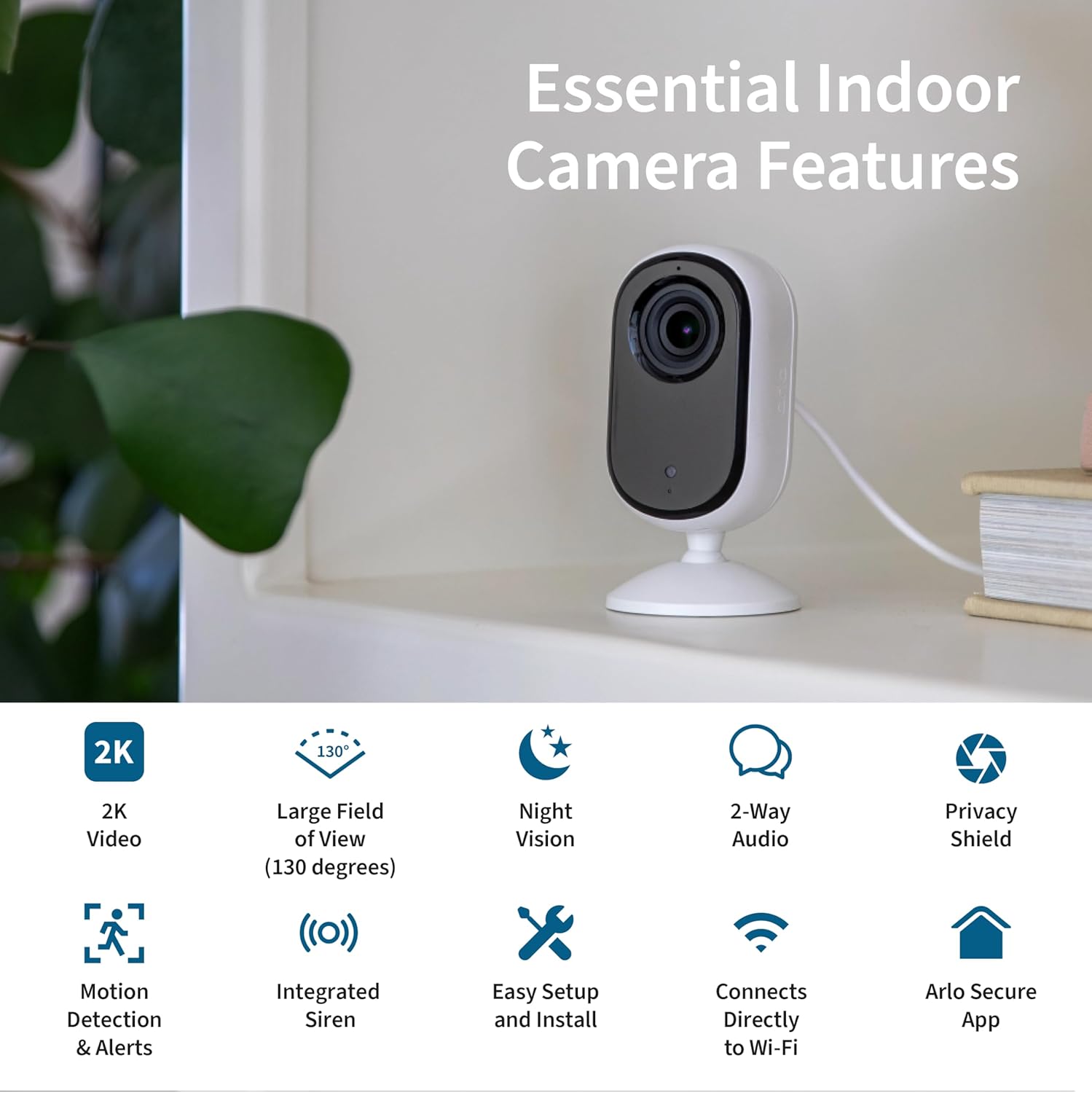
Figure 2: Essential Indoor Camera Key Features.
3.2 Components
The Arlo Essential Indoor Camera consists of the camera unit with an integrated stand and a power cable for continuous operation.

Figure 3: Arlo Essential Indoor Camera 2K.
4. Setup
4.1 Initial Power-Up
- Connect the power cord to the included power adapter.
- Plug the power adapter into an electrical outlet at your desired camera location.
- The camera is powered on and ready when the automated privacy shield opens.
4.2 Arlo Secure App Installation and Pairing
- Download the Arlo Secure App from your device's app store (App Store for iOS, Google Play Store for Android).
- Create a new Arlo account or log in if you already have one. Ensure your app is updated to the latest version.
- Enable Bluetooth on your smartphone.
- Open the Arlo Secure App and navigate to the "Devices" section.
- Tap the "+" icon in the upper right corner to add a new device.
- Select "Cameras" then "Essential Cameras 2nd Generation".
- To begin Bluetooth pairing, press and hold the pairing button on top of the camera for 3 seconds until the camera's LED flashes blue. The app will automatically detect your camera.
- Follow the on-screen prompts to name your camera and allow the app to check for firmware updates. This process may take a few minutes.
Video 2: Detailed guide on setting up your Arlo Essential Indoor 2K Camera.
4.3 Placement and Mounting
Ensure your Wi-Fi signal strength is strong at the camera's mounting spot. You can verify the signal strength within the Arlo Secure App.
- Flat Surface Placement: The camera can be placed on any flat surface, such as a shelf or table.
- Wall Mounting: If mounting on a wall, use the included wall plate and screw kit.
- Securely anchor the wall plate with the "UP" arrow facing upwards, using the provided hardware.
- Align the "UP" arrow on the camera's base with the arrow on the wall plate.
- Slide your camera downward onto the wall plate until it clicks into place.
- Adjust the camera's angle for the optimal viewing area.

Figure 4: Automated Privacy Shield in action.
5. Operating Your Arlo Essential Indoor Camera
5.1 Live View and Two-Way Audio
- Open the Arlo Secure App to view live video from your camera.
- Use the microphone icon in the app to enable two-way audio and speak through the camera.

Figure 5: Arlo Secure App Interface for Live Monitoring.
5.2 Motion Detection and Alerts
- The camera automatically detects motion and sends alerts to your smartphone.
- Customize alert settings and activity zones within the Arlo Secure App to receive notifications for specific areas.
- Activate the integrated siren remotely from the app to deter unwanted visitors.
5.3 Privacy Shield Control
- Control the automated privacy shield via the Arlo Secure App.
- Close the shield when you desire privacy, ensuring the camera is not recording.
Video 3: Arlo's Privacy Pledge, detailing how your data is protected and controlled.
5.4 Smart Home Integration
- Integrate your Arlo camera with Amazon Alexa and Google Home for voice control and smart routines.
- Use IFTTT automations for enhanced functionality, such as receiving low battery notifications or turning on compatible lights when motion is detected.

Figure 6: Arlo Essential Indoor Camera 2K Smart Home Compatibility.
6. Maintenance
- Cleaning: Gently wipe the camera lens and body with a soft, dry cloth. Avoid using harsh chemicals or abrasive materials.
- Firmware Updates: Regularly check for and install firmware updates via the Arlo Secure App to ensure optimal performance and security.
- Power Connection: Ensure the power cable is securely connected and free from damage.
7. Troubleshooting
| Problem | Possible Cause | Solution |
|---|---|---|
| Camera not powering on. | Power adapter not connected, outlet not working. | Ensure power adapter is securely connected and try a different outlet. |
| Cannot connect to Wi-Fi. | Weak Wi-Fi signal, incorrect password. | Move camera closer to router, re-enter Wi-Fi password, restart router. |
| Motion alerts not received. | App notifications disabled, activity zones not configured. | Check app notification settings, configure activity zones in the app. |
| Privacy shield stuck. | Minor mechanical issue. | Restart the camera by unplugging and re-plugging the power. If issue persists, contact support. |
8. Specifications
| Feature | Detail |
|---|---|
| Model Number | VMC3060 |
| Indoor/Outdoor Usage | Indoor |
| Video Capture Resolution | 1440p (2K) |
| Connectivity Technology | Wi-Fi, Wired |
| Power Source | Corded Electric |
| Dimensions (L x W x H) | 1.42 x 1.85 x 3.82 inches |
| Item Weight | 3.36 ounces |
| Optical Zoom | 12x |
| Color | White |
| UPC | 193108145435 |
9. Warranty and Support
For warranty information, technical support, and additional resources, please visit the official Arlo website or contact Arlo customer support. 24/7 chat support is available via the Arlo app or website. Product use and support are for the United States only.
For current information on features that require a paid subscription (Arlo Secure Plan), visit arlo.com/arlosecure.
Related documentsVMC3060


Ask a question about this manual
Ask about setup, troubleshooting, compatibility, parts, safety, or missing instructions. Manuals+ will review the question and use this page’s manual context to help answer it.