
Introduction
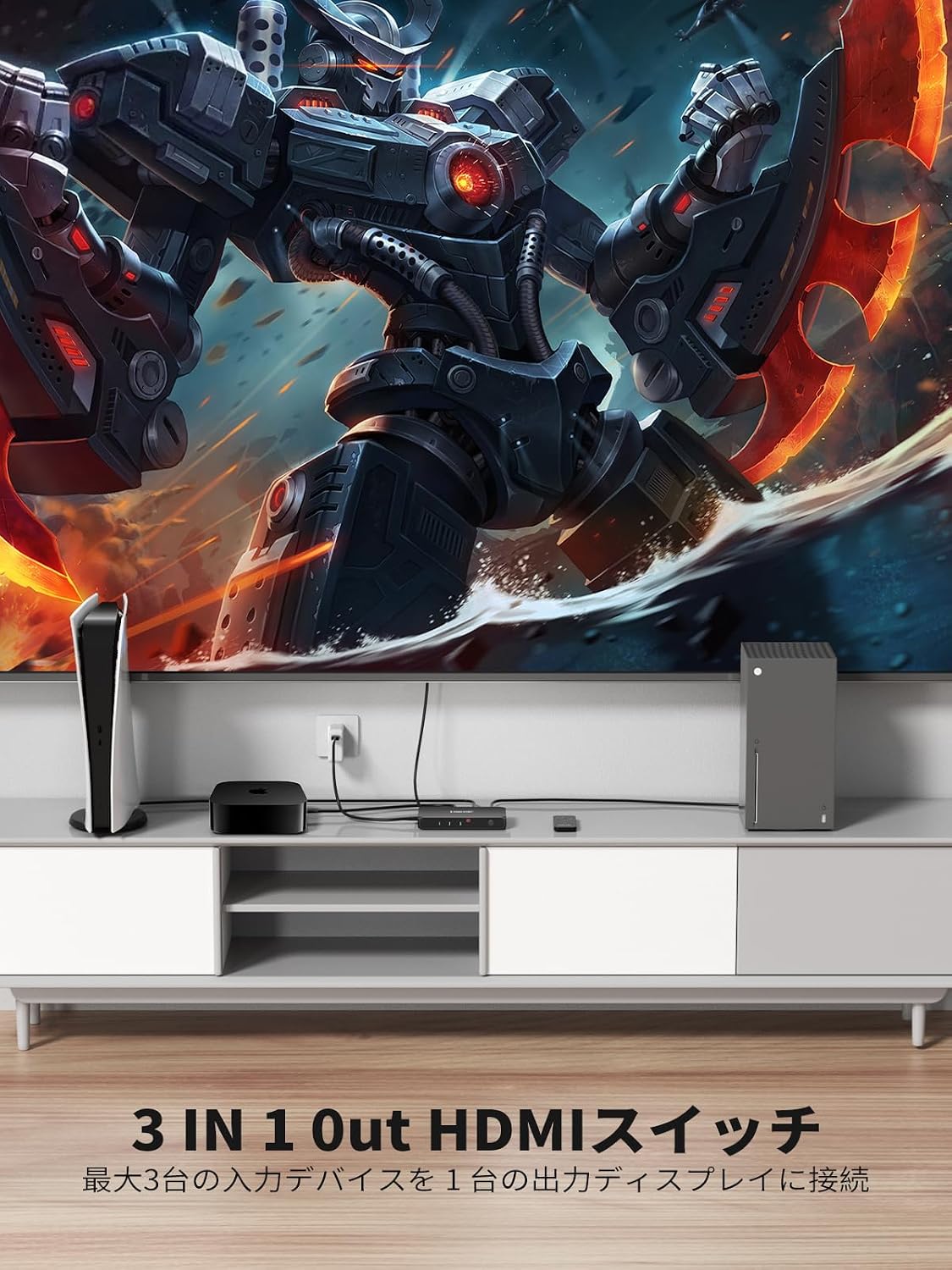
Thank you for purchasing the Lemorele HDMI Switch. This device is designed to simplify your entertainment setup by allowing you to connect multiple HDMI source devices to a single HDMI display. Enjoy high-quality audio and video with support for 4K@60Hz, HDCP 2.2, HDR, and 3D content.
Package Contents
- 1 x Lemorele HDMI Switch (3 Input 1 Output)
- 1 x IR Remote Control (with button battery)
- 1 x USB C Power Cable
- 1 x User Manual

Product Overview
The Lemorele HDMI Switch features three HDMI input ports and one HDMI output port, allowing for flexible connectivity. It also includes a power input and an IR receiver for remote control functionality.

Setup Instructions
- Connect HDMI Source Devices: Use HDMI cables to connect your source devices (e.g., PS5, Switch, Blu-Ray player, PC) to the HDMI IN 1, HDMI IN 2, and HDMI IN 3 ports on the switch.
- Connect to Display: Connect an HDMI cable from the HDMI OUT port on the switch to the HDMI input on your TV or monitor.
- Power Connection: Connect the provided USB C power cable to the switch's power input port. For stable performance, especially with high-resolution content or multiple devices, connect the other end of the USB C cable to a 5V/1A power adapter (not included).
Note: A 5V/1A power adapter is required when connecting to a Mac mini or if power is insufficient. - IR Receiver: Ensure the IR receiver on the switch is unobstructed for remote control operation.

Operating Instructions
Switching Input Sources
The Lemorele HDMI Switch offers two convenient methods for switching between your connected HDMI input devices:
- IR Remote Control: Use the included IR remote to select your desired input source (1, 2, or 3). Point the remote directly at the switch's IR receiver.
- Manual Button: Press the 'Select' button on the front of the HDMI switch to cycle through the input sources.
Smart Automatic Switching
The switch features smart detection that automatically switches to the latest active input source. If a new device is turned on or connected, the switch will prioritize that input. If multiple devices are active, you can use the remote or manual button to select.


Features
- 3 Input 1 Output: Connects up to three HDMI source devices to one HDMI display.
- 4K@60Hz Resolution: Supports resolutions up to 3840x2160 at 60Hz, ensuring crisp and clear visuals.
- HDCP 2.2, HDR, 3D Support: Compatible with the latest video standards for enhanced viewing experiences.
- Audio and Video Synchronization: Advanced signal processing ensures perfect synchronization between audio and video, preventing delays.
- Wide Compatibility: Works with a variety of devices including PS5, Switch, PS3, PS4, Blu-Ray DVD players, Xbox 360, Xbox One, Chromecast, Apple TV, Fire TV, monitors, and projectors.

Specifications
| Feature | Detail |
|---|---|
| Model Number | G99 |
| Color | Black |
| Input Ports | 3 x HDMI |
| Output Ports | 1 x HDMI |
| Max Resolution | 4K@60Hz (3840x2160) |
| HDCP Support | HDCP 2.2 |
| Additional Video Support | HDR, 3D |
| Switching Method | IR Remote Control, Manual Button, Smart Auto-Switching |
| Power Input | USB Type-C (5V/1A recommended) |
| Compatible Devices | PS5, Switch, PS3, PS4, Blu-Ray DVD Player, Xbox 360, Xbox One, Chromecast, TV, HDTV, Apple TV, Fire TV, Monitor, Projector |


Troubleshooting
- No Signal/Black Screen:
- Ensure all HDMI cables are securely connected to both the source devices, the switch, and the display.
- Verify that the correct input source is selected on both the HDMI switch and your display.
- Try connecting a 5V/1A power adapter to the USB-C port of the switch for stable power. Some devices or longer HDMI cables may require external power.
- Test with different HDMI cables, especially if using long cables or high resolutions (4K@60Hz). Refer to the cable length guidelines in the specifications.
- Restart all connected devices and the HDMI switch.
- Remote Control Not Responding:
- Ensure there are no obstructions between the remote and the switch's IR receiver.
- Check if the remote control's battery is correctly inserted and has sufficient power. Replace the battery if necessary.
- Try operating the switch using the manual button on the device to confirm the switch itself is functional.
- Flickering Screen/Unstable Picture:
- Ensure the switch is receiving adequate power by connecting a 5V/1A power adapter.
- Use high-quality HDMI 2.0 cables, especially for 4K@60Hz content.
- Reduce the resolution or refresh rate of the source device to see if the issue persists.
- Check for electromagnetic interference from other electronic devices.
Maintenance
- Keep the device in a cool, dry place away from direct sunlight and heat sources.
- Avoid exposing the switch to moisture or liquids.
- Clean the device with a soft, dry cloth. Do not use harsh chemicals or abrasive cleaners.
- Do not attempt to disassemble or repair the device yourself, as this will void the warranty.
Warranty and Support
The Lemorele HDMI Switch comes with a 1 Year Warranty Against Manufacturer Defects from the date of purchase. This warranty covers defects in materials and workmanship under normal use.
For technical support, warranty claims, or any questions regarding your product, please contact Lemorele customer service through the retailer where you purchased the product or visit the official Lemorele website for contact information.
Please retain your proof of purchase for warranty service.


