
1. Introduction
The Smof DG03 USB Bluetooth 5.2 Audio Adapter is designed to provide seamless wireless audio connectivity for various devices. This adapter allows you to transmit audio wirelessly from your PS5, PS4, Nintendo Switch, Mac, or PC/Laptop to your Bluetooth headphones or speakers. It features aptX Low Latency support for synchronized audio experiences, making it ideal for gaming and media consumption.
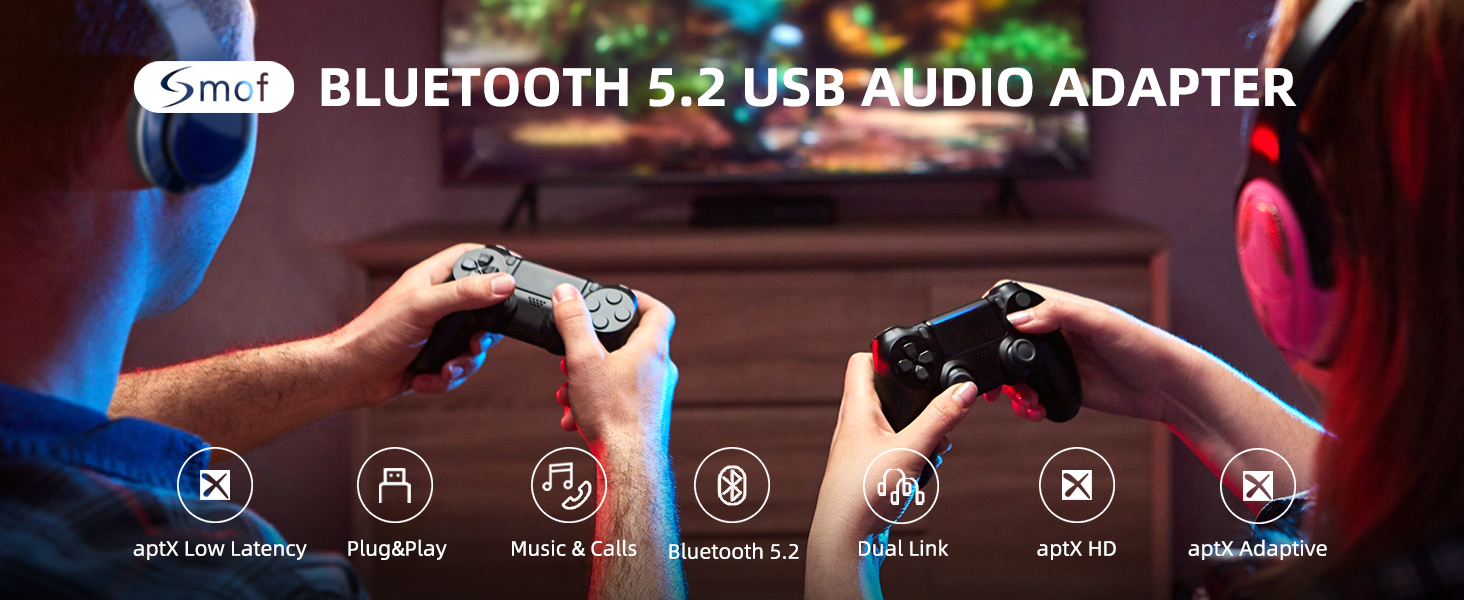
Image: Smof USB Bluetooth Audio Adapter connected to a PS5, enabling wireless audio for gaming.
2. Features
- Hassle-Free Setup: No driver software installation required. Simply plug into a USB port, pair with your Bluetooth device, and it's ready. Automatic re-connection after initial pairing.
- Eliminate Audio Delays: aptX Low Latency certified, reducing lag to less than 40ms for real-time audio synchronization in games and videos.
- Wide Compatibility: Works with USB-ported PS5, PS4, Mac, Switch, and PC/Laptop. Transmits audio wirelessly to Bluetooth headphones or speakers.
- Audio Codec Support: Supports SBC, aptX, aptX HD, aptX Low Latency, and aptX Adaptive. Adapts to your headset configuration (source device and headset must support these codecs).
- Stable and Reliable: Features Bluetooth v5.2 technology for improved reliability, reduced interference, and lower energy consumption. Backwards compatible with earlier Bluetooth versions.
- Compact Design: Mini size for convenient portability.

Image: Visual representation of the Bluetooth 5.2 chip highlighting low latency technology.
3. Setup
Follow these steps to set up your Smof DG03 USB Bluetooth Audio Adapter:
- Plug In: Insert the DG03 adapter into an available USB-A port on your device (PS5, PS4, Switch, Mac, or PC).
- Enter Pairing Mode: Press and hold the button on the adapter for approximately 2 seconds until the LED indicator starts flashing red and blue, indicating it is in pairing mode.
- Prepare Headphones/Speaker: Put your Bluetooth headphones or speaker into pairing mode. Ensure any other nearby Bluetooth devices (like your phone) have their Bluetooth turned off to prevent interference.
- Connect: The adapter will automatically search for and connect to your Bluetooth audio device. The LED indicator will turn solid blue once connected.
- Configure Audio Output (if necessary): On your device, navigate to the sound settings and ensure the audio output is set to the "USB Headphones (Smof DG03)" or similar option.

Image: Step-by-step visual guide demonstrating how to connect a Bluetooth headset to a PS5 using the Smof adapter.

Image: The USB Bluetooth adapter plugged into a laptop, illustrating its plug-and-play functionality without requiring driver installation.
Setup Video (MacOS)
Video: A seller-provided video demonstrating the setup steps for the Smof USB Bluetooth Audio Adapter on MacOS.
4. Operating Instructions
Once successfully paired, your Smof DG03 adapter will provide wireless audio. Here are some key operating details:
- Automatic Re-connection: After the first successful pairing, the adapter will automatically recognize and connect to your last paired device when both are powered on.
- Audio Codec Selection: The adapter will automatically select the best available audio codec (aptX Low Latency, aptX HD, aptX, SBC) based on the capabilities of your connected headphones/speaker and the source device. For optimal low latency, ensure your headset supports aptX Low Latency.
- Dual Linking: The adapter supports connecting to two Bluetooth headphones simultaneously, allowing you to share the audio experience.

Image: Two individuals enjoying shared audio via the dual linking feature of the Smof adapter.
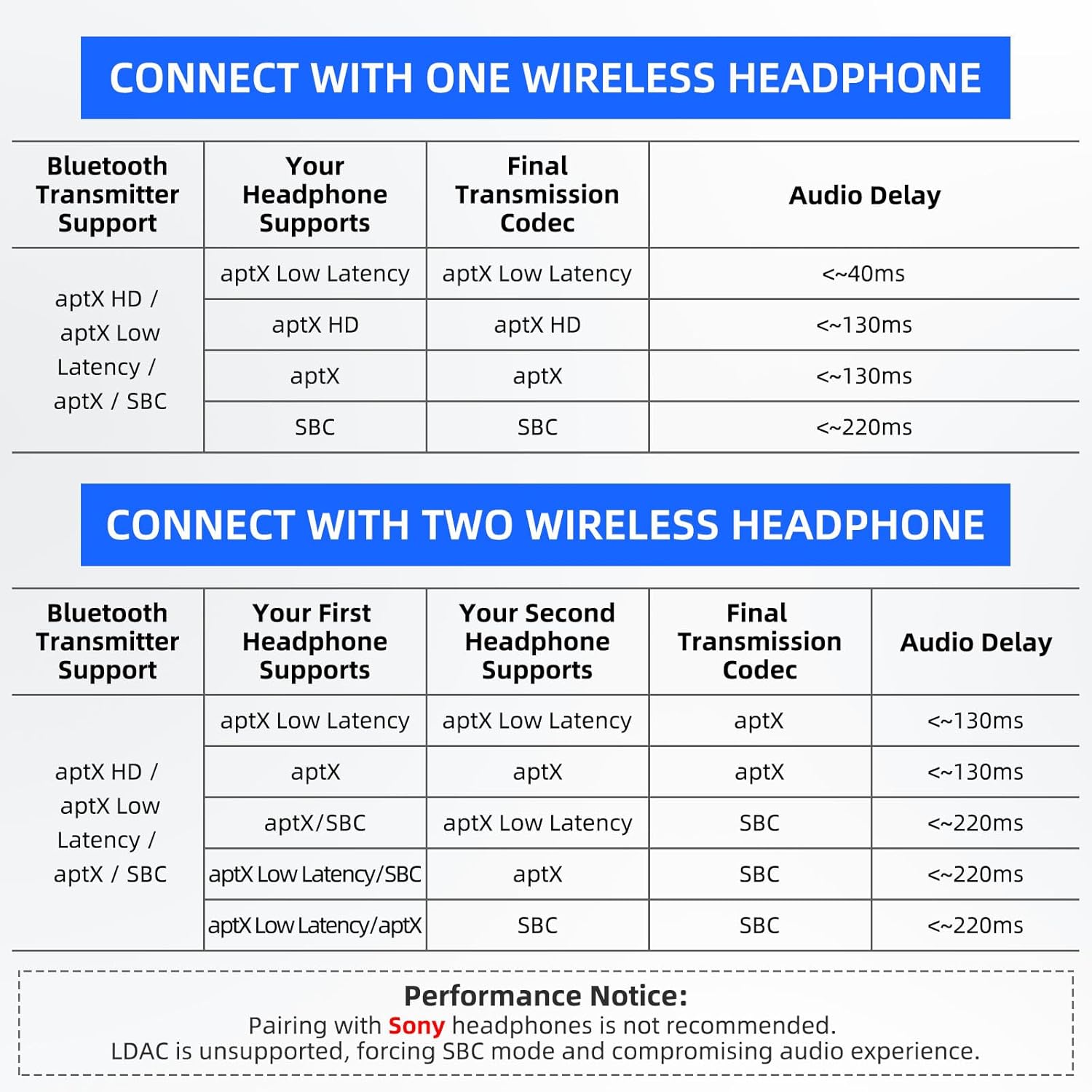
Image: A detailed table outlining expected audio delay based on the codecs supported by both the transmitter and the connected headphones, for single and dual connections.
5. Maintenance
To ensure the longevity and optimal performance of your Smof DG03 USB Bluetooth Audio Adapter, please follow these maintenance guidelines:
- Keep the adapter clean and free from dust and debris. Use a soft, dry cloth for cleaning.
- Avoid exposing the adapter to extreme temperatures, humidity, or direct sunlight.
- Store the adapter in a cool, dry place when not in use.
- Handle the adapter gently to prevent physical damage to the USB connector.
6. Troubleshooting
If you encounter issues with your Smof DG03 adapter, refer to the following common troubleshooting tips:
- No Audio/Connection:
- Ensure the adapter is fully inserted into the USB port.
- Verify your Bluetooth headphones/speaker are in pairing mode and fully charged.
- Turn off Bluetooth on any nearby devices (phones, tablets) that might interfere with pairing.
- Try re-pairing the adapter and your audio device.
- Check your device's sound settings to ensure the correct audio output (USB Headphones) is selected.
- Audio Quality Issues:
- Ensure both your source device and headphones/speaker support aptX Low Latency for the best audio experience.
- Note: This product is not recommended for use with Sony headphones, as it does not support the LDAC protocol. Even if connected, it will default to SBC mode, which may degrade audio quality.
- Reduce the distance between the adapter and your audio device, and ensure there are no major obstructions.
- Adapter Not Working with Mouse/Keyboard/Game Controllers:
- Important: The Smof DG03 adapter is designed exclusively for audio transmission. It does not support connection with TV mice, keyboards, or game controllers.
7. Specifications
| Feature | Detail |
|---|---|
| Model Number | DG03 |
| Brand | Smof |
| Hardware Interface | USB Type C |
| Color | Black |
| Compatible Devices | Speaker, Headphones |
| Data Link Protocol | Bluetooth |
| Item Weight | 0.106 ounces (3 Grams) |
| Package Dimensions | 2.76 x 2.2 x 0.67 inches |
| UPC | 652569430042 |
| Compatible Operating System Family | Windows, Mac, PS5, PS4, Switch |
8. Warranty and Support
The Smof DG03 USB Bluetooth Audio Adapter comes with a standard return policy allowing for a refund or replacement within 30 days of purchase.
For further assistance, please refer to the manufacturer's official support channels. Contact information can typically be found on the product packaging or the official Smof website.