
CUQI RM
CUQI Portable Wireless Car Stereo User Manual
Model: RM
1. Introduction
Welcome to the user manual for your CUQI Portable Wireless Apple Carplay & Android Auto Car Stereo. This manual provides detailed instructions on how to set up, operate, and maintain your device, ensuring optimal performance and a safe driving experience. Please read this manual thoroughly before using the product.
2. Package Contents
Verify that all items listed below are included in your package. If any items are missing or damaged, please contact customer support.
- CUQI Portable Car Stereo Unit
- AHD Rear Camera
- Power Cord (for cigarette lighter)
- AUX Cable
- User Manual
- Cabling Buckle (x10)
- TF Card (32GB)
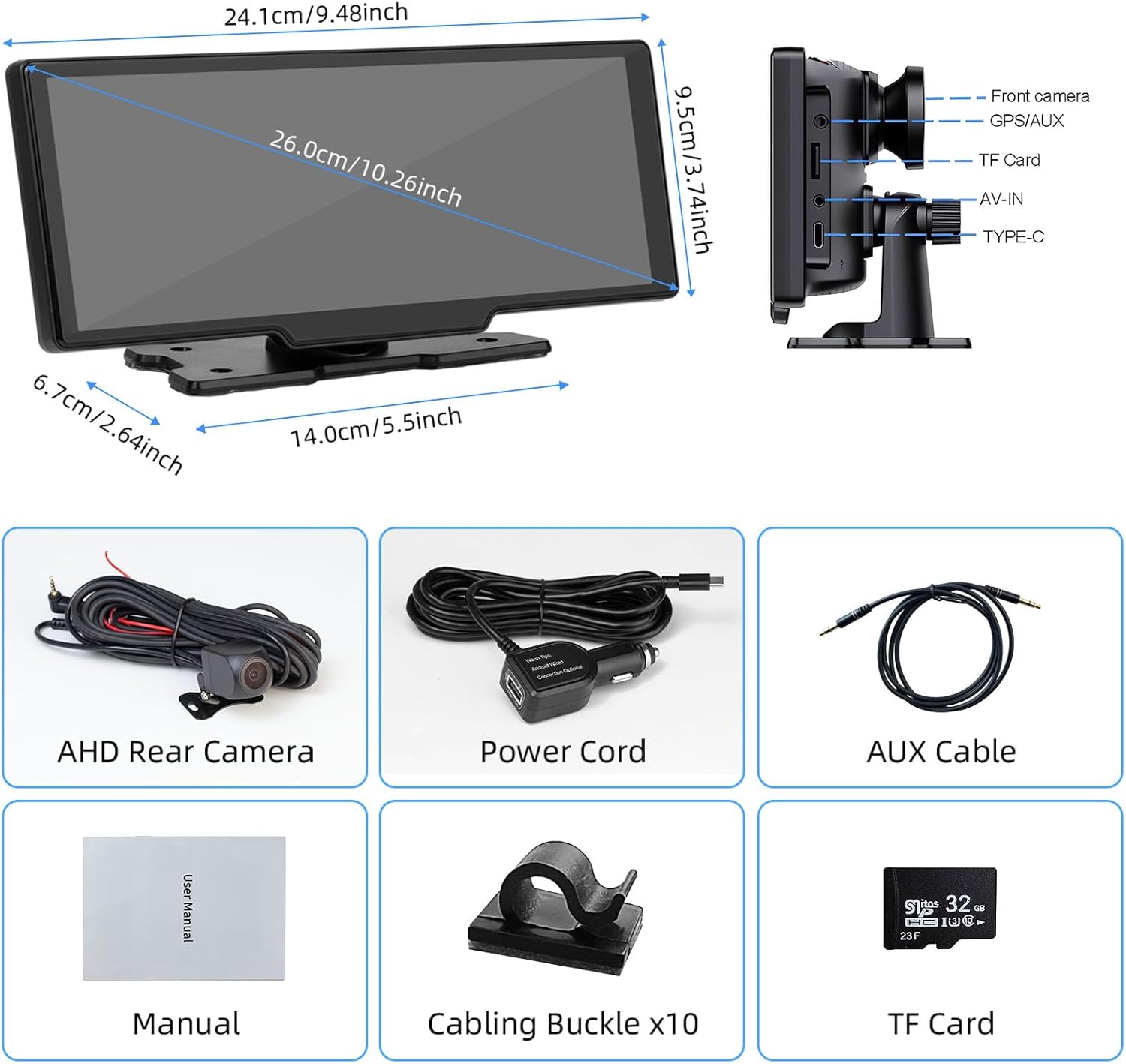
Image: Overview of the CUQI Portable Car Stereo package contents, showing the main unit, rear camera, power cord, AUX cable, user manual, cabling buckles, and a 32GB TF card.
3. Product Overview
The CUQI Portable Wireless Car Stereo is designed to enhance your driving experience with its advanced features. It includes a 10.26-inch HD IPS touchscreen, wireless Apple CarPlay and Android Auto compatibility, and dual cameras for front and rear recording.
3.1 Key Features
- 10.26 Inch Touch Screen: 1600 x 600 HD IPS screen with 2.5D smooth touch experience, supporting split-screen mode for simultaneous viewing of navigation/music and camera feeds.
- Wireless CarPlay & Android Auto: Seamless wireless connection via Bluetooth and Wi-Fi for navigation, calls, music, and app functions, with Siri and Google voice control.
- Front and Rear Cameras: Equipped with a FHD 4K front camera and a 1080P rear camera for comprehensive vehicle monitoring. Supports simultaneous viewing and loop recording with the included 32GB TF card.
- Easy Installation: Simple power connection via car's cigarette lighter and dashboard mounting, eliminating complex wiring or adapter needs.
- Four Audio Output Methods: Built-in stereo speakers, and connectivity to original car radio via Bluetooth, FM transmitter, or AUX cable for enhanced audio.

Image: The main unit of the CUQI Portable Car Stereo, showcasing its 10.26-inch touchscreen with a typical Apple CarPlay interface, including navigation, music, and various application icons. A dash camera is visible on the top of the unit.

Image: A visual representation of the wireless Apple CarPlay and Android Auto functionality, showing two smartphones (one with CarPlay, one with Android Auto) wirelessly connected to the car stereo, with voice commands for navigation and music playback.

Image: Diagram illustrating the 4K front camera and 1080P rear camera system, showing how both views can be displayed on the car stereo screen, ensuring comprehensive coverage.

Image: Demonstration of the automatic brightness adjustment feature, showing the screen adapting its brightness based on ambient light levels detected by a light-sensitive camera.

Image: Illustration of the loop recording and G-Sensor functionality, highlighting how the front and rear cameras continuously record, and how a collision automatically locks the video footage.

Image: Depiction of the Wireless Mirror-Link feature, demonstrating how content from a smartphone (e.g., Twitter, TikTok, Instagram, YouTube) can be cast to the larger car stereo screen for an enhanced visual experience.

Image: A collage showing the four different audio output methods available: the built-in speaker, AUX connection, Bluetooth connectivity, and FM transmitter, allowing flexible audio integration with the car's sound system.

Image: A comparison demonstrating the benefit of using the included wire fasteners (cabling buckles) for neat wire routing, preventing interference with car control buttons, versus a messy installation without them.
4. Setup
4.1 Initial Installation
- Mounting the Unit: Place the main unit on top of your car's dashboard. Ensure it is in a stable position that does not obstruct your view or interfere with driving controls.
- Power Connection: Insert the power cord into your car's cigarette lighter socket. The device will power on automatically.
- Rear Camera Installation (Optional):
- Mount the rear camera at the back of your vehicle, typically above the license plate or near the trunk handle.
- Route the camera cable to the main unit and connect it to the AV-IN port.
- Connect the red wire of the rear camera to your car's reverse light power for automatic display when reversing.
- TF Card Insertion: Insert the provided 32GB TF card into the designated TF Card slot on the unit. This is essential for recording dash cam footage.
- Cable Management: Use the included cabling buckles to neatly route the power cord and camera cables, preventing them from interfering with car controls or becoming a hazard.
4.2 Audio Output Configuration
You have four options to output audio from the device to your car's sound system:
- Built-in Speaker: The device has its own stereo speakers. This is the default audio output.
- AUX Connection: Connect the provided AUX cable from the device's AUX port to your car's AUX-IN port. Select AUX input on your car's stereo.
- Bluetooth Connection:
- On the CUQI unit, go to the Bluetooth settings.
- On your car's original stereo, enable Bluetooth and search for available devices.
- Pair with the CUQI device. Once connected, audio will play through your car's speakers.
- FM Transmitter:
- On the CUQI unit, select the FM Transmitter function.
- Choose an unused FM frequency (e.g., 106.0 MHz).
- Tune your car's FM radio to the same frequency. Audio from the CUQI unit will now play through your car's speakers.
5. Operating Instructions
5.1 Power On/Off
- The device powers on automatically when connected to the car's cigarette lighter and the car ignition is on.
- To power off, simply turn off your car's ignition or unplug the power cord.
5.2 Touchscreen Navigation
The 10.26-inch IPS touchscreen allows for intuitive control. Tap icons to open applications, swipe to navigate menus, and use pinch-to-zoom gestures where applicable.
5.3 Wireless CarPlay / Android Auto
- Ensure Bluetooth and Wi-Fi are enabled on your smartphone.
- On the CUQI unit, select the "CarPlay" or "Android Auto" icon.
- On your phone, search for the CUQI device in Bluetooth settings and pair.
- Follow the on-screen prompts to establish the wireless connection. Once connected, your phone's interface will be mirrored on the car stereo screen, allowing access to navigation, music, calls, and voice assistants (Siri/Google Assistant).
5.4 Dash Cam Operation (Front & Rear)
- The dash cam automatically begins recording when the device powers on, provided a TF card is inserted.
- Access the camera interface from the main menu to view live feeds from the front and rear cameras.
- You can switch between single camera views or a split-screen view.
- Loop Recording: Older files are automatically overwritten when the TF card is full, ensuring continuous recording.
- G-Sensor: In case of a sudden impact or collision, the G-Sensor will automatically lock the current video segment, preventing it from being overwritten.
- Viewing Recordings: Recordings can be viewed directly on the device or by removing the TF card and connecting it to a computer. Some models may support viewing via a dedicated mobile app.
5.5 Mirror Link Function
The Wireless Mirror-Link function allows you to cast your smartphone screen to the car stereo. This is useful for displaying content from apps not natively supported by CarPlay/Android Auto.
- Select the "Mirror Link" or "AirPlay/Android Cast" icon on the device.
- Follow the on-screen instructions to connect your phone via Wi-Fi.
- Once connected, your phone's screen will be mirrored on the car stereo.
6. Maintenance
- Cleaning: Use a soft, dry cloth to clean the screen and exterior of the device. Do not use abrasive cleaners or solvents.
- TF Card: Periodically format the TF card (at least once a month) to ensure optimal recording performance and prevent data corruption. Back up any important footage before formatting.
- Firmware Updates: Check the manufacturer's website periodically for firmware updates. Updates can improve performance, add features, and fix bugs. Follow the instructions provided with the update carefully.
- Temperature: Avoid exposing the device to extreme temperatures (very hot or very cold) for extended periods, as this can affect its lifespan and performance.
7. Troubleshooting
| Problem | Possible Cause | Solution |
|---|---|---|
| Device does not power on. | No power from cigarette lighter; loose connection. | Check cigarette lighter fuse; ensure power cord is securely plugged in. Test with another power source if possible. |
| No audio from car speakers. | Incorrect audio output method selected; volume too low. | Verify AUX, Bluetooth, or FM connection. Ensure car stereo is on correct input. Increase volume on both devices. |
| CarPlay/Android Auto not connecting. | Bluetooth/Wi-Fi off on phone; incorrect pairing. | Ensure phone's Bluetooth and Wi-Fi are on. Forget device on phone and re-pair. Restart both devices. |
| Dash cam not recording. | TF card missing or full; card error. | Ensure TF card is inserted correctly. Format the TF card (backup data first). Try a different TF card. |
| Rear camera not displaying. | Loose cable connection; incorrect wiring. | Check the AV-IN cable connection. Verify the rear camera's power wire is correctly connected to the reverse light (if applicable). |
8. Specifications
| Feature | Detail |
|---|---|
| Model Name | RM |
| Screen Size | 10.26 Inch (1600 x 600 HD IPS) |
| Front Camera | FHD 4K |
| Rear Camera | 1080P |
| Connectivity | Bluetooth, Wi-Fi, AUX, FM Transmitter |
| Supported Features | Wireless Apple CarPlay, Wireless Android Auto, Mirror Link, Loop Recording, G-Sensor, Automatic Brightness Adjustment |
| Storage | Supports TF Card (32GB included) |
| Package Dimensions | 27.1 x 13.8 x 10.2 cm |
| Weight | 1.14 kg |
| Manufacturer | CUQI |
9. Warranty and Support
CUQI provides a one-year warranty for this product. Additionally, lifetime support is available for product version upgrades and other services. For any questions or assistance regarding your CUQI Portable Wireless Car Stereo, please contact our customer support team.
For warranty claims or technical support, please refer to the contact information provided on the product packaging or the official CUQI website.
Extended warranty options may also be available through third-party providers, such as the 1-Year or 2-Year Extended Warranty by Salama Care, as detailed at the point of purchase.
Ask a question about this manual
Ask about setup, troubleshooting, compatibility, parts, safety, or missing instructions. Manuals+ will review the question and use this page’s manual context to help answer it.