
EVERSECU HM-30D
EVERSECU HD 2K 3.0MP WiFi Home Security Camera (Model HM-30D) User Manual
Your comprehensive guide to setup, operation, and features.
1. Introduction
Thank you for choosing the EVERSECU HD 2K 3.0MP WiFi Home Security Camera. This manual provides essential information for the proper installation, operation, and maintenance of your device. Please read it thoroughly before use and retain it for future reference.
2. Product Overview
The EVERSECU HD 2K 3.0MP WiFi Home Security Camera is an advanced indoor surveillance solution designed for monitoring your home, pets, children, or elderly family members. It features high-definition video, dual-band WiFi connectivity (2.4G & 5G), humanoid auto-tracking, two-way audio, and enhanced night vision. The camera is also compatible with Amazon Alexa for convenient voice control.
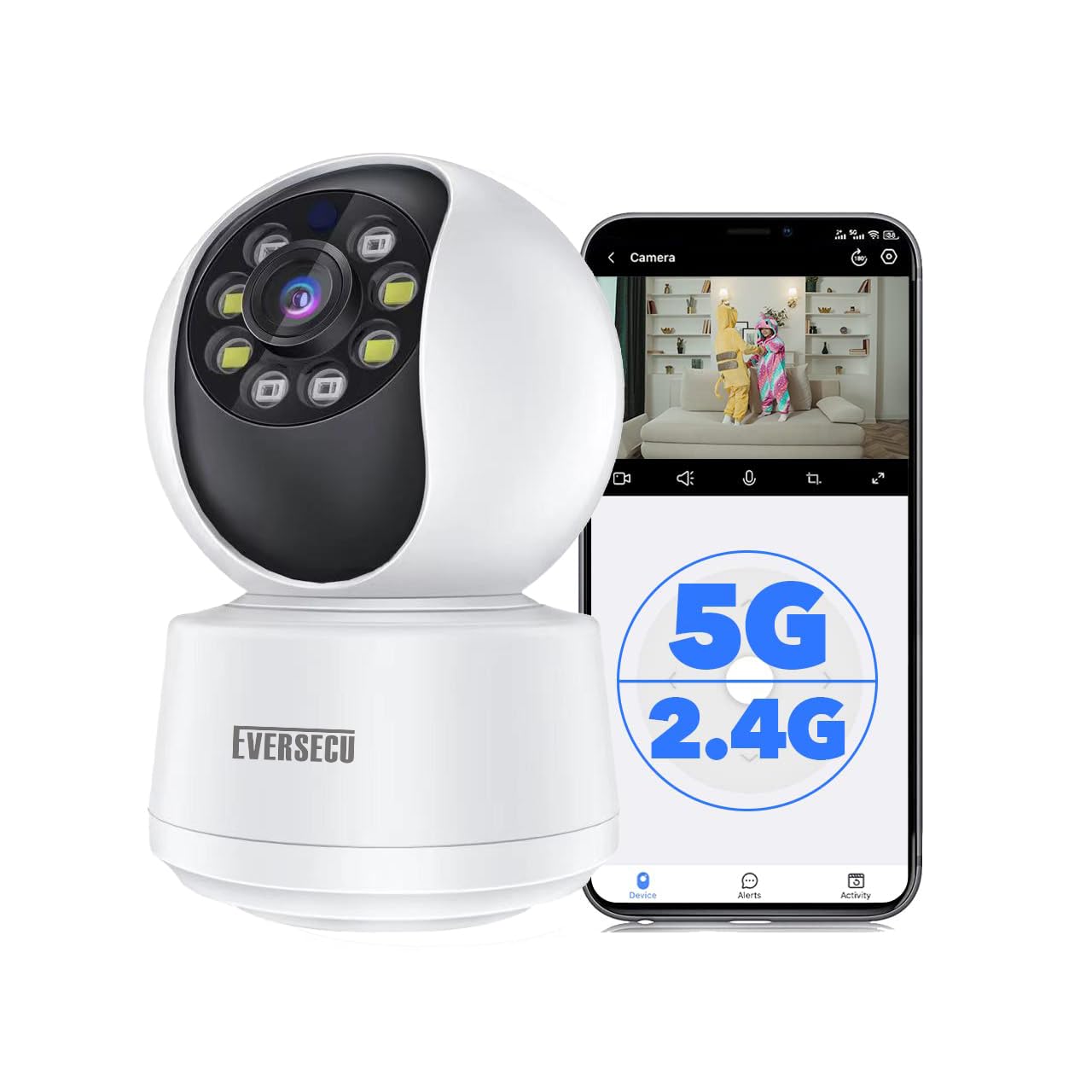
Image: The EVERSECU HD 2K 3.0MP WiFi Home Security Camera, a compact dome-shaped device with multiple lenses and infrared sensors, designed for indoor surveillance.
3. What's in the Box
Upon unpacking, please ensure all items are present and in good condition:
- EVERSECU HD 2K 3.0MP WiFi Home Security Camera Body
- Power Adapter (Corded Electric)
- Mounting Accessories (Screws, Wall Plugs)
- User Manual
4. Setup Guide
4.1. Initial Preparation
- Unpack the Camera: Carefully remove the camera and all accessories from the packaging.
- Power Connection: Connect the power adapter to the camera and plug it into a power outlet. The camera will power on and initiate its startup sequence.
- Download the App: Search for the designated mobile application (e.g., O-KAM Pro or similar as indicated in the quick start guide) on your smartphone's app store (iOS or Android) and install it.
- Create an Account: Open the app and follow the on-screen instructions to create a new user account or log in if you already have one.
4.2. MicroSD Card Installation (Optional)
For local storage of video footage, you can install a microSD card (up to 128 GB, not included).
- Locate the SD Card Slot: The microSD card slot is typically located on the camera body, often under a protective cover or by gently tilting the camera lens upwards.
- Insert MicroSD Card: Carefully insert the microSD card into the slot with the contacts facing the correct direction until it clicks into place.
- Format the Card: Once inserted, it is recommended to format the microSD card via the camera's settings in the mobile app for optimal performance.

Video: This video demonstrates the process of installing a microSD card into the EVERSECU camera, including locating the slot and inserting the card.
4.3. Connecting to Wi-Fi
- Add Device: In the mobile app, tap the '+' icon or 'Add Device' to begin the pairing process.
- Select Camera Type: Choose the appropriate camera model from the list.
- Network Configuration: Follow the app's instructions to connect the camera to your 2.4G or 5G WiFi network. This usually involves scanning a QR code displayed on your phone with the camera or entering WiFi credentials.
- Completion: Once connected, the camera will be added to your device list in the app, and you can begin live viewing.
4.4. Mounting the Camera
The camera is designed for indoor use and can be ceiling-mounted.
- Choose a Location: Select a suitable indoor location with a clear view of the area you wish to monitor and within range of your WiFi signal.
- Mark Drill Holes: Use the provided mounting bracket as a template to mark the screw positions on the ceiling.
- Drill Holes: Drill pilot holes at the marked positions and insert wall plugs if necessary.
- Secure Bracket: Attach the mounting bracket to the ceiling using the provided screws.
- Attach Camera: Securely attach the camera to the mounting bracket. Ensure it is firmly in place.
5. Operation
5.1. Live View
Open the mobile app and select your camera from the device list to access the live video feed. You can switch between different camera views (e.g., tracking camera, panorama camera) if your model supports multiple lenses.
5.2. Pan/Tilt Control
Use the directional controls within the app to remotely pan (350° horizontal) and tilt (80° vertical) the camera lens to adjust the viewing angle. This allows for comprehensive coverage of your space.

Image: A smartphone screen showing pan and tilt controls for the EVERSECU camera, illustrating its 355° horizontal and 90° vertical rotation capabilities for full coverage.
5.3. Two-Way Audio
The camera supports two-way audio communication. Tap the microphone icon in the app to speak through the camera's speaker, and listen to audio from the camera's built-in microphone.

Image: A baby in a crib with the EVERSECU camera nearby, illustrating the two-way audio feature for communication via the app.
5.4. Night Vision
The camera automatically switches to enhanced night vision mode in low-light conditions, providing clear black and white or color footage up to 33 feet in the dark.

Image: A child sleeping in a dimly lit room, with the EVERSECU camera providing clear night vision, highlighting its ability to see up to 33ft in the dark.
6. Key Features
6.1. 2K (2304x1296) High Definition Video
Capture every detail with crystal-clear 2K high-definition video, allowing you to clearly see objects and activities within your home.

Image: A side-by-side comparison of 1080P and 3MP (2K) image quality, demonstrating the superior detail captured by the 3MP EVERSECU camera in an indoor setting.
6.2. Humanoid Auto Tracking
The camera features a highly sensitive motion sensor that detects and tracks human movement. When a person enters the monitored area, the camera will automatically follow their motion and record the activity.

Image: An illustration of the camera's human automatic tracking function, showing the camera following a person's movement within a room, ensuring continuous surveillance.

Image: A child playing in a living room, with red tracking boxes indicating the camera's humanoid tracking capability, ensuring the child remains in view.
6.3. Motion Detection & Instant Notification
Receive instant push notifications on your smartphone when motion or a person is detected. The app can also discern between general motion and specific events like baby crying (with subscription), helping you prioritize alerts.

Image: A smartphone displaying a motion detection alert from the camera, showing the camera tracking a pet's movement in a living room, with real-time synchronization to the app.
6.4. Secure Local or Cloud Storage
Footage can be saved continuously on a microSD card (up to 128 GB, not included). Alternatively, subscribe to cloud storage for a 30-day video history and additional benefits like motion tracking and baby crying detection.
6.5. ONVIF Conformant & Works With Alexa
The camera is fully compatible with Amazon Alexa, allowing you to view the live stream on an Echo Show or other compatible screen using simple voice commands. It is also ONVIF conformant for integration with NVR systems.

Image: The EVERSECU camera connected to an NVR system via WiFi, demonstrating its ONVIF conformant capability for 24/7 reliable recording and support for RTSP.
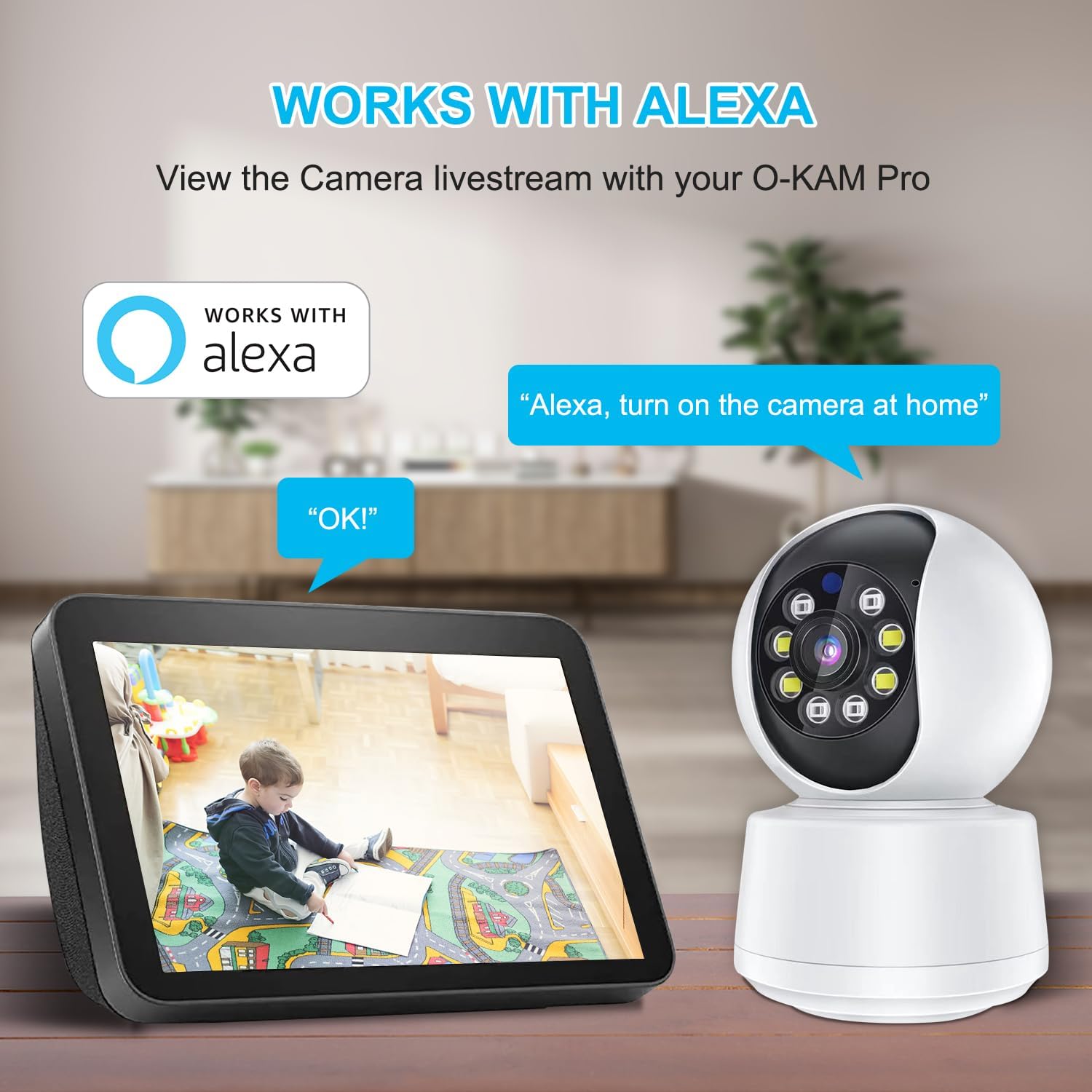
Image: An Echo Show displaying the camera's live stream, with speech bubbles indicating voice commands like "Alexa, turn on the camera at home," showcasing Alexa compatibility.
7. Maintenance
- Regular Cleaning: Gently wipe the camera lens and body with a soft, dry cloth to remove dust and smudges. Avoid using harsh chemicals or abrasive materials.
- Firmware Updates: Periodically check the mobile app for available firmware updates. Keeping your camera's firmware up-to-date ensures optimal performance and security.
- Network Stability: Ensure your WiFi network is stable and strong to maintain a consistent connection for the camera.
- Data Backup: If using a microSD card, regularly back up important footage to another storage device.
8. Troubleshooting
8.1. Camera Offline
- Check Power: Ensure the camera is properly plugged in and receiving power.
- WiFi Connection: Verify your router is working and the camera is within WiFi range. Try restarting your router.
- Re-pair Camera: If issues persist, try re-pairing the camera with the app following the setup instructions.
8.2. Poor Video Quality
- Network Speed: Ensure your internet connection speed is sufficient for streaming 2K video.
- App Settings: In the app, check the video quality settings and ensure it's set to HD or Super HD.
- Lens Cleanliness: Clean the camera lens to remove any dust or smudges.
8.3. Motion Detection Not Working
- Enable Feature: Ensure motion detection is enabled in the camera's settings within the app.
- Sensitivity Settings: Adjust the motion detection sensitivity in the app.
- Activity Zones: If using activity zones, ensure they are correctly configured to cover the desired areas.
9. Specifications
| Feature | Specification |
|---|---|
| Model Name | ES-951 |
| Item Model Number | HM-30D |
| Brand | EVERSECU |
| Video Capture Resolution | 2K (2304x1296p) |
| Connectivity Technology | Wireless (2.4G & 5G Wi-Fi) |
| Indoor/Outdoor Usage | Indoor |
| Special Feature | Motion Sensor, Night Vision, Humanoid Auto Tracking, 2-Way Audio |
| Controller Type | Amazon Alexa, App |
| Mounting Type | Ceiling Mount |
| Power Source | Corded Electric |
| Storage Options | MicroSD Card (up to 128GB), Cloud Storage (subscription) |
| Product Dimensions | 4 x 4 x 8.7 inches |
| Item Weight | 10.2 ounces |
| Material | Plastic |
10. Warranty and Support
For warranty information and technical support, please refer to the official EVERSECU website or contact their customer service directly. Details are typically provided on the product packaging or within the mobile application's help section.
Ask a question about this manual
Ask about setup, troubleshooting, compatibility, parts, safety, or missing instructions. Manuals+ will review the question and use this page’s manual context to help answer it.