
LeeKooLuu 6886C
LeeKooLuu 1 Din Car Stereo User Manual
Model: 6886C
Introduction
This manual provides detailed instructions for the installation, operation, and maintenance of your LeeKooLuu 1 Din Car Stereo. Please read this manual thoroughly before using the product to ensure proper functionality and safety.

Image: LeeKooLuu 1 Din Car Stereo main unit, showing the 6.9-inch touchscreen display, along with the included remote control, external microphone, and rear view camera. This image provides an overview of the product and its key accessories.
Package Contents
Verify that all items listed below are included in your package:
- 1 x LeeKooLuu Car MP5 Player (Model 6886C)
- 1 x Power Cable
- 1 x Horn Cable
- 1 x Microphone (MIC)
- 1 x Remote Control
- 1 x User Manual
- 1 x Rear View Camera

Image: A detailed diagram illustrating the product's dimensions (6.86 inches screen, 187mm width, 70mm height, 80mm depth), the rear panel with numbered wiring ports (including power, horn, RCA, USB, GPS, camera input), and visual representations of the included accessories: remote control, user manual, microphone, and rear camera. This helps in identifying all components and understanding the physical layout.
Setup and Installation
Wiring Connections
Before installation, ensure the vehicle's battery is disconnected. Refer to the wiring diagram for correct connections.
- Power Cable: Connect to the vehicle's power supply (12V DC).
- Horn Cable: Connect to the vehicle's speaker system.
- Rear View Camera Input (CVBS): Connect the included rear view camera to this port for automatic display when reversing.
- USB Ports: Two USB ports are available. One for media playback (U disk) and another for mobile phone charging (5V 1.5A).
- AUX Input: For external audio devices.
- Microphone (MIC): Connect the external microphone for hands-free calling.
Image: A close-up of the rear panel of the car stereo, clearly labeling the various input and output ports. This includes connections for the power cable, horn cable, RCA outputs (R-OUT, L-OUT), CVBS input for the rear camera, GPS antenna, and USB ports. This visual aid is crucial for correct installation and wiring.
Rear View Camera Installation
The included rear view camera provides parking assistance. Connect the camera to the CVBS input on the car stereo. When the vehicle is put into reverse gear, the stereo monitor will automatically display the rear view.

Image: This graphic demonstrates the "Reversing Video Input" feature. It shows the car stereo displaying a rear view with parking guidelines, and highlights the capabilities of the included rear camera: Night Vision, Waterproof design, HD Image quality, and Wide Angle view. A small icon of the rear camera is also shown, indicating its inclusion.
Operating Instructions
Basic Operation
- Power On/Off: Press the power button on the unit or remote control.
- Volume Control: Adjust using the volume buttons on the unit, steering wheel controls, or remote control.
- Mode Selection: Switch between Radio, USB, TF, AUX, Bluetooth, CarPlay/Android Auto modes using the touchscreen interface.
- Power-off Memory: The unit automatically recalls the last playback state (music or radio) when restarted.
Apple CarPlay & Android Auto
Connect your Apple or Android phone to the car stereo via a USB cable to access navigation, music, video, voice assistant, and other phone functions directly on the stereo screen. Note: Huawei and Samsung phones are not supported for this feature.

Image: This graphic illustrates the Apple CarPlay and Android Auto functionality. It shows the car stereo displaying typical smartphone interfaces with app icons for navigation (Maps, Waze), communication (Phone, WhatsApp), and entertainment (YouTube, Spotify). The image emphasizes the wired connection required for these features.
Bluetooth Functionality
The stereo supports Bluetooth 5.0 for hands-free calling and music playback. Pair your mobile phone with the device (Bluetooth designation: CAR BT) to make and receive calls, and stream audio wirelessly.

Image: This image highlights the Bluetooth 5.1 Version feature, showing a woman in a car making a call hands-free. The car stereo display shows a phone dial pad, indicating call functionality. Text bubbles suggest common voice commands or responses, emphasizing the convenience of hands-free communication.
Mirror Link
Connect your mobile phone using its original USB data cable to synchronize your phone's screen to the car radio screen. This allows you to view GPS navigation, videos, and other content from your phone directly on the stereo display.
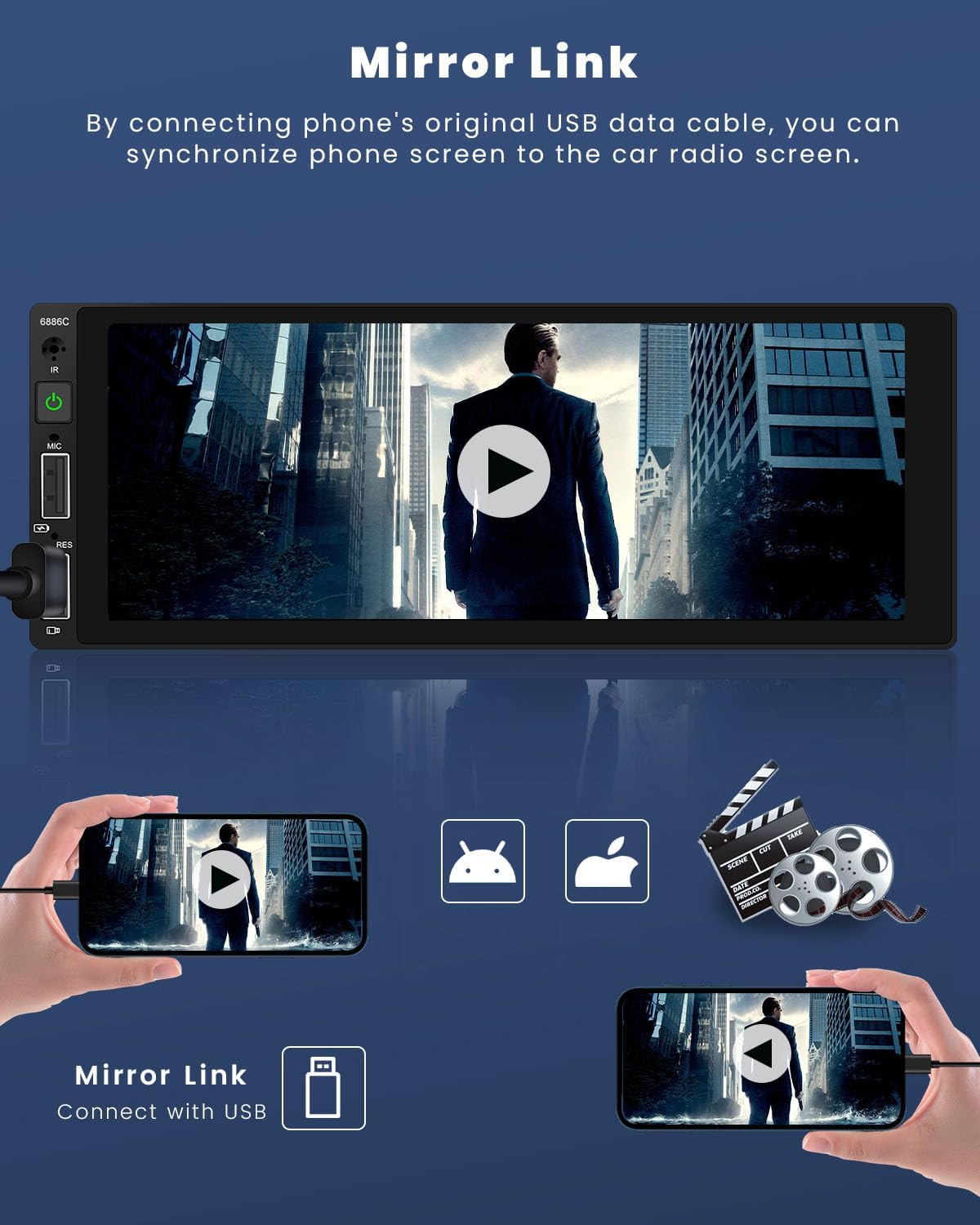
Image: This graphic illustrates the "Mirror Link" feature. It shows a smartphone connected via USB cable to the car stereo, with the phone's screen content (e.g., a video) being mirrored onto the larger car stereo display. This feature allows users to view content from their phone directly on the car's screen.
Audio and Media Playback
- FM Radio: The built-in FM radio (frequency: 87.5-108 MHz) can be preset with 18 stations.
- EQ Settings: Utilize the electronic sound processing (EQ) with multiple equalizer modes to adjust treble and bass for optimal audio quality.
- USB/TF Card Playback: Supports large TF cards and U disks for storing and playing audio (MP3/WMA/WAV/APE/FLAC) and video (RM/RMVB/AVI/MP4/MKV/3GP) files.
- Image Viewing: Supports JPG, BMP, PNG image formats.
Customization and Controls
- Colorful Backlight: The key backlights can change automatically, or you can select your preferred color from the setup menu.
- Steering Wheel Control: Supports connection to your vehicle's steering wheel controls for convenient operation without taking your hands off the wheel.
- Remote Control: The included remote control provides full functionality for easy operation from a distance.
- Fast Charging: One of the USB ports provides 5V 1.5A output for fast charging of mobile phones.

Image: This composite image showcases several features: "Seven Color Backlight" demonstrating various key illumination options; "Steering Wheel Control" showing the interface for configuring steering wheel buttons; "Remote Control" illustrating the included remote and its use; and "Fast Charging Function" highlighting the USB port's ability to quickly charge mobile devices.
Maintenance
- Cleaning: Use a soft, dry cloth to clean the screen and unit. Do not use abrasive cleaners or solvents.
- Temperature: Avoid exposing the unit to extreme temperatures or direct sunlight for prolonged periods.
- Moisture: Keep the unit dry. Do not expose it to water or excessive humidity.
- Firmware Updates: Check the manufacturer's website for any available firmware updates to ensure optimal performance and compatibility.
Troubleshooting
| Problem | Possible Cause | Solution |
|---|---|---|
| Unit does not power on. | Incorrect power wiring; Blown fuse; Vehicle battery issue. | Check power cable connections. Verify vehicle fuse and battery. Consult a professional if unsure. |
| No sound from speakers. | Incorrect speaker wiring; Volume too low; Mute function active. | Check horn cable connections. Increase volume. Deactivate mute. |
| Bluetooth connection issues. | Phone not discoverable; Incorrect pairing; Interference. | Ensure phone's Bluetooth is on and discoverable. Re-pair the device. Move away from other electronic devices. |
| Rear camera image not displayed. | Camera not connected; Incorrect wiring; Camera malfunction. | Verify camera connection to CVBS input. Check camera power supply. Test camera functionality. |
| CarPlay/Android Auto not working. | Incorrect USB cable; Phone not supported (Huawei/Samsung); Software issue. | Use original USB data cable. Confirm phone compatibility. Restart phone and stereo. |
Specifications
| Model: | 6886C (LeeKooLuu-A3445A1AM47EU) |
| Voltage: | 12V DC |
| System: | WINCE |
| Screen Size: | 6.9 inches |
| Screen Resolution: | 1280 x 480 pixels |
| Output Power: | 45W x 4 |
| Bluetooth Version: | 5.0 |
| Radio Band: | FM (87.5-108 MHz) |
| Supported Audio Formats: | MP3/WMA/WAV/APE/FLAC |
| Supported Video Formats: | RM/RMVB/AVI/MP4/MKV/3GP |
| Supported Image Formats: | JPG BMP PNG |
| USB Charging Output: | 5V 1.5A |
| Languages: | English, Chinese, Spanish, Portuguese, Russian, Italian, German, French, Turkish, Czech, Arabic, Polish, Hebrew |
Warranty and Support
For warranty information and technical support, please refer to the contact details provided with your purchase or visit the official LeeKooLuu website. Keep your purchase receipt as proof of purchase.
Note: Information regarding software updates and spare parts availability is not explicitly provided in the product details. Please contact customer support for the latest information.
Ask a question about this manual
Ask about setup, troubleshooting, compatibility, parts, safety, or missing instructions. Manuals+ will review the question and use this page’s manual context to help answer it.