
LeeKooLuu LeeKooLuu-A3466A3AM47EU
LeeKooLuu 1 Din Car Radio User Manual
Model: LeeKooLuu-A3466A3AM47EU
1. Product Overview
The LeeKooLuu 1 Din Car Radio is a versatile in-car entertainment and communication system featuring a 5-inch touchscreen. It supports Apple CarPlay, Android Auto, Bluetooth hands-free calling, FM radio, and includes a rear view camera for enhanced safety. The unit also offers USB and TF card playback, fast charging capabilities, and steering wheel control compatibility.
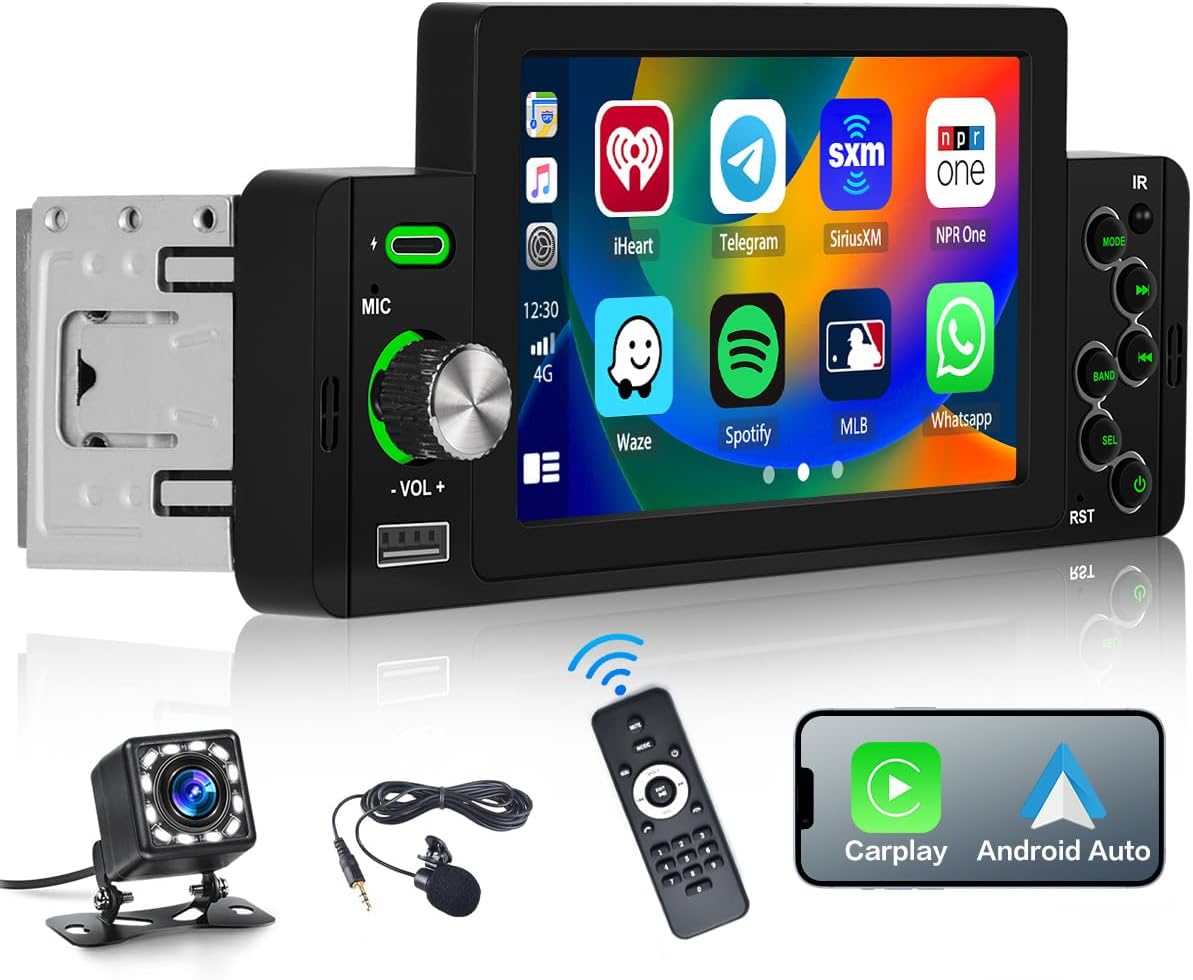
Image: LeeKooLuu 1 Din Car Radio with 5-inch touchscreen, remote control, microphone, and rear view camera.
2. Setup and Installation
2.1 Package Contents
- 1 x LeeKooLuu 1 Din Car Radio
- 1 x Rear View Camera
- 1 x Remote Control
- 1 x Microphone
- 1 x Power Cable
- 1 x Speaker Cable
- 1 x User Manual
2.2 Dimensions and Compatibility
The installation size of the unit is approximately 177mm (width) x 58mm (height) x 49mm (depth). Please ensure your vehicle's dashboard opening is compatible with these dimensions. If unsure, consult a professional installer or compare with your vehicle's existing head unit.
2.3 Wiring Diagram
Proper wiring is crucial for safe and correct operation. Refer to the detailed wiring diagram below for connections including power, speakers, antenna, and auxiliary inputs/outputs. It is recommended to have installation performed by a qualified technician.

Image: Detailed diagram showing product dimensions, rear wiring ports, and color-coded wiring harness connections for power, speakers, and control lines.
Key Wiring Connections:
- Power Cable: Connect to vehicle's power supply (GND, +12V Ignition Switch, B+(+12V)).
- Speaker Cable: Connect to vehicle's speakers (Front Right, Front Left, Rear Right, Rear Left).
- Reversing Control Line: Connect to vehicle's reverse light signal for automatic rear camera display.
- Steering Wheel Control: Connect to vehicle's steering wheel control wires (Key1, Key2) if applicable.
- Antenna: Connect to vehicle's radio antenna.
3. Operating Instructions
3.1 Power On/Off and Volume Control
Press the power button on the unit or remote control to turn the device on or off. Rotate the volume knob to adjust the audio output level. The touchscreen also provides on-screen volume controls.

Image: Visual representation of volume adjustment via knob and remote control functions.
3.2 Apple CarPlay and Android Auto
Connect your Apple or Android smartphone to the car radio via a USB cable. This enables access to navigation, music, voice assistant, and other compatible applications directly on the car radio's screen. Note: Huawei and Samsung phones may not be supported for this feature.
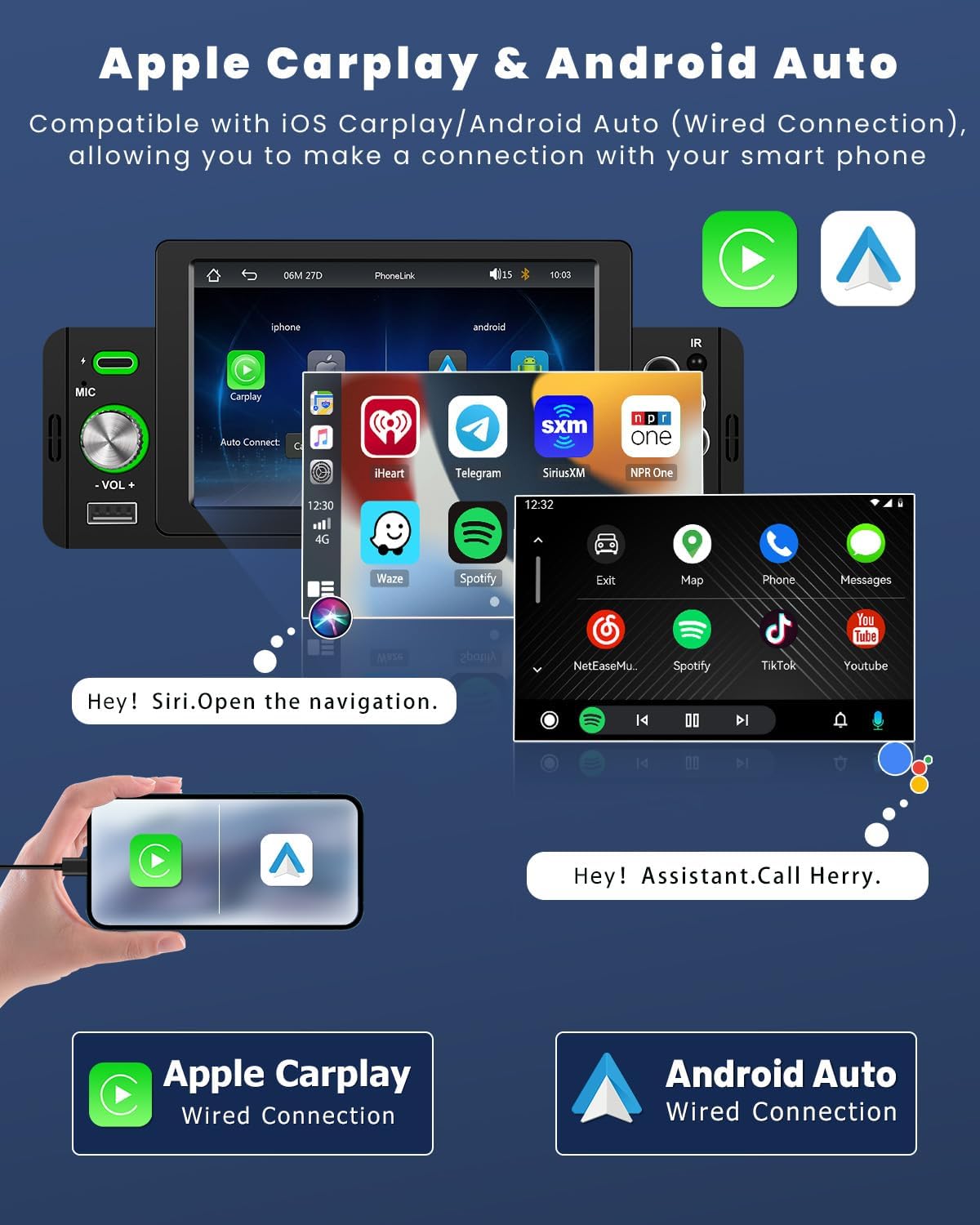
Image: Screenshots demonstrating the Apple CarPlay and Android Auto interfaces on the car radio screen, showing app icons and voice command prompts.
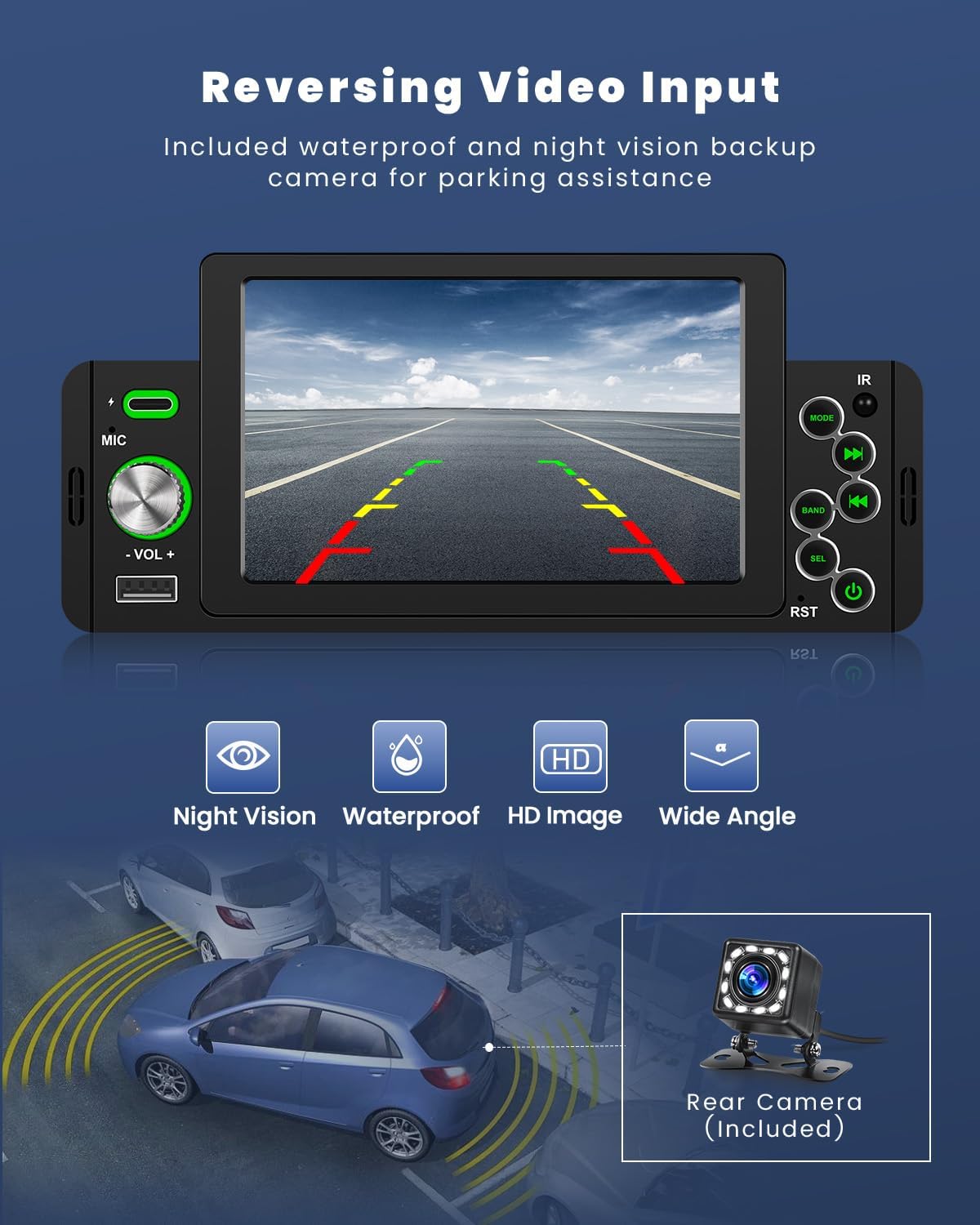
Image: Illustration of voice control functionality for Apple CarPlay and Android Auto, showing voice commands like "Hey Siri! Turn off radio" and "Play a fast song."
3.3 Bluetooth Connectivity
The car radio features Bluetooth 5.1 for hands-free calling and wireless music streaming. Pair your smartphone with the unit to make and receive calls, and play audio directly from your device.
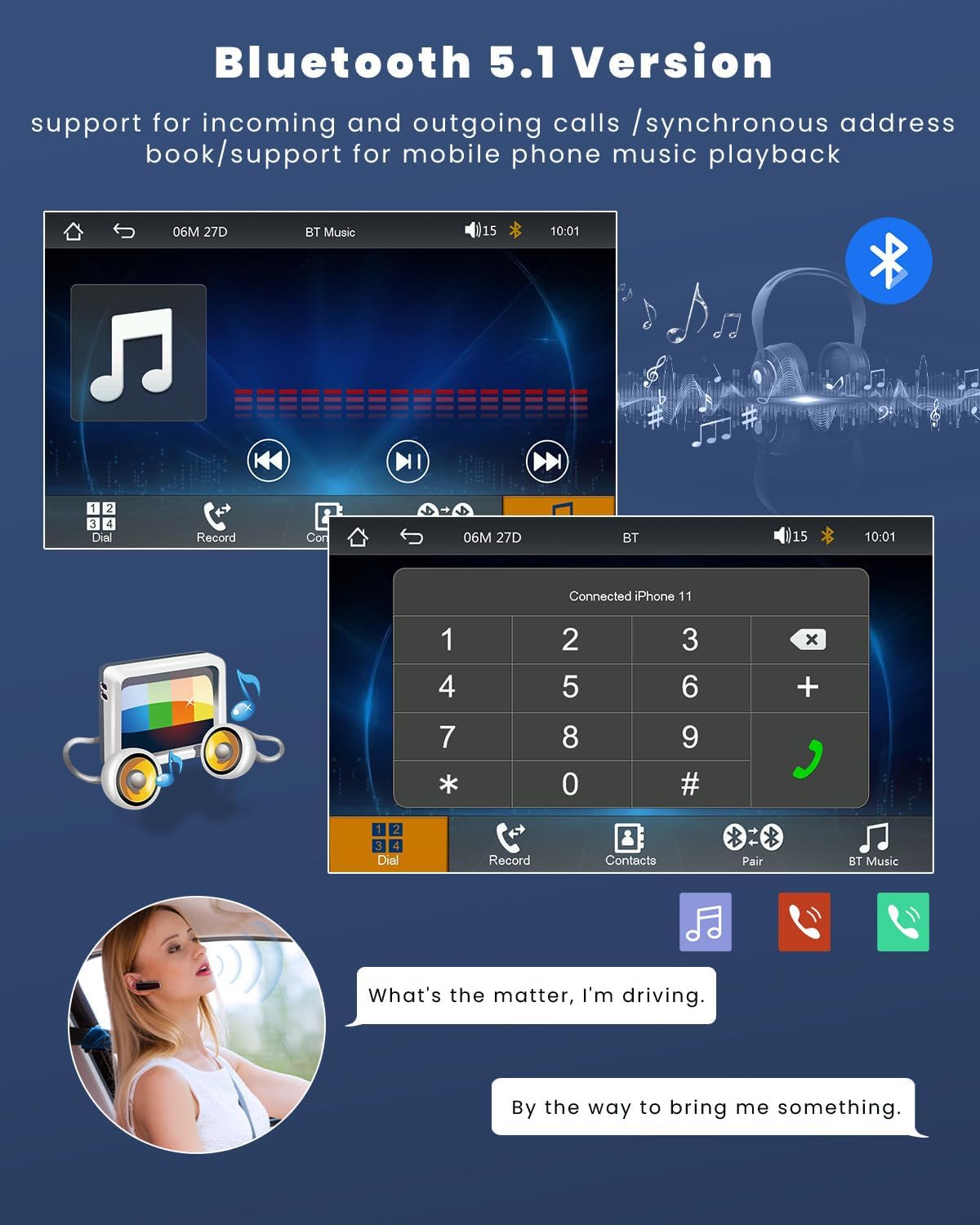
Image: Screenshots of the Bluetooth interface showing call dialing, contact list, and music playback controls.
3.4 FM Radio
Access the integrated FM radio to listen to live traffic reports, news, and music. The unit allows presetting up to 18 stations for quick access. Use the EQ settings to customize the audio output.

Image: Screenshots of the FM radio interface displaying frequency tuning, station presets, and scan options.
3.5 Rear View Camera Function
When connected to the included rear view camera, the touchscreen display will automatically show the reverse image when the vehicle is put into reverse gear, aiding in parking and maneuvering.
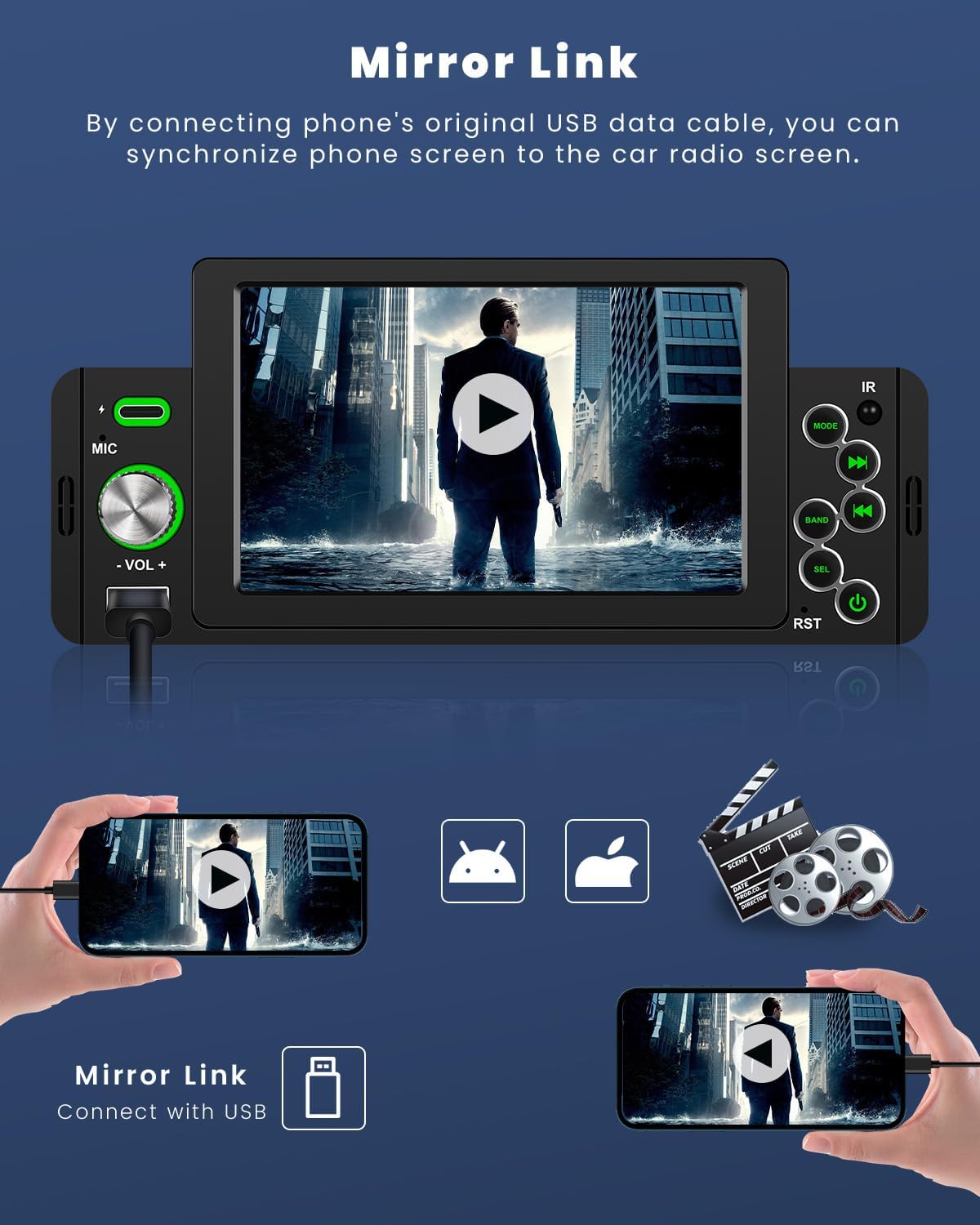
Image: Display showing the rear view camera feed with parking guidelines, highlighting night vision, waterproof, HD image, and wide angle features.
3.6 Mirror Link
Mirror Link allows you to synchronize your smartphone's screen to the car radio display using a USB data cable. This enables viewing GPS navigation, videos, and other content from your phone on the larger car radio screen.

Image: Illustration of Mirror Link showing a smartphone screen mirrored onto the car radio display, with both iOS and Android compatibility.
3.7 USB and TF Card Playback & Fast Charging
The unit supports USB and TF card input for playing music and videos. The USB port also provides 5V 1.5A power for charging mobile phones.

Image: Depiction of USB and Type-C ports for charging and U-disk media playback within a car dashboard.
3.8 Steering Wheel Control
If your vehicle supports steering wheel controls, you can connect them to the car radio to quickly switch functions, adjust volume, and manage calls without taking your hands off the wheel, enhancing driving safety.
Image: Screenshot of the steering wheel control setup menu on the car radio, showing options to map vehicle controls.
4. Maintenance
To ensure the longevity and optimal performance of your car radio, follow these maintenance guidelines:
- Cleaning: Use a soft, dry cloth to wipe the touchscreen and exterior of the unit. For stubborn smudges, slightly dampen the cloth with water or a screen-safe cleaner. Avoid abrasive cleaners or solvents.
- Temperature: Avoid exposing the unit to extreme temperatures, both hot and cold, for extended periods.
- Connections: Periodically check all cable connections to ensure they are secure and free from corrosion.
- Software Updates: Check the manufacturer's website for any available firmware updates to improve performance and add new features.
5. Troubleshooting
If you encounter issues with your LeeKooLuu car radio, refer to the following common problems and solutions:
| Problem | Possible Cause | Solution |
|---|---|---|
| Unit does not power on. | No power supply; Blown fuse; Incorrect wiring. | Check power connections; Inspect vehicle's fuse box; Verify wiring according to diagram. |
| No sound. | Volume too low; Mute activated; Speaker wiring issue. | Increase volume; Deactivate mute; Check speaker connections. |
| Bluetooth not connecting. | Bluetooth not enabled on phone/unit; Incorrect pairing process. | Ensure Bluetooth is on; Re-attempt pairing process; Forget device and re-pair. |
| Rear camera not displaying. | Camera not connected; Reverse trigger wire not connected. | Check camera and video input connections; Verify reverse trigger wire connection. |
| CarPlay/Android Auto not working. | Faulty USB cable; Incompatible phone model; Software glitch. | Use original or certified USB cable; Check phone compatibility; Restart phone and unit. |
If the problem persists after attempting these solutions, please contact customer support.
6. Specifications
| Feature | Specification |
|---|---|
| Product Dimensions | 18.7T x 5.8W x 8.2H cm (7.36 x 2.28 x 3.23 inches) |
| Weight | 770 Grams |
| Model Number | LeeKooLuu-A3466A3AM47EU |
| Connectivity Technology | Bluetooth, USB |
| Controller Type | iOS, Push Button, Android |
| Special Features | Touchscreen, Equalizer |
| Compatible Devices | Smartphone |
| Connector Type | RCA, USB 2.0 |
| Audio Output Mode | Stereo |
| Video Encoding | FLV |
| Color | Black |
7. Warranty and Support
LeeKooLuu is committed to providing excellent customer service and professional technical support. If you have any questions, require assistance with installation, or encounter any issues with your product, please do not hesitate to contact our support team.
While specific warranty details are not provided in this manual, please refer to your purchase documentation or the seller's website for information regarding warranty coverage and terms.
For technical inquiries or customer service, please reach out through the contact information provided at the point of purchase or on the official LeeKooLuu website.
Ask a question about this manual
Ask about setup, troubleshooting, compatibility, parts, safety, or missing instructions. Manuals+ will review the question and use this page’s manual context to help answer it.