
OMOTON KB568
OMOTON Foldable Bluetooth Keyboard User Manual
Model: KB568
1. Introduction
Welcome to the user manual for your OMOTON Foldable Bluetooth Keyboard with Touchpad. This compact and versatile keyboard is designed for seamless connectivity across multiple devices, offering enhanced productivity wherever you go. Please read this manual carefully to ensure proper use and maintenance of your device.

Figure 1: OMOTON Foldable Bluetooth Keyboard (Unfolded View)
2. Package Contents
Please check the package for the following items:
- OMOTON Foldable Bluetooth Keyboard
- USB-C Charging Cable
- User Manual
3. Product Overview
3.1 Keyboard Layout and Dimensions

Figure 2: Keyboard Layout and Dimensions (Unfolded: 11.9in x 3.8in; Folded: 5.9in x 3.8in x 0.7in)
3.2 Key Features
- Multi-Device Connectivity: Connects to up to 3 Bluetooth devices simultaneously.
- Integrated Touchpad: Functions as both a keyboard and a portable mouse, supporting various touch gestures.
- Rechargeable Battery: Built-in battery provides up to 40 hours of continuous typing on a 2-hour charge.
- Automatic Power Management: Automatically powers off when folded and enters sleep mode after 10 minutes of inactivity.
- Portable Design: Folds to the size of a smartphone, easily fitting into bags for travel.
4. Setup
4.1 Charging the Keyboard
Before first use, fully charge the keyboard. Connect the included USB-C charging cable to the keyboard's charging port and the other end to a USB power source (e.g., computer, wall adapter).

Figure 3: Charging Port and Indicator Lights
The charging indicator light will show charging status. A full charge takes approximately 2 hours.
4.2 Pairing with Devices
The keyboard supports connecting to up to three Bluetooth devices. Follow these steps to pair your keyboard:
- Unfold the keyboard to power it on. The Bluetooth indicator light will start blinking.
- Press and hold the Fn key and one of the Bluetooth channel keys (BT1, BT2, or BT3) for 3-5 seconds until the corresponding indicator light blinks rapidly. This puts the keyboard into pairing mode.
- On your device (smartphone, tablet, laptop), go to Bluetooth settings and turn Bluetooth on.
- Search for available devices. You should see "OMOTON Keyboard" or a similar name. Select it to connect.
- Once connected, the indicator light will stop blinking and remain solid for a few seconds before turning off.

Figure 4: Connecting to Multiple Devices

Figure 5: Broad Compatibility with Various Operating Systems
5. Operating Instructions
5.1 Switching Between Connected Devices
To switch between your paired devices, simply press the Fn key along with the corresponding Bluetooth channel key (BT1, BT2, or BT3) that your desired device is paired to. The keyboard will automatically connect to the selected device.
5.2 Using the Touchpad
The integrated touchpad supports various multi-touch gestures for navigation and control, similar to a laptop touchpad.

Figure 6: Touchpad in Use
Common gestures include:
- Single Finger Tap: Left-click
- Two Finger Tap: Right-click
- Two Finger Scroll: Scroll up/down or left/right
- Pinch to Zoom: Zoom in/out (supported on some operating systems)
5.3 Power Management
The keyboard features automatic power management to conserve battery life:
- Automatic Power Off: The keyboard will automatically power off when folded.
- Sleep Mode: If left inactive for 10 minutes, the keyboard will enter sleep mode. Press any key to wake it up.
- Manual Power Switch: A dedicated ON/OFF switch provides full control over the keyboard's power state.
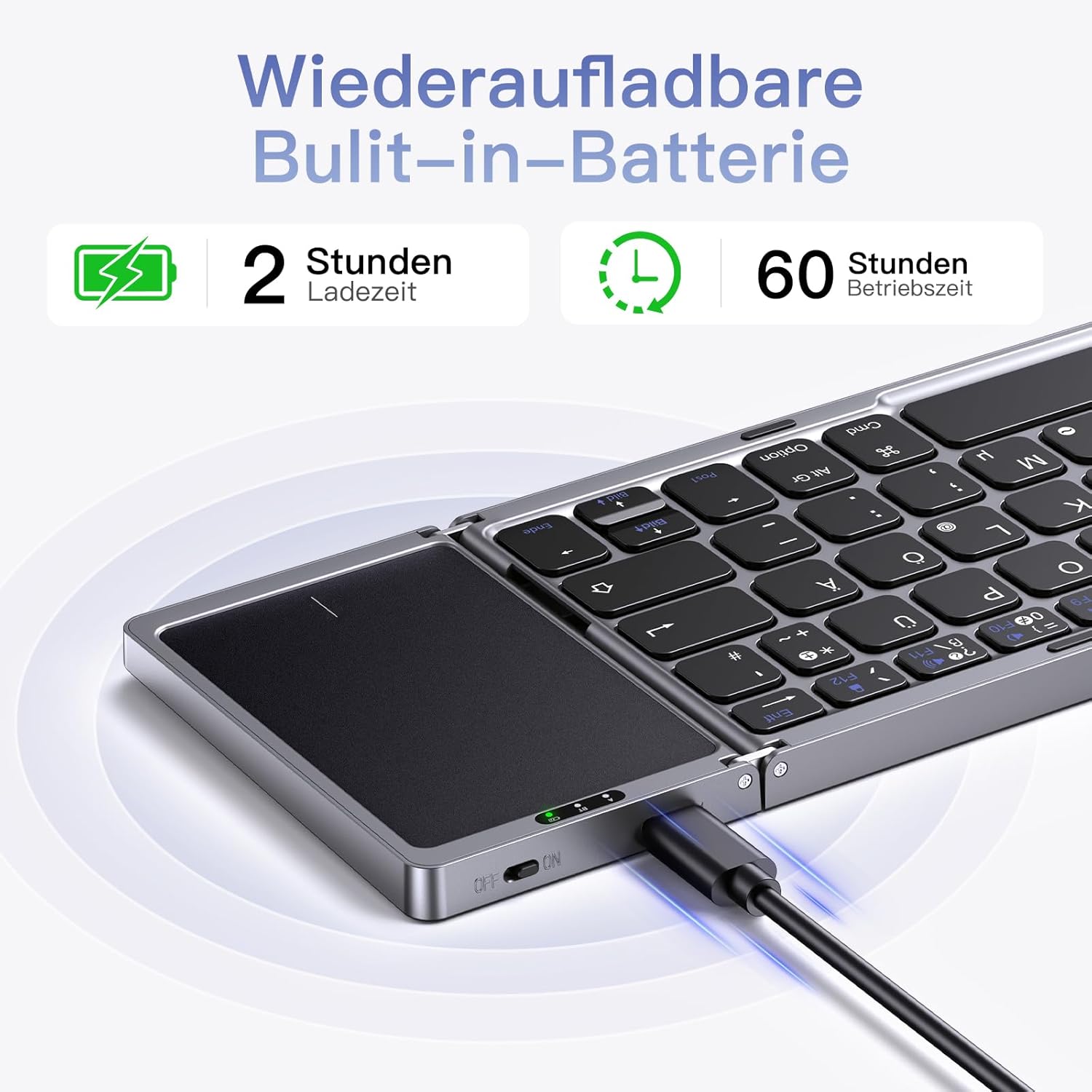
Figure 7: Keyboard used with a tablet

Figure 8: Keyboard used with a laptop
6. Maintenance
To ensure the longevity and optimal performance of your keyboard, follow these maintenance tips:
- Keep the keyboard clean by wiping it with a soft, dry cloth. For stubborn dirt, slightly dampen the cloth with water or a mild cleaning solution.
- Avoid exposing the keyboard to extreme temperatures, direct sunlight, or high humidity.
- Do not disassemble the keyboard, as this will void the warranty and may cause damage.
- Store the keyboard in a folded position when not in use to protect the keys and touchpad.
7. Troubleshooting
If you encounter issues with your keyboard, please refer to the following table for common problems and solutions:
| Problem | Possible Cause | Solution |
|---|---|---|
| Keyboard not connecting/pairing. | Keyboard not in pairing mode; Bluetooth off on device; low battery; interference. | Ensure keyboard is unfolded and in pairing mode (rapid blinking light). Check device's Bluetooth settings. Charge the keyboard. Move closer to the device. |
| Touchpad not responding. | Touchpad disabled (if applicable); software glitch; dirty touchpad surface. | Ensure touchpad is enabled (check keyboard shortcuts if any). Restart keyboard and device. Clean touchpad surface. |
| Keys not responding. | Low battery; connection issue; keyboard in sleep mode. | Charge the keyboard. Re-establish Bluetooth connection. Press any key to wake from sleep mode. |
| Short battery life. | Frequent use; aging battery. | Ensure keyboard is fully charged. Reduce backlight usage (if applicable). Battery life naturally decreases over time. |
8. Specifications
| Feature | Detail |
|---|---|
| Model | KB568 |
| Connectivity Technology | Bluetooth |
| Compatible Devices | Tablet, iPad, Computer, Laptop, Smartphone |
| Operating System Compatibility | iOS 13.0+, Windows 7/8/10+, macOS X 10.10+, Android 4.3+ |
| Battery Type | Lithium Ion (built-in) |
| Charging Time | Approx. 2 hours |
| Continuous Typing Time | Up to 40 hours |
| Product Dimensions (Unfolded) | 11.9 x 3.8 x 0.2 inches (approx.) |
| Product Dimensions (Folded) | 5.9 x 3.8 x 0.7 inches (approx.) |
| Weight | 280 grams (approx.) |
| Material | Plastic, Rubber, Metal, Aluminum |
| Color | Grey |
9. Warranty and Support
Your OMOTON Foldable Bluetooth Keyboard comes with a standard manufacturer's warranty. For specific warranty terms and conditions, please refer to the warranty card included in your package or visit the official OMOTON website.
If you require technical support, have questions about your product, or need assistance with troubleshooting, please contact OMOTON customer service through their official channels. Contact information can typically be found on the product packaging or the official website.
Related documentsKB568


Ask a question about this manual
Ask about setup, troubleshooting, compatibility, parts, safety, or missing instructions. Manuals+ will review the question and use this page’s manual context to help answer it.