
Introduction
The Cisco Headset 721 is a wireless on-ear Bluetooth headset designed for professional use, offering comfort and advanced features for communication and collaboration. This manual provides comprehensive instructions for its setup, operation, and maintenance.
What's in the Box
Verify that all items are present in the package:
- Cisco Headset 721 (Single On-Ear Headset)
- USB-A HD Bluetooth Adapter
- Charging Stand
- USB-A Charging Cable
- Soft Protective Case
- Ear Cushions (pre-installed or spare)
- Headband (integrated)

Image: The Cisco Headset 721 shown alongside its soft protective case, highlighting its portability.
Setup
1. Charging the Headset
Before initial use, fully charge the headset. The headset has a battery life of approximately 23 hours of talk time.
- Connect the USB-A charging cable to the charging stand.
- Connect the other end of the USB-A charging cable to a powered USB port (e.g., computer, wall adapter).
- Place the headset onto the charging stand, ensuring proper alignment. The LED indicator on the headset will show charging status.
2. Connecting via Bluetooth
The headset can connect wirelessly to two devices simultaneously via Bluetooth.
- Power On: Press and hold the Power button on the headset until the LED indicator flashes.
- Pairing Mode: With the headset powered on, press and hold the Bluetooth button until the LED indicator flashes blue and red alternately. This indicates pairing mode.
- Device Pairing: On your device (e.g., smartphone, laptop), go to Bluetooth settings and select "Cisco Headset 721" from the list of available devices.
- Confirmation: The headset LED will turn solid blue when successfully paired.
3. Connecting with USB-A HD Bluetooth Adapter
For optimal performance and integration with Cisco applications, use the provided USB-A HD Bluetooth Adapter.
- Plug the USB-A HD Bluetooth Adapter into an available USB-A port on your computer.
- The adapter will automatically attempt to pair with your Cisco Headset 721. The LED on the adapter will indicate connection status.
- Ensure your headset is in pairing mode if it does not connect automatically.
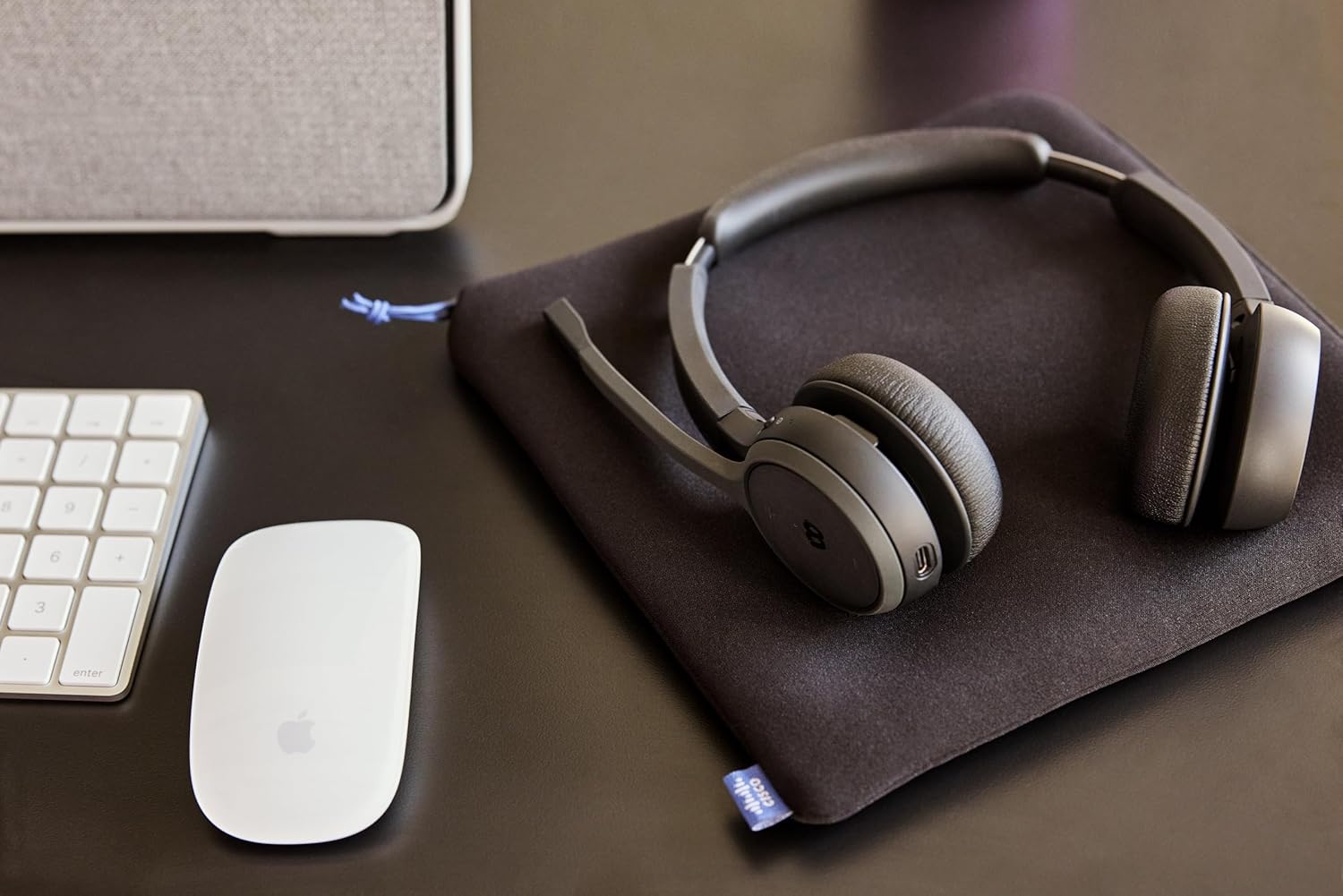
Image: The Cisco Headset 721, USB-A adapter, and charging stand arranged on a desk, illustrating a typical setup.
4. Adjusting the Microphone Boom Arm
The microphone boom arm rotates 276 degrees for optimal placement and features a flip-to-mute function.
- Position the microphone approximately two finger-widths from the corner of your mouth for clear audio.
- To mute the microphone, flip the boom arm upwards. Flip it down to unmute.
Operating Instructions
On-Ear Controls
The headset features intuitive on-ear controls for managing calls and media.
- Volume Up/Down: Use the dedicated volume buttons to adjust audio levels.
- Answer/End Call: Press the Call button once to answer an incoming call or end an active call.
- Mute/Unmute: In addition to the flip-to-mute boom arm, a dedicated mute button may be present for quick toggling.
- Play/Pause Media: Press the Call button once to play or pause media playback.
- Next/Previous Track: Use specific media control buttons if available, or double-press/triple-press the Call button (refer to specific model documentation for exact functionality).
Webex Button Integration
The dedicated Webex button provides seamless integration with Cisco Webex applications.
- Join Webex Meeting: Press the Webex button to quickly join an active or scheduled Webex meeting.
- Webex Control: The button may also provide quick access to other Webex-specific functions depending on the application version.
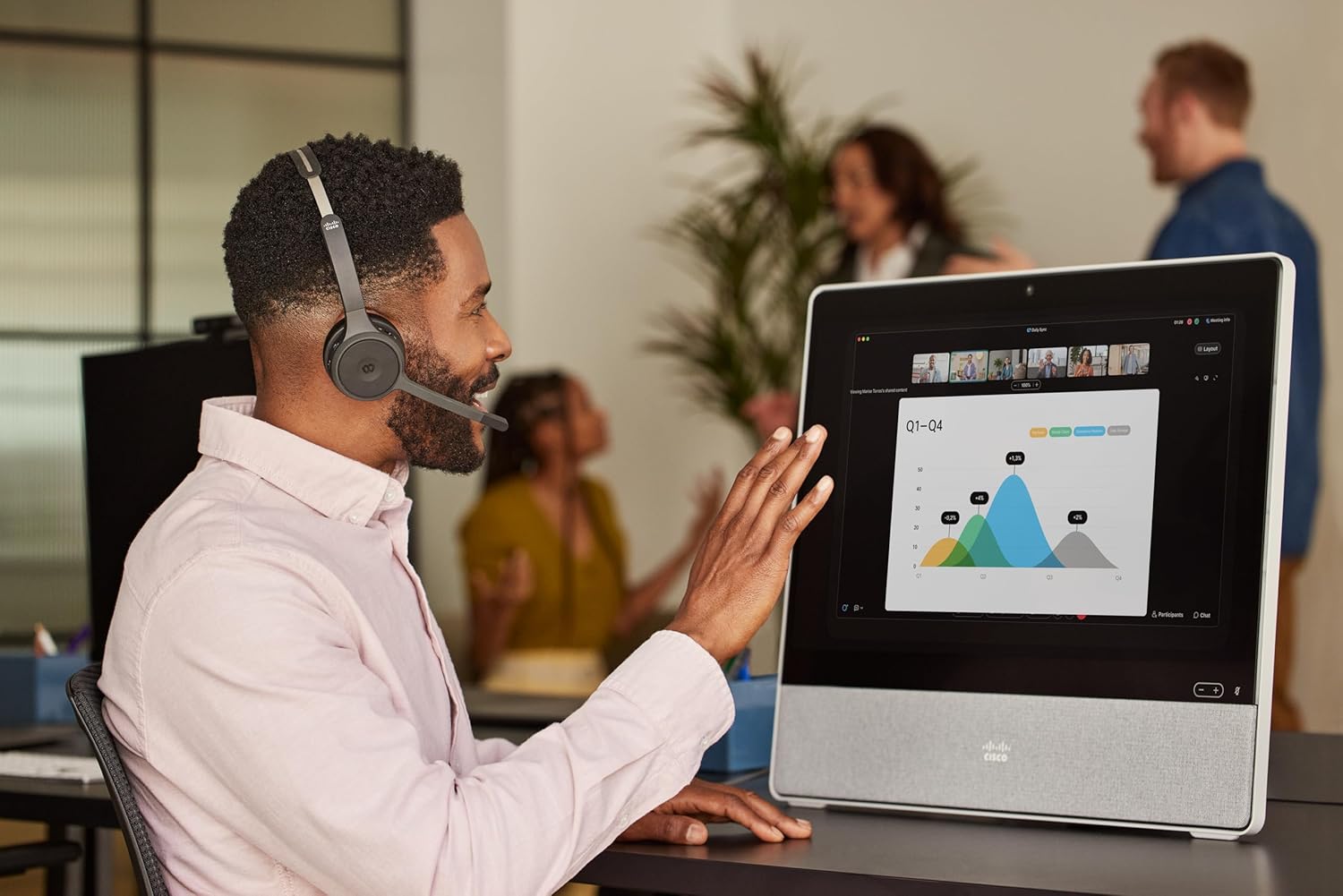
Image: A person wearing the Cisco Headset 721 while engaged in a video conference on a large display, demonstrating its use in a professional setting.
AI Voice-Activated Microphones
The headset features AI voice-activated microphones designed to minimize background noise, ensuring clear communication.
- These microphones automatically focus on your voice and suppress ambient sounds.
- No specific user action is required for this feature; it operates automatically.
Multipoint Pairing
The headset supports multipoint pairing, allowing it to be connected to two Bluetooth devices simultaneously.
- Once paired with two devices, the headset can seamlessly switch between them for calls or media.
- For example, you can be connected to your laptop for a video conference and your smartphone for incoming calls.
Maintenance
Cleaning the Headset
Regular cleaning helps maintain the headset's hygiene and performance.
- Use a soft, dry, lint-free cloth to wipe the surfaces of the headset.
- For ear cushions, gently wipe with a slightly damp cloth (water only) and allow to air dry completely before use.
- Avoid using harsh chemicals, solvents, or abrasive materials.
Storage
When not in use, store the headset properly to protect it from damage.
- Use the provided soft protective case for storage and transport.
- Store in a cool, dry place away from direct sunlight and extreme temperatures.
Troubleshooting
Common Issues and Solutions
| Issue | Solution |
|---|---|
| Headset does not power on. | Ensure the headset is fully charged. Connect it to the charging stand and check the LED indicator. |
| Cannot pair with a device. | Ensure the headset is in pairing mode (LED flashing blue/red). Check your device's Bluetooth settings. Try restarting both the headset and the device. |
| No audio or poor audio quality. | Check the volume levels on both the headset and the connected device. Ensure the headset is selected as the audio output device. Move closer to the connected device to avoid interference. |
| Microphone not working. | Ensure the microphone boom arm is flipped down (unmuted). Check microphone settings on your connected device/application (e.g., Webex). |
| Webex button not responding. | Ensure the headset is properly connected to a device running the Webex application. Verify that the Webex application is up to date. |
Specifications
| Feature | Detail |
|---|---|
| Model Number | HS-WL-721-BUNAS-C |
| Connectivity Technology | Wireless (Bluetooth) |
| Bluetooth Version | 4.0 |
| Bluetooth Range | 10 Meters |
| Ear Placement | On Ear |
| Form Factor | On Ear |
| Noise Control | Passive Noise Cancellation, Sound Isolation |
| Battery Life | 23 Hours (Talk Time) |
| Control Type | Call Control, Button, App |
| Special Features | Adjustable Headband, Fast Charging, Lightweight, Multipoint Pairing, Noise Isolation |
| Compatible Devices | Cellphones, Desktops, Laptops, Tablets |
| Item Weight | 0.12 Kilograms (4.2 ounces) |
| Material | Aluminum, Stainless Steel, Leather or Faux Leather, Memory Foam |
| Included Components | Cable, Charging Station, Ear Cushions, Headband, Protective Case |
Warranty and Support
The Cisco Headset 721 comes with a Two-Year Limited Liability Warranty, ensuring peace of mind regarding manufacturing defects and performance issues.
For technical support, warranty claims, or further assistance, please visit the official Cisco support website or contact your Cisco product provider. Ensure you have your product model number (HS-WL-721-BUNAS-C) and proof of purchase available.
Optional Protection Plans
Additional protection plans may be available for extended coverage:
- 2-Year Protection Plan: Extends coverage for 24 months.
- 3-Year Protection Plan: Extends coverage for 36 months.
- Complete Protect: A monthly plan covering eligible past and future purchases.
Please refer to the terms and conditions of these plans for full details.


