
1. Introduction
Thank you for choosing the WiMiUS K9 4K Projector. This smart projector is designed to deliver an immersive home theater experience with its native 1080P resolution, 4K support, and 700 ANSI lumens brightness. Featuring official Netflix certification, Dolby Audio, Wi-Fi 6, Bluetooth 5.2, and advanced 6D auto-focus and keystone correction, the K9 offers seamless entertainment and ease of use. This manual provides detailed instructions to help you set up, operate, and maintain your projector for optimal performance.
2. What's in the Box
Upon unboxing your WiMiUS K9 Projector, please ensure all the following items are present:
- WiMiUS K9 4K Projector Unit
- Remote Control
- HDMI Cable
- Power Cable
- Lens Cleaning Cloth
- User Manual (this document)
- Optional: iOS Screen Cast Device (may vary by version)
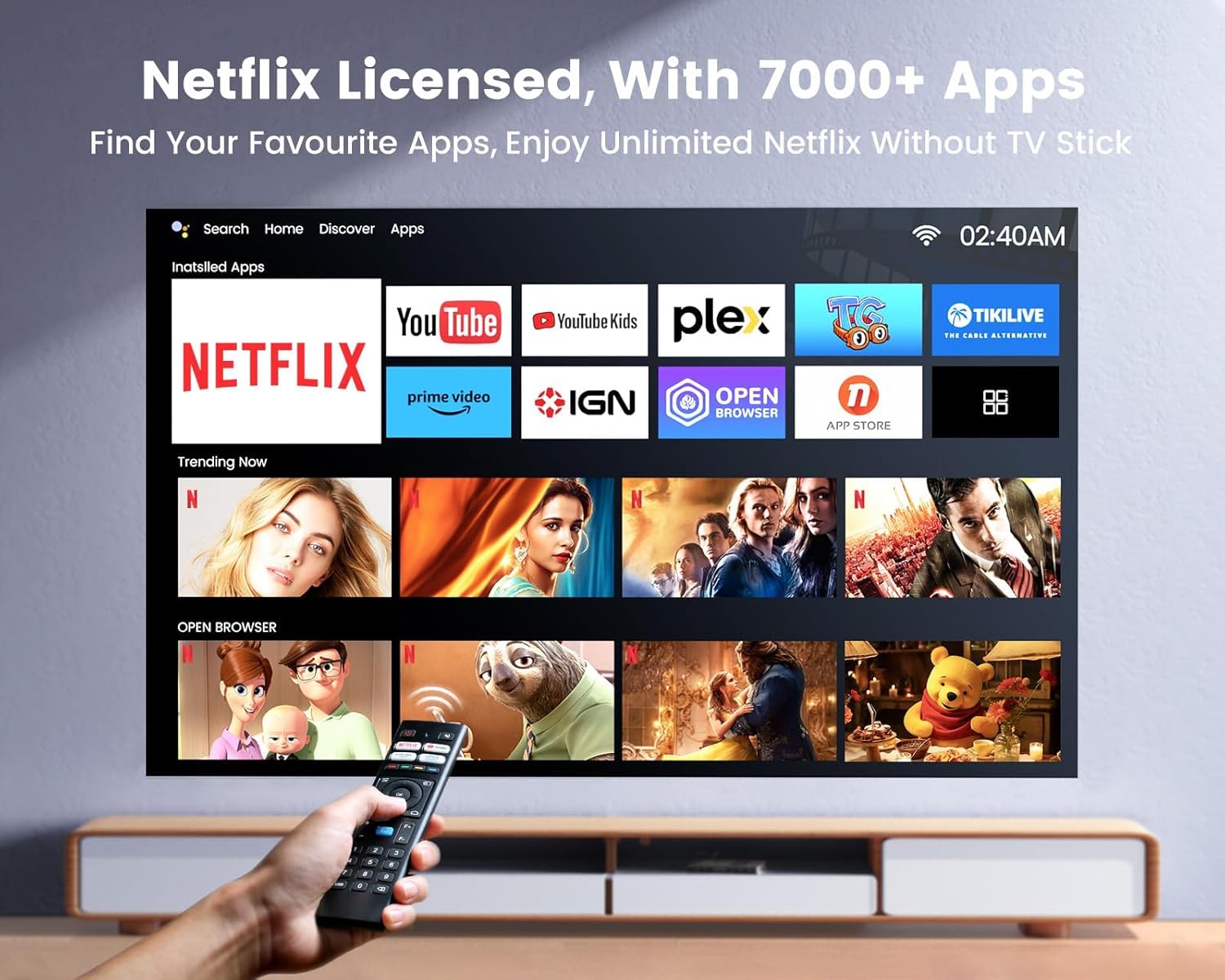
Figure 2.1: WiMiUS K9 Projector Box Contents
3. Product Overview
Familiarize yourself with the different parts of your WiMiUS K9 Projector:
Front Panel
- Projection Lens: The primary lens for image output.
- Auto Focus/Keystone Sensor: Detects projection surface and automatically adjusts focus and keystone.
Top Panel
- Power Button: Press to power on/off or enter standby mode.
Rear Panel (Connectivity Ports)
- RJ45 (Ethernet) Port: For wired internet connection.
- USB Ports (x2): For connecting USB storage devices to play media files.
- HDMI Ports (x2): For connecting external devices like laptops, gaming consoles, or streaming sticks.
- 3.5mm Audio Jack: For connecting external headphones or speakers.
- IR Receiver: For remote control signals.
- Power Input: For connecting the power cable.

Figure 3.1: WiMiUS K9 Projector Front View

Figure 3.2: WiMiUS K9 Projector Rear View (Ports)
4. Setup
Follow these steps for initial setup of your projector:
- Placement: Position the projector on a stable, flat surface. For optimal viewing, place it approximately 7.8 feet from the projection surface to achieve a suitable screen size (e.g., 100 inches). The projector supports screen sizes from 50 to 300 inches.
- Power Connection: Connect the power cable to the projector's power input port and then to a power outlet.
- Power On: Press the power button on the top of the projector or on the remote control to turn on the device.
- Initial Setup: Upon first power-on, the projector may guide you through an initial setup wizard for language, network connection, and basic settings. Follow the on-screen prompts.
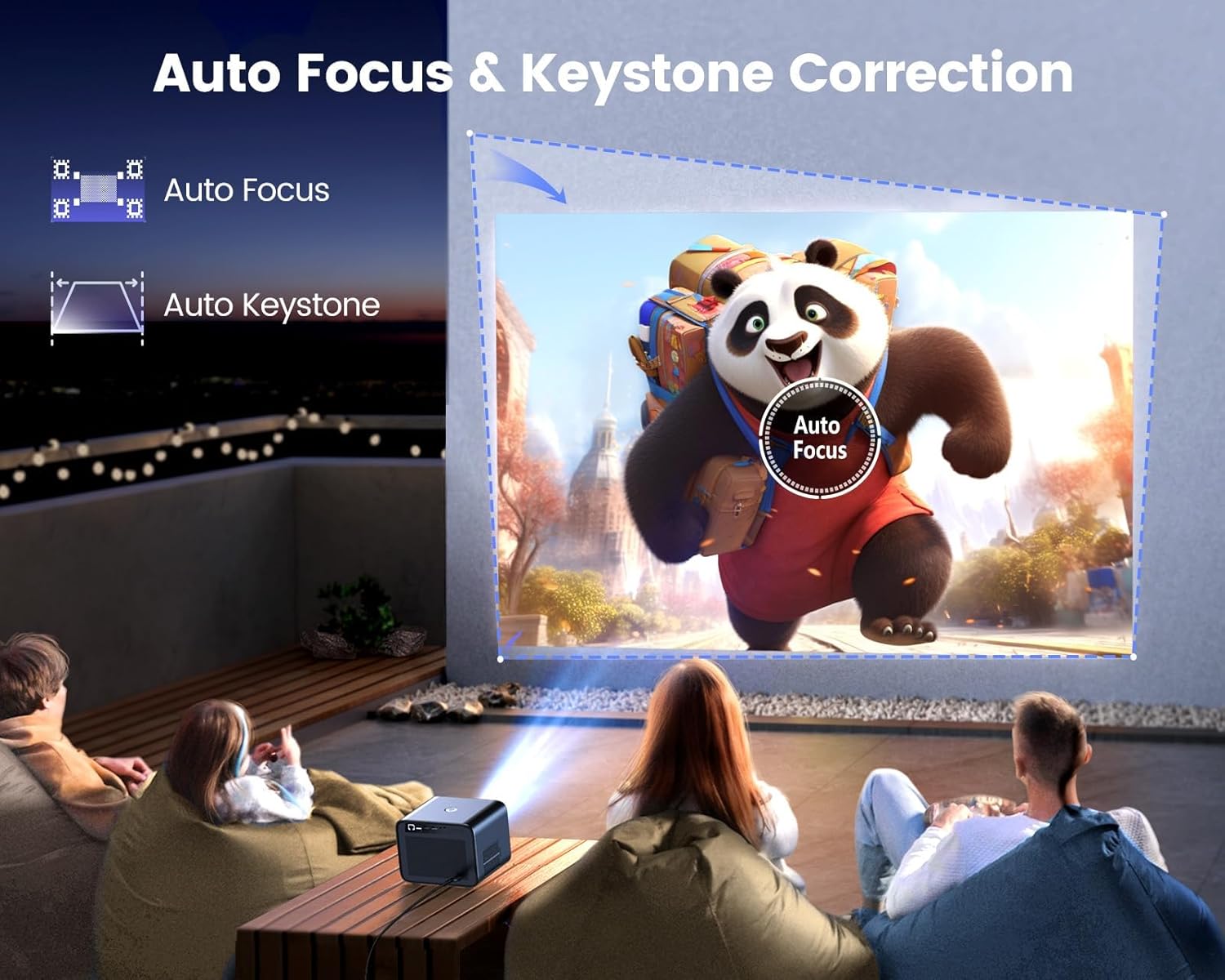
Figure 4.1: Recommended Projector Placement and Screen Sizes
5. Operating Instructions
The WiMiUS K9 Projector runs on a built-in Linux system, providing a smart and user-friendly interface.
Using the Remote Control
The included remote control allows full navigation and control of the projector. It features dedicated buttons for popular streaming services like Netflix, YouTube, and Prime Video for quick access.
Accessing Smart Features
The projector comes pre-installed with Netflix, Prime Video, YouTube, HBO Max, Hulu, and access to over 7000+ apps. Navigate through the home screen using the remote to select your desired application. You can also install additional compatible applications through the projector's app store.
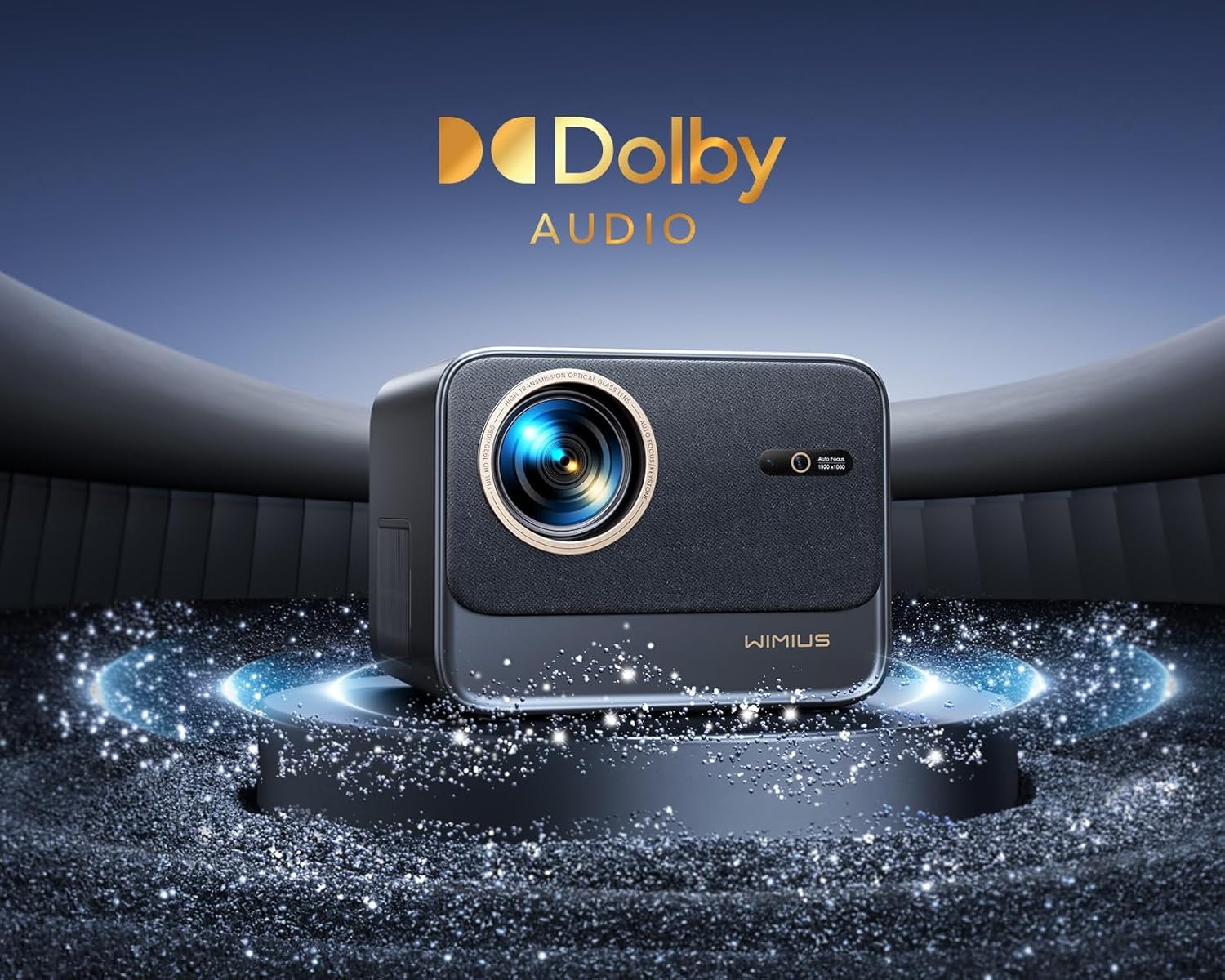
Figure 5.1: Smart Interface with Pre-installed Apps
6. Image & Audio Settings
The K9 projector offers advanced features for optimizing your viewing and listening experience.
Auto Focus & 6D Keystone Correction
The projector features the latest auto-focus and 6D keystone technology, utilizing integrated high-precision sensors, an intelligence chip, and an AI Camera. This allows the projector to detect movements in real-time and automatically adjust the image for a perfectly clear and rectangular display within 3 seconds, regardless of the projection angle.
Zoom Function
Adjust the image size from 50% to 100% without physically moving the projector, providing flexibility for various room sizes and viewing preferences.
Dolby Audio & Built-in Speakers
Equipped with 2x10W Hi-Fi stereo speakers and authorized Dolby official sound support, the K9 delivers immersive audio with clear sound and deep bass, enhancing your cinematic experience.

Figure 6.1: Auto Focus & Keystone Correction
Video 6.1: Demonstration of Auto Focus & Keystone Correction
7. Connectivity
The WiMiUS K9 Projector offers versatile connectivity options:
Wireless Connectivity
- Wi-Fi 6: Experience nearly 40% faster Wi-Fi connection speeds for seamless streaming and gaming without lag or buffering.
- Two-way Bluetooth 5.2: Connect to various mobile devices, Bluetooth speakers, or Bluetooth earphones for enhanced audio.
Wired Connectivity
The rear panel provides multiple ports for connecting external devices:
- HDMI (x2): Connect gaming consoles (Switch/PS5), laptops, DVD players, Fire TV Stick, Chromecast, Roku, etc.
- USB (x2): Play media directly from USB drives or connect other USB devices.
- AV (x2): For older analog devices.
- RJ45 (Ethernet): For a stable wired internet connection.
- 3.5mm Headphone Jack: For private listening or connecting external audio systems.
Figure 7.1: Universal Connectivity Options
8. Maintenance
Proper maintenance ensures the longevity and optimal performance of your projector.
Cleaning the Lens
Use the provided lens cleaning cloth or a soft, lint-free cloth specifically designed for optical surfaces. Gently wipe the lens in a circular motion to remove dust or smudges. Avoid using abrasive cleaners or excessive force.
Dust Prevention
The WiMiUS K9 features a fully enclosed optical design, which effectively blocks dust and reduces the occurrence of black spots, significantly extending the projector's lifespan. While this design minimizes dust accumulation, regular cleaning of the exterior and ensuring proper ventilation will further protect the device.
9. Troubleshooting
If you encounter any issues with your WiMiUS K9 Projector, please refer to the following common troubleshooting tips:
- No Power: Ensure the power cable is securely connected to both the projector and a working power outlet.
- No Image: Check if the correct input source (HDMI, USB, etc.) is selected. Verify that the connected device is powered on and sending a signal.
- Blurry Image: The projector features auto-focus. If the image remains blurry, try manually triggering the auto-focus function via the remote or settings menu. Ensure the projection surface is flat and the projector is stable.
- Image Distorted (Trapezoid Shape): The projector has 6D auto keystone correction. If the image is not rectangular, ensure the auto-correction is enabled in the settings. You can also manually adjust keystone correction if needed.
- No Sound: Check the volume settings on both the projector and the connected source device. If using external speakers, ensure they are properly connected and powered on. Verify Bluetooth connection if applicable.
- Wi-Fi/Bluetooth Connection Issues: Ensure the projector is within range of your Wi-Fi router or Bluetooth device. Restart both the projector and the network device.
- App Issues (e.g., Netflix not working): Ensure the projector's software is up to date. Check your internet connection. For specific app issues, refer to the app's support resources.
- iOS Screen Cast Device: Note that if your projector is Version 6.1, it is equipped with iOS screen mirroring software and may not include a separate iOS Screen Cast Device. If you have Version 5.3 and are missing the device, please contact support.
For more detailed troubleshooting, please consult the full user manual or contact WiMiUS technical support.
10. Specifications
| Feature | Description |
|---|---|
| Brand Name | WiMiUS |
| Model Number | K9 |
| Display Resolution | 1920 x 1080 (Native 1080P, 4K Supported) |
| Brightness | 700 ANSI Lumens |
| Special Features | Netflix Officially Licensed, 20W 3D Stereo Speakers, Auto Focus & 6D Keystone Correction |
| Connectivity Technology | Wired/Wireless/Bluetooth/WiFi/HDMI/USB/AV/3.5Audio |
| Item Weight | 6.98 pounds |
| Product Dimensions | 8.26 x 7.16 x 6.33 inches |
| Recommended Uses | Home Cinema |
11. Warranty and Support
WiMiUS is committed to providing excellent customer service. Your K9 projector comes with lifetime technical support. If you have any questions, require assistance with setup, operation, or troubleshooting, please do not hesitate to contact our support team directly. Refer to the contact information provided in your product packaging or on the official WiMiUS website.


