
1. Introduction
This manual provides detailed instructions for the installation, operation, and maintenance of your JOOAN 3MP Wireless Security Camera System. This system offers high-definition surveillance with advanced features designed for reliable home and business security. Please read this manual thoroughly before setting up and operating the system.

Image 1.1: JOOAN 3MP Wireless Security Camera System overview, showing the NVR unit and four wireless cameras.
2. Product Features
The JOOAN 3MP Wireless Security Camera System is equipped with a range of features to ensure comprehensive surveillance:
- 3MP Ultra HD Resolution: Provides clear and detailed video footage (1296P, clearer than 1080P).
- 8-Channel NVR: Supports up to 8 cameras, allowing for future expansion (system includes 4 cameras, can add 4 more).
- Wireless Connectivity: Cameras connect wirelessly to the NVR for flexible placement.
- One-Way Audio: Built-in microphone on cameras allows for audio monitoring of the surveillance area.
- IP67 Waterproof Rating: Cameras are designed for outdoor use, resistant to dust and water.
- Great Night Vision: Enhanced night vision capabilities for clear monitoring in low-light or no-light conditions.
- AI Human Detection: Advanced motion detection specifically identifies human shapes, reducing false alarms.
- Multiple Alert Options: Receive NVR buzzer, email alerts, and APP notifications upon motion detection.
- H.265+ Video Compression: Efficient video compression technology saves storage space and bandwidth.
- Remote Access: View live footage and playback recordings from anywhere using the Eseecloud mobile app or software.
- Auto Pair & Plug N Play: Simplified setup with automatic camera pairing to the NVR.
- Signal Extension (Cascade Technology): Use one camera as a repeater to extend wireless signal range.

Image 2.1: The system provides 24/7 protection, suitable for various environments including home, outdoor, day, night, and in rainy conditions.
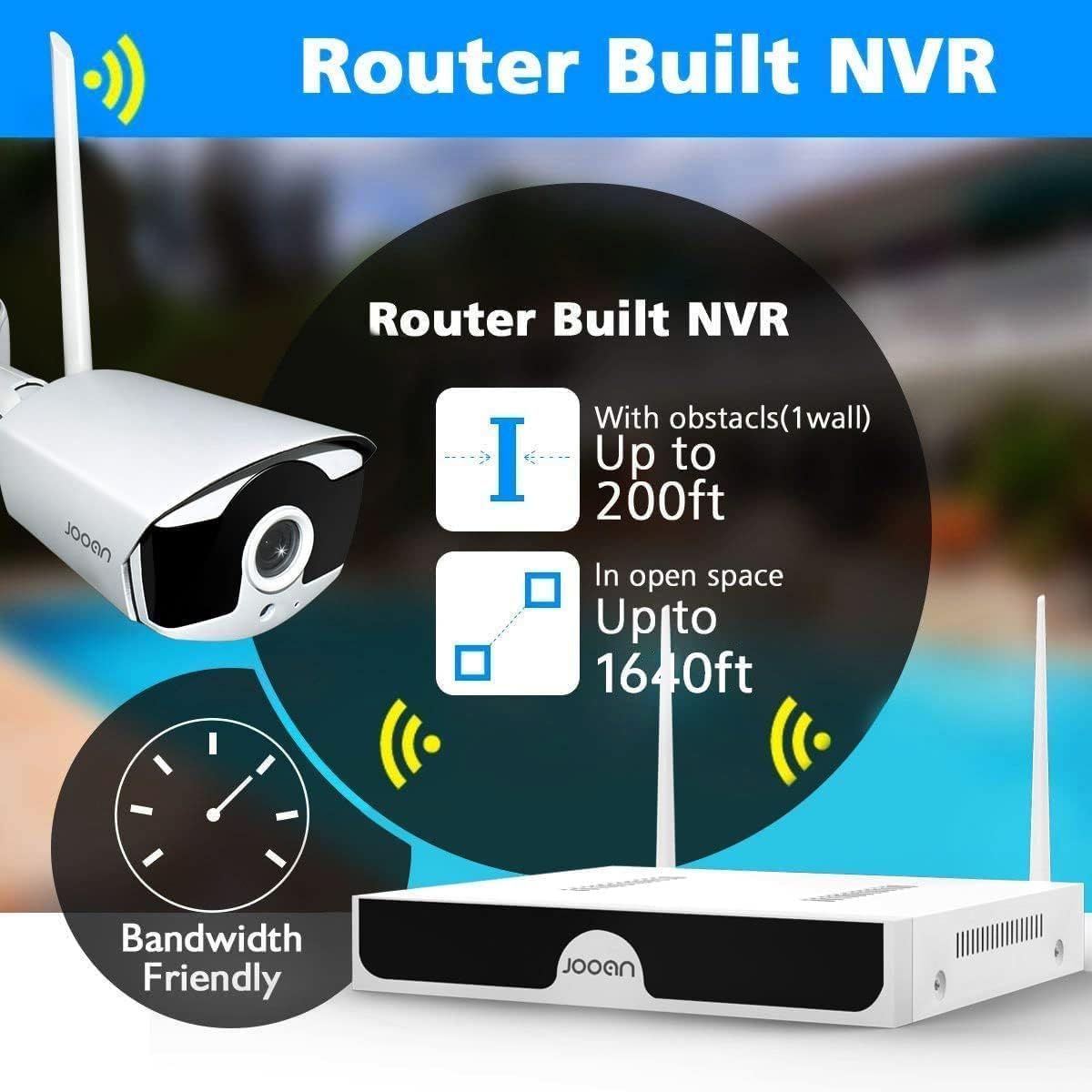
Image 2.2: The NVR features a built-in router, offering wireless range up to 200ft with one wall obstacle and up to 1640ft in open space.
3. Package Contents
Please check the package contents upon unboxing to ensure all components are present:
- 1 x 8-Channel Wireless NVR (No HDD included)
- 4 x 3MP Wireless IP Cameras
- 1 x NVR Power Adapter
- 4 x Camera Power Adapters
- 1 x USB Mouse
- 1 x Ethernet Cable
- Mounting Screws and Plugs for Cameras
- User Manual (this document)
- Warning Sticker

Image 3.1: All components included in the JOOAN 3MP Wireless Security Camera System package.
4. Setup Guide
The JOOAN system is designed for easy setup with its auto-pairing feature.
4.1 Initial Setup
- Connect the NVR:
- Connect the NVR to a power outlet using the provided NVR power adapter.
- Connect the NVR to a monitor or TV via HDMI or VGA cable (not included) to view the interface.
- Connect the USB mouse to the NVR for navigation.
- (Optional) Connect the NVR to your router using the Ethernet cable for internet access and remote viewing.
- Power On Cameras:
- Connect each camera to a power outlet using its respective power adapter.
- The cameras will automatically pair with the NVR within a few moments. You should see the camera feeds appear on the monitor connected to the NVR.
- Hard Drive Installation (Optional):
- If you wish to record footage, install a 3.5-inch SATA hard drive (not included) into the NVR. Refer to the detailed PDF user guide for installation steps.

Image 4.1: The system features auto-pairing for easy plug-and-play setup, connecting cameras wirelessly to the NVR.
4.2 Camera Installation
Choose suitable locations for your cameras, considering coverage area, power access, and wireless signal strength.
- Mount cameras securely using the provided screws and plugs.
- Adjust the camera angle to cover the desired area.
- Ensure cameras are within the NVR's wireless range. For extended range, consider using the cascade technology (see Section 6.3).
- The cameras are IP67 waterproof, suitable for outdoor installation.

Image 4.2: Cameras can be mounted on ceilings or walls, offering flexible installation options.
5. Operating Instructions
5.1 Live View and Playback
Once the system is set up, you can view live feeds and playback recorded footage through the NVR's connected monitor or via the mobile application.
- NVR Interface: Use the USB mouse to navigate the NVR's on-screen menu. Right-click to access main menu options like Live View, Playback, System Setup, etc.
- Playback: Select the 'Playback' option from the main menu. Choose the date and time to review recorded events.
5.2 One-Way Audio Function
Each camera is equipped with a microphone, allowing you to hear audio from the surveillance area.
- During live viewing or playback, ensure the audio output on your monitor/TV or mobile device is enabled and volume is adjusted.
- The system records video and audio simultaneously, allowing for comprehensive event review.
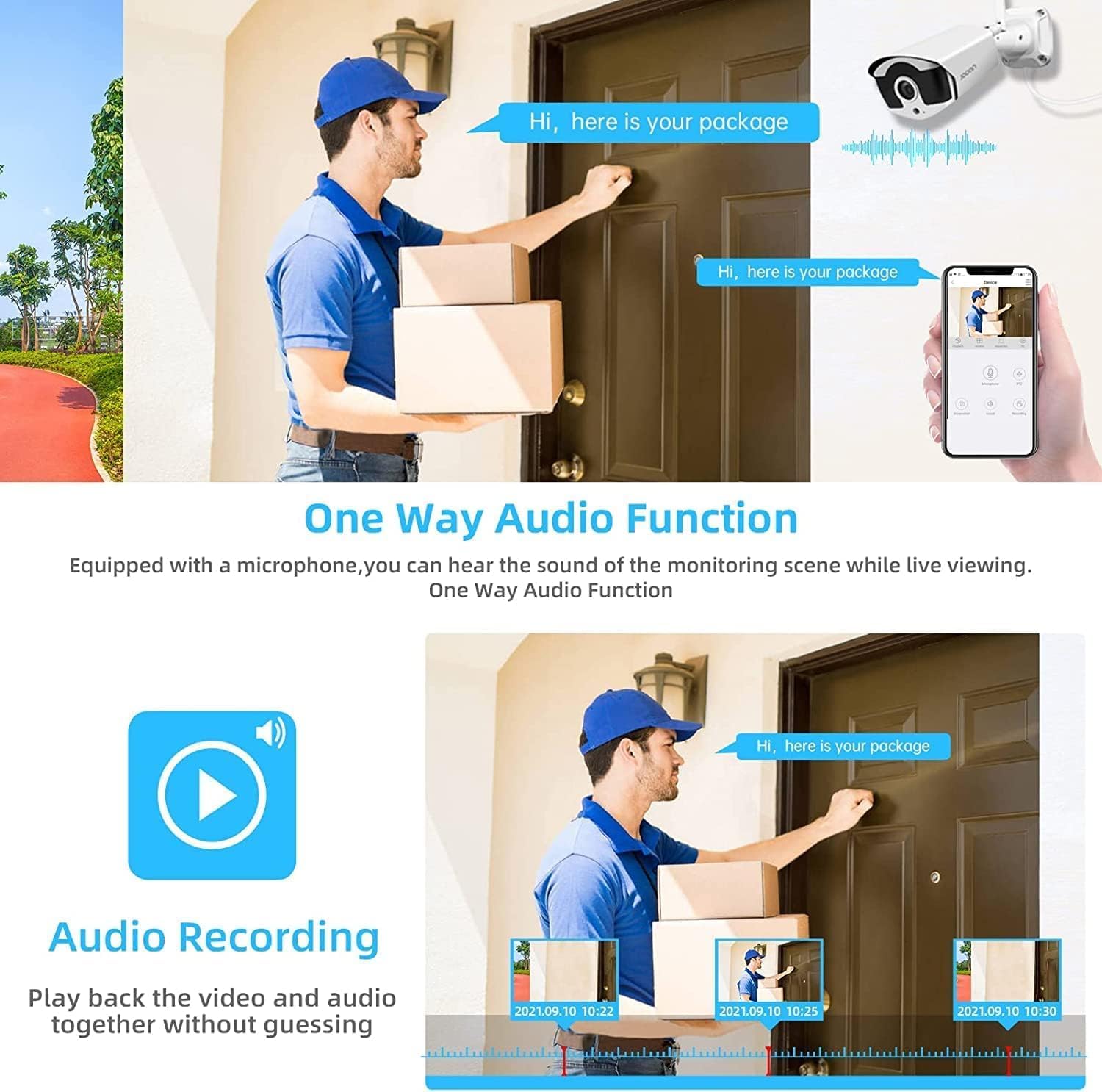
Image 5.1: The system supports one-way audio, allowing users to hear sound from the monitoring scene during live viewing and playback.
6. Advanced Features
6.1 AI Human Detection & Alerts
The system utilizes advanced AI algorithms to distinguish human shapes from other moving objects, significantly reducing false alarms caused by pets, vehicles, or swaying branches.
- When a human is detected, the system can trigger various alerts:
- NVR Buzzer: An audible alarm from the NVR.
- Email Alert: An email notification sent to a configured address.
- APP Notification: A push notification to your mobile device via the Eseecloud app.
- Configure detection zones and sensitivity settings via the NVR menu or mobile app.

Image 6.1: AI Human Detection minimizes false alerts, and the system provides NVR buzzer, email, and app notifications.
6.2 H.265+ Video Compression
The system employs advanced H.265+ video compression technology, which significantly reduces bandwidth usage and storage requirements compared to older H.264 or H.265 standards. This allows for longer recording times and smoother streaming with less data.

Image 6.2: H.265+ compression reduces storage occupation by up to 50% compared to H.264, while maintaining clear picture quality.
6.3 Wireless Signal Extension (Cascade Technology)
To overcome wireless range limitations, the system supports "Cascade Technology," allowing one camera to act as a repeater for another. This extends the effective wireless coverage.
- Position a camera strategically between the NVR and a distant camera to boost the signal.
- Refer to the NVR's system settings for configuring cascade mode.

Image 6.3: Cascade Technology allows one camera to serve as a repeater, extending the wireless signal for other cameras.
7. Mobile App and Remote Access
The Eseecloud app provides convenient remote access to your security system from anywhere.
7.1 Downloading and Installing the App
- Search for "Eseecloud" in the Apple App Store (for iOS devices) or Google Play Store (for Android devices).
- Download and install the app on your smartphone or tablet.
7.2 Connecting to Your NVR
- Open the Eseecloud app and create an account or log in.
- Add your NVR by scanning the QR code displayed on the NVR's monitor (found in System Info) or by manually entering the device ID.
- Ensure your NVR is connected to the internet via an Ethernet cable.
7.3 App Features
- Live View: Watch live feeds from all connected cameras.
- Playback: Access and review recorded footage stored on the NVR's hard drive.
- Notifications: Receive instant push notifications for motion detection events.
- Settings: Adjust camera and NVR settings remotely.
- Share Access: Share access to your system with family members.

Image 7.1: The Eseecloud app allows remote access to your security system from various devices, including smartphones, tablets, and laptops.
8. Maintenance
Regular maintenance helps ensure the longevity and optimal performance of your security system.
- Camera Lens Cleaning: Periodically clean the camera lenses with a soft, damp cloth to remove dust, dirt, or water spots that may obstruct the view. Do not use harsh chemicals.
- Check Connections: Ensure all power adapters and cables are securely connected to prevent power interruptions or signal loss.
- Firmware Updates: Check the JOOAN official website or the Eseecloud app for any available firmware updates for your NVR and cameras. Keeping firmware updated can improve performance and add new features.
- Hard Drive Health: If a hard drive is installed, monitor its health through the NVR's system settings to prevent data loss.
- Environmental Considerations: While cameras are IP67 rated, avoid directing high-pressure water jets directly at them. Ensure proper ventilation for the NVR unit.
9. Troubleshooting
This section addresses common issues you might encounter.
| Problem | Possible Cause | Solution |
|---|---|---|
| No image on monitor/TV from NVR. |
|
|
| Cameras not showing on NVR. |
|
|
| No remote access via Eseecloud app. |
|
|
| Frequent false alarms. |
|
|
10. Specifications
| Feature | Detail |
|---|---|
| Model | JOOAN 8CH 1296P Wireless Security Camera System |
| Video Resolution | 3MP (1296P) |
| NVR Channels | 8 Channels |
| Video Compression | H.265+ |
| Audio | One-Way Audio (Built-in Microphone) |
| Weatherproof Rating | IP67 |
| Night Vision | Yes |
| Motion Detection | AI Human Detection |
| Storage | Supports 3.5" SATA HDD (not included) |
| Connectivity | Wireless (Auto Pair), Ethernet |
| Remote Access App | Eseecloud (iOS & Android) |
| Operating Temperature | -35°C to 60°C (-31°F to 140°F) |

Image 10.1: The cameras are IP67 waterproof and can operate in temperatures ranging from -35°C (-31°F) to 60°C (140°F).

Image 10.2: Example of the system's clear night vision capabilities.
11. Warranty and Support
For warranty information and technical support, please refer to the official JOOAN website or contact their customer service.
- Official User Guide: A detailed PDF user guide is available for download at https://manuals.plus/m/8b300119d4784c8e0500e9c84e9766aa0d73934fd41381c88615f272c2a079f5.
- Customer Service: For further assistance, troubleshooting, or warranty claims, please contact JOOAN customer support through the contact information provided on their official website or through your purchase platform.


