
1. Introduction
Thank you for choosing the ERAY WD11 Portable Karaoke Machine. This device is designed to provide an enjoyable and interactive karaoke experience for children and families. It features two wireless microphones, Bluetooth connectivity, voice-changing effects, and dynamic LED lights, making it suitable for various occasions such as parties, birthdays, and family gatherings.
Please read this manual carefully before using the product to ensure proper operation and to maximize your enjoyment.

Image 1.1: ERAY WD11 Portable Karaoke Machine with two wireless microphones.
2. Package Contents
Ensure all items are present in the package:
- 1 x ERAY WD11 Karaoke Machine (Speaker)
- 2 x Wireless Microphones
- 1 x USB Charging Cable
- 1 x User Manual

Image 2.1: Illustration of the ERAY WD11 package contents and dimensions.
3. Product Overview
3.1. Speaker Controls and Ports
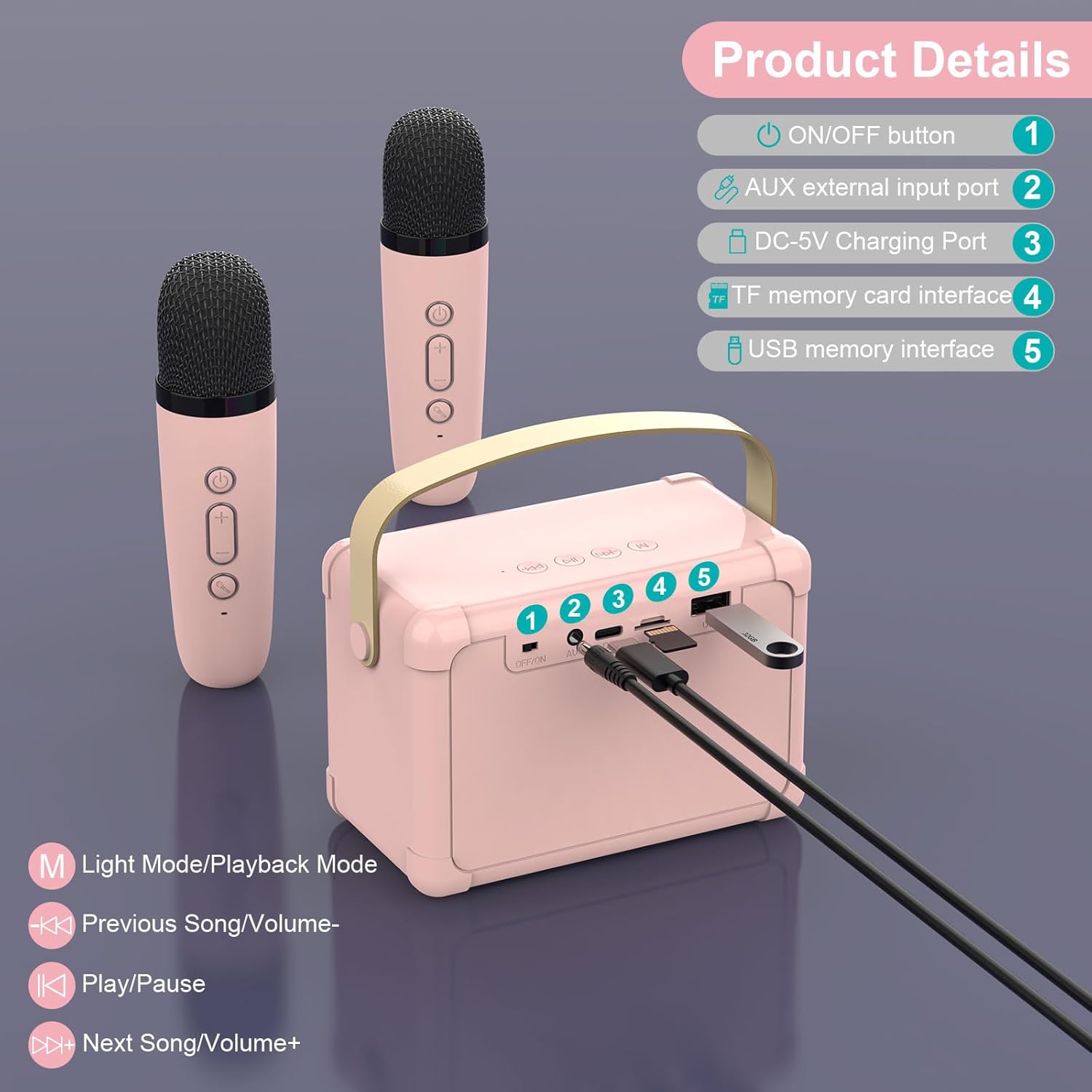
Image 3.1: Speaker controls and ports diagram.
- ON/OFF Button: Powers the speaker on or off.
- AUX External Input Port: For connecting external audio devices via a 3.5mm audio cable (not included).
- DC-5V Charging Port: For charging the speaker using the provided USB cable.
- TF Memory Card Interface: For playing music directly from a TF (MicroSD) card.
- USB Memory Interface: For playing music directly from a USB flash drive.
Speaker Playback Controls:
- M (Light Mode/Playback Mode): Short press to change LED light modes; Long press to switch between playback modes (Bluetooth, TF Card, USB, AUX).
- Previous Song/Volume-: Short press for previous song; Long press to decrease volume.
- Play/Pause: Plays or pauses the current track.
- Next Song/Volume+: Short press for next song; Long press to increase volume.
3.2. Microphone Controls

Image 3.2: Microphone controls and voice effects.
- Power Button: Press and hold to turn the microphone on or off.
- Volume +/- Buttons: Adjust microphone volume.
- Voice Change Button:
- Short Press: Cycles through voice effects: Male Voice, Female Voice, Baby Voice, Monster Voice, KTV Mode.
- Double Click: Activates or deactivates the original vocal cancellation (for karaoke tracks).
4. Setup and Connection
4.1. Charging the Device
Before first use, fully charge the karaoke machine speaker and both microphones.
- Connect the USB charging cable to the DC-5V Charging Port on the speaker and to a standard USB power adapter (not included).
- Connect the USB charging cable to the charging port on each microphone.
- The charging indicator light will show charging status (e.g., red for charging, off when fully charged).

Image 4.1: Battery capacities for speaker and microphones.
4.2. Powering On and Automatic Pairing
- Press and hold the ON/OFF button on the speaker to turn it on. The LED lights will illuminate.
- Press and hold the Power button on each wireless microphone to turn them on.
- The microphones will automatically connect to the speaker. A confirmation sound may be heard.
4.3. Bluetooth Connection
To play music from your smartphone, tablet, or computer:
- Ensure the speaker is powered on and in Bluetooth mode (indicated by a voice prompt or LED light pattern). If not, short press the 'M' button on the speaker until it enters Bluetooth mode.
- On your device, enable Bluetooth and search for available devices.
- Select "ERAY WD11" (or similar name) from the list to pair.
- Once connected, you can play music from your device through the karaoke machine speaker.

Image 4.2: Multiple connection options for the ERAY WD11.

Image 4.3: Bluetooth range of up to 10 meters.
4.4. TF Card / USB Playback
To play music directly from a TF card or USB flash drive:
- Insert a TF card (with MP3 songs) into the TF Memory Card Interface or a USB flash drive into the USB Memory Interface.
- The speaker should automatically detect the storage device and begin playing music.
- If not, short press the 'M' button on the speaker to cycle through playback modes until TF Card or USB mode is selected.
4.5. AUX Input
To connect an external audio source via AUX cable:
- Connect one end of a 3.5mm audio cable (not included) to the AUX External Input Port on the speaker.
- Connect the other end to the audio output jack of your external device (e.g., MP3 player).
- Short press the 'M' button on the speaker to cycle through playback modes until AUX mode is selected.
5. Operating Instructions
5.1. Adjusting Volume
- Speaker Volume: Use the "Volume-" and "Volume+" buttons on the speaker (long press) to adjust the overall music playback volume.
- Microphone Volume: Use the "Volume-" and "Volume+" buttons on each microphone to adjust the individual microphone's output volume.
5.2. Using Voice Changing Effects
Each microphone features multiple voice-changing effects:
- Short press the Voice Change Button on the microphone to cycle through the available effects: Male Voice, Female Voice, Baby Voice, Monster Voice, and KTV Mode.
- Experiment with different effects to enhance your performance.
5.3. Vocal Cancellation (KTV Mode)
To remove vocals from a song and sing along:
- While music is playing, double-click the Voice Change Button on the microphone. This feature attempts to reduce or remove the original vocals from the track, allowing you to sing over the instrumental.
- Double-click again to reactivate the original vocals.
5.4. LED Light Modes
The speaker features dynamic LED lights that can be adjusted:
- Short press the 'M' button on the speaker to cycle through different LED light modes.
- The lights will beat to the rhythm of the music, creating an engaging atmosphere.

Image 5.1: Dynamic RGB LED lights on the speaker.
6. Maintenance and Care
- Cleaning: Wipe the device with a soft, dry cloth. Do not use abrasive cleaners or solvents.
- Storage: Store the karaoke machine in a cool, dry place away from direct sunlight and extreme temperatures.
- Battery Care: To prolong battery life, avoid fully discharging the device frequently. Charge regularly, even if not in use for extended periods.
- Water Exposure: This device is not waterproof. Avoid exposure to water or high humidity.
7. Troubleshooting
| Problem | Possible Cause | Solution |
|---|---|---|
| No sound from speaker |
|
|
| Microphone not working |
|
|
| Bluetooth connection unstable |
|
|
8. Specifications
| Feature | Detail |
|---|---|
| Model Number | WD11 |
| Brand | ERAY |
| Dimensions (L x W x H) | 20 x 16 x 8.5 cm (Speaker) |
| Weight | 650 grams |
| Material | Acrylonitrile Butadiene Styrene (ABS) |
| Power Source | Battery Powered (1 Lithium-ion battery included) |
| Speaker Battery Capacity | 1200mAh |
| Microphone Battery Capacity | 500mAh |
| Connectivity Technology | Bluetooth 5.0, USB, TF Card, AUX |
| Compatible Devices | Smartphones, PCs, Laptops, other music applications |
| Special Features | Voice changing effects, LED lights |
| Microphone Form Factor | Handheld |
| Color | Rose |
9. Warranty and Support
For warranty information and customer support, please refer to the product packaging or contact the seller directly. Keep your purchase receipt for any warranty claims.
For further assistance, please visit the official ERAY website or contact their customer service department.