
1. Introduction
Thank you for choosing the Minifire 24-inch Gaming Monitor. This monitor is designed to provide an immersive visual experience with its 1920x1080P IPS display, 165Hz refresh rate, and 1ms response time. It features AMD FreeSync technology for smooth gameplay, a wide 110% sRGB color gamut for vibrant visuals, and multiple connectivity options. Please read this manual carefully before using the monitor to ensure proper setup and operation.

Figure 1: Overview of Minifire 24-inch Gaming Monitor key features.
2. Package Contents
Please check the package contents to ensure all items are present and undamaged:
- Minifire 24-inch Gaming Monitor
- Monitor Stand (Base and Neck)
- Power Adapter
- HDMI Cable
- User Manual
3. Setup Instructions
3.1 Assembling the Stand
- Carefully remove the monitor from its packaging, keeping the screen protected.
- Attach the stand neck to the monitor panel. Ensure it clicks securely into place or is fastened with screws if provided.
- Attach the stand base to the stand neck. Tighten the thumb screw at the bottom of the base to secure it.
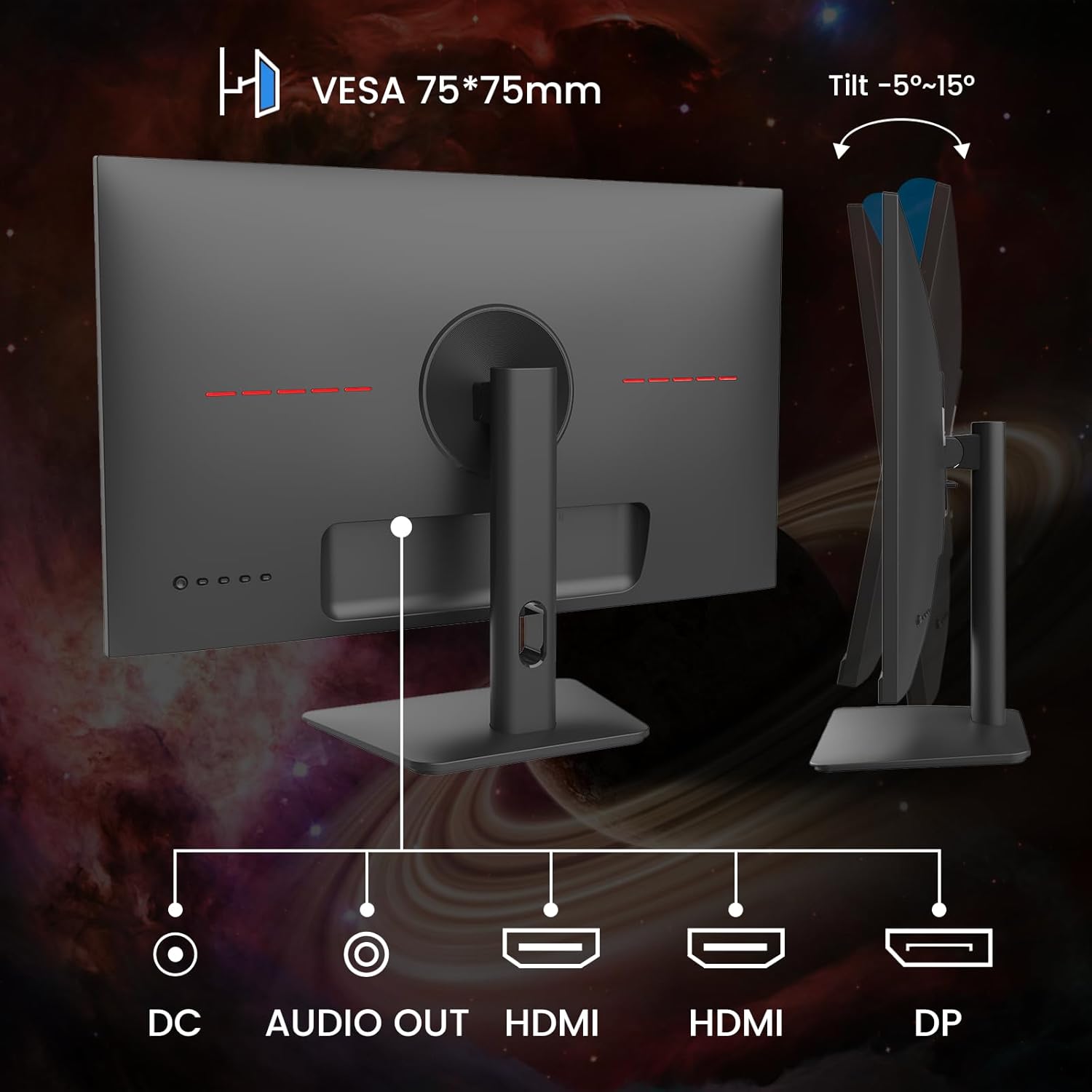
Figure 2: Rear view of the monitor showing stand attachment and tilt adjustment.
3.2 Connecting the Monitor
Connect the monitor to your computer or other devices using the appropriate cables.
- Power Connection: Connect the power adapter to the DC input port on the monitor and then plug it into a power outlet.
- Video Connection: Use the provided HDMI cable to connect your computer's HDMI output to one of the monitor's HDMI input ports. Alternatively, use a DisplayPort (DP) cable to connect to the DP input port for higher refresh rates and FreeSync functionality.
- Audio Output: If you wish to connect external speakers or headphones, use the Audio Out port.
Figure 3: Monitor input ports for power, video, and audio.
3.3 VESA Mounting
The monitor supports VESA 75x75mm mounting for wall mounts or alternative monitor arms. Ensure the VESA mount is compatible and can support the monitor's weight.
4. Operating Instructions
4.1 Powering On/Off
Press the power button located on the monitor to turn it on or off. The power indicator light will illuminate when the monitor is on.
4.2 On-Screen Display (OSD) Menu
Use the control buttons on the monitor to navigate and adjust settings in the OSD menu. Common settings include:
- Brightness/Contrast: Adjust image luminance.
- Color Settings: Modify color temperature, gamma, and saturation.
- Input Source: Manually select between HDMI and DP inputs.
- Audio: Adjust volume for the Audio Out port.
- Gaming Features: Access FreeSync, MPRT, Crosshair, and game modes.
4.3 Key Features
This monitor includes several features to enhance your experience:
- 165Hz Refresh Rate & 1ms Response Time: Provides smooth, fluid visuals, reducing motion blur for fast-paced games.
- AMD FreeSync Technology: Synchronizes the monitor's refresh rate with your GPU's frame rate to eliminate screen tearing and stuttering.
- HDR10 Support: Offers a wider range of colors and contrast for more realistic images.
- BluelightShield / Eye Care: Reduces blue light emissions to minimize eye strain during prolonged use.
- Gaming Modes (RTS/FPS/RACING): Pre-calibrated display settings optimized for specific game genres.
- Crosshair: An on-screen crosshair overlay for improved aiming in games.

Figure 4: AMD FreeSync technology in action, preventing screen tearing.
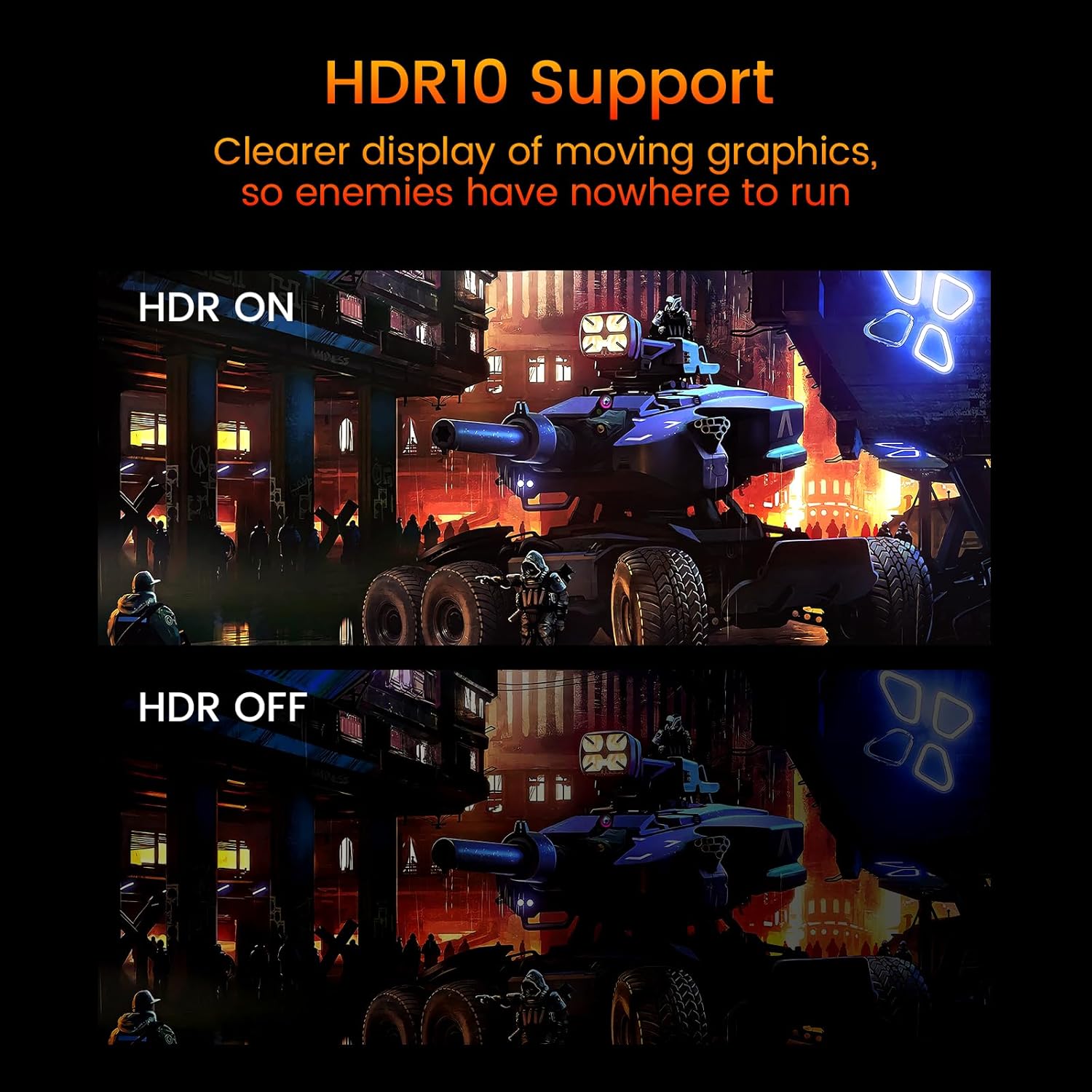
Figure 5: HDR10 support enhancing visual clarity.

Figure 6: Exclusive Gaming Modes (RTS, FPS, Racing).
Video 1: An official Minifire video showcasing the 24-inch gaming monitor's features, including its design, stable stand, Full HD resolution, 165Hz refresh rate (note: video mentions 180Hz, but this model is 165Hz), 1ms response time, AMD FreeSync technology, color gamut, brightness, and various input ports. It also demonstrates gaming modes and the Crosshair feature.
5. Maintenance
To ensure the longevity and optimal performance of your monitor, follow these maintenance guidelines:
- Cleaning the Screen: Gently wipe the screen with a soft, lint-free cloth. For stubborn marks, lightly dampen the cloth with water or a screen-cleaning solution. Avoid harsh chemicals or abrasive materials.
- Cleaning the Casing: Use a soft, dry cloth to clean the monitor casing.
- Ventilation: Ensure the monitor's ventilation openings are not blocked to prevent overheating.
- Storage: When not in use for extended periods, store the monitor in a cool, dry place, preferably in its original packaging.
6. Troubleshooting
If you encounter issues with your monitor, refer to the following common problems and solutions:
| Problem | Possible Cause | Solution |
|---|---|---|
| No image on screen | No power, incorrect input source, loose video cable. | Check power connection, select correct input source via OSD, ensure video cable is securely connected. |
| Image is blurry or distorted | Incorrect resolution, dirty screen. | Set display resolution to 1920x1080. Clean the screen. |
| Screen tearing or stuttering | FreeSync not enabled, incompatible GPU. | Ensure FreeSync is enabled in OSD and your GPU settings. Verify GPU compatibility. |
| No audio | Audio cable not connected, volume too low, incorrect audio output selected on PC. | Connect external speakers/headphones to the Audio Out port. Adjust monitor and PC volume. |
7. Specifications
Detailed technical specifications for the Minifire MFG24X5 monitor:
| Feature | Description |
|---|---|
| Model Number | MFG24X5 |
| Screen Size | 24 Inches |
| Display Type | IPS |
| Resolution | 1920 x 1080 (FHD 1080p) |
| Aspect Ratio | 16:9 |
| Refresh Rate | 165 Hz |
| Response Time | 1 ms |
| Brightness | 300 cd/m² |
| Contrast Ratio | 1000:1 |
| Color Gamut | 110% sRGB |
| Connectivity | 2x HDMI 1.4, 1x DisplayPort 1.2 |
| Audio | Audio Out |
| VESA Mount | 75 x 75 mm |
| Tilt Adjustment | -5° to 15° |
| Special Features | AMD FreeSync, HDR10 Support, BluelightShield |

Figure 7: Product Dimensions.
8. Warranty and Support
Minifire offers comprehensive support for its products:
- 30-Day Refund: If you are not satisfied with your purchase, you may be eligible for a refund within 30 days.
- 24-Month Warranty: The monitor is covered by a 24-month warranty from the date of purchase, covering manufacturing defects.
- Lifetime Technical Support: Free technical assistance is available for the lifetime of the product.
For further assistance, please contact Minifire customer support through their official website or the retailer where you purchased the product.


