1. Introduction
This manual provides detailed instructions for the MEIZE D115A Android 13 Tablet. Please read this manual thoroughly before using your device to ensure proper operation and to maximize its features. Keep this manual for future reference.
The MEIZE D115A tablet features a powerful Octa-Core processor, 10.1-inch HD screen, Android 13 operating system, and comes with essential accessories to enhance your user experience.
2. What's in the Box
Verify that all items are present in the package:
- MEIZE D115A Android 13 Tablet
- Bluetooth Keyboard
- Wireless Mouse
- Touch Pen (Stylus)
- Protective Case
- Power Adapter
- USB Cable

Image: The MEIZE D115A tablet displayed with its complete set of accessories, including the Bluetooth keyboard, wireless mouse, stylus, charging cable, power adapter, and protective case.
3. Device Layout
Familiarize yourself with the physical components of your tablet:

Image: A detailed diagram illustrating the location of the front camera, flash, rear camera, headphone jack, Micro SD slot, Type-C port, volume buttons, power button, and speakers on the MEIZE D115A tablet.
- Front Camera: Located at the top center when held horizontally, used for video calls and selfies.
- Rear Camera: Located on the back, equipped with a flash for photography and video recording.
- Power Button: Used to turn the tablet on/off or put it to sleep/wake it up.
- Volume Buttons: Adjust the audio volume.
- Type-C Port: For charging and data transfer.
- Micro SD Slot: Insert a Micro SD card for expanded storage (up to 512GB).
- 3.5mm Headphone Jack: Connect wired headphones.
- Speakers: Provide audio output.
4. Setup
4.1 Initial Power On
- Press and hold the Power Button until the screen lights up.
- Follow the on-screen prompts to select your language, region, and accept the terms and conditions.
4.2 Wi-Fi Connection
- Go to Settings > Network & internet > Wi-Fi.
- Toggle Wi-Fi On.
- Select your desired network from the list and enter the password if prompted.

Image: The tablet screen showing a graphic indicating support for both 5G and 2.4G Wi-Fi networks, ensuring stable and fast internet connectivity.
4.3 Google Account Setup
Sign in with your Google account to access the Google Play Store, Gmail, and other Google services. If you don't have one, you can create one during this step.
4.4 Accessory Connection
The MEIZE D115A tablet comes with a Bluetooth keyboard, wireless mouse, and stylus for enhanced functionality.
- Bluetooth Keyboard: Turn on the keyboard and enable Bluetooth on your tablet (Settings > Connected devices > Bluetooth). Select the keyboard from the available devices and follow pairing instructions.
- Wireless Mouse: Insert the USB receiver from the mouse into the OTG adapter, then plug the OTG adapter into the tablet's Type-C port. The mouse should connect automatically.
- Stylus: The stylus is a passive input device and does not require pairing. Simply use it to interact with the screen.

Image: A user operating the MEIZE D115A tablet with the connected Bluetooth keyboard and wireless mouse, demonstrating its capability as a portable workstation.
5. Operating Your Tablet
5.1 Basic Navigation
- Touch: Tap an icon to open an app or select an item.
- Swipe: Move your finger across the screen to scroll through pages or content.
- Pinch: Use two fingers to zoom in or out on images and web pages.
- Home Screen: The central hub for your apps and widgets.
5.2 Applications
- Installing Apps: Download applications from the Google Play Store.
- Managing Apps: Go to Settings > Apps to view, manage, or uninstall applications.

Image: The tablet screen displaying numerous application icons and media content, illustrating the ample 128GB internal storage and 16GB RAM (8GB physical + 8GB virtual) for diverse usage.
5.3 Storage Management
The tablet comes with 128GB of internal storage. You can expand this by inserting a Micro SD card (up to 512GB) into the dedicated slot. To manage storage, go to Settings > Storage.
5.4 Camera Usage
The tablet features a 13MP rear camera and an 8MP front camera.
- Open the Camera app.
- Tap the shutter button to take photos or switch to video mode for recording.
- Use the front camera for video calls and selfies.
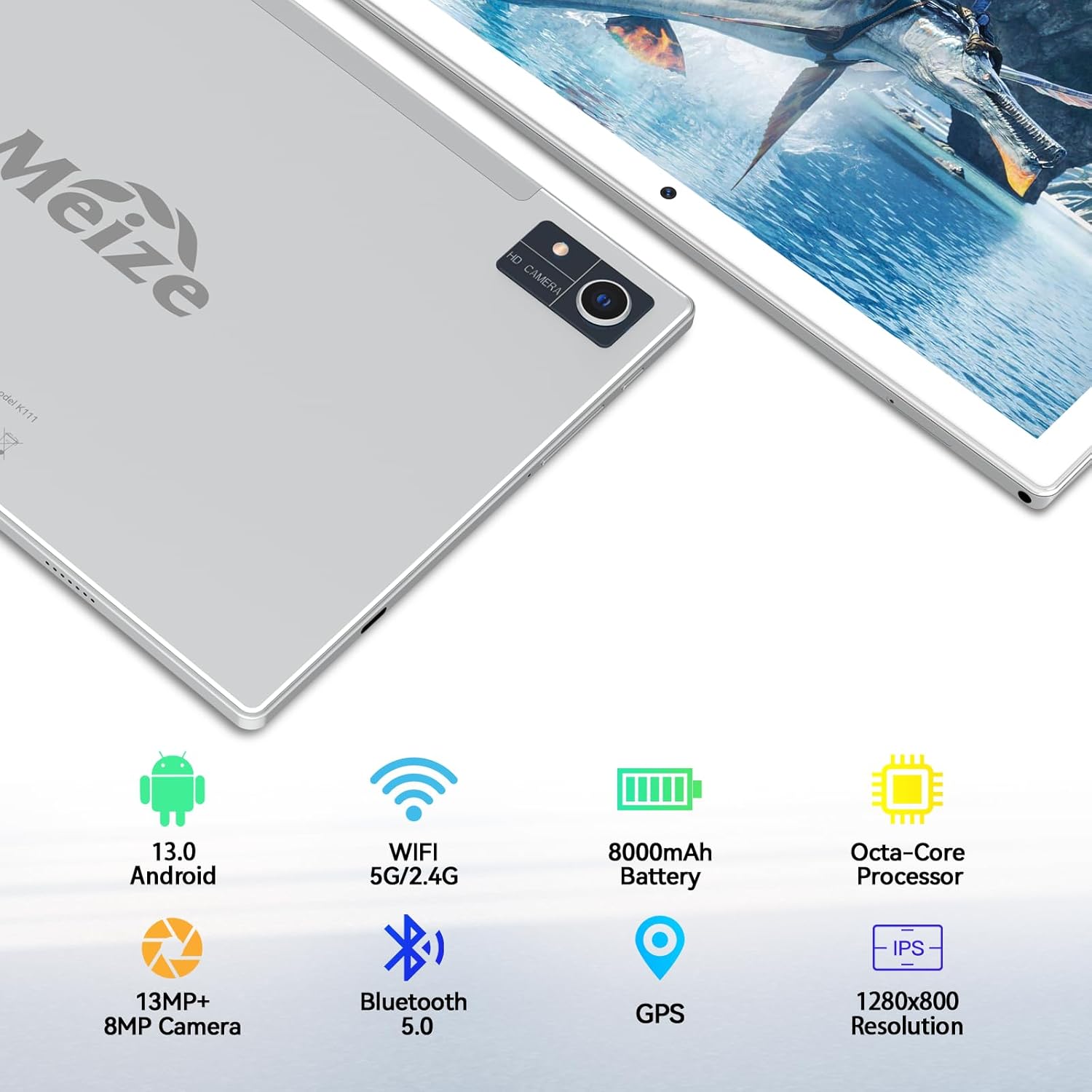
Image: An infographic highlighting the tablet's camera specifications, showing a 13MP rear camera and an 8MP front camera, alongside other key features.
5.5 Battery Management
The 8000mAh battery provides extended usage times. To optimize battery life:
- Adjust screen brightness.
- Close unused applications running in the background.
- Turn off Wi-Fi or Bluetooth when not in use.

Image: A visual representation of the tablet's 8000mAh battery, indicating approximate usage durations: 10 hours for videos, 8 hours for games, and 12 hours for music playback.
6. Maintenance
- Cleaning: Use a soft, lint-free cloth to clean the screen and body of the tablet. Avoid abrasive materials or harsh chemicals.
- Software Updates: Regularly check for system updates in Settings > System > System update to ensure optimal performance and security.
- Data Backup: Periodically back up important data to a cloud service or external storage device to prevent data loss.
7. Troubleshooting
7.1 Tablet Not Turning On
- Ensure the tablet is charged. Connect it to the power adapter and wait a few minutes before attempting to power on again.
- Press and hold the Power Button for at least 10-15 seconds to perform a forced restart.
7.2 Wi-Fi Connection Issues
- Restart your Wi-Fi router and the tablet.
- Forget the network in Wi-Fi settings and reconnect.
- Ensure you are within range of the Wi-Fi signal.
7.3 Slow Performance
- Close unused applications.
- Clear cache for frequently used apps (Settings > Apps > [App Name] > Storage & cache > Clear cache).
- Consider performing a factory reset if performance issues persist (Note: This will erase all data on the tablet. Back up your data first).
8. Specifications
| Feature | Specification |
|---|---|
| Brand | MEIZE |
| Model Number | D115A |
| Operating System | Android 13 |
| Screen Size | 10.1 Inches |
| Screen Resolution | 1280 x 800 Pixels |
| Processor | Octa-Core, 2 GHz |
| RAM | 8 GB (expandable to 16GB with virtual RAM) |
| Internal Storage | 128 GB |
| Expandable Storage | Up to 512 GB (Micro SD) |
| Rear Camera | 13 MP |
| Front Camera | 8 MP |
| Battery Capacity | 8000 mAh |
| Average Battery Life | 10 Hours (video), 8 Hours (gaming), 12+ Hours (music) |
| Wireless Type | 802.11ac (5G/2.4G WiFi) |
| Bluetooth | Bluetooth 5.0 |
| Dimensions (LxWxH) | 10 x 7 x 0.3 inches |
| Item Weight | 2.94 pounds |
9. Warranty and Support
MEIZE is committed to customer satisfaction. If you encounter any issues with your product, please contact our professional support team. We are dedicated to providing excellent service and assistance.
For support inquiries, please refer to the contact information provided with your product packaging or visit the official MEIZE website.