
FORTINET FG-91G
Contents
FortiGate 91G Instruction Manual
Model: FG-91G | Brand: FORTINET
1. Introduction
This manual provides comprehensive instructions for the installation, operation, maintenance, and troubleshooting of the FortiGate 91G hardware appliance. The FortiGate 91G is an advanced next-generation firewall designed to provide robust security and networking capabilities for various environments.
It integrates features such as Unified Threat Protection (UTP), Wi-Fi control, Software-Defined Wide Area Network (SD-WAN), and Zero-Trust Network Access (ZTNA) to deliver a secure and efficient network infrastructure.
2. Product Overview
The FortiGate 91G is a compact, high-performance security appliance. Below are images illustrating its physical design and key interfaces.

Figure 2.1: Front view of the FortiGate 91G appliance, showing all ports and indicators.
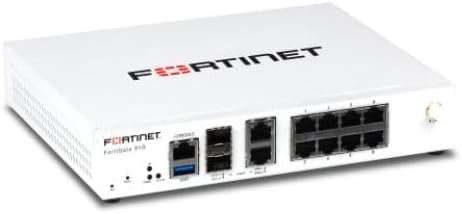
Figure 2.2: Angled view of the FortiGate 91G, highlighting its compact form factor.

Figure 2.3: Close-up of the FortiGate 91G front panel, detailing the console, USB, SFP+, WAN, and Ethernet ports.
2.1 Front Panel Components
- Console Port: RJ45 port for direct management access.
- USB Ports: For external storage or other compatible devices.
- SFP+ Ports (SFP+1, SFP+2): High-speed fiber optic or copper transceiver ports.
- WAN Ports (WAN1, WAN2): Dedicated ports for Wide Area Network connectivity.
- Ethernet Ports (1-6, A-B): Multiple Gigabit Ethernet ports for local network connections.
- Status Indicators (PWR, STATUS, HLD): LEDs indicating power, system status, and high availability link status.
- Reset Button: For resetting the device to factory defaults (requires specific procedure).
3. Setup Guide
3.1 Unboxing and Contents Verification
Carefully unpack the FortiGate 91G appliance and verify that all components are present. The standard package includes:
- FortiGate 91G NGFW Appliance
- Power Adapter/Cable
- Quick Start Guide
- Warranty and Safety Information
3.2 Physical Installation
- Placement: Position the FortiGate 91G on a stable, flat surface in a well-ventilated area. Ensure adequate airflow around the device to prevent overheating. Avoid placing it near heat sources or in direct sunlight.
- Power Connection: Connect the power adapter to the FortiGate 91G's power input and then plug it into a suitable power outlet. The Power (PWR) LED on the front panel should illuminate.
- Network Connections:
- Connect your internet service provider's (ISP) modem or router to one of the WAN ports (e.g., WAN1) using an Ethernet cable.
- Connect your internal network devices (e.g., switches, computers) to the Ethernet ports (1-6, A-B).
- If using SFP+ modules, insert them into the SFP+ ports and connect the appropriate fiber or copper cables.
3.3 Initial Configuration Access
To access the FortiGate 91G for initial configuration, you can use either the web-based manager or the command-line interface (CLI) via the console port.
- Web-based Manager: Connect a computer to one of the internal Ethernet ports. By default, the FortiGate may assign an IP address via DHCP or have a default static IP (e.g., 192.168.1.99). Open a web browser and navigate to the FortiGate's IP address.
- Console (CLI): Connect a console cable from your computer's serial port (or USB-to-serial adapter) to the FortiGate's Console port. Use a terminal emulation program (e.g., PuTTY, Tera Term) with settings: 9600 baud, 8 data bits, no parity, 1 stop bit, no flow control.
4. Operating Instructions
The FortiGate 91G operates as a comprehensive security and networking appliance. Its primary functions include:
- Next-Generation Firewall (NGFW): Provides deep packet inspection, application control, and intrusion prevention to protect against advanced threats.
- Unified Threat Protection (UTP): Includes AI-powered FortiGuard Security Services such as IPS, antivirus, malware and spyware protection, cloud sandbox, web security, URL filtering, DNS security, video protection, and anti-bot communication.
- Wi-Fi Controller: Manages FortiAP wireless access points to provide secure Wi-Fi connectivity.
- SD-WAN: Optimizes WAN performance and cost by intelligently routing traffic across multiple connections.
- Zero-Trust Network Access (ZTNA): Enhances security by verifying every user and device before granting access to network resources.
Detailed configuration and operational procedures are available in the FortiGate Administration Guide, accessible through the Fortinet support portal.
5. Maintenance
Regular maintenance ensures the optimal performance and longevity of your FortiGate 91G appliance.
- Firmware Updates: Periodically check for and apply the latest firmware updates from Fortinet. Firmware updates often include security patches, bug fixes, and new features.
- Physical Cleaning: Keep the appliance clean and free of dust. Use a soft, dry cloth to wipe down the exterior. Ensure ventilation openings are not obstructed.
- Environmental Conditions: Maintain the operating environment within specified temperature and humidity ranges to prevent hardware degradation.
- Configuration Backup: Regularly back up your FortiGate configuration to an external location. This allows for quick restoration in case of unexpected issues or hardware replacement.
6. Troubleshooting
This section provides basic troubleshooting steps for common issues. For more complex problems, refer to the Fortinet support documentation or contact technical support.
| Problem | Possible Cause | Solution |
|---|---|---|
| No Power (PWR LED off) | Power cable disconnected, faulty power outlet, or power adapter issue. | Check power cable connections. Try a different power outlet. Verify power adapter functionality. |
| No Network Connectivity | Incorrect cable connection, interface misconfiguration, or firewall policy blocking traffic. | Verify Ethernet cable connections. Check interface status LEDs. Review FortiGate network configuration and firewall policies. |
| Cannot Access Web-based Manager | Incorrect IP address, network issue, or management access not enabled on interface. | Ensure your computer is on the same subnet as the FortiGate. Try pinging the FortiGate's IP. Verify HTTP/HTTPS management is enabled on the connected interface. |
| Slow Performance | High network traffic, resource exhaustion, or outdated firmware. | Monitor system resources (CPU, memory) via the dashboard. Check for high session counts. Ensure firmware is up to date. |
7. Specifications
Key technical specifications for the FortiGate 91G appliance:
| Model Number | FG-91G |
| Manufacturer | Fortinet |
| Connectivity Technology | Wi-Fi (as controller), Ethernet, SFP+ |
| Included Components | FortiGate 91G NGFW, 24/7 FortiCare support, AI powered FortiGuard Unified Protection with IPS, AV, malware and spyware protection, cloud sandbox, web security, URL filtering, DNS security, video protection, and anti-bot communication |
| Special Feature | Guest Mode |
| Recommended Uses | Indoor/Outdoor (for network security applications) |
| First Available Date | August 11, 2023 |
8. Warranty and Support
The FortiGate 91G comes with a comprehensive support package to ensure continuous security and operational efficiency.
- Unified Threat Protection (UTP) Bundle: Includes 1 year of UTP services, providing advanced threat intelligence and protection.
- FortiCare Premium Support: Includes 1 year of FortiCare Premium support, offering 24/7 technical assistance, hardware replacement, and access to Fortinet's knowledge base and resources.
For detailed warranty terms, service level agreements, and to access support resources, please visit the official Fortinet support website or contact your Fortinet reseller.
Fortinet Support Portal: https://support.fortinet.com
Documents and downloads
Ask a question about this manual
Ask about setup, troubleshooting, compatibility, parts, safety, or missing instructions. Manuals+ will review the question and use this page’s manual context to help answer it.