
GooDee YG600-Movin
GooDee Smart 4K Projector User Manual
Model: YG600-Movin
Introduction
Thank you for choosing the GooDee Smart 4K Projector. This projector is designed to provide an immersive home theater experience with its advanced features, including 5G WiFi, Bluetooth 5.2, Netflix/Prime Video certification, Dolby Audio, and 4K support. This manual will guide you through the setup, operation, and maintenance of your new projector to ensure optimal performance and longevity.
Safety Information
Please read all safety warnings and instructions before using this product to prevent injury or damage. Keep this manual for future reference.
- Do not block ventilation openings. Ensure adequate airflow around the projector.
- Do not expose the projector to rain or moisture to avoid electric shock or fire.
- Use only attachments/accessories specified by the manufacturer.
- Unplug the projector during lightning storms or when unused for long periods.
- Refer all servicing to qualified service personnel.
- Avoid direct eye exposure to the projector lens when the lamp is on.
What's in the Box
Verify that all items are present in the packaging:
- GooDee Smart 4K Projector (Model: YG600-Movin)
- Power Cord
- Remote Control
- HDMI Cable
- Projector Lens Cover
- Cleaning Kit
- User Manual (this document)
Product Overview
Familiarize yourself with the main components of your GooDee Smart 4K Projector.
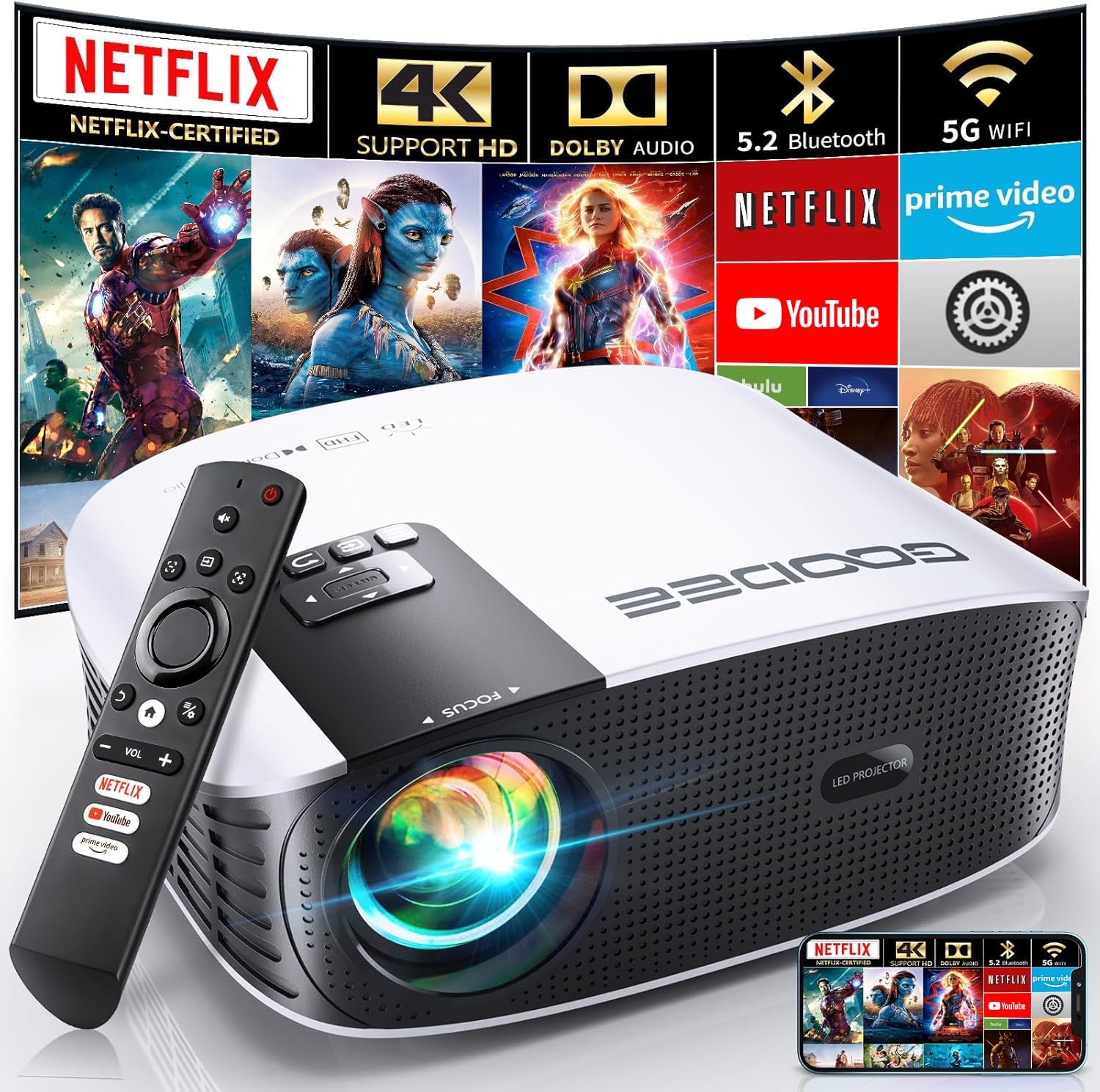
The GooDee Smart 4K Projector and its included remote control. The projector features a sleek white and black design with a prominent lens and control panel.

A detailed view of the projector's front and side, highlighting the lens and ventilation grilles.

The rear panel of the projector, displaying various input and output ports for connectivity.
Setup
1. Placement
Place the projector on a stable, flat surface. Ensure there is sufficient space around the projector for proper ventilation. The optimal projection distance varies based on desired screen size (up to 400 inches diagonal).
2. Power Connection
Connect the power cord to the projector's power input and then to a power outlet.
3. Initial Power On
Press the power button on the projector or the remote control to turn on the device. The GooDee logo will appear, followed by the smart OS interface.
4. Network Connection (WiFi)
Navigate to the settings menu on the projector's interface. Select "Network" or "WiFi" and choose your desired network. Enter the password if prompted. The projector supports both 2.4G and 5G WiFi connections for stable and fast streaming.

Illustration demonstrating the difference in stability and speed between 2.4G and 5G WiFi connections, with 5G offering a faster experience.
5. Focus and Keystone Correction
The GooDee YG600-Movin features electric focus and electric keystone correction. Use the remote control to adjust the focus until the image is clear and sharp. For keystone correction, adjust until the projected image forms a perfect rectangle. This eliminates trapezoidal distortion.

Visual representation of the electric focus and keystone correction functions, showing how the remote can be used to achieve a clear and rectangular image.

A detailed diagram showing the remote control's buttons for electric focus and keystone correction, simplifying screen adjustment.
Operating Instructions
1. Navigating the Smart OS
The projector runs on a smart operating system, providing direct access to various applications. Use the remote control's directional buttons and OK button to navigate through menus and select apps. The home screen provides quick access to certified streaming services.

The projector's smart interface showing pre-installed applications like Netflix, Prime Video, and YouTube, ready for direct streaming.
2. Using Certified Streaming Apps
The GooDee YG600-Movin is certified for Netflix, Amazon Prime Video, and YouTube. Simply select the app from the home screen and log in with your credentials to start streaming content directly. Due to copyright restrictions, direct mirroring or casting from mobile devices for these apps is not supported.
3. Wireless Screen Mirroring
For other content, the projector supports wireless screen mirroring for iOS, Android, and Windows devices. Ensure your device and the projector are connected to the same WiFi network. Follow the on-screen instructions for your specific device (e.g., AirPlay for iOS, Miracast for Android/Windows).
This video demonstrates how to use the DLNA Wireless Simultaneous function for screen mirroring with your GooDee Smart Projector.
4. Audio Output (Dolby Audio & Bluetooth)
The projector features built-in 2*5W speakers with genuine Dolby Audio for a rich sound experience. For enhanced audio, connect external Bluetooth speakers or soundbars using the latest Bluetooth 5.2 technology. Navigate to the Bluetooth settings, enable Bluetooth, and pair with your desired audio device.

An image highlighting the projector's Dolby Audio capabilities and Bluetooth 5.2 connectivity for external sound systems.
5. Zoom Function
The projector offers a 50%-100% zoom function, allowing you to adjust the screen size without physically moving the projector. Use the remote control to fine-tune the image size to fit your projection surface.

This graphic illustrates the projector's ability to adjust screen size from 50% to 100% and apply keystone correction for an optimal viewing experience up to 400 inches.
Maintenance
Regular maintenance ensures the longevity and optimal performance of your projector.
1. Cleaning the Lens
Use the provided cleaning kit or a soft, lint-free cloth specifically designed for optical lenses. Gently wipe the lens in a circular motion. Avoid using abrasive cleaners or excessive force.
This video from GooDee-US demonstrates recommended methods for cleaning your smart projector screen.
2. Cleaning the Exterior
Wipe the projector's exterior with a soft, dry cloth. For stubborn marks, a slightly damp cloth can be used, followed by a dry wipe. Do not use harsh chemicals.
3. Dust Prevention
The projector is designed with imported high-tech materials to block dust and prolong its life. However, it is still recommended to keep the projector in a clean environment and use the lens cover when not in use.
Troubleshooting
| Problem | Possible Cause | Solution |
|---|---|---|
| No image projected | Power cable loose, projector off, input source incorrect. | Check power connection, turn on projector, select correct input source. |
| Image blurry | Out of focus, incorrect keystone. | Use electric focus and keystone correction on the remote control. |
| No sound | Volume too low, external audio device not connected/paired. | Increase volume, check Bluetooth connection, ensure external device is on. |
| Cannot connect to WiFi | Incorrect password, out of range, network issue. | Verify password, move closer to router, restart router and projector. |
| Streaming apps not working | Network issue, app error, copyright restriction for mirroring. | Check internet connection, restart app, remember certified apps cannot be mirrored. |
Specifications
| Feature | Detail |
|---|---|
| Model Number | YG600-Movin |
| Product Dimensions | 7.5 x 3.6 x 9.6 inches |
| Item Weight | 4.53 pounds |
| Display Resolution | Native 1920 x 1080 (4K Support) |
| Brightness | 800 ANSI Lumen |
| Connectivity Technology | Bluetooth 5.2, Wi-Fi (2.4G+5G WIFI6), HDMI, IR, USB |
| Max Screen Size | 400 inches |
| Special Features | Internet Built-In, Portable, Speakers, Built-In Wi-Fi, Electric Focus, Electric Keystone Correction, Netflix/Prime Video/YouTube Certified |
| Audio | Dolby Audio, 2*5W Built-in Speakers |
| Zoom Function | 50%-100% |
Warranty and Support
GooDee provides lifetime technical support for your projector. If you encounter any issues or have questions regarding your product, please do not hesitate to contact GooDee customer service. Refer to the contact information provided in your product packaging or on the official GooDee website for assistance.
For common issues, please refer to the Troubleshooting section of this manual.
Related documentsYG600-Movin


Ask a question about this manual
Ask about setup, troubleshooting, compatibility, parts, safety, or missing instructions. Manuals+ will review the question and use this page’s manual context to help answer it.