
1. Introduction
The BoxWave AllReader SD Card Reader is a versatile device designed for convenient file transfer between various digital devices and memory cards. It supports both standard SD and microSD cards and features multiple interfaces for broad compatibility, including USB-C, USB-A, Micro-USB, and Apple Lightning connectors. This manual provides instructions for setting up, operating, and maintaining your AllReader SD Card Reader.
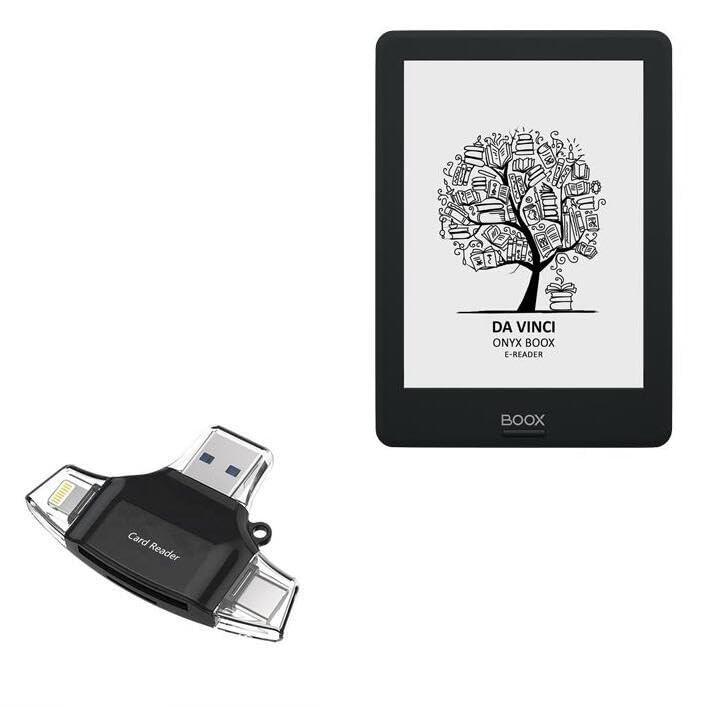
Image 1.1: The BoxWave AllReader SD Card Reader, illustrating its compact design and multiple connector types.
2. Setup
Before using your AllReader SD Card Reader, follow these steps to prepare it for operation:
- Insert Memory Card: Locate the appropriate slot for your SD or microSD card on the AllReader. Gently insert your memory card into the slot until it clicks into place. Ensure the card is inserted correctly, with the contacts facing down.
- Identify Device Interface: Determine which interface your host device (smartphone, tablet, laptop, desktop) uses. The AllReader features USB-C, USB-A, Micro-USB, and Apple Lightning connectors.

Image 2.1: The AllReader SD Card Reader with a standard SD card fully inserted into its slot.
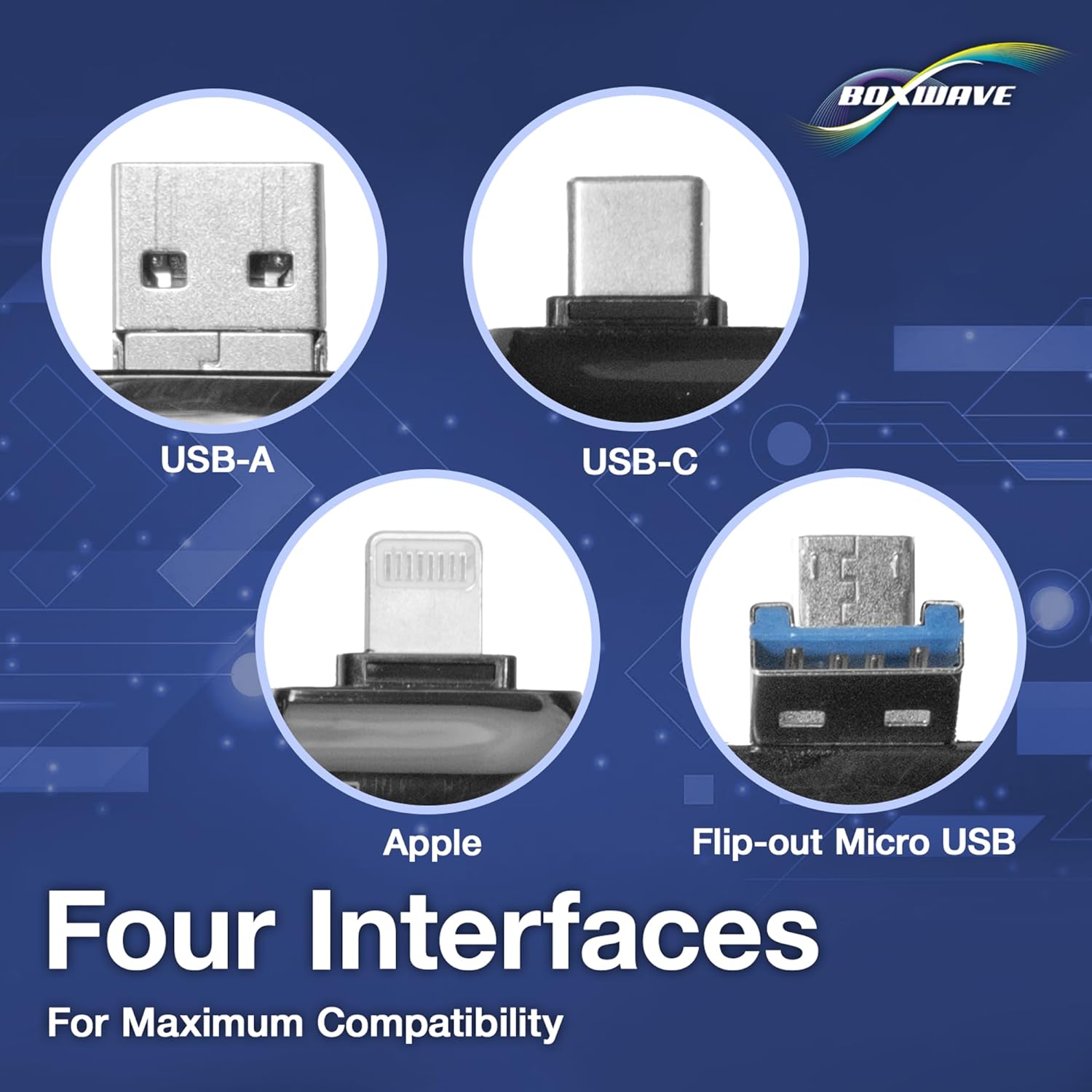
Image 2.2: A detailed view of the four integrated interfaces: USB-A, USB-C, Apple Lightning, and a flip-out Micro-USB connector.
3. Operating Instructions
The AllReader SD Card Reader operates on a plug-and-play principle, requiring no additional drivers for most modern operating systems.
- Connect to Device: With the memory card inserted, connect the appropriate connector of the AllReader to your host device's port. For example, use the USB-C connector for compatible smartphones or laptops, or the USB-A connector for desktop computers.
- Access Files: Once connected, your device should automatically recognize the AllReader as an external storage device. Navigate to your device's file manager or photo gallery application. The contents of your SD or microSD card will be accessible.
- Transfer Files: You can now copy, move, or delete files between your memory card and your host device's internal storage. Follow your device's standard procedures for file management.
- Safely Disconnect: Before removing the AllReader, ensure all file transfers are complete. On computers, safely eject the device through your operating system's options. On mobile devices, simply unplugging after file operations are complete is generally safe.

Image 3.1: The AllReader facilitating file transfer across different devices, including smartphones, tablets, laptops, and desktop computers.
4. Maintenance
To ensure the longevity and optimal performance of your BoxWave AllReader SD Card Reader, follow these maintenance guidelines:
- Keep Clean: Use a soft, dry cloth to wipe the exterior of the device. Avoid using liquid cleaners or abrasive materials, which can damage the connectors or casing.
- Protect Connectors: When not in use, store the AllReader in a way that protects its connectors from dust, dirt, and physical damage. The compact design allows for easy storage in a bag or pocket.
- Avoid Extreme Conditions: Do not expose the device to extreme temperatures, humidity, or direct sunlight.
- Handle with Care: Avoid dropping the device or subjecting it to strong impacts.
5. Troubleshooting
If you encounter issues with your AllReader SD Card Reader, refer to the following common solutions:
- Device Not Recognized:
- Ensure the AllReader is firmly connected to your host device's port.
- Try connecting to a different port on your device or a different host device to rule out port issues.
- Verify that the memory card is correctly and fully inserted into the AllReader.
- Restart your host device.
- Cannot Access Files:
- Check if the memory card is formatted correctly and is not corrupted. Try the card in another reader if available.
- Ensure your host device has a file manager application installed and is capable of reading the memory card's file system (e.g., FAT32, exFAT, NTFS).
- Slow Transfer Speeds:
- Transfer speeds can vary based on the memory card's speed class and the host device's USB version (e.g., USB 2.0 vs. USB 3.0).
- Ensure no other intensive data operations are running on your host device during transfer.
6. Specifications
| Feature | Detail |
|---|---|
| Brand | BoxWave |
| Model | AllReader SD Card Reader |
| Media Type Supported | SD Card, microSD Card |
| Hardware Interfaces | USB-C, USB-A, Micro-USB, Apple Lightning |
| Color | Jet Black |
| Item Weight | 6 Ounces |
| Manufacturer | BoxWave |
7. Warranty and Support
Specific warranty details for the BoxWave AllReader SD Card Reader are not provided within this manual. For information regarding warranty coverage, technical support, or customer service, please refer to the official BoxWave website or contact their customer support directly.