1. Product Overview
This manual provides instructions for the Baseus 7-in-1 Laptop Docking Station and the Baseus Retractable USB Type-C Cable for Car. These products are designed to enhance connectivity and charging capabilities for your devices.
1.1 Baseus 7-in-1 Laptop Docking Station
The 7-in-1 docking station expands your laptop's connectivity with multiple ports for various peripherals and external displays.
- 1 HDMI Port: Supports up to 4K@60Hz resolution for video output, compatible with 1080P@120Hz for high refresh rate displays.
- 3 USB 3.0 Ports: Provides high-speed data transfer up to 5Gbps.
- 1 SD/TF Card Slot: Allows direct access to SD and TF memory cards.
- 1 USB-C PD Port: Supports Power Delivery up to 100W for charging your host laptop.

Image 1.1: The Baseus 7-in-1 Docking Station illustrating its multiple ports and connectivity options for enhanced efficiency.
1.2 Baseus Retractable USB Type-C Cable for Car
This coiled USB-A to USB-C cable is designed for convenient use in vehicles, offering both fast charging and data transfer capabilities.
- Coiled Design: Retractable cable with a tensile length of 0.8-3.3 feet (approximately 24-100 cm) for tangle-free storage and flexible use.
- Fast Charge & Data Transfer: Supports 2A fast charging and data transfer speeds up to 480Mb/s.
- Smart Security Chip: Integrated chip for safe and reliable operation.
- Android Auto Support: Compatible with Android Auto for in-car connectivity.

Image 1.2: The Baseus Retractable USB Type-C Cable for Car, shown connected to a smartphone for charging in a vehicle.
2. Setup Instructions
2.1 Baseus 7-in-1 Laptop Docking Station
- Connect to Host Device: Plug the integrated USB-C cable of the docking station into an available USB-C port on your laptop, tablet, or smartphone. Ensure your device's USB-C port supports DisplayPort Alternate Mode (Alt Mode) for video output and Power Delivery for charging.
- Connect External Display (HDMI): Connect an HDMI cable from your monitor or TV to the HDMI port on the docking station.
- Connect USB Peripherals: Plug your USB devices (e.g., mouse, keyboard, external hard drive, USB flash drive) into the USB 3.0 ports on the docking station.
- Insert Memory Cards: Insert your SD or TF (Micro SD) card into the corresponding slot on the docking station.
- Power Delivery (Optional): To charge your host laptop through the docking station, connect a compatible USB-C Power Delivery (PD) charger (not included) to the USB-C PD input port on the docking station. The docking station requires an external power supply to charge the connected laptop.
Video 2.1: This video demonstrates the setup and various functions of a USB-C to HDMI adapter, including connecting to a laptop, extending and mirroring displays, power delivery, and data transfer. It highlights compatibility with devices like Nintendo Switch, Steam Deck, and ROG Ally, and its use in meetings, home offices, and gaming.
2.2 Baseus Retractable USB Type-C Cable for Car
- Connect to Power Source: Plug the USB-A end of the cable into a compatible USB-A port in your car (e.g., car charger, car's built-in USB port).
- Connect to Device: Plug the USB-C end of the cable into your smartphone, tablet, or other USB-C compatible device.
- Adjust Length: Gently pull both ends of the cable simultaneously to extend it to the desired length. To retract, pull both ends slightly again and release to allow it to coil back.
3. Operating Instructions
3.1 Using the 7-in-1 Laptop Docking Station
- Video Output: Once connected via HDMI, your laptop's display settings can be configured to extend or mirror your screen to the external monitor. The docking station supports 4K@60Hz for clear visuals and 1080P@120Hz for smoother motion.
- Data Transfer: The USB 3.0 ports allow for rapid data transfer between your host device and connected USB storage devices. The SD/TF card slots enable quick access to photos and files from memory cards.
- Power Delivery: When an external USB-C PD charger is connected to the docking station's PD port, it will pass up to 100W of power to charge your host laptop. This allows you to use all other ports while simultaneously charging your device.

Image 3.1: A laptop connected to an external display through the docking station, demonstrating 4K@60Hz clarity for an enhanced viewing experience.

Image 3.2: The Baseus docking station highlighting its USB 3.0 ports, capable of super-fast data transfer at 5Gbps.

Image 3.3: A laptop receiving power through the docking station's PD port, demonstrating powerful pass-through charging up to 100W.
3.2 Using the Retractable USB Type-C Cable for Car
- Charging: Connect the cable to a suitable car charger or USB port to charge your USB-C devices. The cable supports 2A fast charging.
- Data Transfer: When connected to a compatible car USB port or computer, the cable facilitates data transfer at speeds up to 480Mb/s.
- Android Auto: Connect your Android smartphone to a car's USB port that supports Android Auto for seamless integration and access to navigation, music, and communication features.
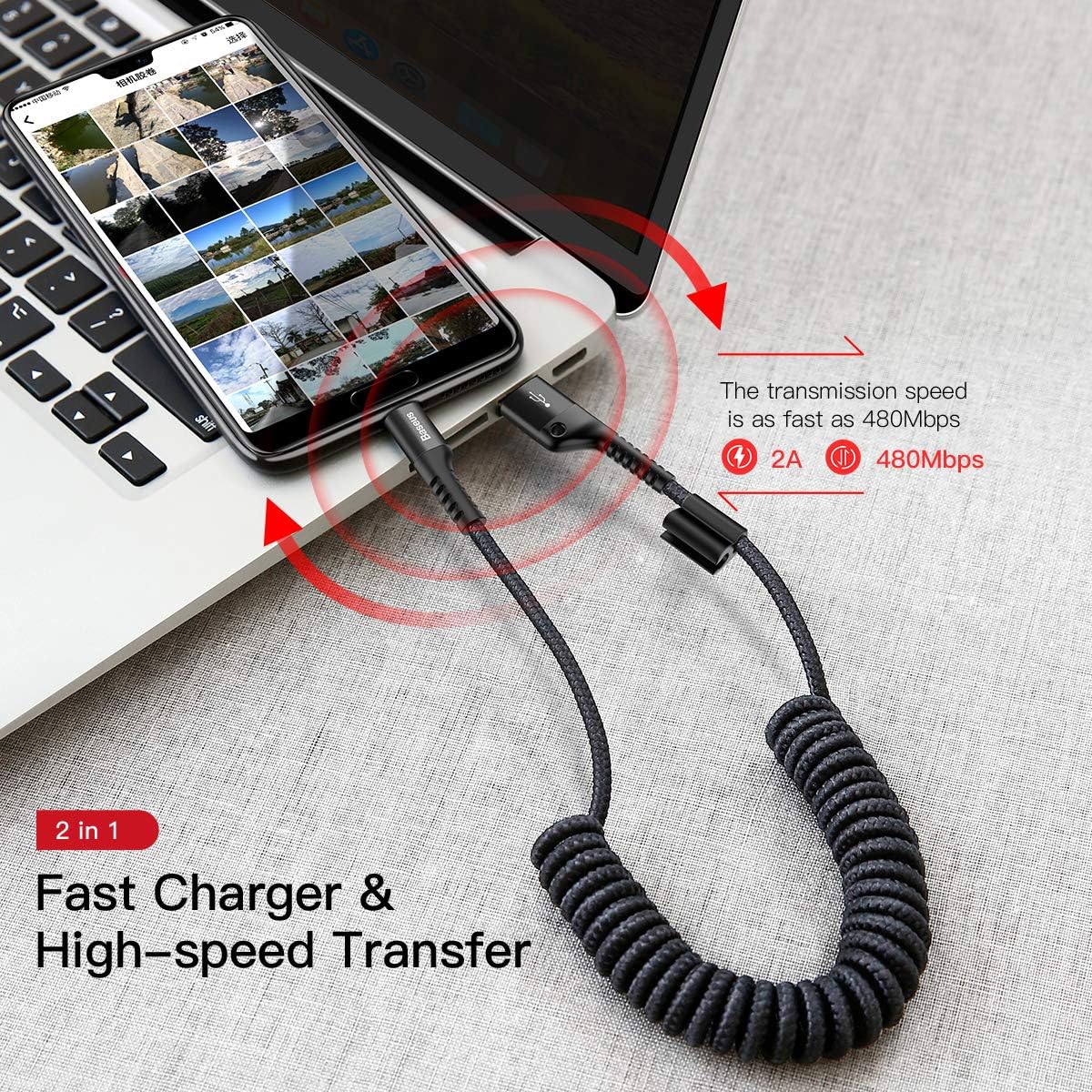
Image 3.4: The retractable USB-C cable demonstrating its dual functionality for fast charging and high-speed data transfer.
4. Specifications
4.1 Baseus 7-in-1 Laptop Docking Station
- Model: B0CF9L4D1F (Part of the product bundle)
- Hardware Interface: USB, USB Type C
- Ports: 1 x HDMI, 3 x USB 3.0, 1 x SD Card Slot, 1 x TF Card Slot, 1 x USB-C Power Delivery
- HDMI Output: Up to 4K@60Hz, compatible with 1080P@120Hz
- USB 3.0 Data Transfer Speed: Up to 5Gbps
- USB-C PD Input: Up to 100W (requires external PD charger)
- Compatible Devices: Laptops, tablets, and smartphones with USB-C ports supporting Power Delivery, DisplayPort Alternate Mode, and data transfer.
4.2 Baseus Retractable USB Type-C Cable for Car
- Model: B0CF9L4D1F (Part of the product bundle)
- Cable Type: USB-A to USB-C
- Design: Coiled, Retractable
- Tensile Length: 0.8 - 3.3 feet (approx. 24 - 100 cm)
- Charging Current: 2A
- Data Transfer Speed: Up to 480Mb/s
- Features: Built-in smart security chip, supports Android Auto.
- Compatibility: Devices with USB-C ports.

Image 4.1: The Baseus retractable USB-C cable illustrating its broad compatibility with various Type-C devices, including MacBooks, Note series, S series, and other smartphones.
5. Troubleshooting
5.1 Docking Station Issues
- No Video Output:
- Ensure your host device's USB-C port supports DisplayPort Alternate Mode.
- Check that the HDMI cable is securely connected to both the docking station and the monitor.
- Verify the monitor's input source is set correctly to HDMI.
- Try restarting your host device.
- Laptop Not Charging:
- Confirm that an external USB-C PD charger is connected to the docking station's USB-C PD input port. The docking station does not provide power to the laptop without an external charger.
- Ensure the external PD charger has sufficient wattage (e.g., 65W or 100W) for your laptop.
- Check all cable connections.
- USB Devices Not Recognized or Slow Data Transfer:
- Ensure USB devices are properly inserted into the USB 3.0 ports.
- For optimal speed, use high-quality USB 3.0 compatible devices and cables.
- If connecting high-power devices, ensure the docking station is receiving power via its PD port.
- SD/TF Card Not Detected:
- Ensure the card is fully inserted into the correct slot.
- Check if the card is damaged or corrupted.
- Try the card directly in another device to confirm functionality.
5.2 Car Cable Issues
- Device Not Charging:
- Ensure the USB-A end is securely plugged into a functional car charger or USB port.
- Verify the USB-C end is correctly connected to your device.
- Check if the car charger or USB port is providing power.
- Slow Charging:
- Ensure your car charger supports fast charging.
- The cable supports 2A charging; if your device requires higher amperage, charging may be slower.
- Android Auto Not Working:
- Confirm your car's infotainment system supports Android Auto and that the USB port is enabled for data transfer.
- Ensure Android Auto is installed and updated on your smartphone.
- Try connecting directly to the car's USB port without other adapters.
6. Maintenance
- Cleaning: Use a soft, dry cloth to clean the surfaces of the docking station and cable. Avoid liquid cleaners or abrasive materials.
- Storage: Store the products in a cool, dry place away from direct sunlight and extreme temperatures. For the retractable cable, ensure it retracts smoothly and is not forced.
- Handling: Avoid dropping or subjecting the products to strong impacts. Do not bend the cables excessively or apply undue force to the connectors.
7. Warranty and Support
For warranty information or technical support, please refer to the documentation included with your purchase or visit the official Baseus website. You may also contact Baseus customer service directly for assistance with product issues or inquiries.
Baseus Official Website: www.baseus.com


