1. Introduction
The eufy Security SoloCam S340 is a solar-powered wireless outdoor security camera designed to provide comprehensive surveillance with advanced features. This manual provides detailed instructions for setting up, operating, and maintaining your SoloCam S340 to ensure optimal performance and security.

Image 1.1: eufy Security SoloCam S340 Overview
Key Features:
- Enhanced Dual Camera Vision: Capture everything around your home in clear 3K resolution. Utilize 8x zoom to identify approaching individuals.
- Solar-Powered Operation: Enjoy continuous peace of mind with easy installation and a removable solar panel for constant power.
- 360° Coverage, No Blind Spots: Monitor your entire property with 360-degree surveillance, covering front door, backyard, and driveway.
- Dual View Monitoring: Observe the wider scene while simultaneously zooming in on critical details within a single display.
- Local Storage, No Monthly Fees: One-time purchase with no recurring costs for storage.
- Versatile and Effortless Installation: Quick 5-minute setup due to compact size and wireless design.
2. Package Contents
Ensure all the following components are present in your package:
- 1x eufy Security SoloCam S340
- Mounting bracket and screws
- USB charging cable
- Quick Start Guide
3. Setup and Installation
Follow these steps for a successful installation of your SoloCam S340.
3.1 Initial Charging
Before installation, fully charge the camera using the provided USB cable. This ensures the camera has sufficient power for initial setup and to begin solar charging effectively.
3.2 App Download and Account Creation
- Download the eufy Security app from the App Store (iOS) or Google Play Store (Android).
- Create a new eufy Security account or log in with an existing one.
- Follow the in-app instructions to add your SoloCam S340 device.
3.3 Mounting Location Selection
Choose a mounting location that offers:
- Optimal sunlight exposure for the solar panel throughout the day.
- A clear view of the area you wish to monitor.
- Strong Wi-Fi signal from your router or HomeBase 3 (if applicable).

Image 3.1: Wireless Installation Example
3.4 Physical Installation
- Secure the mounting bracket to the desired surface using the provided screws.
- Attach the SoloCam S340 to the mounting bracket.
- Adjust the camera angle to cover the monitoring area. Ensure the solar panel is positioned to receive maximum direct sunlight.
The SoloCam S340 supports versatile installation options, including wall mounting. It is compatible with HomeBase 3 for enhanced connectivity and features.

Image 3.2: Connectivity Options with Wi-Fi and HomeBase 3
4. Operating the SoloCam S340
Understand the various functions and how to operate your security camera.
4.1 Dual Camera System
The SoloCam S340 features a dual-camera system, combining a wide-angle lens with a telephoto lens. This allows for both a broad overview and detailed zoomed-in views simultaneously.

Image 4.1: Dual Camera Lenses for 3K Resolution and 8x Zoom
4.2 360-Degree Monitoring
The camera offers 360-degree pan and tilt capabilities, eliminating blind spots and providing comprehensive coverage of your property. You can control the camera's view remotely via the eufy Security app.
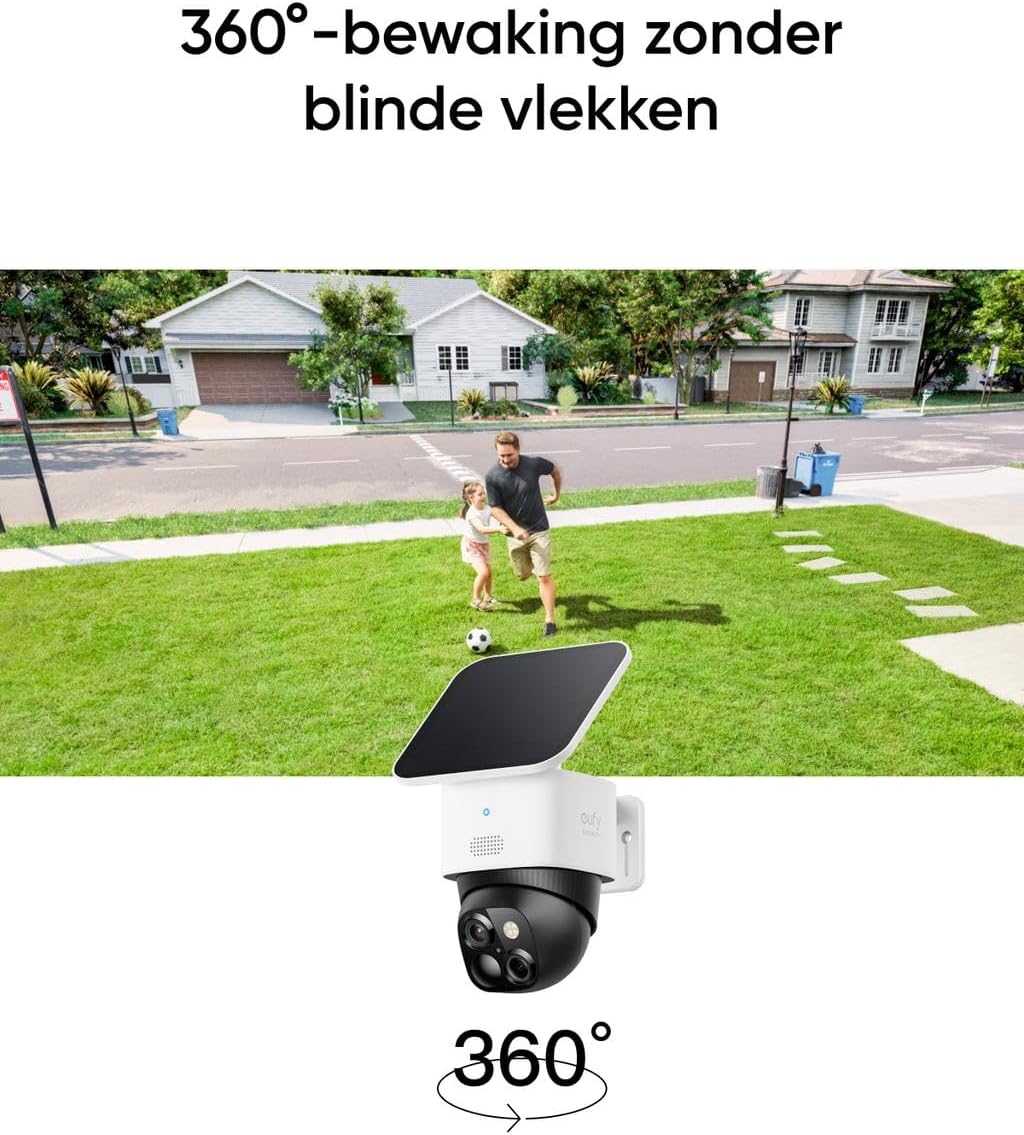
Image 4.2: 360-Degree Surveillance in Action
4.3 AI-Powered Tracking
The integrated AI technology enables the camera to detect and track human movement with high accuracy, reducing false alarms. This feature ensures that important events are captured and recorded.
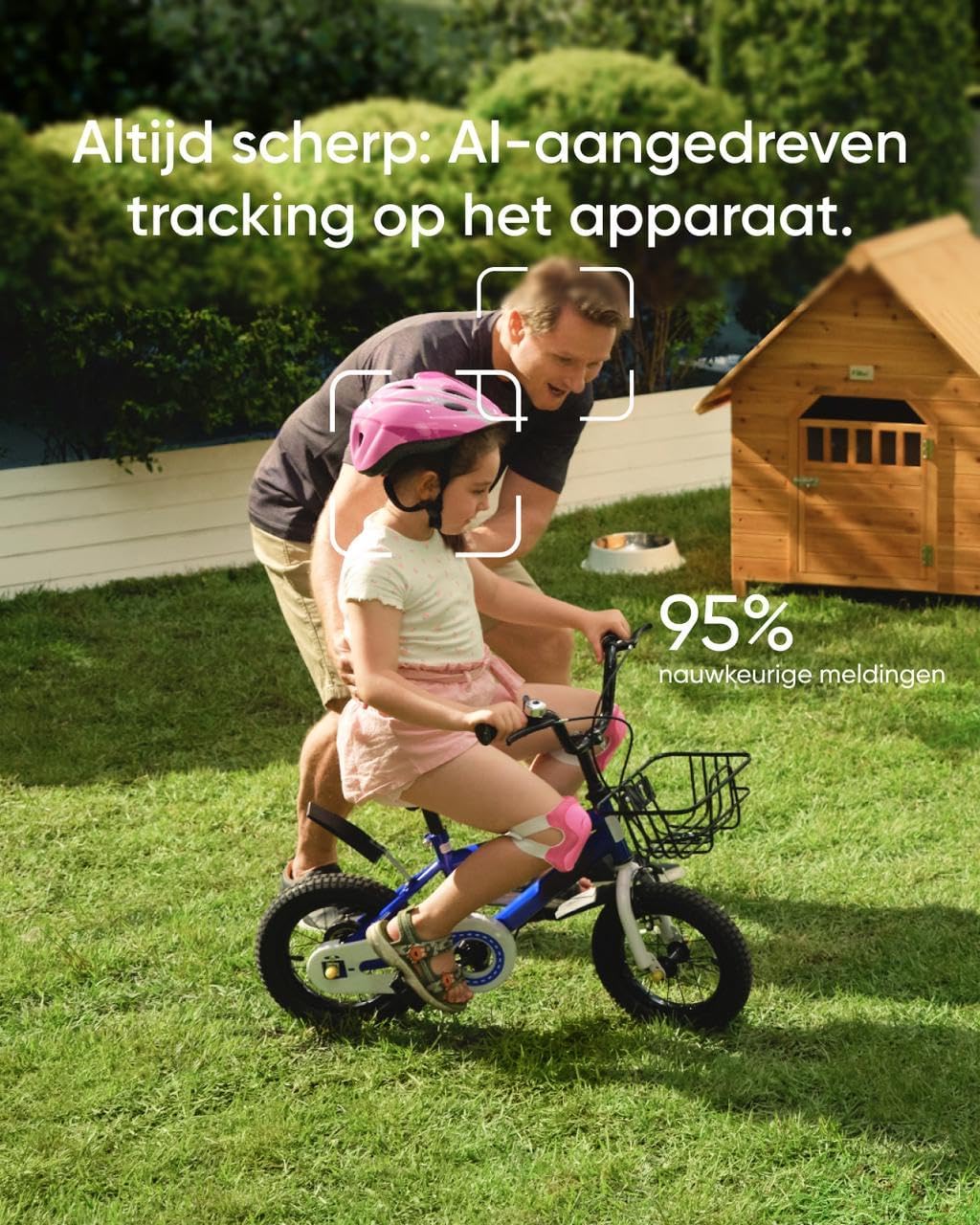
Image 4.3: AI-Powered Human Tracking
4.4 Night Vision and Spotlight
The SoloCam S340 provides clear night vision, including color night vision, to ensure visibility even in low-light conditions. The built-in spotlight can be activated to deter intruders or illuminate the area.

Image 4.4: Color Night Vision Capability
4.5 Two-Way Audio
Communicate with visitors or deter unwanted guests using the camera's integrated speaker and microphone for two-way audio functionality.

Image 4.5: Two-Way Audio Communication
4.6 Using the eufy Security App
The eufy Security app is your central control hub for the SoloCam S340. It allows you to:
- View live footage and recorded events.
- Control pan and tilt functions.
- Adjust motion detection sensitivity and activity zones.
- Access local storage recordings (8GB built-in).
- Receive instant notifications.

Image 4.6: eufy Security App Dashboard

Image 4.7: Setting Up Activity Zones in the App
5. Power Management and Maintenance
5.1 Solar Charging
The SoloCam S340 is equipped with a removable solar panel for continuous power. For optimal charging, ensure the solar panel receives at least two hours of direct sunlight daily. The camera can also charge in low light or shaded conditions, but direct sunlight is most efficient.

Image 5.1: SolarPlus™ Technology for Lifetime Power
5.2 Weather Resistance
The camera is designed for outdoor use with a waterproof rating, making it resistant to various weather conditions.

Image 5.2: All-Weather Durability
5.3 Cleaning
Periodically clean the solar panel and camera lenses with a soft, damp cloth to ensure optimal performance. Avoid using harsh chemicals or abrasive materials.
6. Troubleshooting
If you encounter issues with your SoloCam S340, refer to the following common problems and solutions.
6.1 Camera Not Charging via Solar Panel
- Check Sunlight Exposure: Ensure the solar panel receives at least 2 hours of direct, unobstructed sunlight daily.
- Clean Solar Panel: Dust or debris on the solar panel can reduce charging efficiency. Clean it gently.
- Verify Connection: Ensure the solar panel is securely connected to the camera.
- Battery Level: If the battery is completely depleted, it may need an initial charge via USB before solar charging becomes effective.
6.2 Poor Wi-Fi Connection
- Router Proximity: Move the camera closer to your Wi-Fi router or HomeBase 3.
- Obstructions: Walls, metal objects, and other electronic devices can interfere with the Wi-Fi signal. Try to minimize these.
- Router Settings: Ensure your router is broadcasting a 2.4GHz Wi-Fi signal, as the camera supports 2.4GHz only.
6.3 False Motion Alerts
- Adjust Sensitivity: In the eufy Security app, reduce the motion detection sensitivity.
- Set Activity Zones: Define specific areas for motion detection to ignore irrelevant movements (e.g., passing cars on a public road).
- Object Interference: Moving branches, shadows, or reflections can trigger alerts. Adjust the camera angle if necessary.
7. Technical Specifications
| Feature | Specification |
|---|---|
| Model Name | SoloCam S340 |
| Item Model Number | T8170 |
| Manufacturer | Anker |
| Mounting Type | Wall Mount |
| Video Recording Resolution | 3K |
| Color | Black + White |
| Included Components | 1x eufy security SoloCam S340 |
| Wireless Communication Technology | Wi-Fi (2.4GHz) |
| Viewing Angle | 360 Degrees |
| Installation Type | Screw-in |
| Night Vision Range | 15 Meters |
| Frame Rate | 15 frames_per_second |
| Material | Metal |
| Wattage | 9 watts |
| Item Dimensions (L x W x H) | 8.7 x 8.7 x 12 centimeters |
| Water Resistance Level | Waterproof |
| Batteries | 1 Lithium ion battery required (included) |
| Battery Type | Lithium-ion |
| Weight | 630.49 grams (1.39 Pounds) |
| Recommended Product Applications | Night Vision |
| Special Features | Enhanced dual-camera clarity, solar-powered, removable solar panel, 360° Guardian, no blind spots, versatile installation, effortless setup |
| Indoor/Outdoor Use | Outdoor |
| Compatible Devices | Smartphone |
| Power Source | Battery Powered |
| Connectivity Protocol | Wifi |
| Controller Type | iOS |
8. Safety and Compliance
At eufy Security, privacy and security are paramount. Both are essential components of our daily work and the implementation of measures that ensure our customers' data is always protected.
From the cries of a newborn to the victory dance after a won game - what happens in our customers' homes stays in their homes. We use products and services that keep our customers' data private and secure.
This is just the beginning of our commitment to protect our customers and their families' privacy.

Image 8.1: eufy Security Privacy Commitment
9. Warranty and Support
For warranty information, technical support, or further assistance, please refer to the official eufy Security website or contact their customer service directly. Details can typically be found in the Quick Start Guide included with your product or on the eufy Security support pages online.
Please retain your proof of purchase for warranty claims.