
Introduction
This manual provides essential instructions for setting up, operating, and maintaining your ApoloSign NJP561P-Z Laptop Computer. Please read this manual thoroughly before using your device to ensure proper function and longevity.
Package Contents
- ApoloSign NJP561P-Z Laptop
- Power Adapter
- User Manual
Setup
First Use and Charging
Before initial use, connect the provided power adapter to the laptop's DCIN port and then to a power outlet. Allow the battery to charge fully. The DCIN port is located on the right side of the laptop.

Image: The ApoloSign NJP561P-Z laptop connected to its power adapter, illustrating the charging process.
Initial Boot
Press the power button located on the top right of the keyboard to turn on the laptop. Follow the on-screen instructions to complete the Windows 11 setup process, including language selection, network connection, and user account creation.
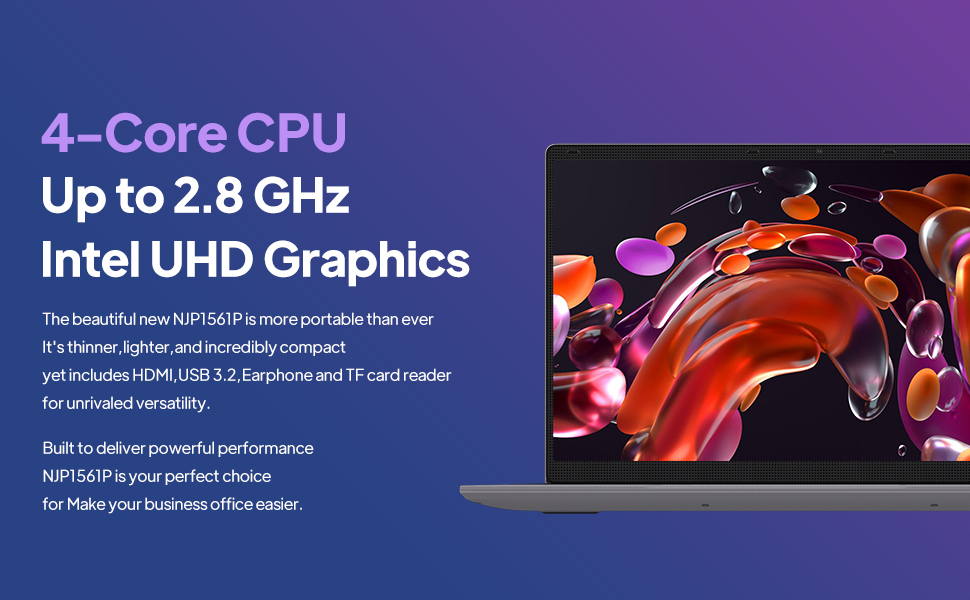
Image: The ApoloSign NJP561P-Z laptop displaying the Windows 11 operating system interface.
Operating Instructions
Keyboard and Touchpad
The laptop features a full-size QWERTY keyboard with an integrated numeric keypad for efficient data entry and typing. The touchpad supports multi-touch gestures for intuitive navigation and control of the operating system.

Image: A close-up view of the ApoloSign NJP561P-Z laptop's full-size keyboard and touchpad.
Connectivity
The laptop supports Wi-Fi for wireless internet access and Ethernet for stable wired network connections. It offers a variety of ports for connecting external devices:
- USB 3.2 ports (x2): For high-speed data transfer with compatible devices.
- HDMI output: To connect to external monitors or projectors.
- TF Card slot: For expanding storage or transferring files from memory cards.
- Microphone/Headphone jack: For audio input and output.
- DCIN: Power input port.

Image: A side view of the ApoloSign NJP561P-Z laptop highlighting its various connectivity ports, including USB, HDMI, and TF Card slot.
Camera
The integrated HD front camera is suitable for video conferencing, online classes, and virtual meetings.
Video: An official product video demonstrating the ApoloSign laptop's features, including the HD camera for video conferencing and various connectivity options.
Display
The 15.6-inch FHD IPS display offers clear and vibrant visuals with a resolution of 1920x1080 pixels. The screen can open up to 175 degrees, providing flexible viewing angles for various uses.

Image: The ApoloSign NJP561P-Z laptop showcasing its 15.6-inch IPS Full HD screen with a colorful display.
Maintenance
Cleaning
Use a soft, lint-free cloth to gently clean the screen and exterior surfaces of the laptop. For stubborn smudges, slightly dampen the cloth with water or a screen-safe cleaning solution. Avoid using harsh chemicals, abrasive materials, or excessive moisture.
Battery Care
To prolong the lifespan of your laptop's battery, avoid exposing the device to extreme temperatures (both hot and cold). It is also recommended to avoid frequently fully discharging the battery. The laptop is equipped with a 5000mAh Lithium-ion polymer battery, providing an estimated 5-6 hours of usage depending on workload.

Image: A graphic representation of the ApoloSign laptop's 5000mAh battery and its estimated 5-6 hours of endurance.
Troubleshooting
Common Issues and Solutions
- Device not powering on: Ensure the power adapter is securely connected and the battery has sufficient charge. Try holding the power button for 10-15 seconds to perform a hard reset.
- Slow performance: Close unnecessary applications running in the background. Check for system updates and ensure your storage is not full. A system cleanup or disk defragmentation may also help.
- Touchpad unresponsive: Verify that the touchpad has not been accidentally disabled (often via a function key combination, e.g., Fn + F9 or F10). Restarting the laptop can often resolve temporary driver issues.
- No Wi-Fi connection: Confirm that Wi-Fi is enabled in Windows settings. Check if your wireless router is functioning correctly and within range. Restarting both the laptop and the router can resolve connectivity problems.
- Screen display issues: If the screen is blank or flickering, try connecting an external monitor via HDMI to determine if the issue is with the laptop's display or graphics card.
Specifications
| Feature | Detail |
|---|---|
| Brand | ApoloSign |
| Model Number | NJP561P-Z |
| Operating System | Windows 11 |
| Screen Size | 15.6 Inches |
| Screen Resolution | 1920 x 1080 pixels (FHD IPS) |
| Processor | Intel Celeron N5095 Quad-Core (Up to 2.8GHz) |
| RAM | 12GB DDR4 SDRAM |
| Storage | 512GB SSD |
| Graphics | Intel UHD Graphics (Integrated) |
| Wireless Connectivity | Wi-Fi |
| Wired Connectivity | Ethernet |
| Ports | USB 3.2 (x2), HDMI, TF Card, Headphone Jack, DCIN |
| Item Weight | 3.63 pounds |
| Product Dimensions | 14 x 9 x 0.8 inches |
Warranty and Support
For detailed warranty information, technical support, or service inquiries, please refer to the official ApoloSign website or contact their customer service department. It is recommended to retain your purchase receipt as proof of purchase for any warranty claims.
Safety Information
- Do not expose the device to extreme temperatures, direct sunlight, or high humidity.
- Avoid dropping the device or subjecting it to strong impacts.
- Use only the power adapter provided with your laptop to prevent damage.
- Keep liquids away from the device to prevent electrical hazards and damage.
- Do not attempt to disassemble or repair the device yourself. Refer to qualified service personnel.


