
1. Introduction
This manual provides detailed instructions for the installation, operation, and maintenance of your IROAD FX1 Dash Camera. Please read this manual thoroughly before using the product to ensure proper functionality and safety. Keep this manual for future reference.
2. Safety Information
- Do not attempt to disassemble, repair, or modify the device. This may void the warranty and cause damage.
- Ensure the device is securely mounted to prevent obstruction of the driver's view or interference with vehicle controls.
- Avoid exposing the device to extreme temperatures, direct sunlight for prolonged periods, or excessive moisture.
- Use only the provided power cable and accessories. Using unauthorized accessories may cause damage or malfunction.
- Regularly check the memory card for errors and format it as recommended to maintain optimal recording performance.
3. Package Contents
Verify that all items are present in the package:
- Front Camera
- Wi-Fi Dongle
- MicroSD Card
- Uninterrupted Fuse Cable
- Quick Guide
- Mount with 3M tape (1ea)

Image: Contents of the IROAD FX1 Dash Camera package, including the front camera, Wi-Fi dongle, MicroSD card, uninterrupted fuse cable, quick guide, and mount with 3M tape.
4. Product Overview
4.1 Components
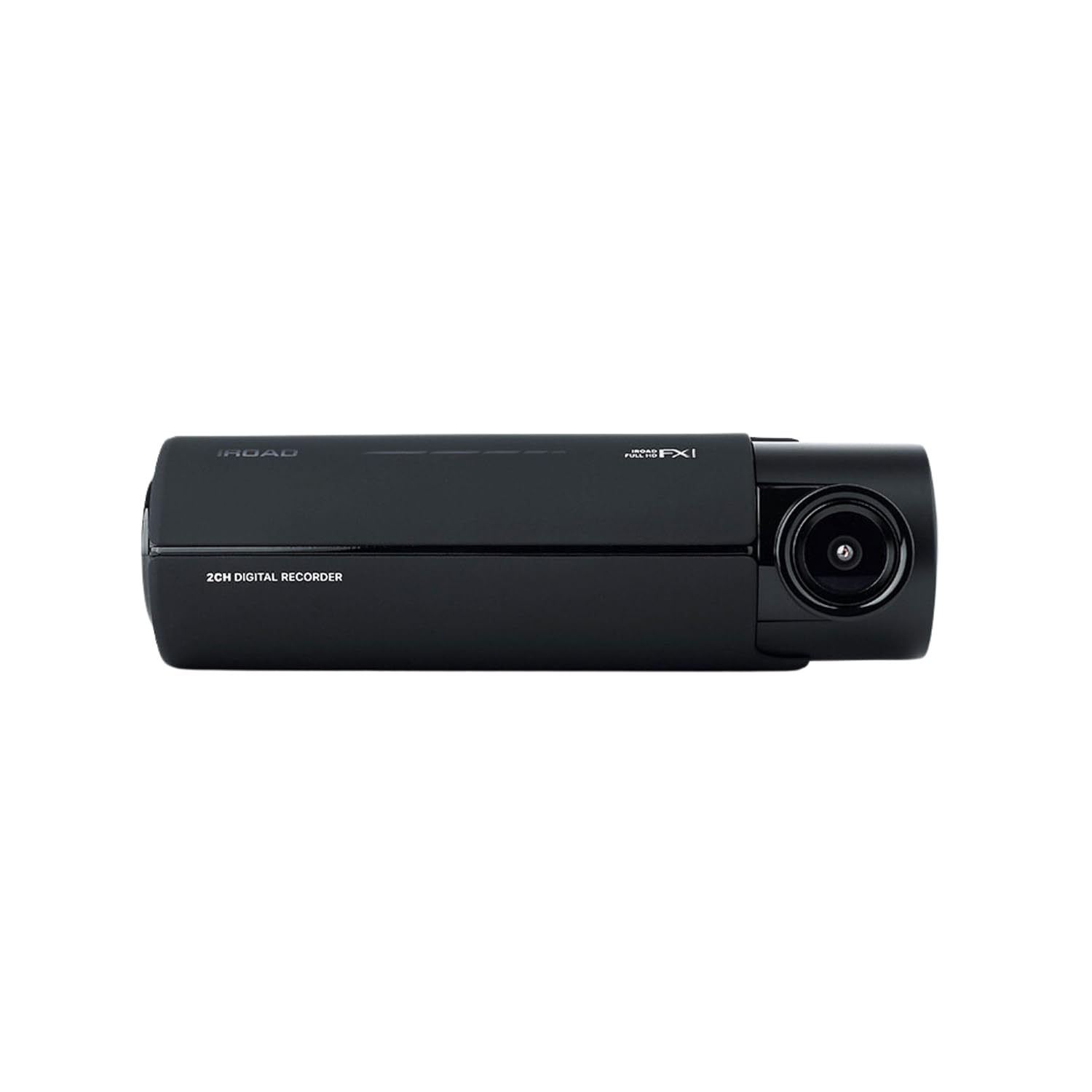
Image: Front view of the IROAD FX1 Dash Camera, showing the lens and main body.

Image: Angled view of the IROAD FX1 Dash Camera, highlighting its compact design.
4.2 Key Features
- 1080P Full HD Recording: Captures clear video footage.
- 140° Wide Angle Lens: Provides a broad view of the road.
- Sony STARVIS Image Sensor: Enhances image clarity and night vision performance.
- ADAS (Advanced Driver-Assistance System): Includes features like Lane Departure Warning System (LDWS), Front Collision Warning System (FCWS), and Front Vehicle Departure Warning (FVDW).
- Wi-Fi Connectivity: Connects to the IROAD app for viewing, downloading, and sharing footage.
- Built-in GPS: Records speed, location, and route tracking data.
- Parking Mode: Utilizes motion detection and impact sensors to record incidents when the vehicle is parked.
- High-Temperature Durability: Designed for reliable performance in various weather conditions.

Image: The IROAD FX1 Dash Camera with icons representing its key features: 140° wide angle, Full HD 1080p, ADAS, Wi-Fi connection, and night vision.
5. Setup
5.1 Installation
- Choose Mounting Location: Select a location on the windshield that does not obstruct the driver's view and is close to the center of the windshield. Ensure the camera lens has a clear view of the road ahead.
- Clean Windshield: Clean the chosen area on the windshield thoroughly to ensure proper adhesion of the mount.
- Attach Mount: Peel off the protective film from the 3M adhesive tape on the mount. Firmly press the mount onto the cleaned windshield area for at least 30 seconds.
- Attach Dash Camera: Slide the IROAD FX1 Dash Camera onto the mounted bracket until it clicks into place.
- Adjust Angle: Adjust the camera angle to ensure the road ahead is centered in the camera's view.

Image: The IROAD FX1 Dash Camera securely mounted on the interior side of a car's windshield, positioned for optimal road visibility.
5.2 Wiring
- Insert MicroSD Card: Insert the provided MicroSD card into the designated slot on the dash camera.
- Connect Power Cable: Connect the uninterrupted fuse cable to the power input port on the dash camera.
- Route Cable: Carefully route the power cable along the edge of the windshield, down the A-pillar, and towards the vehicle's fuse box. Use the included installation tool to tuck the cable neatly under trim panels.
- Connect to Fuse Box: Connect the fuse cable to the appropriate fuse slots in your vehicle's fuse box according to the instructions in the quick guide or a professional installer. This connection enables parking mode functionality.
- Connect Wi-Fi Dongle: Insert the Wi-Fi dongle into the USB port on the dash camera.
6. Operating Instructions
6.1 Powering On/Off
- The dash camera will automatically power on and begin continuous recording when the vehicle's ignition is turned on.
- When the ignition is turned off, the dash camera will transition to parking mode (if configured) or power off after a short delay.
6.2 Recording Modes
- Continuous Recording: Records continuously while the vehicle is in operation. Footage is saved in short segments.
- Event Recording: Automatically records and saves footage when an impact or sudden braking/acceleration is detected by the G-sensor.
- Parking Mode Recording: When the vehicle is parked, the camera uses motion detection and impact sensors to record incidents, helping to protect your vehicle.
6.3 ADAS (Advanced Driver-Assistance System)
The IROAD FX1 includes ADAS features to enhance driving safety:
- LDWS (Lane Departure Warning System): Alerts the driver if the vehicle drifts out of its lane.
- FCWS (Front Collision Warning System): Warns the driver of a potential collision with a vehicle ahead.
- FVDW (Front Vehicle Departure Warning): Notifies the driver when the vehicle ahead starts moving from a stop.

Image: An aerial view illustrating the Advanced Driver-Assistance System (ADAS) with vehicles and highlighted warning zones for potential hazards.
6.4 Wi-Fi Connection and IROAD App
To access recorded footage, adjust settings, and update firmware, connect your smartphone to the dash camera via Wi-Fi:
- Download the official IROAD app from your smartphone's app store.
- Ensure the Wi-Fi dongle is inserted into the dash camera.
- On your smartphone, go to Wi-Fi settings and connect to the IROAD dash camera's Wi-Fi network (SSID and password can be found in the quick guide or on the device).
- Open the IROAD app to view live footage, playback recordings, download files, and configure device settings.

Image: An abstract illustration depicting Wi-Fi connectivity with multiple signal icons, representing the camera's wireless communication capabilities.
6.5 GPS Functionality
The built-in GPS module records accurate speed, location, and route information, which can be viewed during video playback through the IROAD app or PC viewer software.
7. Maintenance
7.1 Memory Card Management
- Formatting: It is recommended to format the MicroSD card regularly (e.g., once a month) to prevent data corruption and ensure optimal recording performance. This can be done via the IROAD app.
- Replacement: If the memory card shows signs of degradation or errors, replace it with a high-quality, compatible MicroSD card.
7.2 Firmware Updates
Periodically check for firmware updates via the IROAD app. Keeping the firmware updated ensures the best performance and access to new features.
7.3 Cleaning
- Gently wipe the camera lens with a soft, lint-free cloth to remove dust or smudges.
- Clean the exterior of the dash camera with a slightly damp cloth. Do not use harsh chemicals or abrasive cleaners.
8. Troubleshooting
| Problem | Possible Cause | Solution |
|---|---|---|
| Camera does not power on. | No power supply; loose cable connection. | Check power cable connection to the camera and fuse box. Ensure vehicle ignition is on. |
| Recording stops or footage is corrupted. | Memory card error; full memory card; incompatible card. | Format the MicroSD card. Replace with a new, compatible card if issues persist. |
| Wi-Fi connection issues. | Wi-Fi dongle not inserted; incorrect password; app issues. | Ensure Wi-Fi dongle is properly inserted. Verify Wi-Fi password. Restart the app and camera. |
| ADAS warnings are inaccurate. | Improper camera angle; environmental factors. | Adjust camera angle to ensure clear, centered view. ADAS performance can be affected by weather or road conditions. |
9. Specifications
| Feature | Specification |
|---|---|
| Model Name | FX1 |
| Video Capture Resolution | 1080p Full HD |
| Field Of View | 140 Degrees |
| Connectivity Technology | GPS, Wi-Fi |
| Special Feature | App Control |
| Mounting Type | Windshield Mount |
| Item Weight | 350 g |
| Product Dimensions | 3.29 x 5.7 x 10.82 cm |
| Manufacturer | IROAD |
10. Warranty and Support
For warranty information and technical support, please refer to the official IROAD website or contact your local distributor. Keep your purchase receipt as proof of purchase for warranty claims.
Online Resources: Visit the IROAD official website for FAQs, software downloads, and additional support materials.


