
Introduction
This manual provides comprehensive instructions for the setup, operation, and maintenance of your NexiGo N60 Pro (Gen 2) 1080P Webcam. Please read this manual thoroughly before using the product to ensure optimal performance and longevity.

Image: The NexiGo N60 Pro (Gen 2) 1080P Webcam, showcasing its sleek design, integrated privacy cover, and the included USB-C to USB-A data cable.
Key Features
- Full HD 1080P Webcam: Equipped with a 2MP CMOS sensor, the N60 Pro delivers sharp and clear video at resolutions up to 1920 x 1080 at 30 frames per second.
- Distortion-Free Lens: Experience natural and lifelike images and videos. This lens technology helps maintain the true appearance of subjects, enhancing overall visual quality.

Image: A side-by-side comparison demonstrating the superior clarity and natural appearance achieved with the N60 Pro's distortion-free lens compared to a standard distortion lens.
- Detachable USB-C to USB-A Cable: Provides faster data transmission for stable and speedy video and image output. This design also contributes to enhanced security against wireless threats.

Image: A detailed view of the webcam's rear, highlighting the detachable USB Type-C port and cable for convenient and secure connectivity.
- Built-in Noise-Canceling Microphone: Ensures clear audio capture by effectively reducing ambient noise, ideal for video calls, streaming, and online learning across various platforms.
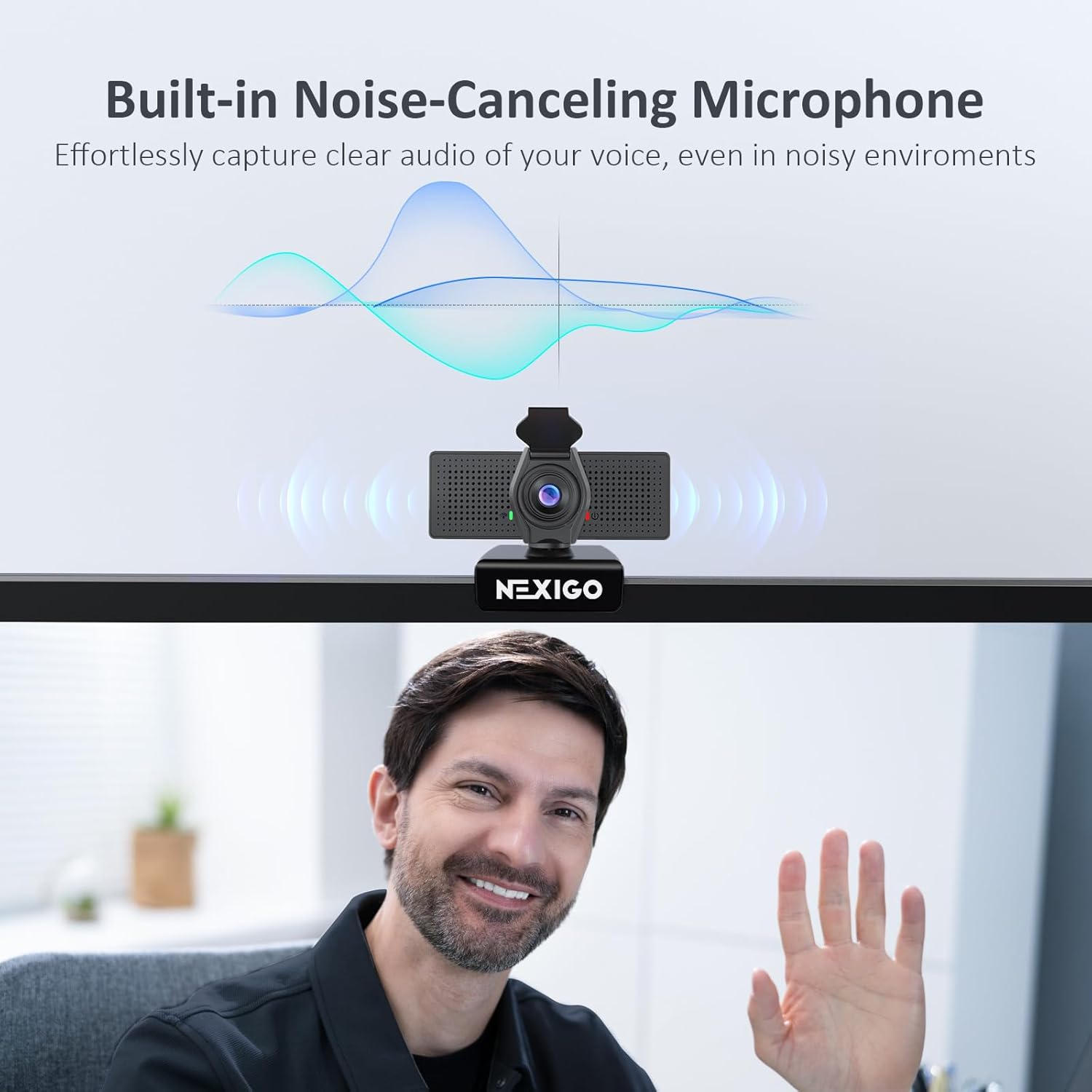
Image: A visual representation of the webcam's built-in noise-canceling microphone, showing how it captures clear audio by filtering out environmental sounds.
- Wide Compatibility: Seamlessly integrates with Mac OS X 10.7+, Windows 7/8/10/11, Android 4.0+, Linux 2.6.24, Chrome OS 29.0.1547, and Ubuntu 10.04+. Compatible with popular applications like Zoom, Skype, Teams, and OBS.

Image: An infographic illustrating the webcam's broad compatibility with operating systems like Mac, Windows, and Chrome OS, and applications such as Skype, Google Meet, Microsoft Teams, Zoom, and OBS.
- Included Privacy Cover: A physical privacy cover is integrated to prevent unauthorized access and ensure your privacy when the webcam is not in use.

Image: The NexiGo webcam positioned on top of a monitor, demonstrating the use of its integrated privacy cover in the closed position for enhanced security.
What's in the Box
Upon unboxing your NexiGo N60 Pro (Gen 2) Webcam, please verify that all the following components are included:
- NexiGo N60 Pro (Gen 2) 1080P Webcam
- USB-C to USB-A Data Cable
- Privacy Cover (pre-installed or separate, depending on model revision)
- User Manual (this document)
Setup
- Placement: Position the webcam on top of your monitor, laptop screen, or a tripod. The integrated clip allows for stable mounting on most displays. Ensure the camera lens is facing you and is at an appropriate height for your video calls.
- Connection: Connect the detachable USB-C end of the provided cable to the webcam and the USB-A end to an available USB port on your computer (PC or Mac).
- Driver Installation: The NexiGo N60 Pro (Gen 2) is a plug-and-play device. Your operating system (Windows, macOS, Chrome OS, Linux) should automatically detect and install the necessary drivers within a minute or less. No manual driver installation is typically required.
- Privacy Cover: If the privacy cover is separate, attach it to the webcam. Ensure it can slide open and closed smoothly over the lens.
- Initial Test: Open a video conferencing application (e.g., Zoom, Skype, Microsoft Teams) or your computer's camera application. Select the "NexiGo N60 Pro" as your video and audio input device. Verify that the video feed is visible and the microphone is picking up your voice.
Operating Instructions
Using the Webcam with Applications
Once connected, your NexiGo N60 Pro (Gen 2) webcam can be used with various applications for video conferencing, streaming, and recording.
- Video Conferencing (Zoom, Skype, Teams, Google Meet): In the settings of your chosen application, navigate to the audio and video preferences. Select "NexiGo N60 Pro" as your camera and microphone.
- Streaming (OBS, Twitch): In your streaming software, add a new video capture device and select "NexiGo N60 Pro". Configure audio input similarly.
- Recording: Use your operating system's built-in camera application or third-party software to record video and audio from the webcam.
NexiGo Webcam Companion App (Optional)
For advanced settings and adjustments, NexiGo offers a dedicated software application. This software allows for fine-tuning of image parameters such as brightness, contrast, saturation, and digital zoom.
- Download: The software can be downloaded from the official NexiGo website. Search for "NexiGo Webcam Companion App" or refer to the product support page.
- Installation: Follow the on-screen instructions to install the software.
- Adjustments: Open the application. You can adjust various settings including:
- White Balance
- Brightness
- Contrast
- Hue
- Saturation
- Sharpness
- Gamma
- Backlight Compensation
- Powerline Frequency (50Hz/60Hz)
- Digital Zoom (up to 2X)
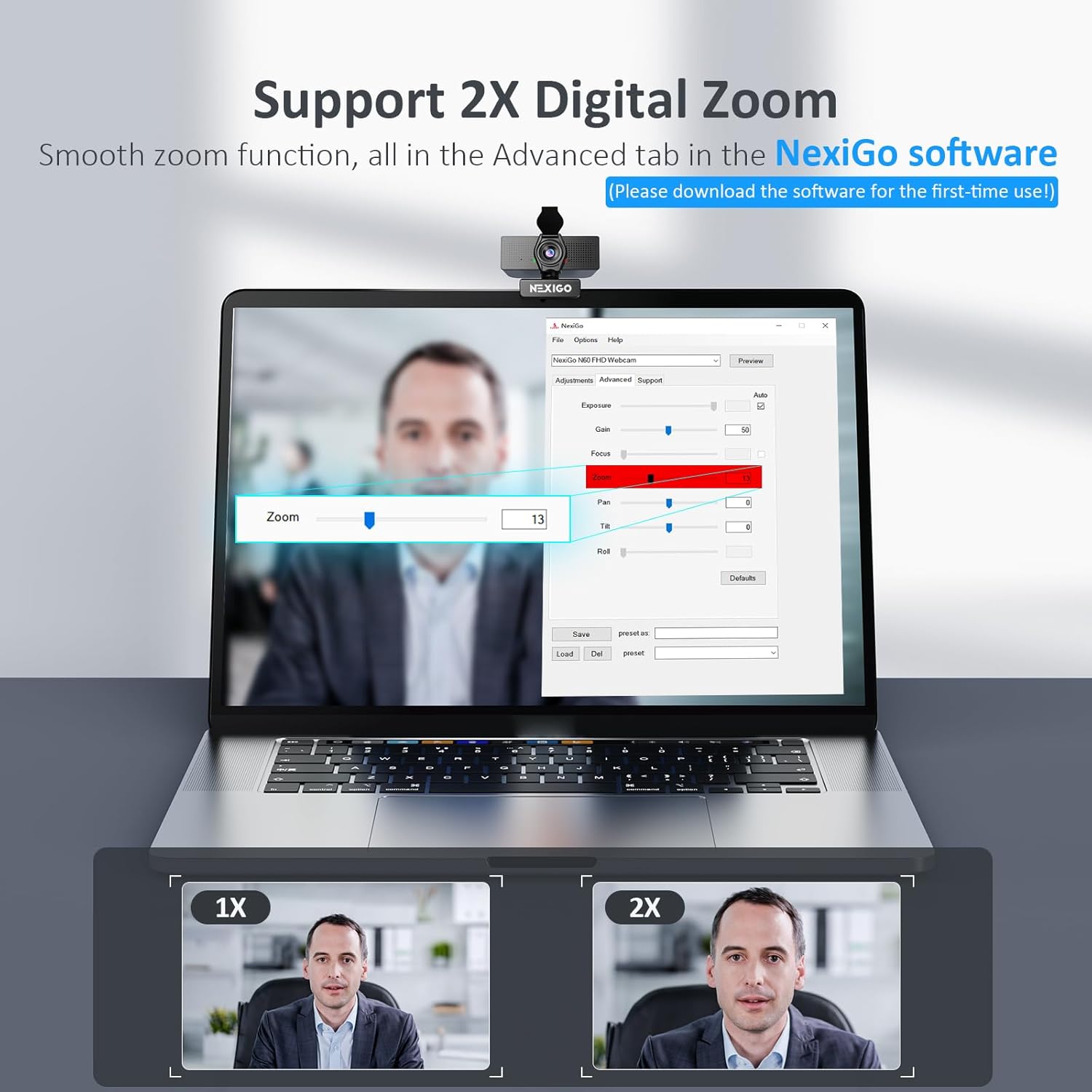
Image: A laptop screen displaying the NexiGo webcam software interface, highlighting the 2X digital zoom functionality and other adjustable settings.
- Presets: The software may allow you to save and load custom presets for different lighting conditions or usage scenarios.
Maintenance
Proper care and maintenance will extend the life of your webcam and ensure consistent performance.
- Cleaning the Lens: Use a soft, lint-free cloth specifically designed for optics (e.g., microfiber cloth) to gently wipe the lens. Do not use abrasive materials or harsh cleaning solutions, as they can scratch or damage the lens coating.
- Cleaning the Body: Wipe the webcam's body with a soft, dry cloth. If necessary, a slightly damp cloth can be used, but ensure no moisture enters the device.
- Storage: When not in use, especially for extended periods, store the webcam in a clean, dry place. Utilize the privacy cover to protect the lens from dust and scratches.
- Cable Care: Avoid sharp bends or kinks in the USB cable. Disconnect by pulling the plug, not the cable itself, to prevent damage to the connectors.
Troubleshooting
If you encounter issues with your NexiGo N60 Pro (Gen 2) webcam, please refer to the following common solutions:
| Problem | Possible Solution |
|---|---|
| No video or audio output. |
|
| Poor video quality (grainy, blurry). |
|
| Microphone not working or poor audio. |
|
| Webcam not detected by computer. |
|
Specifications
| Feature | Detail |
|---|---|
| Model Number | N60 Pro |
| Product Dimensions | 3.22 x 2.08 x 1.96 inches |
| Item Weight | 5.3 ounces |
| Manufacturer | Nexight INC |
| ASIN | B0CF59H6L1 |
| Photo Sensor Technology | CMOS |
| Video Capture Resolution | 1080p (1920x1080) |
| Maximum Aperture | 2.8 Millimeters |
| Connectivity Technology | USB |
| Color | Black |
| Date First Available | August 9, 2023 |
Warranty and Support
NexiGo is committed to providing high-quality products and excellent customer service.
- Return Policy: Products can be returned for an exchange or refund within 30 days of purchase.
- Technical Support: Lifetime technical support is provided for your NexiGo N60 Pro (Gen 2) webcam.
- Customer Service: NexiGo offers 100% US-based customer support with quick responses, typically within 24 hours.
- Protection Plans: Extended protection plans may be available for purchase, offering additional coverage beyond the standard warranty. Please refer to your purchase details for more information.
- Contact Information: For support, please visit the official NexiGo website or refer to the contact details provided with your product packaging.