
1. Introduction and Overview
The Xiaomi Robot Vacuum S10 is a versatile 2-in-1 cleaning device designed for efficient home maintenance. It combines powerful vacuuming with effective mopping, utilizing advanced LDS laser navigation for precise mapping and intelligent route planning. With a strong 4000Pa suction and a long-lasting battery, it ensures thorough cleaning across various floor types. The device supports smart control via the Mi Home app, remote control, and voice assistants, offering a convenient and automated cleaning experience.
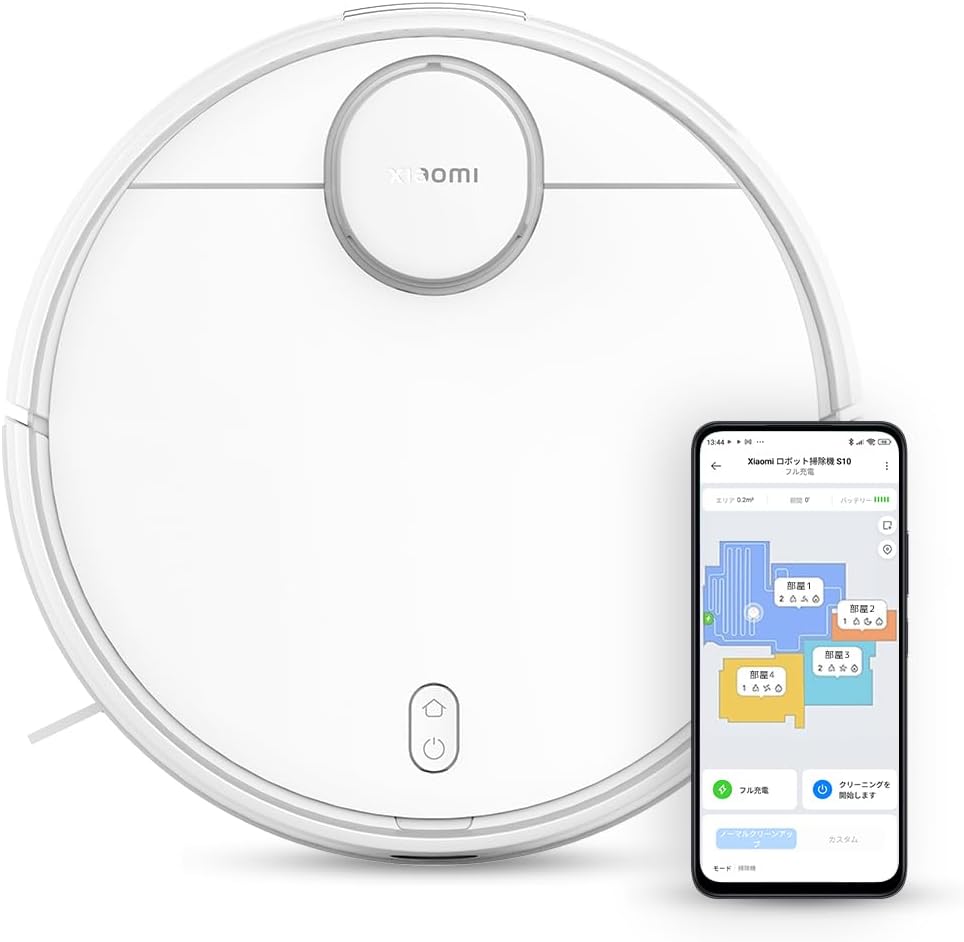
Figure 1.1: Xiaomi Robot Vacuum S10 and its accompanying mobile application interface.
2. Setup
2.1 Unboxing and Components
Carefully unpack all components from the box. Verify that all listed items are present: the robot vacuum, charging dock, power adapter, 2-in-1 water tank with dustbin, mopping pad, side brush, and cleaning tool.
2.2 Charging Dock Placement
Place the charging dock against a wall in an open area, ensuring at least 0.5 meters of clear space on both sides and 1.5 meters in front. Connect the power adapter to the dock and plug it into a power outlet. Ensure the power cable is neatly arranged to prevent entanglement.
2.3 Initial Charging
Place the robot vacuum onto the charging dock. The indicator light will illuminate, confirming it is charging. For optimal battery life, fully charge the robot before its first use.
2.4 Mi Home App Installation and Pairing
Download the Mi Home app from your smartphone's app store. Create an account or log in. Follow the in-app instructions to add the Xiaomi Robot Vacuum S10. Ensure your phone is connected to a 2.4GHz Wi-Fi network during the pairing process, as the device supports only 2.4GHz Wi-Fi (802.11 b/g/n).

Figure 2.1: Mi Home App interface for controlling the robot vacuum.
3. Operating Instructions
3.1 Starting and Stopping Cleaning
Press the power button on the robot or use the Mi Home app to start or pause a cleaning cycle. The robot will automatically return to its charging dock upon completion or when the battery is low.
3.2 Cleaning Modes
The robot offers multiple suction modes: Silent, Standard, Medium, and Turbo. Select the appropriate mode via the Mi Home app based on your cleaning needs.

Figure 3.1: Visual representation of 4000Pa powerful suction in different modes.
3.3 Mopping Function
Fill the 2-in-1 water tank with clean water and attach the mopping pad. Insert the tank into the robot. The smart water tank ensures even water discharge, preventing floor saturation. Three water level settings are available via the app to suit different floor materials.

Figure 3.2: Smart water tank system for even water distribution during mopping.
3.4 Mapping Features
The LDS laser navigation system creates a precise map of your home. Through the Mi Home app, you can customize cleaning schedules, divide zones, create multi-floor maps, define virtual walls, and select specific areas for cleaning or exclusion. You can also rename rooms for easier management.

Figure 3.3: High-speed and accurate LDS laser navigation for comprehensive mapping.

Figure 3.4: Zigzag and Y-shaped cleaning routes for efficient coverage.

Figure 3.5: Flexible mapping functions for optimized cleaning.
3.5 App and Voice Control
The Mi Home app provides comprehensive control, including remote operation, real-time cleaning status monitoring, mode selection, setting timers, and scheduling future cleaning tasks. The robot is compatible with Siri, Alexa, and Google Assistant. Link your device through the respective smart home apps to initiate cleaning commands using your voice.
4. Maintenance
4.1 Dustbin Emptying
Regularly empty the dustbin after each cleaning cycle. Open the robot's top cover, remove the 2-in-1 water tank/dustbin, and dispose of collected debris. Use the provided cleaning tool to clear any dust from the filter.
4.2 Main Brush Cleaning
Remove the main brush cover and the main brush. Use the cleaning tool to remove hair and debris tangled around the brush. Reinstall the brush and cover securely.
4.3 Side Brush Cleaning
Periodically check the side brush for tangled hair or debris. Remove and clean it as needed. If the brush is damaged, replace it.
4.4 Water Tank and Mopping Pad Maintenance
After mopping, empty any remaining water from the tank and allow it to air dry. Remove and wash the mopping pad. Ensure it is clean and dry before reattaching or storing.
4.5 Sensor Cleaning
Wipe the cliff sensors, wall sensors, and charging contacts with a soft, dry cloth to ensure optimal performance and prevent navigation issues.

Figure 4.1: Multiple sensors help the robot avoid obstacles and drops.
5. Troubleshooting
5.1 Robot Not Charging
Ensure the charging dock is properly connected to power and the robot is correctly aligned with the charging contacts. Clean the charging contacts on both the robot and the dock.
5.2 Robot Not Connecting to Wi-Fi/App
Verify your Wi-Fi network is 2.4GHz. The robot does not support 5GHz or 6GHz networks. Ensure your smartphone is connected to the same 2.4GHz network during pairing. Reset the robot's Wi-Fi if necessary.
5.3 Poor Suction Performance
Empty the dustbin, clean the filter, and check the main brush for obstructions. Ensure the suction mode is set appropriately (e.g., Turbo mode for deeper cleaning).
5.4 Mopping Issues
Check if the water tank is filled and properly installed. Ensure the mopping pad is clean and wet. Adjust the water flow settings in the app.
5.5 Navigation Errors/Stuck
Clear any obstacles from the robot's path. Clean all sensors to ensure accurate detection of surroundings and cliffs. If the robot frequently gets stuck under furniture, consider setting virtual walls in the app.
5.6 Unusual Noises
Check the main brush and side brush for any foreign objects or tangled hair. Ensure all components are correctly installed.
6. Specifications
| Feature | Detail |
|---|---|
| Manufacturer | Xiaomi |
| Model Number | B106GL |
| Package Dimensions | 53.6 x 42.2 x 13.2 cm |
| Color | White |
| Product Dimensions | 41.7L x 53.1W x 13.2H cm |
| Other Features | Scheduled Timer, Virtual Boundary |
| Power Source | Battery Powered |
| Lithium Battery Pack | Battery built-in |
| Package Weight | 6.02 Kilograms |
| Battery Use | Yes |
| Battery Included | Yes |
| Battery Life | 130 minutes (Standard Mode) |
7. Warranty and Support
For warranty information, please refer to the warranty card included with your product or contact Xiaomi customer support. For technical assistance or further inquiries, visit the official Xiaomi support website or contact their customer service.


