
Introduction
The HyperDrive Next 11 Port USB C Hub is designed to expand the connectivity of your Mac, PC, or Chromebook. This hub provides a comprehensive solution for connecting multiple peripherals, external displays, and storage devices, while also offering power delivery capabilities. It is built with a focus on performance and durability, utilizing recycled materials.

Image: The HyperDrive Next 11 Port USB C Hub, a compact device designed to expand connectivity for various computers.
Product Overview
The HyperDrive Next 11 Port USB C Hub features a variety of ports to enhance your productivity:
- 2 x 4K60Hz HDMI Ports: For connecting external displays.
- 2 x USB-A 10Gbps Ports: High-speed data transfer for USB-A devices.
- 1 x USB-A 5Gbps Port: Standard data transfer for USB-A devices.
- 2 x USB-C 10Gbps Ports: High-speed data transfer for USB-C devices.
- 1 x USB-C 140W PD 3.1 Port: Power Delivery for charging your host device.
- 1 x SD Card Reader (312MB/s): For high-speed SD card access.
- 1 x microSD Card Reader (312MB/s): For high-speed microSD card access.
- 1 x Gigabit Ethernet Port: For stable wired network connection.
- 1 x 3.5mm Audio Jack Combo: For headphones and microphones.

Image: A detailed diagram illustrating the 11 ultra-fast ports available on the HyperDrive Next USB C Hub, including USB-A, USB-C, HDMI, SD/microSD card readers, Ethernet, and a 3.5mm audio jack.
Video: An official product video from Hyper showcasing the features and functionality of the HyperDrive Next 11 Port USB-C Hub.
Setup Guide
To begin using your HyperDrive Next 11 Port USB C Hub, follow these simple steps:
- Connect to Host Device: Plug the integrated USB-C cable from the hub into an available USB-C port on your Mac, PC, or Chromebook.
- Power Connection (Optional but Recommended): For optimal performance and to charge your host device, connect a compatible USB-C Power Delivery charger (up to 140W) to the USB-C PD 3.1 port on the hub.
- Connect Peripherals: Attach your desired devices such as external monitors, USB drives, SD/microSD cards, Ethernet cables, and audio devices to the corresponding ports on the hub.
- Driver-Free Operation: The hub is designed for plug-and-play functionality. No additional drivers or software installation are typically required. Your operating system should automatically detect and configure the connected devices.

Image: An illustration demonstrating the easy plug-and-play nature of the HyperDrive Next USB C Hub, requiring no software or drivers for installation.
Operating Instructions
Dual Extended 4K60Hz Monitor Support
The hub supports dual extended 4K60Hz monitors for PC and Chromebook devices. This allows for an expanded workspace, ideal for multitasking and content creation.
- Connect your monitors to the two HDMI ports on the hub.
- Ensure your PC or Chromebook supports MST (Multi-Stream Transport) for dual extended monitors.
- For 4K 60Hz output, your host device's USB-C port must support DisplayPort 1.4.
- Note: Mac devices are typically limited to a single external monitor via this hub due to macOS limitations.
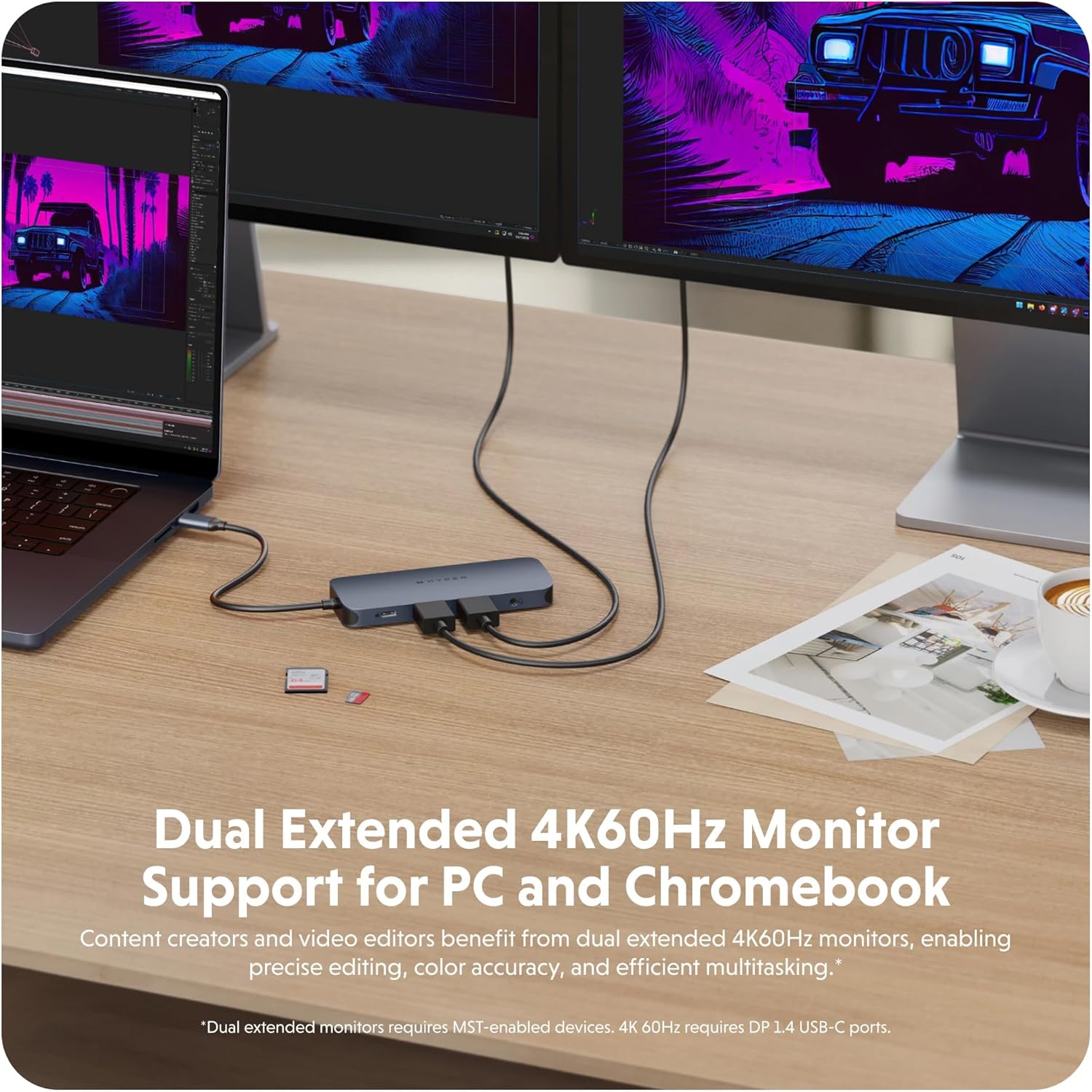
Image: A laptop connected to two external 4K60Hz monitors through the HyperDrive Next USB C Hub, demonstrating dual extended display support for enhanced productivity.
High-Speed Data Transfer
Utilize the high-speed USB ports and card readers for efficient data management.
- USB 3.2 Ports (10Gbps): The two USB-A and two USB-C 10Gbps ports enable rapid transfer of large files, backups, and device syncing.
- SD and microSD 4.0 (312MB/s): The integrated card readers provide ultra-fast transfer speeds for high-resolution images and videos, significantly reducing transfer times for photographers and video editors.

Image: The HyperDrive Next USB C Hub facilitating data transfer at 2X speeds (10Gbps USB 3.2) between a laptop and an external storage device.

Image: The HyperDrive Next USB C Hub with SD and microSD cards inserted, demonstrating 3X speed photo and video transfer capabilities (312MB/s SD and microSD 4.0).
Power Delivery
The hub supports pass-through charging for your host device.
- Connect a 140W PD 3.1 compatible charger to the hub's dedicated USB-C PD port.
- The hub can deliver up to 125W of power to your host device, ensuring continuous operation and charging even under heavy load.
- This feature is particularly beneficial for power-intensive laptops and devices.

Image: The HyperDrive Next USB C Hub connected to a laptop and a wall charger, illustrating its 140W PD 3.1 pass-through charging capability.
Audio Connectivity
The 3.5mm audio jack combo port provides convenient audio input and output.
- Connect your headphones or a headset with a microphone to this port for audio playback and voice communication.
- Ensure your operating system's audio settings are configured to use the hub's audio output/input.

Image: A pair of wired headphones, indicating support for audio and microphone connectivity through the hub's 3.5mm audio jack.
Gigabit Ethernet Connection
For a stable and high-speed internet connection, use the Gigabit Ethernet port.
- Connect a standard Ethernet cable from your router or network switch to the hub's Ethernet port.
- This provides a reliable wired connection, ideal for large file downloads, video streaming, and online gaming.

Image: An Ethernet cable connected to the HyperDrive Next USB C Hub, highlighting its fast and reliable Gigabit Ethernet port.
Video: An official product video from TTP Retail demonstrating the HyperDrive Next USB C Hub's compatibility and features for Mac, PC, and Chromebook.
Maintenance
Proper care and maintenance will ensure the longevity and optimal performance of your HyperDrive Next 11 Port USB C Hub.
- Cleaning: Use a soft, dry, lint-free cloth to clean the exterior of the hub. Avoid using harsh chemicals, cleaning solvents, or abrasive materials.
- Storage: When not in use, store the hub in a cool, dry place away from direct sunlight and extreme temperatures.
- Handling: Avoid dropping the hub or subjecting it to strong impacts. Do not attempt to disassemble the device, as this will void the warranty.
- Port Care: Ensure that cables are inserted and removed gently from the ports to prevent damage. Avoid forcing connectors into ports.
Troubleshooting
If you encounter issues with your HyperDrive Next 11 Port USB C Hub, refer to the following common solutions:
| Problem | Possible Solution |
|---|---|
| No display or flickering on external monitor |
|
| Devices connected to USB ports are not recognized or function slowly |
|
| Host device is not charging or charging slowly |
|
| Ethernet connection issues |
|
| Computer does not go to sleep when HDMI device is connected |
|
Specifications
| Feature | Detail |
|---|---|
| Brand | Hyper |
| Model Number | 5785586 |
| Color | Midnight Blue (Phantom) |
| Hardware Interface | USB, USB 3.0 |
| Compatible Devices | Mac, PC, Chromebook |
| Total USB Ports | 11 |
| Data Transfer Rate | 10 Gigabits Per Second |
| Operating System | Chrome OS (also compatible with Mac, PC) |
| Enclosure Material | Aluminum |
| Power Delivery | Up to 140W PD 3.1 pass-through (125W to host) |
| HDMI Output | 2 x 4K60Hz (requires DP 1.4 USB-C ports for 4K60Hz) |
| Card Reader Speed | 312MB/s (SD and microSD 4.0) |
| Ethernet | Gigabit Ethernet |
| Audio Port | 3.5mm Audio Jack Combo |
Environmental Information
The HyperDrive Next 11 Port USB C Hub is constructed with environmental considerations:
- 100% Recycled Aluminum: The enclosure is made from recycled aluminum.
- 85% Recycled Plastic: Internal components utilize a high percentage of recycled plastic.

Image: Branding for HyperDrive Next eco/smart, indicating the use of 100% recycled aluminum and 85% recycled plastic in the product's construction.
Warranty and Support
Hyper products are designed for reliability and performance. For warranty information and technical support, please refer to the official Hyper website or contact their customer service.
- Warranty: This product typically comes with a manufacturer's warranty covering defects in materials and workmanship. Please retain your proof of purchase for warranty claims.
- Technical Support: For assistance with setup, troubleshooting, or general inquiries, visit the Hyper Store on Amazon or the official Hyper website.


