1. Introduction
The LIONWEI USB C Docking Station is a versatile 10-in-1 hub designed to expand the connectivity of your laptop, whether it features a USB-C or USB-A port. This docking station allows for dual HDMI display extension, high-speed data transfer, reliable network connectivity, and power delivery, enhancing your productivity and multimedia experience.

Image: The LIONWEI USB C Docking Station, showcasing its various ports and connectivity options including dual HDMI, USB 3.0, USB 2.0, SD/Micro SD card slots, Gigabit Ethernet, and a 3.5mm audio/mic jack.
2. Product Features
This docking station offers a comprehensive set of ports to meet diverse connectivity needs:
- 10-in-1 Connectivity: Includes 2 HDMI ports, 2 USB 3.0 ports, 1 USB 2.0 port, 100W USB-C Power Delivery (PD), Gigabit Ethernet, SD & Micro SD card slots, and a 3.5mm audio/mic jack.
- Dual HDMI Display: Supports extended dual HDMI displays with different content simultaneously, compatible with both macOS (M1/M2/M3 chips included) and Windows systems.
- Universal Compatibility: Features both USB-C and USB-A interfaces, allowing connection to a wide range of laptops including MacBook Pro/Air, Dell, HP, and Lenovo.
- High-Speed Data Transfer: Equipped with 2 USB 3.0 ports offering 5Gbps data transfer speeds, and dedicated SD/Micro SD slots for fast file transfers.
- Gigabit Ethernet: Provides a stable and fast wired network connection up to 1000Mbps, ideal for streaming and gaming.
- Power Delivery: The USB-C PD 3.0 port supports up to 100W input, delivering up to 85W output to charge compatible laptops, tablets, or smartphones.

Image: A detailed view of the LIONWEI USB C Docking Station, labeling each of its 10 ports including PD 3.0, Audio/Mic, HDMI 2, HDMI 1, RJ45, USB 2.0, USB A 3.0/USB C 3.0, and SD & Micro SD slots.
3. Setup and Driver Installation
This docking station requires driver installation for full functionality, especially for dual monitor display. Please follow the steps below based on your operating system.
3.1 Connecting the Docking Station
The LIONWEI USB C Docking Station is compatible with both USB-C and USB-A enabled laptops. Use the appropriate connector for your device.
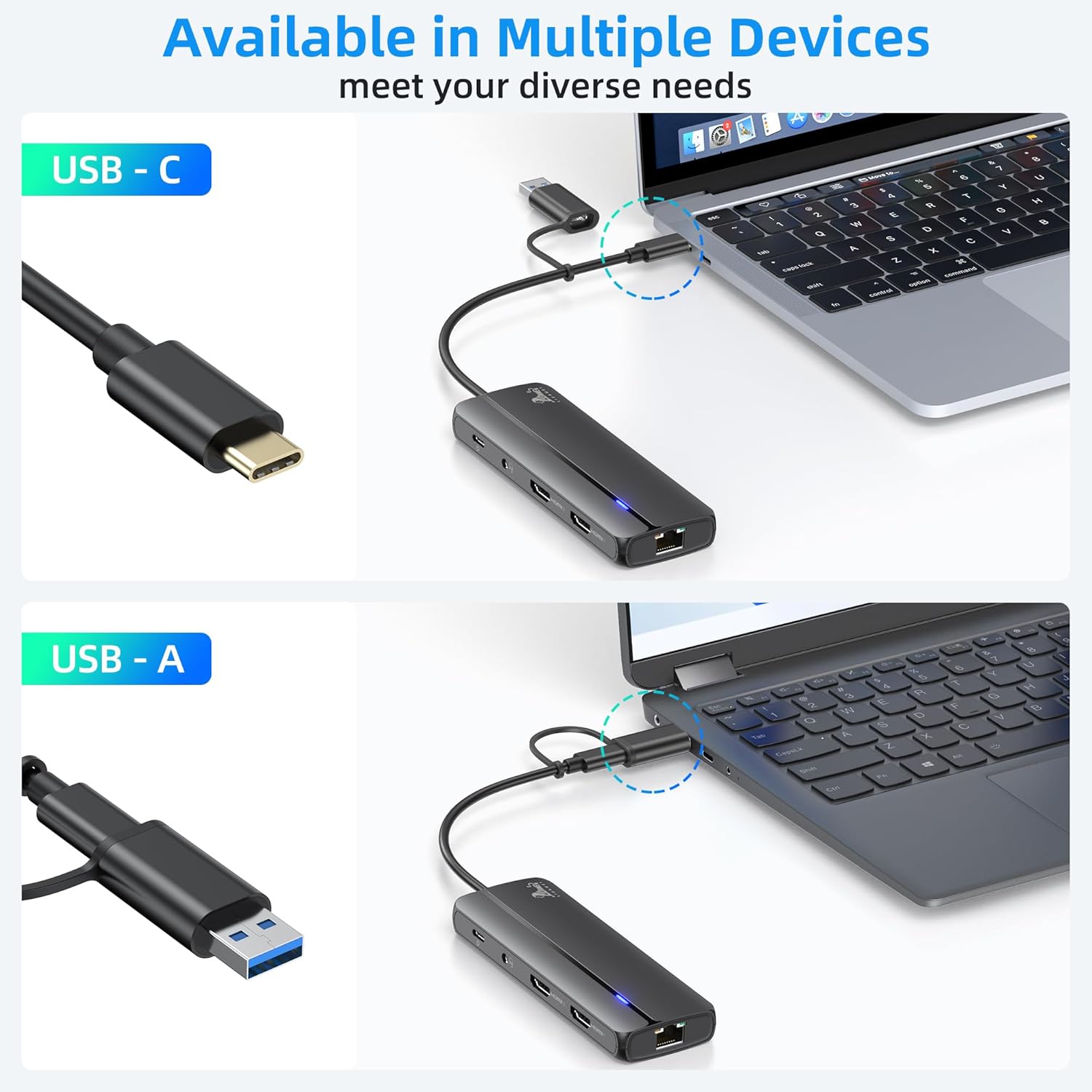
Image: The docking station connected to a MacBook via USB-C and another laptop via USB-A, demonstrating its broad compatibility.
3.2 Driver Installation
The necessary drivers can be downloaded from the official website: www.mct.com.tw/

Image: A diagram outlining the three main steps for driver installation: visit the website, select your operating system, and then install and restart your laptop.
For macOS Systems:

Image: A visual guide titled 'How to install the Driver for macOS', showing a laptop connected to two external monitors.
- Step 1: Open the downloaded driver file (e.g., .pkg document) and double-click it to begin the installation process.
- Step 2: Follow the on-screen prompts to install the driver. This typically involves clicking 'Continue' and 'Install' through several screens.
- Step 3: After the installation is successful, please restart your laptop.
- Step 4: After restarting, you may need to allow the driver to load software. Go to Settings > Privacy & Security, find the blocked system software message, and click 'Allow'.
- Step 5: To enable screen recording for display functionality, go to Settings > Privacy & Security > Screen Recording, and grant permission to the USB Display application.

Image: Screenshot of a macOS Finder window showing the downloaded driver file, with an arrow pointing to double-click it.

Image: A collage of screenshots showing the macOS driver installation wizard, guiding the user through introduction, read me, installation type, and installation steps.

Image: A screenshot of the macOS installer showing a successful installation message and a prompt to restart the Mac.

Image: A screenshot of macOS System Settings, Privacy & Security section, highlighting where to allow system software from 'USB Display Device Driver'.

Image: Screenshots illustrating how to activate/update the driver system extension and grant 'Screen Recording' access to 'USB Display' in macOS Privacy & Security settings.
For Windows Systems:

Image: A visual guide titled 'How to install the Driver for Windows', showing a laptop connected to two external monitors.
- Step 1: Open the downloaded driver file (e.g., .exe document) and double-click it to start the installation wizard.
- Step 2: Follow the instructions in the InstallShield Wizard to complete the driver installation. This typically involves accepting the license agreement and proceeding with the installation.
- Step 3: Once the installation is complete, please restart your laptop for the changes to take effect.

Image: A screenshot of the Windows installer preparing to launch the setup wizard for the USB Graphics Device & GigaLAN driver.

Image: A series of screenshots from the Windows InstallShield Wizard, showing the welcome screen, license agreement, and installation progress for the USB Graphics Device & GigaLAN driver.
Image: A screenshot of the Windows InstallShield Wizard indicating that the installation is complete and prompting the user to restart their computer.
4. Operating Instructions
4.1 Dual Monitor Display
The docking station supports extending your desktop across two external monitors, allowing for a multi-display setup. Ensure drivers are installed as per Section 3.2.
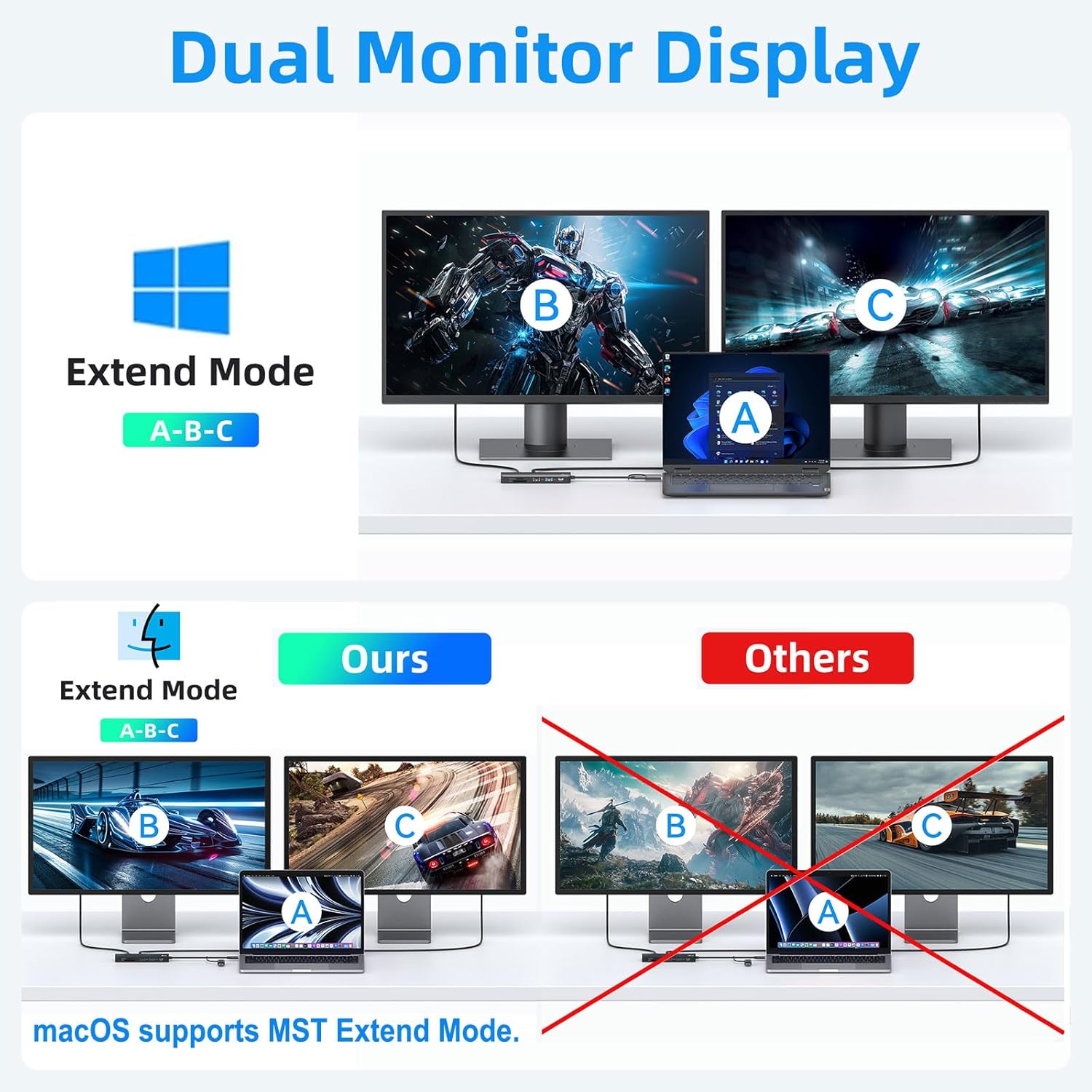
Image: An illustration of a laptop connected to two external monitors, demonstrating the extended display mode (A-B-C) for both Windows and macOS systems.
For macOS:
After driver installation and granting screen recording permissions, connect your HDMI monitors to the docking station. macOS will automatically detect the displays. You can arrange them in System Settings > Displays.

Image: A MacBook connected to two external monitors, illustrating a dual display setup for macOS, with a note indicating driver installation is needed.
For Windows:
Connect your HDMI monitors to the docking station. Right-click on your desktop and select Display settings to configure your displays (Extend, Duplicate, or Second screen only).

Image: A Windows laptop connected to two external monitors, illustrating a dual display setup for Windows, with a note indicating driver installation is needed.
4.2 Power Delivery (PD)
Connect your laptop's power adapter (above 65W recommended) to the USB-C PD port on the docking station to charge your laptop while using the hub. The docking station supports up to 100W input and 85W output.
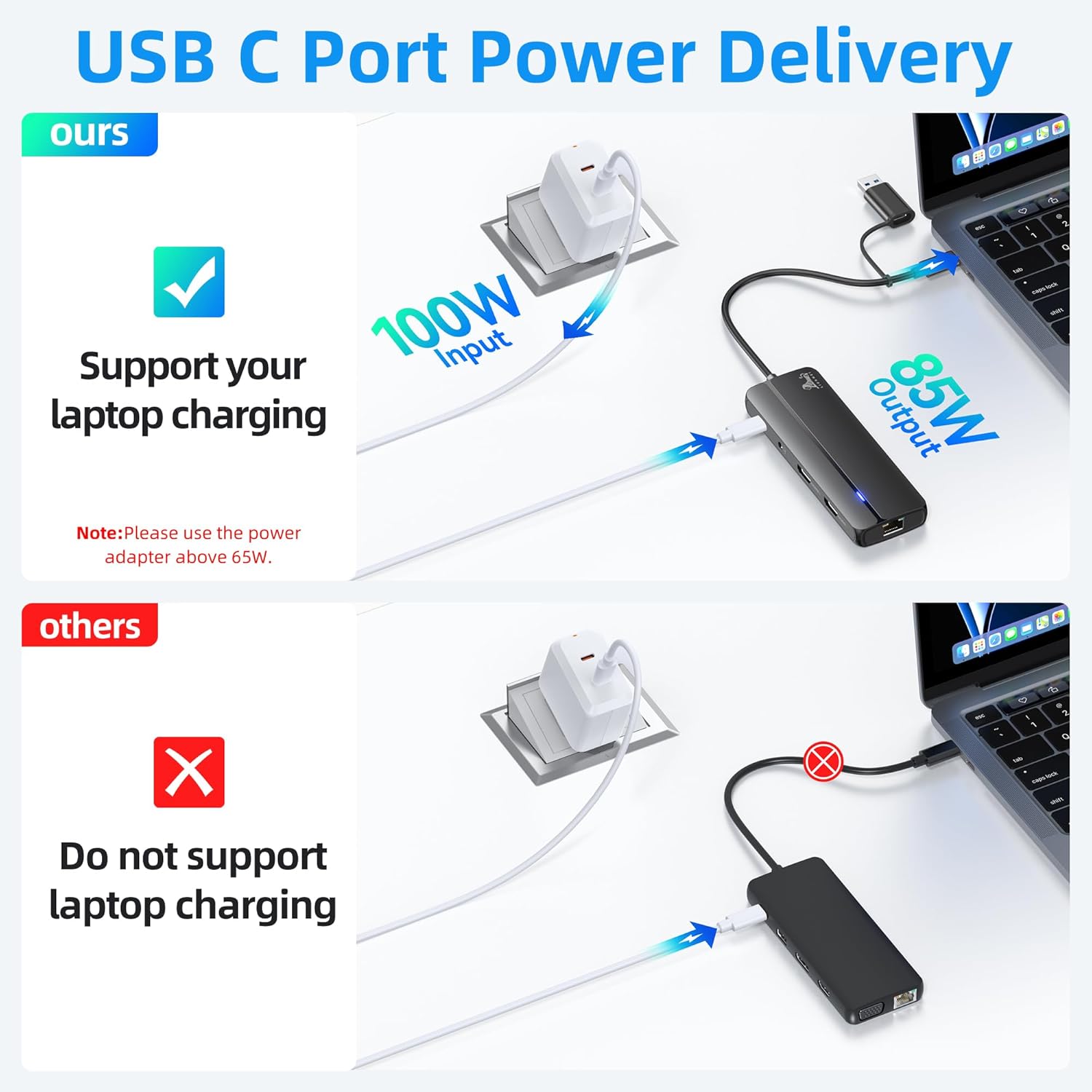
Image: An illustration showing a power adapter connected to the docking station, which then charges a laptop, demonstrating 100W input and 85W output power delivery.

Image: A visual representation of the USB-C Power Delivery feature, showing power flowing from a wall adapter through the docking station to a laptop, with a note that the power adapter is not included.
4.3 Data Transfer
Utilize the USB 3.0 ports for high-speed data transfer up to 5Gbps, perfect for external hard drives, SSDs, and flash drives. The SD and Micro SD card slots allow for quick access to media files.

Image: A laptop connected to the docking station, which is then connected to a USB flash drive and an SD card, illustrating multi-data transmission at 5Gbps.

Image: A visual representation of the docking station facilitating multiple and faster data transfers, showing connections to a smartphone, HDD enclosure, printer, mouse, USB flash drive, and keyboard.
4.4 Gigabit Ethernet & Audio/Mic
Connect an Ethernet cable to the RJ45 port for a stable and fast wired internet connection. The 3.5mm audio/mic jack allows you to connect headphones or speakers for audio output and a microphone for input.

Image: A laptop connected to the docking station, which is then connected to an Ethernet cable for 1000Mbps network speed and headphones for audio, highlighting the Gigabit Ethernet and 3.5mm Audio/Mic features.
Image: A laptop connected to the docking station, which is then connected to an Ethernet cable, illustrating reliable RJ45 Ethernet connectivity at 1000Mbps.
5. Specifications
| Feature | Detail |
|---|---|
| Package Dimensions | 7.95 x 2.36 x 0.75 inches |
| Item Weight | 3.52 ounces |
| ASIN | B0CF1SM74M |
| Brand | LIONWEI |
| Color | silver |
| Hardware Interface | 3.5mm Audio, Ethernet, HDMI, MicroSD, USB 2.0, USB 3.0 |
| Compatible Devices | Dell Latitude, HP EliteBook, Laptops, MacBook Air, MacBook Pro |
| Total USB Ports | 3 |
| Number of Ports | 10 |
| Total HDMI Ports | 2 |
| Manufacturer | LIONWEI |
| Date First Available | March 13, 2024 |
6. Troubleshooting
- No Display/Monitors Not Lighting Up:
- Ensure the necessary drivers are installed correctly for your operating system (refer to Section 3.2).
- After driver installation, a system reboot is often required for the displays to function properly.
- Verify that the HDMI cables are securely connected to both the docking station and the monitors.
- Check your laptop's display settings to ensure the external monitors are detected and configured for 'Extend' or 'Duplicate' mode.
- Driver Installation Blocked (macOS):
- If macOS blocks the driver, go to System Settings > Privacy & Security and allow the system software from 'USB Display Device Driver' to load (refer to Section 3.2, Step 4 for macOS).
- Ensure 'Screen Recording' permission is granted to the USB Display application in System Settings > Privacy & Security > Screen Recording (refer to Section 3.2, Step 5 for macOS).
- Headphone Jack Emits Static Noise:
- Ensure the audio cable is fully inserted into the 3.5mm jack.
- Test with different headphones or speakers to rule out issues with the audio device.
- Check your computer's audio settings to ensure the correct output device is selected (e.g., 'USB Audio Device').
- Try restarting your computer.
- Slow Data Transfer Speeds:
- Ensure you are using the USB 3.0 ports for high-speed devices. The USB 2.0 port offers slower speeds.
- Verify that the connected device (e.g., external hard drive) supports USB 3.0 speeds.
- Laptop Not Charging via PD Port:
- Ensure your power adapter is connected to the PD port on the docking station.
- Verify that your power adapter provides sufficient wattage (above 65W is recommended).
- Confirm your laptop supports USB-C Power Delivery.
7. Care and Maintenance
To ensure the longevity and optimal performance of your LIONWEI USB C Docking Station, please follow these care and maintenance guidelines:
- Cleaning: Use a soft, dry cloth to wipe the surface of the docking station. Avoid using liquid cleaners, aerosols, or harsh chemicals, as they may damage the device.
- Storage: Store the docking station in a cool, dry place away from direct sunlight and extreme temperatures.
- Handling: Avoid dropping or subjecting the docking station to strong impacts. Do not attempt to disassemble or modify the device, as this will void the warranty and may cause damage.
- Port Protection: When not in use, consider covering the ports to prevent dust and debris accumulation.
8. Warranty and Support
LIONWEI products are designed for reliability and performance. This product comes with an 18-month warranty from the date of purchase, covering manufacturing defects.
For technical support, troubleshooting assistance, or warranty claims, please contact LIONWEI customer service. We offer 24-hour online service to assist you with any inquiries.
You can find more information and contact details on the official LIONWEI store page: LIONWEI Amazon Store


