
Akko AKKO01-00003
Akko 5075B Plus Mechanical Keyboard User Manual
Model: AKKO01-00003
Brand: Akko
Introduction
Welcome to the user manual for your Akko 5075B Plus Mechanical Keyboard. This guide provides comprehensive instructions for setup, operation, maintenance, and troubleshooting to ensure optimal performance and longevity of your device.
What's in the Box
- Akko 5075B Plus Mechanical Keyboard
- USB-A to USB-C Cable
- Keycap Removal Tool
- Switch Removal Tool
- Extra Cyan-colored Keycaps
- User Manual

Image: The Akko 5075B Plus Mechanical Keyboard along with its included accessories.
Setup
Initial Connection
Your Akko 5075B Plus keyboard supports multiple connectivity modes: wired, 2.4GHz wireless, and Bluetooth 5.0.
Wired Connection
Connect the provided USB-A to USB-C cable from your computer to the USB-C port on the keyboard. The keyboard will automatically be recognized.

Image: Close-up view of the USB-C port on the keyboard for wired connection.
2.4GHz Wireless Connection
Locate the USB-A receiver stored at the bottom of the keyboard. Plug the receiver into an available USB-A port on your computer.
Ensure the switch on the underside of the keyboard is set to "USB" or the appropriate wireless mode.
Bluetooth Connection
Set the switch on the underside of the keyboard to "Mac" or "Win" depending on your operating system.
On your device, enable Bluetooth and search for "Akko 5075B Plus". Select the keyboard to pair. The keyboard can connect to up to three wireless devices.

Image: Diagram illustrating multi-device wireless connectivity options for the keyboard.
Operating System Compatibility
A dedicated switch on the underside of the keyboard allows you to select between Mac, USB, and Windows modes for optimal compatibility.

Image: Close-up of the physical switch on the keyboard's underside for selecting operating system compatibility.
Adjustable Height
The keyboard features two flip-out height adjustment feet on the bottom to elevate the typing angle for improved ergonomics.

Image: The adjustable feet on the bottom of the keyboard in an extended position.
Operating Your Keyboard
Keycaps
The Akko 5075B Plus comes with durable PBT Double Shot ASA Profile Keycaps, designed for longevity and a comfortable typing experience.

Image: Close-up of the PBT Double Shot ASA Profile Keycaps.

Image: Diagram showing the different heights of ASA profile keycaps.
The package includes extra cyan-colored keycaps for customization. Use the provided keycap removal tool to swap them out.
Video: Demonstrates the process of swapping keycaps on the Akko 5075B Plus keyboard (0:05-0:13).
Hot-Swappable Switches
This keyboard features 5-pin hot-swappable sockets, allowing you to easily change mechanical switches without soldering. The current model is equipped with V3 Creamy Blue Pro switches.

Image: Detailed view of the 5-pin hot-swappable sockets for easy switch replacement.

Image: Illustration of how to remove a mechanical switch using the provided tool.
Video: A brief sound test demonstrating the typing experience of the keyboard (0:13-0:16).
Optimized Noise Reduction
The keyboard is engineered with silicone plate foam, case foam, and an IXPE switch pad, along with a gasket-mounted design, to provide a comfortable, soft, and quiet typing experience.
RGB Backlighting
The Akko 5075B Plus features built-in and side-LED RGB backlighting with customizable light animation effects (per-key RGB supported).

Image: The keyboard showcasing its colorful RGB backlighting.
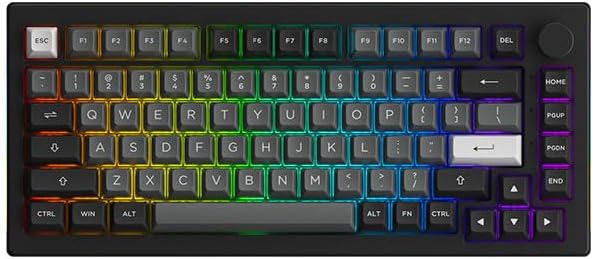
Image: Overhead view of the keyboard highlighting the RGB lighting across all keys.
Video: Shows the dynamic RGB lighting effects of the keyboard (0:00-0:05).
Multi-Media Rotary Encoder (Knob)
The multi-media rotary encoder allows for quick control of computer audio volume and RGB backlight levels.

Image: Detailed view of the multi-media rotary encoder.

Image: A hand demonstrating the use of the volume knob.
Programmable Functionality
All keys can be re-mapped and macros can be created using the Akko Cloud Driver software. This software also allows for extensive customization of RGB lighting effects.
Specifications
| Feature | Detail |
|---|---|
| Product Dimensions | 13.19 x 5.75 x 1.65 inches |
| Item Weight | 2.97 pounds |
| Manufacturer | Akko |
| ASIN | B0CF1Q51YH |
| Country of Origin | China |
| Item model number | AKKO01-00003 |
| Batteries | 1 Lithium Ion batteries required. (included) |
| Date First Available | August 8, 2023 |
| Brand | Akko |
| Compatible Devices | Tablet |
| Connectivity Technology | USB-C |
| Keyboard Description | Mechanical |
| Special Feature | Hot-Swappable |
| Color | Black&Silver |
| Number of Keys | 84 |
| Keyboard backlighting color support | RGB |
| Style | Classic |
| Material | Silicone |
Maintenance
Cleaning
Regularly clean your keyboard to prevent dust and debris buildup. Use a soft brush or compressed air to remove particles between keycaps. For surface cleaning, use a slightly damp, lint-free cloth.
Keycap and Switch Care
When removing keycaps or switches, use the provided tools to avoid damage. Store extra keycaps and switches in a safe, dry place.
Troubleshooting
Connectivity Issues
If the keyboard is not connecting wirelessly, ensure it is fully charged and within range of your device. Verify the mode switch (Mac/USB/Win) on the underside is correctly set. For 2.4GHz, ensure the USB receiver is securely plugged in. For Bluetooth, try re-pairing the device.
RGB Lighting Problems
If RGB lighting is not functioning correctly, check the brightness level using the knob. Use the Akko Cloud Driver software to reset or adjust lighting effects. Ensure the keyboard is connected via wired mode when using the software for comprehensive customization.
Warranty and Support
For detailed warranty information and technical support, please visit the official Akko website or contact their customer service.
Official Akko Store: Akko Store on Amazon
Related documentsAKKO01-00003


Ask a question about this manual
Ask about setup, troubleshooting, compatibility, parts, safety, or missing instructions. Manuals+ will review the question and use this page’s manual context to help answer it.