
Introduction
This manual provides comprehensive instructions for the setup, operation, maintenance, and troubleshooting of your Akko 5075B Plus Dracula Castle Mechanical Keyboard. Designed for versatility and performance, this keyboard features multi-mode connectivity, hot-swappable switches, and customizable RGB lighting to enhance your computing experience.

Figure 1: Akko 5075B Plus Dracula Castle Mechanical Keyboard with Creamy Yellow Switches.
Package Contents
Please verify that all items are present in the package:
- Akko 5075B Plus Mechanical Keyboard
- USB Type-C Cable
- 2.4GHz Wireless Receiver
- Extra Novelty Keycaps (Dracula Castle themed)
- Keycap Puller
- Switch Puller
Video 1: Unboxing the Akko 5075B Plus Dracula Keyboard, showcasing its contents and initial appearance.
Setup
1. Connectivity Modes
The Akko 5075B Plus supports three connectivity modes: Bluetooth 5.0, 2.4GHz wireless (via USB receiver), and wired Type-C. You can easily switch between devices and modes.

Figure 2: Overview of Bluetooth, 2.4GHz, and Type-C wired connectivity options.

Figure 3: Visual representation of seamless switching between multiple connected devices.
- Wired Mode: Connect the keyboard directly to your device using the provided USB Type-C cable. The port is located on the top edge of the keyboard.
- 2.4GHz Wireless Mode: Locate the USB receiver stored in the slot on the underside of the keyboard. Plug the receiver into an available USB port on your device.
- Bluetooth Mode: Ensure the keyboard is in Bluetooth mode using the switch on the underside. Follow your device's Bluetooth pairing instructions to connect.

Figure 4: USB Type-C port for wired connection and charging.
2. OS Compatibility Switch
A switch on the underside of the keyboard allows you to select between Mac, USB, and Windows modes for optimal compatibility and functionality.

Figure 5: OS compatibility switch located on the keyboard's underside.
3. Physical Setup
The keyboard features adjustable feet on its underside, allowing you to set your preferred typing angle for ergonomic comfort.

Figure 6: Flip-out feet for adjusting keyboard height and angle.
Operating Instructions
1. Keycaps
The keyboard comes with PBT Double Shot ASA Profile keycaps, known for their durability and resistance to shine. The Dracula Castle theme features vintage gray base colors with novelty keys like bats, horror pumpkins, and ghosts.

Figure 7: Diagram illustrating the ASA Profile keycap dimensions.

Figure 8: PBT Double-Shot keycaps ensuring legends do not fade easily.

Figure 9: Collection of Dracula Castle themed novelty keycaps included with the keyboard.
2. Switches
The keyboard features Akko V3 Creamy Yellow Pro switches, which are linear and pre-lubed for a smooth typing experience. The 5-pin hot-swappable sockets allow for easy replacement of switches without desoldering.

Figure 10: Hot-swappable PCB allowing users to easily replace switches.

Figure 11: Demonstration of removing and installing hot-swappable switches.

Figure 12: Detailed view of the Akko V3 Creamy Yellow Pro switch.
3. RGB Lighting
The keyboard features built-in and side-LED RGB backlighting with customizable light animation effects. Per-key RGB is supported and can be configured through the Akko Cloud Driver software.
4. Knob Functionality
The multi-function knob allows for quick adjustments. By default, it controls audio volume. It can also be re-mapped via the Akko Cloud Driver for other functions, such as adjusting RGB brightness.
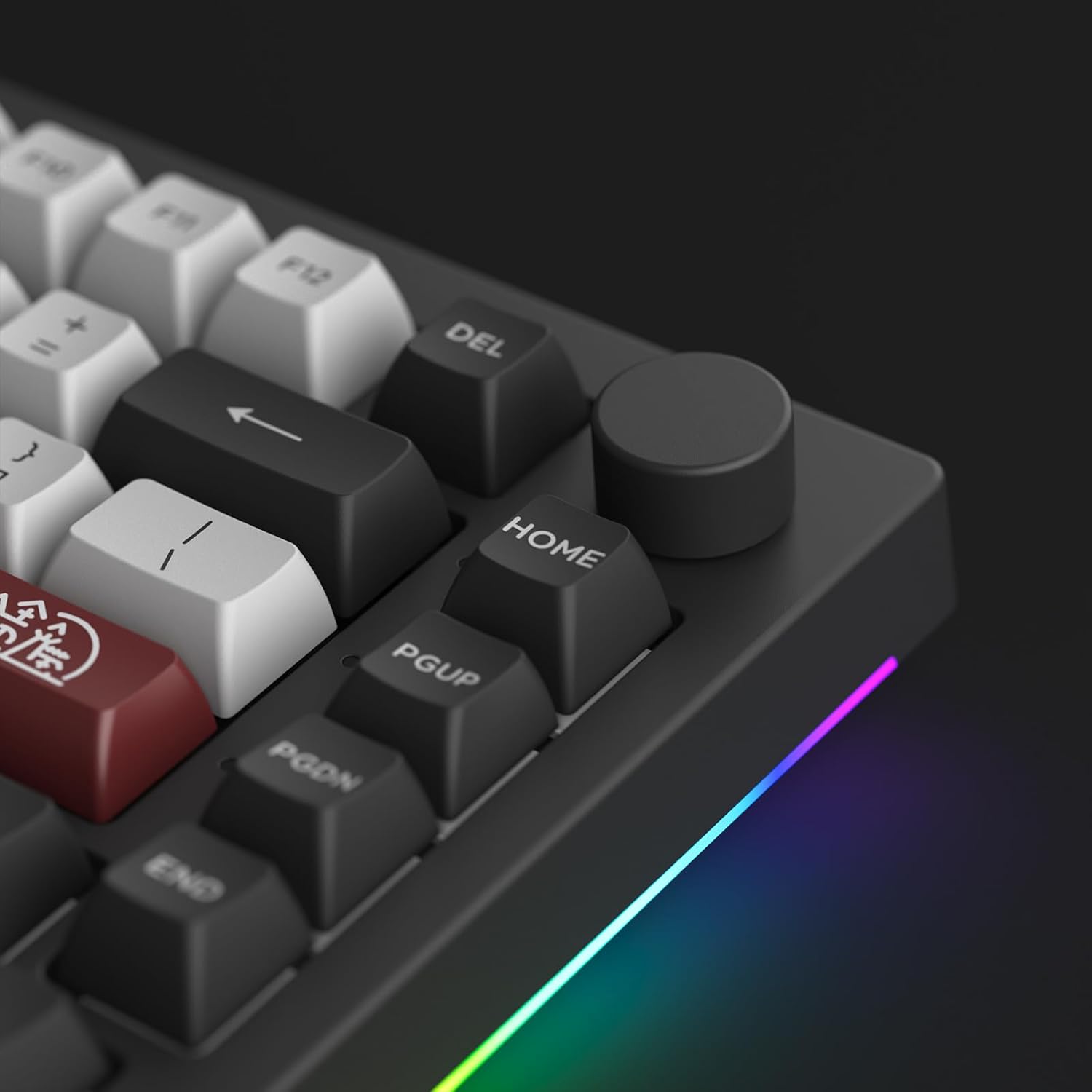
Figure 13: Detailed view of the programmable knob.

Figure 14: Visual demonstration of the knob's rotation and press functions.
5. Programmable Features (Akko Cloud Driver)
All keys and the knob can be re-mapped, and macros can be set using the Akko Cloud Driver software. This software provides extensive customization options for lighting effects, key assignments, and more.
Download the Akko Cloud Driver from the official Akko website (www.akkogear.com) to unlock full customization capabilities.
Maintenance
1. Cleaning
Regular cleaning helps maintain the keyboard's performance and appearance. Use a soft brush or compressed air to remove dust and debris from between the keycaps. For deeper cleaning, carefully remove the keycaps using the provided keycap puller and wipe them with a damp cloth.
2. Switch and Keycap Replacement
Thanks to the hot-swappable design, individual switches can be replaced if they become faulty or if you wish to try different switch types. Use the switch puller to gently remove switches. Ensure new switches are aligned correctly before pressing them into place. Keycaps can be removed and replaced using the keycap puller.
Troubleshooting
If you encounter issues with your keyboard, please refer to the following common solutions:
- Connectivity Issues: Ensure the keyboard is in the correct mode (Wired, 2.4GHz, or Bluetooth) for your device. For wireless connections, check battery level and ensure the receiver is properly plugged in or Bluetooth is paired.
- RGB Lighting Problems: Verify that the keyboard is connected via USB for full RGB customization through the Akko Cloud Driver. Adjust brightness using the knob or software.
- Key Not Responding: If a specific key is not responding, it may be a faulty switch. Utilize the hot-swappable feature to replace the switch.
- Software Recognition: Ensure the keyboard is connected via USB when attempting to use the Akko Cloud Driver for firmware updates or extensive customization.
For more detailed troubleshooting or technical support, please visit the Akko official website or contact their customer service.
Specifications
| Feature | Detail |
|---|---|
| Product Dimensions | 16.93 x 6.69 x 2.36 inches |
| Item Weight | 3.05 pounds |
| Manufacturer | Akko |
| Item Model Number | 5075B Plus |
| Connectivity Technology | USB-C, Bluetooth 5.0, 2.4GHz Wireless |
| Keyboard Description | Ergonomic, 75% Layout |
| Special Feature | Hot-Swappable, Programmable RGB, Knob |
| Keycap Profile | ASA Profile, PBT Double Shot |
| Switch Type | Akko V3 Creamy Yellow Pro (Linear, Pre-lubed) |
| Battery Capacity | 3000mAh |

Figure 15: Internal structure of the Akko 5075B Plus keyboard, showing various layers for optimized noise reduction and typing feel.
Warranty and Support
For warranty information, product registration, or technical assistance, please visit the official Akko website or contact their customer support team. Keep your purchase receipt for warranty claims.
Official Akko Website: www.akkogear.com


