
1. Product Overview
The IWEGGO CP20GOLD is a versatile 10-inch Android tablet designed for both productivity and entertainment. It features a high-definition touchscreen, a quad-core processor, and comes with a suite of accessories including a keyboard, mouse, case, and stylus, transforming it into a 2-in-1 device. This manual provides instructions for setting up, operating, maintaining, and troubleshooting your tablet.
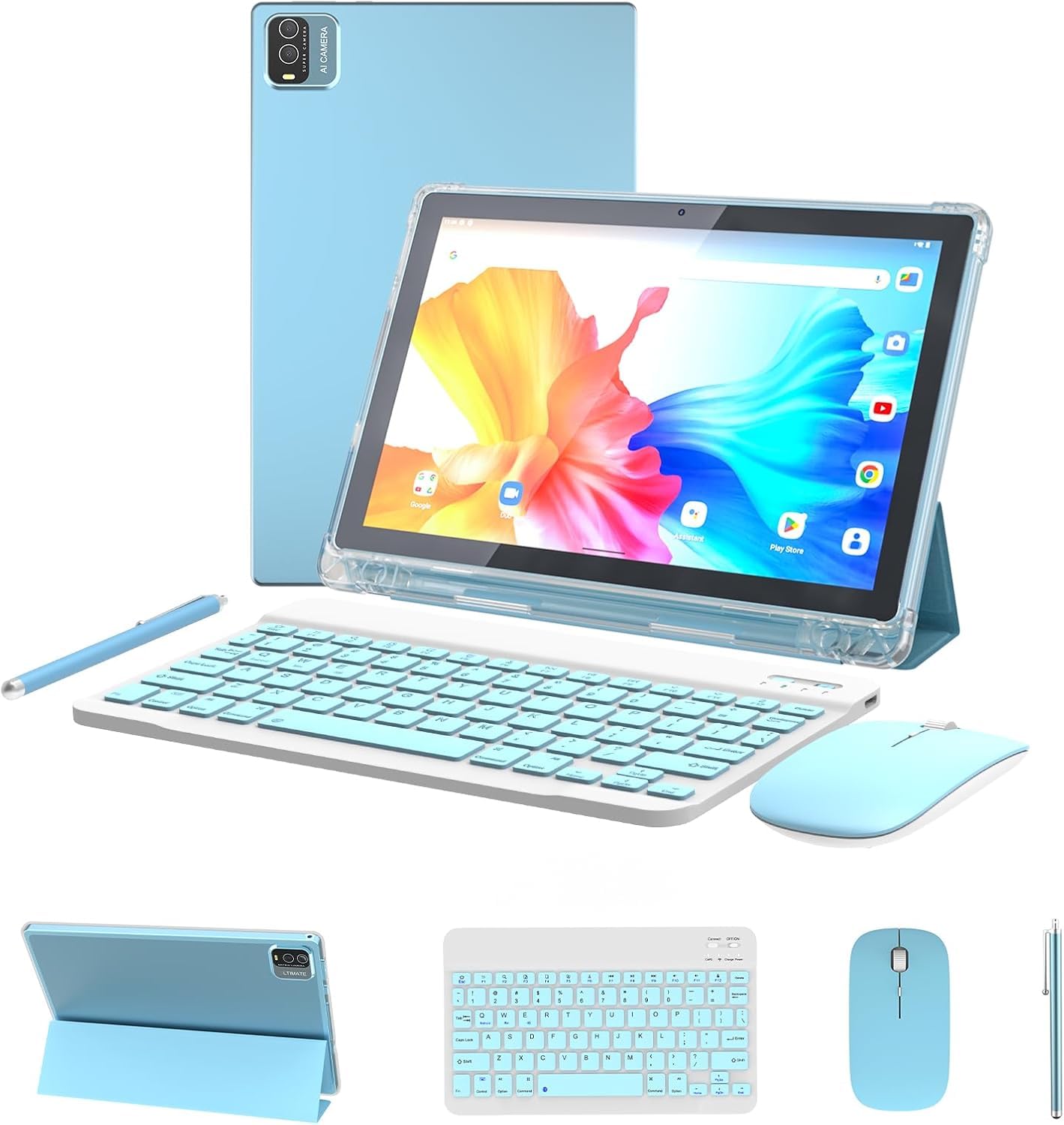
Image 1.1: The IWEGGO CP20GOLD tablet shown with its included accessories: a Bluetooth keyboard, wireless mouse, protective case, and stylus.
2. What's in the Box
Please verify that all items are present in the package:
- IWEGGO CP20GOLD 10-inch Android Tablet
- Bluetooth Keyboard
- Wireless Mouse
- Protective Case
- Type-C Charging Cable
- Stylus
- User Manual (this document)
3. Setup Guide
3.1 Initial Charging
Before first use, fully charge the tablet. Connect the provided Type-C cable to the tablet's charging port and the other end to a compatible USB power adapter (not included) or a computer's USB port. The charging indicator will illuminate.
3.2 Powering On/Off
- To Power On: Press and hold the Power button located on the side of the tablet until the screen lights up.
- To Power Off: Press and hold the Power button until a menu appears. Select "Power off" from the options.
- To Restart: Press and hold the Power button until a menu appears. Select "Restart" from the options.
3.3 Initial Configuration
Upon first power-on, follow the on-screen prompts to set up your tablet:
- Select your preferred language.
- Connect to a Wi-Fi network. This is essential for downloading apps and updates.
- Sign in with your Google Account or create a new one. This allows access to the Google Play Store and other Google services.
- Review and accept the terms and conditions.
- Set up screen lock (PIN, pattern, or password) for security.
3.4 Connecting Accessories
The tablet comes with a Bluetooth keyboard, wireless mouse, and stylus for enhanced functionality.
- Bluetooth Keyboard: Turn on the keyboard and activate its Bluetooth pairing mode (refer to the keyboard's specific instructions). On the tablet, go to Settings > Connected devices > Pair new device and select the keyboard from the list.
- Wireless Mouse: Insert the USB receiver (usually found in the mouse's battery compartment) into the tablet's USB-C port via an adapter if necessary, or pair via Bluetooth if it's a Bluetooth mouse.
- Stylus: The stylus is typically passive and does not require pairing. Simply use it on the touchscreen.

Image 3.4: A user interacting with the tablet using the Bluetooth keyboard and stylus, demonstrating its 2-in-1 capability.
3.5 Inserting a TF Card
To expand storage, locate the TF card slot on the tablet. Gently insert a TF (microSD) card, ensuring the correct orientation, until it clicks into place. The tablet supports up to 1TB of external storage.
4. Operating Instructions
4.1 Basic Navigation
The tablet operates on the Android operating system, utilizing touch gestures for navigation:
- Tap: Select an item or open an app.
- Tap and Hold: Access contextual menus or move icons.
- Swipe: Scroll through pages, menus, or switch between home screens.
- Pinch-to-Zoom: Enlarge or reduce content on the screen.

Image 4.1: The tablet's display showing the Android interface with various applications, demonstrating its user-friendly design.
4.2 Display Settings
The 10.1-inch IPS HD display offers a resolution of 1280x800. You can adjust display settings such as brightness, wallpaper, and sleep duration via Settings > Display.

Image 4.2: The tablet's 10.1-inch IPS HD screen showcasing vibrant visuals and its 1280x800 resolution.
4.3 Connectivity
The tablet supports advanced wireless connectivity:
- Wi-Fi: Supports 2.4G and 5G dual-band Wi-Fi 6 for fast and stable internet access. Connect via Settings > Network & internet > Wi-Fi.
- Bluetooth 5.0: For connecting wireless headphones, speakers, keyboards, mice, and other compatible devices. Access via Settings > Connected devices > Bluetooth.
- 3.5mm Headphone Jack: For wired audio connections.

Image 4.3: The tablet's dual-band Wi-Fi 6 capability ensures fast and reliable internet connectivity.

Image 4.4: The tablet offers fast connectivity options including 2.4G/5G Wi-Fi 6, Bluetooth 5.0, and a 3.5mm headphone jack.
4.4 App Management
The tablet is Google GMS certified, providing access to the Google Play Store. You can download and install a wide range of applications.
- Install Apps: Open the Play Store app, search for your desired application, and tap "Install".
- Uninstall Apps: Tap and hold an app icon on the home screen or app drawer, then drag it to "Uninstall" or go to Settings > Apps > See all apps, select the app, and tap "Uninstall".
4.5 Camera Usage
The tablet features an 8MP dual camera. Open the Camera app to take photos or record videos. You can switch between the front and rear cameras within the app.

Image 4.5: The tablet's camera can be used for capturing moments or video calls.
4.6 Battery Management
The tablet is equipped with a 6000mAh battery, providing approximately 8 hours of average use. To optimize battery life:
- Reduce screen brightness.
- Turn off Wi-Fi and Bluetooth when not in use.
- Close unused applications running in the background.
- Enable battery saver mode via Settings > Battery.
4.7 Using as a 2-in-1 Device
With the included keyboard and mouse, the tablet can function as a compact laptop. The protective case often doubles as a stand, allowing for comfortable viewing and typing angles.

Image 4.6: The tablet paired with its Bluetooth keyboard for a laptop-like experience.
5. Maintenance
5.1 Cleaning the Device
Use a soft, lint-free cloth to clean the screen and body of the tablet. Avoid using harsh chemicals or abrasive materials that could damage the surfaces.
5.2 Software Updates
Periodically check for system updates to ensure optimal performance and security. Go to Settings > System > System update to check for and install available updates.
5.3 Storage Management
The tablet has 128GB of internal storage, expandable up to 1TB with a TF card. To manage storage, go to Settings > Storage. You can free up space by uninstalling unused apps, deleting old files, or moving files to the TF card.
6. Troubleshooting
This section addresses common issues you might encounter with your IWEGGO CP20GOLD tablet.
- Tablet not powering on: Ensure the tablet is sufficiently charged. Connect it to a power source and try again after a few minutes. If it still doesn't power on, perform a force restart by holding the power button for 10-15 seconds.
- Wi-Fi connection issues: Check if Wi-Fi is enabled in settings. Restart your router and the tablet. Ensure you are entering the correct Wi-Fi password.
- Bluetooth accessory not connecting: Ensure the accessory is in pairing mode and fully charged. On the tablet, turn Bluetooth off and then on again, then try pairing.
- Slow performance: Close unnecessary background applications. Clear cache for frequently used apps. Consider freeing up storage space.
- Screen not responding: Restart the tablet. If the issue persists, ensure the screen is clean and free of debris.
- Factory Reset: As a last resort for persistent software issues, you can perform a factory reset. Warning: This will erase all data on your tablet. Back up important data before proceeding. Go to Settings > System > Reset options > Erase all data (factory reset).
7. Specifications
Below are the technical specifications for the IWEGGO CP20GOLD tablet:
| Feature | Specification |
|---|---|
| Model Name | CP20GOLD |
| Operating System | Android |
| Screen Size | 10.1 Inches |
| Screen Resolution | 1280x800 IPS |
| Processor | 2 GHz Quad-core (ARM Chipset) |
| RAM | 6 GB |
| Internal Storage | 128 GB Flash Memory |
| Expandable Storage | Up to 1 TB (TF Card) |
| Wireless Connectivity | 2.4G/5G Dual Band Wi-Fi 6 (802.11ax) |
| Bluetooth | Bluetooth 5.0 |
| Rear Camera | 8 MP |
| Battery | 6000mAh Lithium Polymer (Average 8 hours) |
| Dimensions (LxWxH) | 9.84 x 6.3 x 0.39 inches |
| Item Weight | 2.2 pounds |
8. Warranty and Support
For warranty information and technical support, please refer to the documentation included with your purchase or contact IWEGGO customer service through the retailer where the product was purchased. Keep your proof of purchase for warranty claims.