
Strong POWERL600DUOMINI
STRONG POWERL600DUOMINI Mini Duo Powerline Kit User Manual
Model: POWERL600DUOMINI
Introduction
The STRONG POWERL600DUOMINI Mini Duo Powerline Kit provides a high-speed home network solution by utilizing your existing electrical wiring. This kit includes two adapters, enabling you to extend your internet connection to any room with a power outlet, eliminating the need for new network cables. It supports speeds up to 600 Mbit/s, making it suitable for IPTV, HD video streaming, and online gaming.
Package Contents
Before you begin, please verify that all items are present in your package:
- 2 x STRONG Powerline 600 Mini Adapters
- 2 x Ethernet Cables
- 1 x Quick Installation Guide

Image: The STRONG Powerline 600 Mini Duo Kit, showing both adapters and the included Ethernet cables.
Setup Guide
Follow these simple steps to set up your Powerline network:
Step 1: Connect the First Adapter
- Plug one STRONG Powerline 600 Mini Adapter into a power outlet near your internet router or modem.
- Connect one end of an Ethernet cable to the LAN port on the Powerline adapter.
- Connect the other end of the Ethernet cable to an available LAN port on your router or modem.

Image: Close-up of the bottom of a Powerline adapter, highlighting the Ethernet LAN port for connection.
Step 2: Connect the Second Adapter
- Plug the second STRONG Powerline 600 Mini Adapter into a power outlet in the room where you need internet access (e.g., near your computer, smart TV, or game console).
- Wait for the Powerline LED indicator (house icon) on both adapters to turn solid green, indicating a successful connection.
- Connect your device (computer, smart TV, etc.) to the LAN port of the second Powerline adapter using the second Ethernet cable.
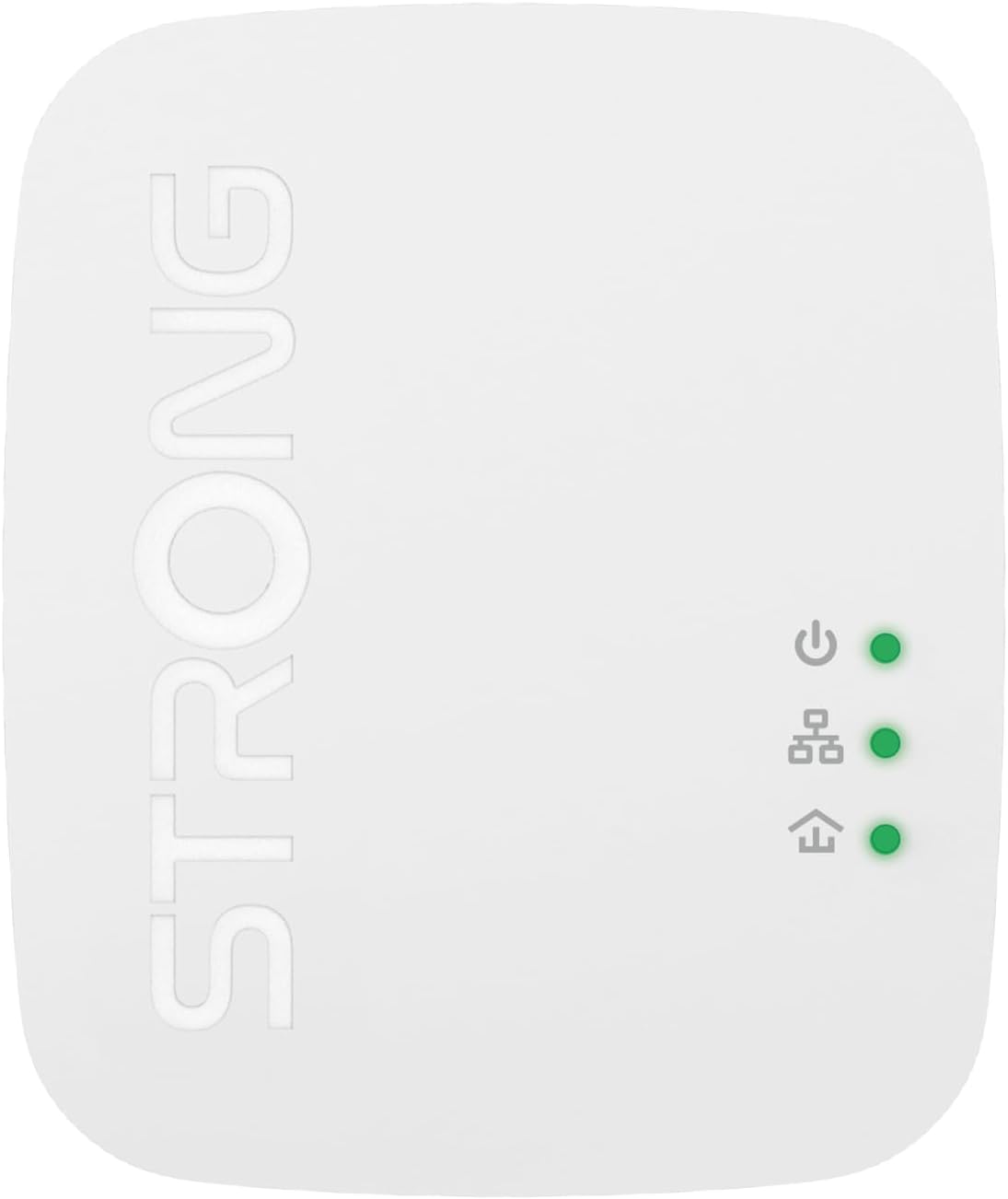
Image: Top view of a Powerline adapter, displaying the power, Powerline (house), and Ethernet LED indicators.
Step 3: Secure Your Network (Optional)
For enhanced security, you can encrypt your Powerline network:
- Press the "PAIR/RST" button on the side of the first Powerline adapter for 1 second. The Power LED will start blinking.
- Within 2 minutes, press the "PAIR/RST" button on the second Powerline adapter for 1 second. The Power LED will also start blinking.
- Both adapters will automatically establish a secure, encrypted connection. The Power LED will stop blinking and remain solid.

Image: Side view of the Powerline adapter, highlighting the recessed PAIR/RST button for pairing and resetting.
Operating Instructions
Once set up, your Powerline network operates automatically. Here are some key operational aspects:
- Plug & Play: The Powerline adapters are designed for immediate use after initial setup. No additional software or configuration is typically required.
- LED Indicators:
- Power LED (top): Indicates power status. Solid green means powered on. Blinking indicates pairing mode.
- Powerline LED (middle, house icon): Indicates Powerline network status. Solid green means a strong connection. Blinking indicates data transfer. Off means no Powerline connection.
- Ethernet LED (bottom, arrow icon): Indicates Ethernet connection status. Solid green means a device is connected via Ethernet. Blinking indicates data transfer. Off means no Ethernet connection.
- Power Saving Mode: The adapters automatically enter a power-saving mode when no data activity is detected for a period, reducing power consumption by up to 85%.

Image: An angled view of the Powerline adapter, clearly showing the three LED indicators and their positions.
Maintenance
To ensure optimal performance and longevity of your STRONG Powerline Kit, consider the following maintenance tips:
- Cleaning: Gently wipe the adapters with a soft, dry cloth. Do not use liquid cleaners or aerosols.
- Ventilation: Ensure the adapters are plugged into outlets that allow for proper airflow around the device. Do not cover the ventilation slots.
- Direct Outlet Connection: For best performance, plug the Powerline adapters directly into a wall outlet. Avoid using power strips, extension cords, or surge protectors, as these can interfere with Powerline signal quality.
- Firmware Updates: Periodically check the Strong official website for any available firmware updates for your model. Updates can improve performance and stability.

Image: Side profile of the Powerline adapter, illustrating the ventilation slots designed for heat dissipation.
Troubleshooting
If you encounter issues with your Powerline Kit, refer to the following common problems and solutions:
| Problem | Possible Cause | Solution |
|---|---|---|
| No Powerline connection (Powerline LED is off) | Adapters are not on the same electrical circuit, or signal interference. |
|
| Slow network speed | Electrical interference, distance, or network congestion. |
|
| No internet access on connected device | Ethernet cable issue, router problem, or adapter not receiving internet. |
|
Specifications
| Feature | Detail |
|---|---|
| Model Number | POWERL600DUOMINI |
| Data Transfer Rate | Up to 600 Mbps |
| Hardware Interface | Ethernet (1x LAN port per adapter) |
| Data Link Protocol | Ethernet |
| Coverage | Up to 300 meters on electrical circuit |
| Security | 128-bit AES Encryption |
| Power Saving | Automatic power saving mode (up to 85% reduction) |
| Dimensions (L x W x H) | 7.48 x 2.24 x 5.51 inches (approx.) |
| Item Weight | 2.79 ounces (approx. 79 grams) |
| Color | White |
| Compatible Devices | Desktop computers, laptops, smart TVs, game consoles, etc. |
Warranty and Support
STRONG products are designed for reliability and performance. For information regarding warranty coverage, technical support, or to download the latest drivers and firmware, please visit the official STRONG website:
When contacting support, please have your product model number (POWERL600DUOMINI) and purchase information ready.
Related documentsPOWERL600DUOMINI


Ask a question about this manual
Ask about setup, troubleshooting, compatibility, parts, safety, or missing instructions. Manuals+ will review the question and use this page’s manual context to help answer it.