
Introduction
This manual provides detailed instructions for the setup, operation, and maintenance of your FIFINE AM8T+SC3 XLR/USB Microphone and Gaming Audio Mixer Kit. This kit is designed to enhance your gaming, streaming, podcasting, and recording experiences with high-quality audio and versatile controls.
Setup
1. Unpacking and Component Check
Before beginning, ensure all components are present in the package:
- FIFINE AM8T Microphone
- FIFINE SC3 Gaming Audio Mixer
- Boom Arm
- USB Cable
- User Manual
- Warranty Card
2. Boom Arm Assembly and Microphone Attachment
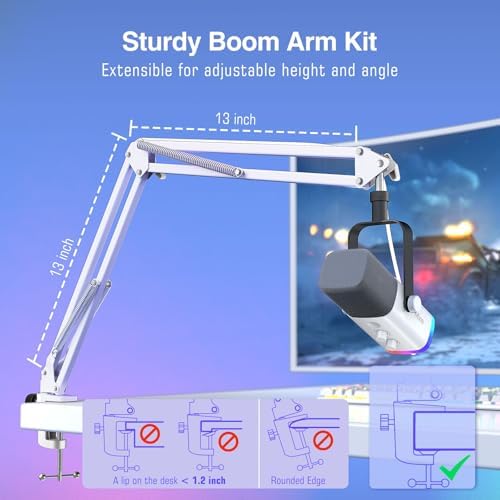
This image illustrates the assembly of the boom arm and how to attach the microphone. The boom arm is adjustable for height and angle, and it clamps to a desk with a thickness of less than 2 inches. Ensure the desk edge is not rounded for secure attachment.
- Attach the boom arm clamp to a sturdy desk or table edge. Ensure the desk thickness is less than 2 inches (5 cm) and the edge is flat for secure mounting.
- Insert the boom arm into the clamp and tighten the knob to secure it.
- Attach the microphone to the 5/8" screw thread on the boom arm. Adjust the microphone's angle and position as needed.
3. Connecting the Microphone and Mixer
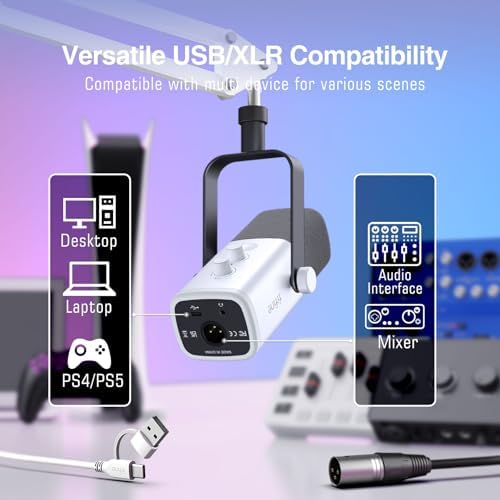
This image shows the versatile connectivity options of the microphone, including USB for direct PC connection and XLR for use with an audio interface or mixer. Compatible devices include Desktop PCs, Laptops, and PS4/PS5.

This image demonstrates connecting the microphone via XLR to the mixer. An XLR cable is required and sold separately. It also shows various FIFINE microphones compatible with XLR or 6.35mm connections.
The FIFINE AM8T microphone offers two primary connection methods:
- USB Connection: Connect the microphone directly to your PC via the provided USB cable. This allows for instant use with full access to the microphone's function keys.
- XLR Connection: For enhanced professional audio performance, connect the microphone to the included SC3 Gaming Audio Mixer using an XLR cable (not included).
Connect the SC3 Gaming Audio Mixer to your computer using the USB cable. The mixer is compatible with Personal Computers, Laptops, and gaming consoles like PS4/PS5.
Operating Instructions
1. Microphone Usage (AM8T)

This image illustrates the cardioid pickup pattern of the microphone, showing that it primarily captures sound from the front (facing the mic top) while reducing off-axis noise like keyboard clicks.
- Positioning: For optimal sound capture and to minimize background noise, ensure the top of the microphone is facing the sound source (e.g., your mouth). The cardioid pickup pattern focuses precisely on your voice.
- Tap-to-Mute: The microphone features a tap-to-mute function for quick and convenient audio control during live sessions.
2. Gaming Audio Mixer (SC3) Controls

This image displays the FIFINE SC3 Gaming Audio Mixer, highlighting its controllable RGB lighting with five modes and over eight colors. The mixer features multiple faders and buttons for audio control.

This image details the individual faders on the SC3 mixer for controlling different audio channels, including microphone, line in, headphone, and line out. It emphasizes precise audio mixing capabilities.

This image focuses on the six effect buttons on the SC3 mixer, including a 'Change Voice' button for voice modulation and customizable 'Custom' buttons (B and D). An 'Electric' button for auto-tune is also visible.
The SC3 Gaming Audio Mixer provides comprehensive control over your audio:
- Individual Faders: Use the smooth pushing faders to adjust the volume levels for your microphone, line-in audio, headphone output, and line-out audio independently.
- Mute Buttons: Dedicated mute buttons for each channel allow for quick audio cutoff.
- RGB Lighting Control: Customize the mixer's visual appeal with controllable RGB lighting. Select from five modes and over eight colors to match your setup or mood.
- Effect Buttons: Utilize the six effect buttons for various audio enhancements:
- Change Voice: Instantly modify your voice with options like Male, Female, Robot, Monster, Baby, and Elder.
- Custom Buttons (A, B, C, D): Assign your own sound effects or functions to these customizable buttons to streamline your workflow.
- Electric (Auto-Tune): Apply auto-tune effects to your vocals.
3. Software Integration
The FIFINE AM8T+SC3 Kit is designed to integrate seamlessly with popular streaming and recording platforms, including OBS Studio, Twitch, Discord, and YouTube. Ensure your computer's audio settings recognize the microphone and mixer as input/output devices.
Maintenance
Proper maintenance ensures the longevity and optimal performance of your FIFINE AM8T+SC3 Kit:
- Cleaning: Regularly wipe the microphone and mixer with a soft, dry cloth to remove dust and fingerprints. Avoid using harsh chemicals or abrasive materials.
- Storage: When not in use, store the kit in a dry, cool environment away from direct sunlight and extreme temperatures or humidity.
- Handling: Handle the microphone, mixer, and boom arm with care to prevent physical damage. Avoid dropping or subjecting them to strong impacts.
- Cable Management: Ensure cables are not kinked or strained, which can lead to damage over time.
Troubleshooting
If you encounter issues with your FIFINE AM8T+SC3 Kit, refer to the following common troubleshooting steps:
No Sound Output
- Check Connections: Ensure all cables (USB, XLR, headphone) are securely connected to their respective ports on the microphone, mixer, and computer.
- Power and Mute Status: Verify that the microphone and mixer are powered on and not in a muted state. Check the tap-to-mute function on the microphone and mute buttons on the mixer.
- Software Settings: Confirm that the FIFINE microphone and mixer are selected as the default input and output devices in your computer's sound settings and any recording/streaming software (e.g., OBS Studio, Discord).
- Volume Levels: Adjust the individual volume faders on the mixer and check your computer's master volume.
Poor Audio Quality
- Microphone Positioning: Ensure the microphone is correctly positioned, with its top facing the sound source, to utilize its cardioid pickup pattern effectively.
- Background Noise: Minimize ambient background noise in your recording environment.
- Gain Adjustment: Adjust the microphone gain on the mixer or in your software settings to prevent clipping or low volume.
- Cable Integrity: Test with different USB or XLR cables if you suspect a faulty cable.
- Driver Updates: Ensure your computer's audio drivers are up to date.
RGB Lighting Not Working
- Power Check: Ensure the mixer is properly powered on.
- RGB Control: Verify the RGB control settings on the mixer are correctly configured.
Specifications
Key specifications for the FIFINE AM8T+SC3 Kit:
| Feature | Specification |
|---|---|
| Brand | FIFINE |
| Model Name | AM8TW+SC3W |
| Connectivity Technology | USB |
| Connector Type | USB, XLR |
| Recommended Uses | Gaming, Streaming, Voice Recording |
| Compatible Devices | Personal Computer |
| Polar Pattern | Unidirectional (Cardioid) |
| Microphone Form Factor | Mini |
| Power Source | Corded Electric |
| Hardware Platform | PC |
| Number of Channels | 1 (Microphone) |
| Material | Metal, Plastic |
Warranty and Support
Your FIFINE AM8T+SC3 Kit includes a warranty card. Please refer to the warranty card for specific terms and conditions regarding coverage and duration.
For technical support, troubleshooting assistance, or any product-related inquiries, please visit the official FIFINE website or contact their customer service department. Contact information can typically be found on the warranty card or the FIFINE official website.


