
1. Introduction
Thank you for choosing the KEEPRO Pencil 2nd Generation. This stylus is designed to enhance your iPad experience with features like magnetic wireless charging, palm rejection, and tilt sensitivity. Please read this manual carefully to ensure proper use and maintenance of your device.
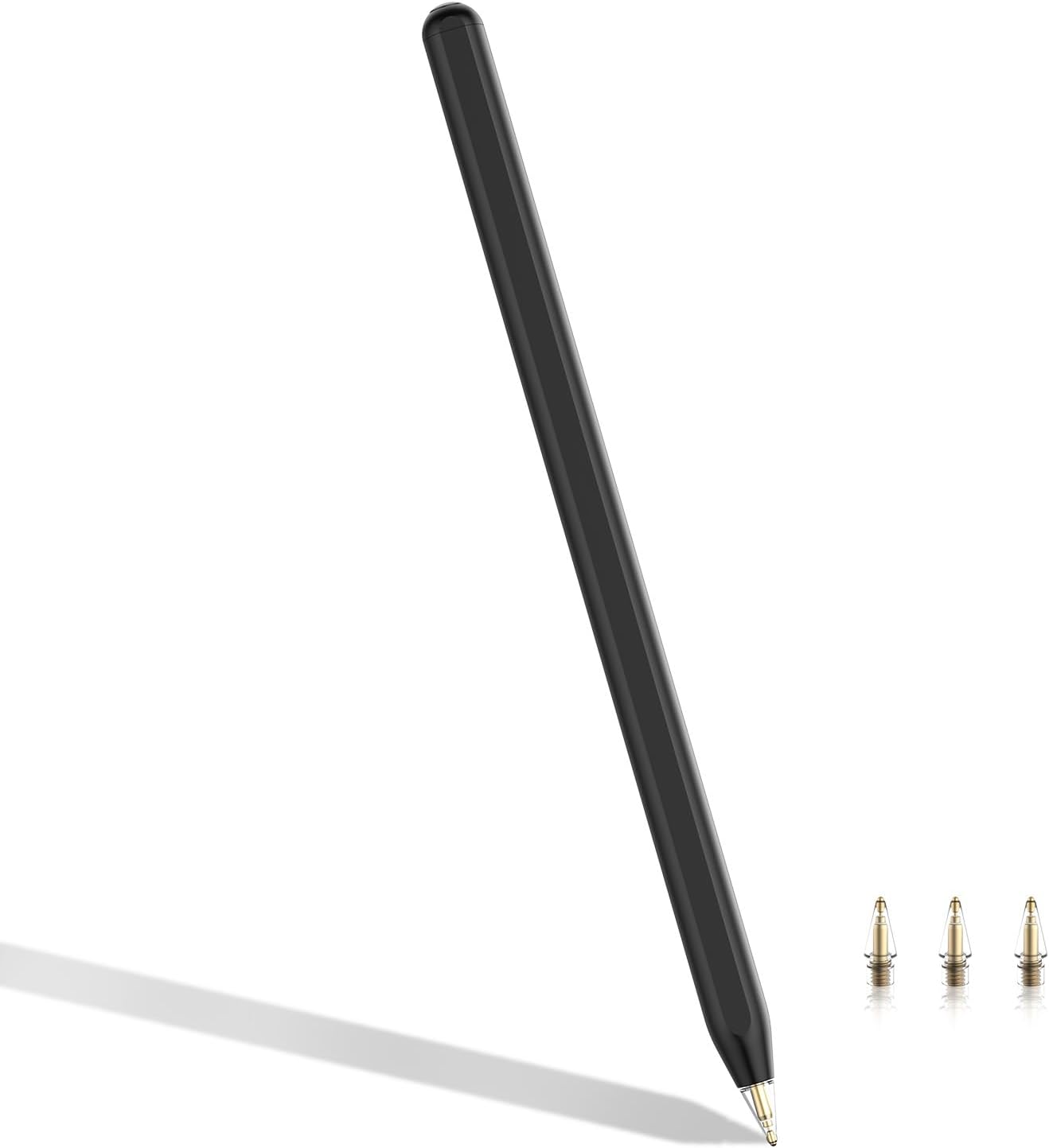
Image 1: KEEPRO Pencil 2nd Generation with included replacement tips.
2. Compatibility
The KEEPRO Pencil 2nd Generation is specifically designed for certain iPad models. Please verify your iPad model before use.
2.1 Compatible iPad Models:
- iPad mini (6th generation)
- iPad Air (4th and 5th generation)
- iPad Pro 11" (1st, 2nd, 3rd, and 4th generation)
- iPad Pro 12.9" (3rd, 4th, 5th, and 6th generation)
2.2 Incompatible Devices:
This stylus is not compatible with the following devices:
- iPad (1st to 10th generation)
- iPad mini (1st to 5th generation)
- iPad Air (1st to 3rd generation)
- iPad Pro 12.9" (1st and 2nd generation)
- iPhone, Android devices, Microsoft devices, and other non-Apple tablets.

Image 2: Visual guide to compatible iPad models and their corresponding model numbers.
3. Setup and Pairing
3.1 Initial Charging and Pairing
- Ensure your iPad's Bluetooth is enabled.
- Attach the KEEPRO Pencil magnetically to the side of your compatible iPad. The pencil will automatically pair and begin charging wirelessly.
- A battery indicator will appear on your iPad screen, showing the pencil's charge level.

Image 3: Magnetic attachment and wireless charging with real-time power display on iPad.
3.2 Power On/Off
- To Power On: The pencil automatically powers on when attached to a compatible iPad or when you begin using it.
- To Power Off: Long press the hotkey button (located at the top of the pencil) for 3 seconds. The pencil will also automatically shut off after 5 minutes of idleness to conserve battery.
4. Operating Instructions
4.1 Basic Functions
- Writing and Drawing: Use the KEEPRO Pencil directly on your iPad screen. Its pixel-perfect precision and low latency provide a natural writing and drawing experience.
- Palm Rejection: Rest your palm comfortably on the iPad screen while writing or drawing. The iPad will only register input from the pencil, preventing accidental marks from your hand.
- Tilt Sensitivity: Adjust the angle of the pencil to create different line weights and shading effects, similar to a traditional pencil.

Image 4: Demonstrating palm rejection and tilt sensitivity for varied line thickness.
4.2 Hotkey Functions
The KEEPRO Pencil features a hotkey button for quick access to common iPad functions:
- Single Click: Returns to the iPad's homepage.
- Double Click: Enters the multi-tasking view (App Switcher).
- Long Press (3 seconds): Powers the pencil ON/OFF.
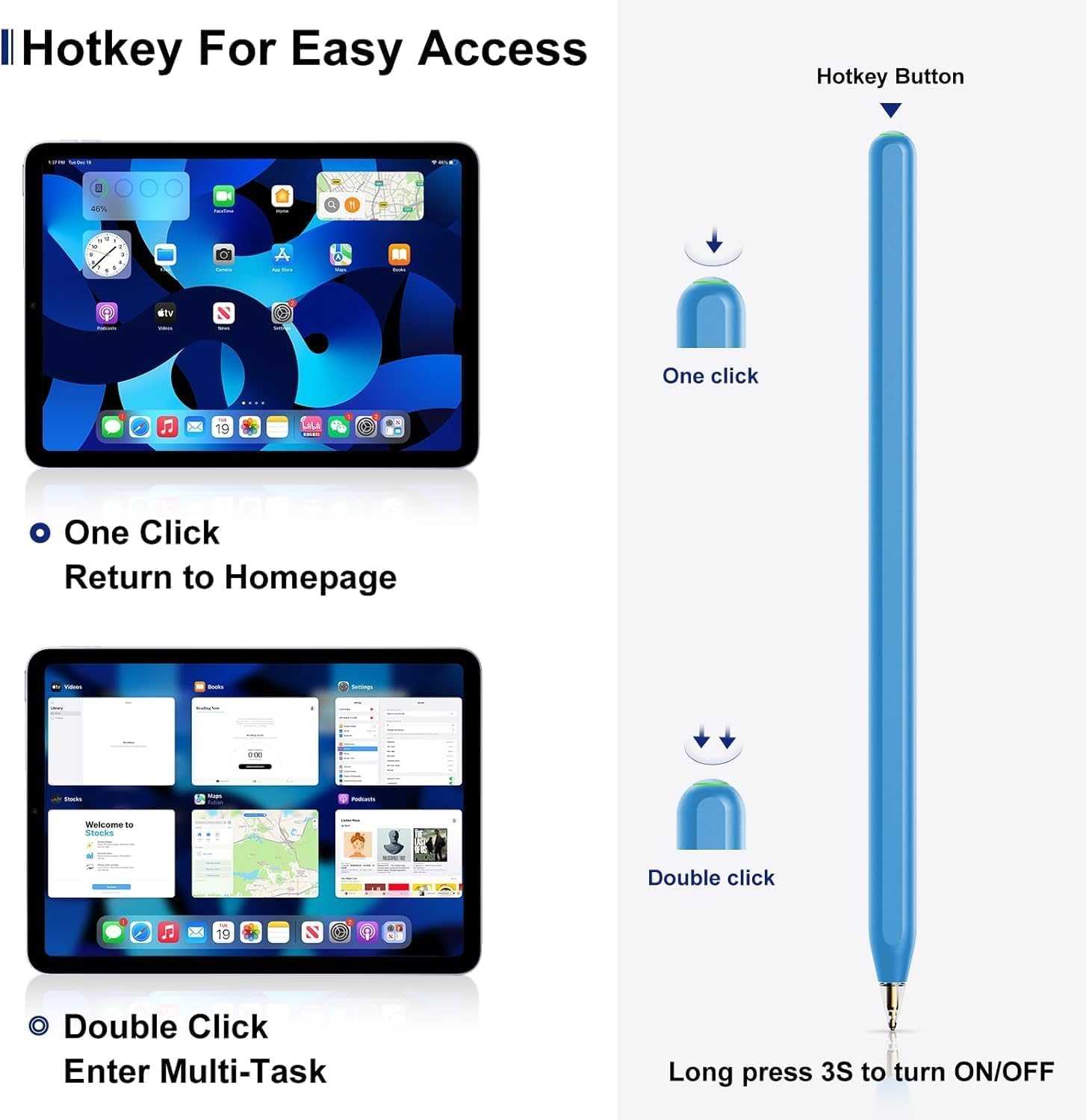
Image 5: Hotkey button functions for quick navigation.
4.3 Replacing the Pencil Tip
The KEEPRO Pencil comes with additional replaceable tips. The tips are also compatible with Apple Pencil (1st and 2nd generation) tips, allowing for easy replacements.
- Gently twist the old tip counter-clockwise to remove it.
- Align the new tip with the pencil's thread.
- Twist the new tip clockwise until it is securely fastened. Do not overtighten.

Image 6: Illustration of how to replace the pencil tip.
5. Maintenance
5.1 Cleaning
To clean your KEEPRO Pencil, gently wipe it with a soft, damp, lint-free cloth. Avoid using abrasive materials or harsh chemicals, as these can damage the finish or internal components.
5.2 Storage
When not in use, store the KEEPRO Pencil attached to your iPad for convenient charging and to prevent loss. If storing for an extended period, ensure the pencil has some charge to maintain battery health. Avoid extreme temperatures and direct sunlight.
5.3 Battery Care
The pencil features an automatic shut-off after 5 minutes of inactivity to conserve battery life. For optimal battery longevity, avoid fully discharging the battery frequently.
6. Troubleshooting
- Pencil not pairing or connecting:
- Ensure your iPad model is listed in the compatible devices section (Section 2.1).
- Make sure Bluetooth is enabled on your iPad.
- Attach the pencil firmly to the magnetic connector on your iPad.
- Restart your iPad and try pairing again.
- Pencil not charging:
- Verify that your iPad supports wireless magnetic charging for styluses (refer to Section 2.1).
- Ensure the pencil is correctly aligned and securely attached to the magnetic charging area of your iPad.
- Check your iPad's battery level; the pencil may not charge if the iPad's battery is critically low.
- Pencil not responding or intermittent response:
- Check the pencil's battery level.
- Ensure the tip is securely attached and not damaged. Replace if necessary.
- Clean the iPad screen and the pencil tip to remove any debris.
- Disconnect and re-pair the pencil via Bluetooth settings on your iPad.
- Palm rejection not working:
- Ensure your iPad's software is up to date.
- Some apps may have specific settings for stylus input; check app settings if the issue is isolated to a particular application.
7. Specifications
| Feature | Detail |
|---|---|
| Model Number | iPen-Black |
| Brand | KEEPRO |
| Color | Black |
| Material | Aluminum |
| Connections | Bluetooth |
| Compatible Devices | Specific iPad models (see Section 2.1) |
| Battery Type | Lithium-polymer (1 included) |
| Average Battery Life (Standby) | 120 hours |
| Item Weight | 35 Grams |
| Dimensions (L x W x H) | 16.5 x 0.9 x 0.9 centimeters |
| Special Features | Magnetic Wireless Charging, Palm Rejection, Tilt Sensitivity, Hotkey Functions |
8. Warranty and Support
8.1 Warranty Information
For detailed warranty information, please refer to the warranty card included with your product packaging or visit the official KEEPRO website. Warranty terms and conditions may vary by region.
8.2 Customer Support
If you encounter any issues or have questions not covered in this manual, please contact KEEPRO customer support through the contact information provided on the official KEEPRO website or your purchase platform. Please have your product model number (iPen-Black) and purchase details ready when contacting support.