
GeekTale K07
GeekTale K07 Keypad Door Knob User Manual
Model: K07
Introduction
This manual provides comprehensive instructions for the installation, operation, and maintenance of your GeekTale K07 Keypad Door Knob. Please read these instructions carefully before installation and use to ensure proper function and security.
Product Overview
The GeekTale K07 Keypad Door Knob is an electronic smart door lock designed for convenient and secure keyless access. It features a backlit keypad, auto-lock functionality, and anti-peep technology.
Key Features:
- Keyless Access: Supports up to 20 unique access codes (4-8 digits).
- Backlit Keypad: Allows for easy code entry in low-light conditions.
- Auto-Lock: Automatically locks the door after a set period for enhanced security.
- Anti-Peep Technology: Allows entry of random digits before or after your actual code to prevent code exposure.
- Emergency Access: Includes two mechanical keys and a Type-C USB port for emergency power in case of battery depletion.
- Easy Installation: Designed for straightforward installation on most standard doors.

Image: The GeekTale Keypad Smart Lock, highlighting its soft touch buttons and capacity for up to 20 different PIN codes.
Package Contents
Upon opening your package, please verify that all components are present:
- GeekTale K07 Keypad Door Knob (Exterior and Interior Assemblies)
- Latch Mechanism
- Strike Plate
- Mounting Screws
- 2 x Mechanical Keys
- Installation Template
- User Manual (this document)
Specifications
| Feature | Detail |
|---|---|
| Brand | GeekTale |
| Model Name | K07 |
| Lock Type | Keypad |
| Material | Aluminum |
| Color | Matte Black |
| Item Dimensions (L x W x H) | 2.91 x 2.72 x 3.72 inches |
| Power Source | 4 x AAA Alkaline Batteries (not included) |
| Passcode Capacity | Up to 20 codes (4-8 digits) |
| Special Features | Keypad, 20 passcodes, anti-peep code, passage mode & security mode, two mechanical keys, easy installation |
Installation
The GeekTale K07 Keypad Door Knob is designed for easy installation. Please follow these general steps. Refer to the included installation template for precise measurements and drilling instructions if needed.
Tools Required:
- Phillips Head Screwdriver
- Measuring Tape
- Pencil
Installation Steps:
- Prepare the Door: Ensure your door has the correct bore holes and backset. The lock fits standard door thicknesses (35mm to 54mm).
- Install the Latch: Insert the latch mechanism into the door edge and secure it with screws. Ensure the latch bolt faces the correct direction for your door swing.
- Install Exterior Assembly: Place the exterior keypad assembly through the door, aligning the spindle with the latch mechanism.
- Install Interior Assembly: Connect the interior assembly to the exterior assembly, ensuring the cable is properly routed and not pinched. Secure with mounting screws.
- Install Batteries: Open the battery cover on the interior assembly and insert 4 new AAA alkaline batteries, observing polarity. Close the cover.
- Test Operation: After installation, test the mechanical keys and the default passcode (if any) to ensure the lock operates smoothly before closing the door.

Image: Diagram showing the easy installation process and dimensions for the GeekTale Keypad Door Knob, indicating the need for 4 AAA alkaline batteries.
Operation
Unlocking with Passcode:
- Touch the keypad to activate it.
- Enter your 4-8 digit passcode.
- Press the '#' key.
- If the code is correct, the lock will unlock. Turn the knob to open the door.
Locking the Door:
- Automatic Locking: The lock will automatically re-lock after a few seconds once the door is closed.
- Manual Locking: From the exterior, press the '#' key to manually lock the door. From the interior, simply turn the knob to the locked position.
Anti-Peep Technology:
To prevent others from guessing your passcode, you can enter random digits before or after your actual code. For example, if your code is 1234, you can enter 5671234890#.
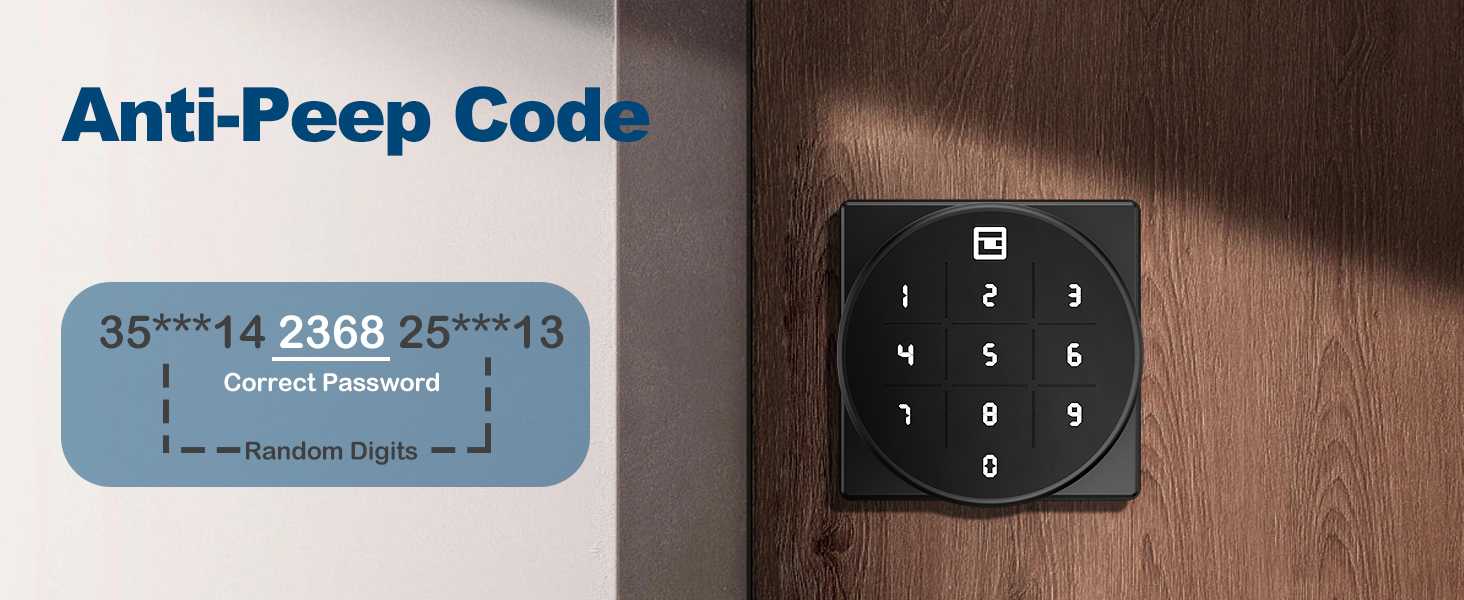
Image: Illustration of the Anti-Peep Code feature, showing how random digits can be added before and after the correct password.
Passage Mode & Security Mode:
The lock supports both passage mode (always unlocked) and security mode (requires passcode). Refer to the programming section for how to switch between these modes.

Image: Visual representation of the door knob in Privacy Mode (locked from inside) and Passage Mode (unlocked for free entry/exit).
Programming Passcodes
Detailed instructions for adding, deleting, and modifying user passcodes will be provided in a separate programming guide or within the full manual. Generally, you will need to enter a master code followed by specific commands to manage user codes.
Maintenance
Battery Replacement:
The lock is powered by 4 AAA alkaline batteries. When the batteries are low, the lock will provide a low battery alert (see Troubleshooting section). To replace batteries:
- Remove the battery cover on the interior assembly.
- Remove the old batteries.
- Insert 4 new AAA alkaline batteries, ensuring correct polarity (+/-).
- Replace the battery cover.
Cleaning:
Wipe the keypad and lock body with a soft, dry cloth. Avoid using abrasive cleaners or solvents that could damage the finish or electronic components.
Troubleshooting
| Problem | Possible Cause | Solution |
|---|---|---|
| Lock does not respond to keypad entry. | Dead batteries. | Replace batteries. Use the mechanical key or emergency USB power if locked out. |
| Low Battery Alert (buzzer beeps twice, indicator flashes green then red). | Batteries are low. | Replace all 4 AAA alkaline batteries immediately. |
| Incorrect Password Error (red light flashes). | Incorrect passcode entered. | Re-enter the correct passcode. Ensure no random digits are accidentally included if not using anti-peep. |
| Lock does not auto-lock. | Auto-lock feature is disabled or in passage mode. | Refer to programming instructions to enable auto-lock or switch to security mode. |
Emergency Unlock Options:
- Mechanical Key: Use one of the provided mechanical keys to manually unlock the door.
- USB Emergency Power: If batteries are completely dead, connect a Type-C USB power source (e.g., power bank) to the emergency port on the exterior assembly to temporarily power the lock and enter your passcode. This port is for power only, not for charging the internal batteries.
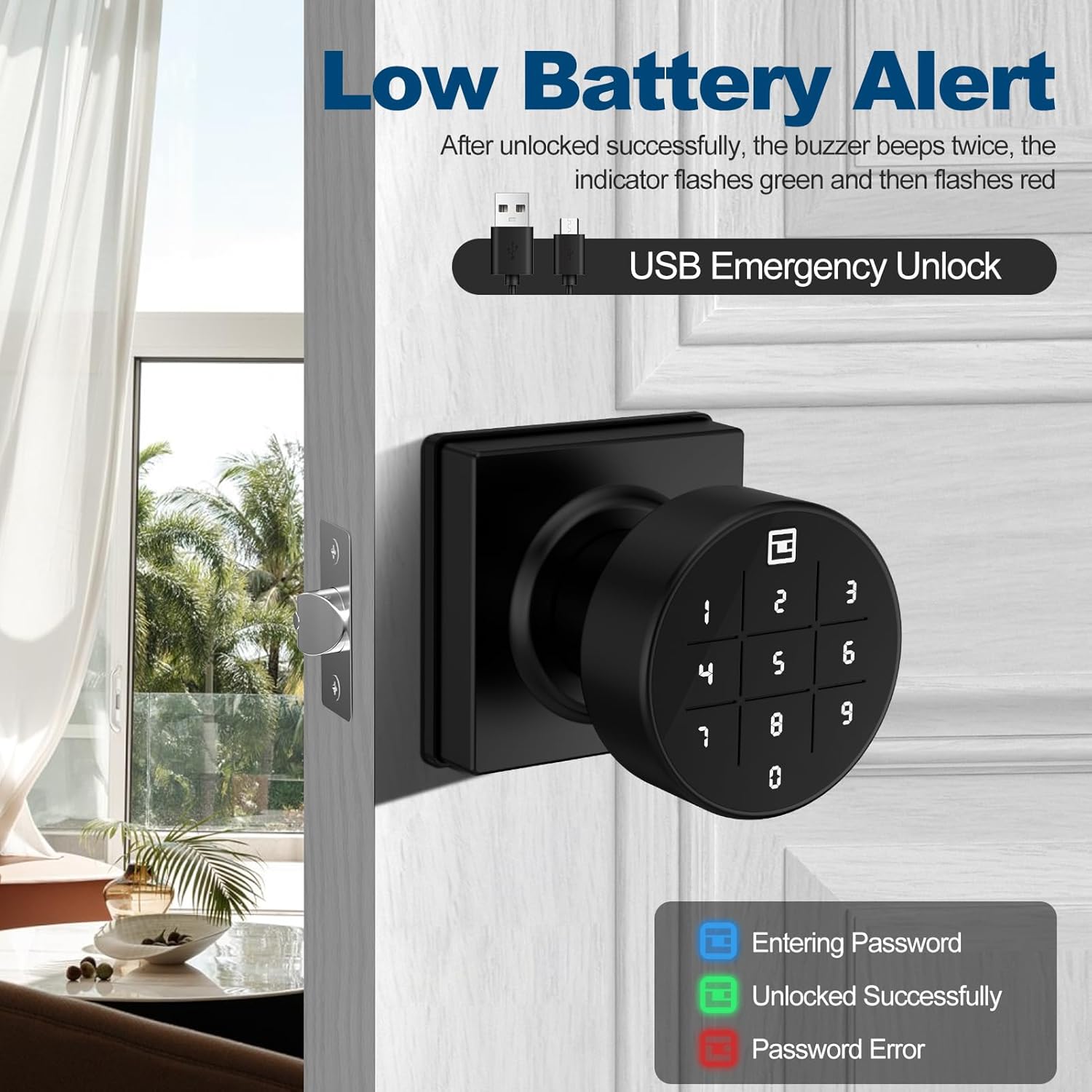
Image: The keypad displaying a low battery alert and indicating the USB emergency unlock port. The image also shows the color codes for entering password (blue), unlocked successfully (green), and password error (red).
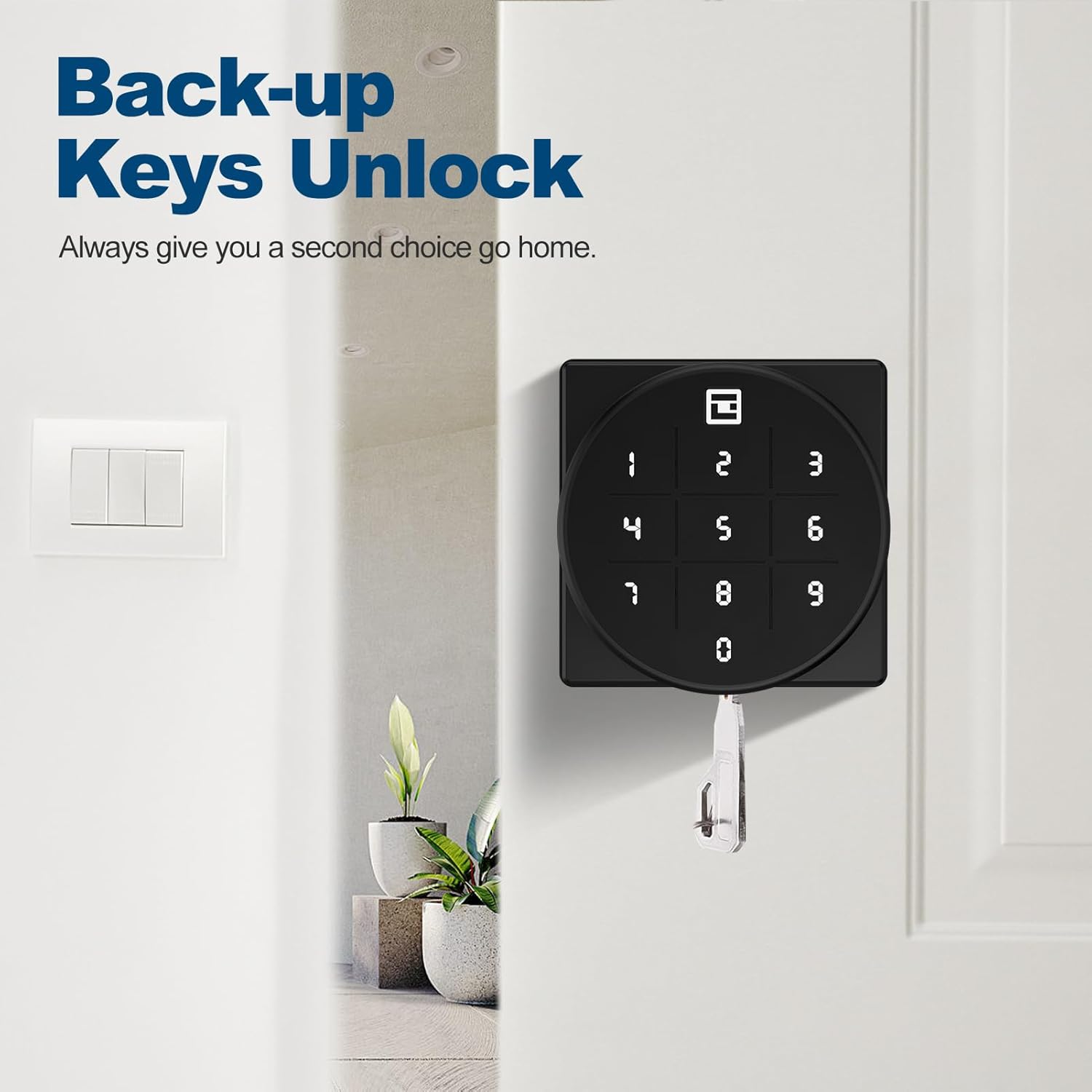
Image: The GeekTale door knob with a mechanical backup key inserted, illustrating the backup unlock option.
Warranty and Support
GeekTale offers a worry-free 30-day hassle-free return policy. For any technical assistance or inquiries, 24-hour technical support is available via email or phone. Please refer to your product packaging or the official GeekTale website for contact details.
Ask a question about this manual
Ask about setup, troubleshooting, compatibility, parts, safety, or missing instructions. Manuals+ will review the question and use this page’s manual context to help answer it.