
1. Introduction
Welcome to the user manual for your new Lovskoo 1080P 44MP Pink Digital Camera. This manual provides essential information on setting up, operating, and maintaining your camera to ensure optimal performance and longevity. Please read through these instructions carefully before using your device.
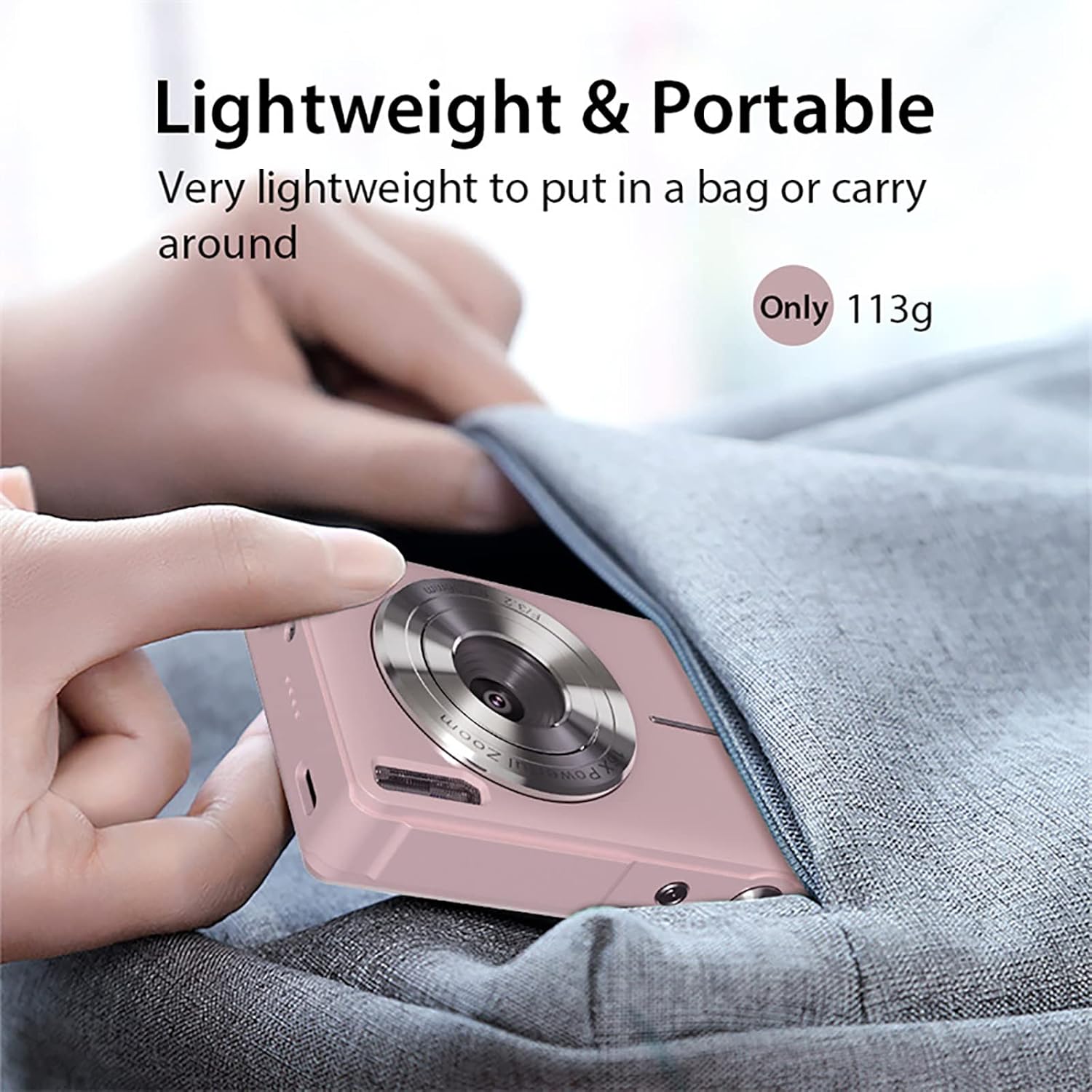
This compact digital camera is designed for ease of use, featuring a 44-megapixel sensor for high-resolution photos, 1080P video recording, 16x digital zoom, and anti-shake technology to capture clear memories. Its lightweight and portable design makes it ideal for everyday photography and vlogging.
2. Package Contents
Please verify that all items listed below are included in your package:
- 1x Lovskoo 1080P 44MP Pink Digital Camera (with built-in battery)
- 1x USB-C Charging Cable
- 1x Lanyard
- 1x Cloth Bag
- 1x Cleaning Cloth
- 1x User Manual

3. Camera Overview
3.1 Physical Features
Familiarize yourself with the camera's physical components:


3.2 Unboxing and Initial Setup Overview
Watch this video for a quick guide on unboxing your camera and performing the initial setup steps, including battery and memory card insertion.
4. Setup
4.1 Inserting the Battery
- Locate the battery compartment cover on the bottom of the camera.
- Slide the cover latch to open the compartment.
- Insert the rechargeable Li-Battery, ensuring the correct orientation as indicated inside the compartment.
- Close the battery compartment cover until it clicks securely into place.
4.2 Inserting the Memory Card
The camera supports Micro SD cards up to 32GB (not included). A memory card is required to save photos and videos.
- With the battery compartment open, locate the Micro SD card slot.
- Insert the Micro SD card into the slot with the metal contacts facing down, pushing gently until it clicks into place.
- To remove, push the card gently inward until it springs out.

4.3 Charging the Battery
Connect the camera to a power source using the provided USB-C cable. The charging indicator light will illuminate during charging and turn off when fully charged.
5. Operating Instructions
5.1 Powering On/Off
Press and hold the Power button (usually located on the top of the camera) for a few seconds to turn the camera on or off.
5.2 Taking Photos
- Ensure the camera is in Photo Mode (indicated by an icon on the screen).
- Frame your shot using the 2.5-inch LCD screen.
- Press the Shutter button (usually a larger button on top) halfway down to focus, then press fully to capture the image.
5.3 Recording Videos
- Switch to Video Mode (usually via a dedicated button or menu option).
- Press the Shutter button to start recording. A red 'REC' indicator will appear on the screen.
- Press the Shutter button again to stop recording.
5.4 Digital Zoom (16x)
Use the 'W' (Wide) and 'T' (Telephoto) buttons, typically located near the shutter, to adjust the 16x digital zoom. 'T' zooms in, and 'W' zooms out.

5.5 Anti-Shake Function
The camera features an electronic anti-shake function to help reduce blur caused by camera movement, resulting in clearer images and videos. This feature is typically enabled by default or can be toggled in the settings menu.
5.6 Face Detection and Smile Capture
The camera can detect faces and automatically optimize focus and exposure. Some models also include a smile capture feature, which can automatically take a photo when a smile is detected.
5.7 Using Filters and Effects
Explore various built-in filters and effects to enhance your photos. These options are usually accessible through the 'Menu' button and navigating to the 'Effect' or 'Filter' settings.
5.8 Playback Mode
To view your captured photos and videos, press the Playback button (often indicated by a triangle icon). Use the directional buttons to navigate through your media.
6. Connecting to a Computer
6.1 Transferring Files
- Connect the camera to your computer using the provided USB-C cable.
- Turn on the camera. It should appear as a removable disk drive on your computer.
- Open the camera's folder to access and transfer your photos and videos.
6.2 Webcam Functionality
Your camera can also function as a PC camera (webcam) for video calls or live streaming:
- Connect the camera to your computer via USB-C.
- On the camera screen, select 'PC Camera' mode when prompted.
- Your computer should recognize the camera as a webcam, which can then be selected in your video conferencing or streaming software.
7. Maintenance
- Cleaning: Use the provided cleaning cloth to gently wipe the lens and screen. For stubborn smudges, use a lens cleaning solution designed for optical surfaces. Avoid harsh chemicals.
- Storage: Store the camera in a cool, dry place away from direct sunlight and extreme temperatures. When not in use for extended periods, remove the battery.
- Battery Care: Fully charge the battery before first use. Avoid completely draining the battery regularly to prolong its lifespan.
8. Troubleshooting
- Camera not turning on: Ensure the battery is correctly inserted and fully charged. Try charging the camera for at least 30 minutes.
- Blurry images: Check that the lens is clean. Ensure the anti-shake function is enabled in the settings. Hold the camera steady when taking photos.
- Memory card error: Ensure the memory card is correctly inserted and not full. Try formatting the card (this will erase all data, so back up first). The camera supports Micro SD cards up to 32GB.
- Cannot connect to computer: Ensure the USB-C cable is securely connected to both the camera and the computer. Try a different USB port or cable. Select 'USB Mode' or 'PC Camera' on the camera when prompted.
9. Technical Specifications
| Feature | Specification |
|---|---|
| Sensor Type | CMOS |
| Photo Resolution | Up to 44 Megapixels |
| Video Resolution | 1080P/720P/480P (AVI format) |
| Digital Zoom | 16x |
| Display Screen | 2.5 inch LCD (4:3 aspect ratio) |
| Lens | F/3.2 f=7.36mm |
| Image Stabilization | Digital Anti-Shake |
| Memory Card Support | Micro SD, Max 32GB |
| USB Port | Type-C |
| Power Supply | Rechargeable Li-Battery |
| Dimensions | 9.5 x 6.0 x 2.0 cm (3.7 x 2.3 x 0.93 in) |
| Weight | 113g (0.25 lb) |
| Special Features | Face Detection, Smile Detection, Continuous Shooting, Self-Timer, Webcam Function |
10. Warranty and Support
For warranty information or technical support, please refer to the contact details provided with your purchase or visit the official Lovskoo website. Keep your proof of purchase for any warranty claims.
