
OMOTON KB567
OMOTON Foldable Wireless Bluetooth Keyboard User Manual
Model: KB567
Brand: OMOTON
Product Overview
The OMOTON Foldable Wireless Bluetooth Keyboard (Model KB567) is a portable and rechargeable input device designed for universal compatibility. Its compact, foldable design makes it highly convenient for travel and on-the-go use, easily fitting into a briefcase or pocket. This keyboard supports simultaneous connection to up to three devices via Bluetooth, allowing for seamless switching between them.
Key features include quiet scissor-switch keys for comfortable typing, a splash-resistant black leather surface for durability and easy cleaning, and an integrated rechargeable battery providing extended usage time. The keyboard also features an automatic on/off function activated by its magnetic folding mechanism, enhancing battery life and ease of use.

Image: The OMOTON Foldable Wireless Bluetooth Keyboard shown in both its compact, folded state and its fully unfolded, ready-to-use configuration. A smartphone is displayed on the included adjustable stand, demonstrating a typical setup for mobile productivity.
Setup Guide
1. Charging the Keyboard
Before initial use, ensure the keyboard is fully charged. A Type-C charging cable is included in the package.
- Connect the Type-C end of the charging cable to the keyboard's charging port.
- Connect the USB-A end to a compatible USB power source (e.g., computer USB port, USB wall adapter).
- A full charge typically takes 2-3 hours and provides up to 40 hours of continuous typing.

Image: The keyboard is shown connected to a charging cable, illustrating the charging process. Indicators for 2-3 hours charging time and 90 hours operating time are displayed, highlighting the keyboard's rechargeable battery capabilities.
2. Bluetooth Pairing
The keyboard can pair with up to three devices simultaneously. Use the dedicated Bluetooth channel buttons (BT1, BT2, BT3) for pairing and switching.
- Unfold the keyboard to power it on automatically.
- Press and hold one of the Bluetooth channel buttons (BT1, BT2, or BT3) for 3-5 seconds until the corresponding indicator light flashes, indicating pairing mode.
- On your device (iPad, Android tablet, Windows laptop, etc.), go to Bluetooth settings and search for available devices.
- Select "OMOTON Keyboard" or a similar name from the list.
- If prompted, enter the pairing code displayed on your device using the OMOTON keyboard and press Enter.
- Once connected, the indicator light will stop flashing.
- Repeat these steps for other devices using BT2 and BT3.

Image: This image illustrates the keyboard's ability to connect to multiple devices (laptops shown) via Bluetooth channels BT1, BT2, and BT3, allowing users to switch between paired devices easily.
Operating Instructions
1. Power On/Off
- Power On: Simply unfold the keyboard. The magnetic mechanism will automatically turn it on.
- Power Off: Fold the keyboard. The magnetic mechanism will automatically turn it off, conserving battery.

Image: The keyboard is depicted in a partially folded state, with arrows indicating the magnetic induction that enables its automatic wake and sleep functions when opened or closed.
2. Switching Between Devices
After pairing with multiple devices, you can switch between them by simply pressing the corresponding Bluetooth channel button (BT1, BT2, or BT3) once.
3. Keyboard Layout and Special Functions
The keyboard features a standard QWERTZ layout with additional function keys. Some keys have dual functions accessible via the Fn key.
- Function Keys (F1-F12): These keys often control media playback, volume, screen brightness, etc. Their specific functions may vary slightly depending on the operating system.
- OS Compatibility Keys: The keyboard is designed to work seamlessly with iOS, Android, and Windows devices. Use Fn + Q for iOS, Fn + W for Android, and Fn + E for Windows to optimize key functions for your specific operating system.

Image: This graphic highlights the broad compatibility of the OMOTON keyboard with various devices, including tablets, laptops, and desktop PCs, indicating its versatility across different computing environments.
4. Using the Phone Stand
The included phone stand provides a stable base for your smartphone or tablet, allowing for an ergonomic typing experience.
- Unfold the stand and adjust it to your desired viewing angle. The stand offers 5 adjustable levels.
- Place your smartphone or tablet securely in the stand's groove.
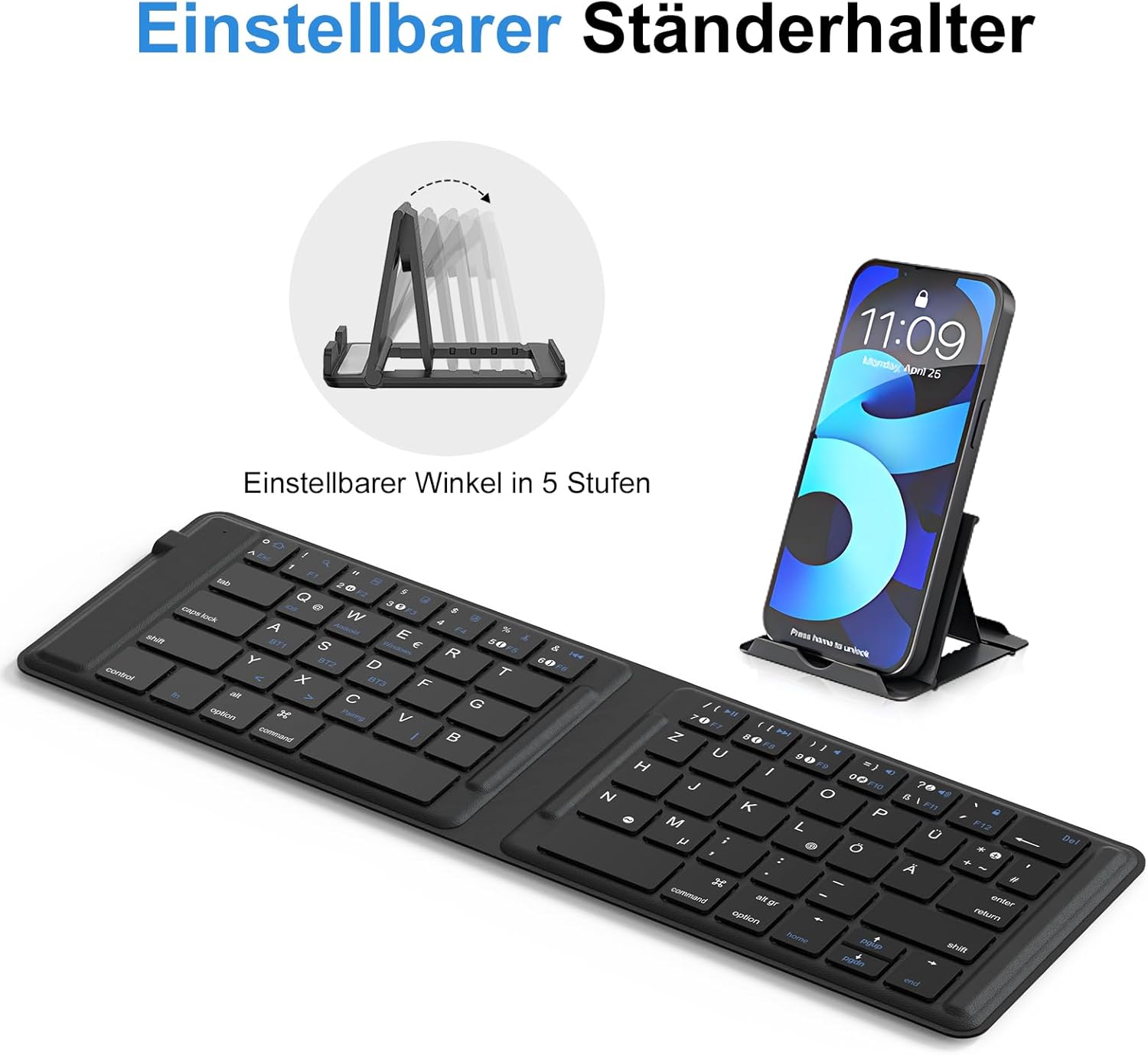
Image: The keyboard is shown alongside its adjustable phone stand, which is holding a smartphone. The image emphasizes the stand's 5-level adjustability for optimal viewing angles.
Maintenance
To ensure the longevity and optimal performance of your OMOTON keyboard, follow these maintenance guidelines:
- Cleaning: The keyboard's surface is made of black leather, which is easy to clean. Use a soft, damp cloth to wipe away dust and spills. Avoid abrasive cleaners or solvents.
- Spill Resistance: The keyboard is designed to be splash-resistant. In case of minor spills, wipe them off immediately. Do not submerge the keyboard in water or expose it to excessive liquids.
- Storage: When not in use, fold the keyboard to protect the keys and conserve battery. Store it in a cool, dry place away from direct sunlight and extreme temperatures.
- Battery Care: For best battery life, avoid fully discharging the battery frequently. Charge it regularly, especially if storing for extended periods.
Troubleshooting
If you encounter issues with your OMOTON keyboard, try the following solutions:
- Keyboard not connecting/pairing:
- Ensure the keyboard is fully charged.
- Make sure Bluetooth is enabled on your device.
- Ensure the keyboard is in pairing mode (indicator light flashing).
- Forget the keyboard from your device's Bluetooth settings and try pairing again.
- Try pairing with a different device to rule out device-specific issues.
- Keys not responding:
- Check battery level and charge if necessary.
- Ensure the keyboard is properly connected to your device.
- Restart both the keyboard (by folding and unfolding) and your device.
- Lag or delayed input:
- Ensure there are no strong interferences (e.g., other Bluetooth devices, Wi-Fi routers) nearby.
- Move closer to your device.
- Check your device's operating system for any pending updates.
Specifications
| Brand | OMOTON |
| Model Number | KB567 (DE) |
| Color | Black |
| Connectivity Technology | Bluetooth |
| Compatible Devices | iPad, Tablet, Laptop, PC, MacBook (iOS, Android, Windows) |
| Material | Leather (surface) |
| Power Source | Battery Powered (1 Lithium-ion battery included) |
| Charging Time | Approx. 2-3 hours |
| Continuous Typing Time | Up to 40 hours |
| Included Components | Type-C Charging Cable, Phone Stand |
| Folded Dimensions | Approx. 6.4 in (width) x 3.9 in (height) x 0.57 in (thickness) |
| Unfolded Dimensions | Approx. 11.4 in (width) x 3.9 in (height) |

Image: This image provides a detailed view of the keyboard's ultra-flat design and its dimensions when both folded and unfolded, highlighting its portability and compact form factor.
Warranty and Support
OMOTON products are designed for reliability and performance. For any questions, technical support, or warranty inquiries, please contact OMOTON customer service through the retailer's platform or the official OMOTON website.
Please retain your proof of purchase for warranty claims.
Ask a question about this manual
Ask about setup, troubleshooting, compatibility, parts, safety, or missing instructions. Manuals+ will review the question and use this page’s manual context to help answer it.