
Introduction
Thank you for choosing the CCN R10 4K 48MP Digital Camera. This compact and versatile camera is designed to capture high-quality photos and videos with ease. Featuring 4K video recording, 48MP still images, a 3.0-inch 180° flip screen, 16X digital zoom, and WiFi connectivity, it is suitable for both beginners and enthusiasts. This manual provides detailed instructions for setting up, operating, maintaining, and troubleshooting your camera to ensure optimal performance.
Package Contents
Please check the package contents to ensure all items are present:
- CCN R10 4K Digital Camera
- USB Cable
- Wide-Angle Lens
- Macro Lens
- 64GB Micro SD Card
- Rechargeable Battery
- User Manual

This image displays the CCN R10 4K digital camera along with its accessories: a lens hood, USB cable, 32GB memory card, and a carrying case. The camera itself is black with a structured body and a blue-illuminated flash.
Camera Overview
The CCN R10 camera is designed for intuitive use, featuring a compact body and essential controls. Key components include the lens, flash, 3.0-inch flip screen, power button, shutter button, mode dial, and various ports.

A black CCN R10 4K 48MP digital camera is shown with its 3.0-inch flip screen extended and an interchangeable lens attached. The camera features a compact design suitable for portability.
Setup
1. Battery Installation
- Open the battery compartment cover located at the bottom of the camera.
- Insert the rechargeable lithium-ion battery, ensuring the correct orientation according to the polarity indicators.
- Close the battery compartment cover securely.
2. Memory Card Installation
- Locate the Micro SD card slot, usually near the battery compartment.
- Insert the provided 64GB Micro SD card into the slot until it clicks into place. Ensure the card is inserted in the correct direction.
- To remove, gently press the card until it springs out.
3. Lens Attachment (Wide-Angle/Macro)
- Align the threads of the wide-angle or macro lens with the camera's main lens.
- Gently screw the accessory lens onto the camera's lens until it is securely attached. Do not overtighten.
- To remove, unscrew the lens counter-clockwise.
4. Charging the Battery
- Connect the camera to a power source using the provided USB cable.
- The charging indicator light will illuminate. It will turn off or change color once charging is complete.
- A full charge typically takes approximately 2-3 hours.
Basic Operation
1. Power On/Off
- To power on, press and hold the Power button until the screen illuminates.
- To power off, press and hold the Power button again until the screen turns off.
2. Mode Selection
Use the Mode button (usually located on the top of the camera) to switch between different shooting modes:
- Photo Mode: For capturing still images.
- Video Mode: For recording video footage.
- Time-Lapse Mode: For capturing a sequence of images over time to create a time-lapse video.
3. Using the 3.0-inch Flip Screen
The camera features a 3.0-inch screen that can be flipped 180°. This is particularly useful for:
- Selfies: Flip the screen forward to easily compose self-portraits.
- Vlogging: Monitor your recording while filming yourself.
- Low/High Angle Shots: Adjust the screen for comfortable viewing when shooting from difficult angles.
4. Zoom Function
The camera supports 16X digital zoom. Use the zoom rocker or dedicated buttons (if available) to zoom in or out. Note that digital zoom may reduce image quality compared to optical zoom.
5. Autofocus
The camera features single autofocus (SAF) with 9 autofocus points. To focus:
- Half-press the shutter button. The camera will automatically focus on the subject.
- The focus frame on the screen will change from red to green when focus is achieved.
- Fully press the shutter button to capture the photo or start recording.
Advanced Features
1. WiFi Connectivity
The CCN R10 camera can connect to your smartphone via WiFi for remote control and file transfer.
- Download the dedicated application (refer to the camera's on-screen instructions or manual for app name) on your smartphone.
- Enable WiFi on the camera through the settings menu.
- Connect your smartphone to the camera's WiFi network.
- Open the application to control the camera remotely, view live feed, or download photos and videos directly to your phone.
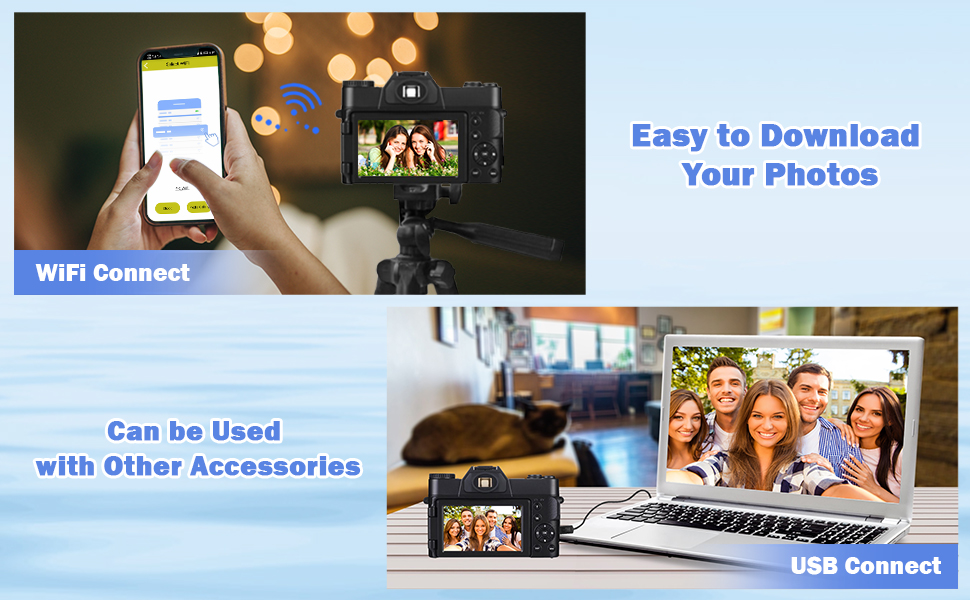
The image shows the CCN R10 digital camera wirelessly connected to a smartphone. The smartphone screen displays a connection interface, indicating the camera's WiFi functionality for remote control or file transfer.
2. Using Wide-Angle and Macro Lenses
The included 52mm wide-angle and macro lenses expand the camera's photographic capabilities:
- Wide-Angle Lens: Ideal for capturing expansive landscapes, group photos, or architectural shots where you need a broader field of view.
- Macro Lens: Perfect for close-up photography, allowing you to capture intricate details of small subjects like insects, flowers, or textures.
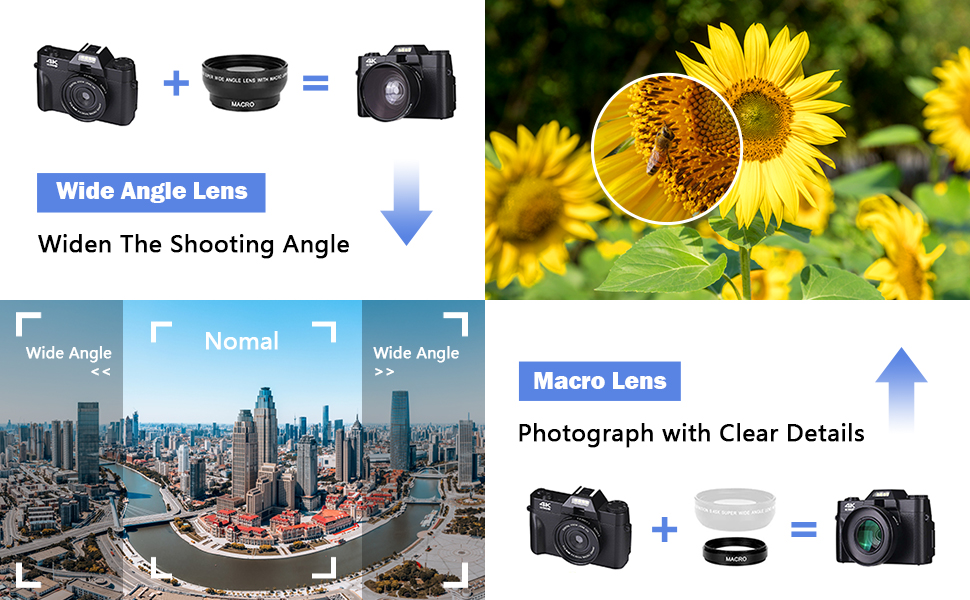
A visual comparison demonstrating the effects of wide-angle and macro lenses. The wide-angle view shows an expansive cityscape, while the macro view highlights the intricate details of a sunflower with a bee, illustrating the camera's versatility for different photographic needs.
3. Flash Function
The camera features an automatic flash function to provide additional illumination in low-light conditions. The flash will activate automatically when needed, or it can be manually controlled through the camera's settings.
Maintenance
1. Cleaning the Camera and Lenses
- Use a soft, lint-free cloth to clean the camera body. Do not use harsh chemicals or solvents.
- For lenses, use a specialized lens cleaning solution and a microfiber cloth. Gently wipe in a circular motion from the center outwards. Avoid touching the lens surface with your fingers.
- Use a blower brush to remove dust from the lens and sensor (if accessible).
2. Battery Care
- Charge the battery fully before first use.
- Avoid exposing the battery to extreme temperatures.
- If the camera will not be used for an extended period, remove the battery and store it in a cool, dry place.
3. Storage
- Store the camera in a dry, dust-free environment, preferably in a camera bag or case.
- Avoid direct sunlight and high humidity.
Troubleshooting
| Problem | Possible Cause | Solution |
|---|---|---|
| Camera does not power on. | Battery is depleted or incorrectly inserted. | Charge the battery fully. Ensure the battery is inserted with correct polarity. |
| Cannot take photos/videos. | Memory card is full, locked, or not inserted. | Check memory card status. Delete unnecessary files. Unlock the card if it's locked. Reinsert the card correctly. |
| Poor image quality. | Lens is dirty, lighting is poor, or digital zoom is too high. | Clean the lens. Ensure adequate lighting. Avoid excessive digital zoom. |
| WiFi connection issues. | Incorrect app, camera WiFi off, or incorrect password. | Ensure the correct app is installed. Turn on camera WiFi. Verify WiFi password. |
If you encounter issues not listed here or require further assistance, please contact customer service.
Specifications
| Feature | Specification |
|---|---|
| Brand | CCN |
| Model Name | R10 |
| Effective Still Image Resolution | 48 MP |
| Video Capture Resolution | 4K (4320p) at 60 FPS |
| Optical Sensor Size | 1/3.2" |
| Photo Sensor Technology | BSI CMOS |
| Digital Zoom | 16x |
| Screen Size | 3.0 Inches |
| Screen Type | AMOLED, Color, 180° Flip |
| Lens Type | Wide-Angle (52mm), Macro (52mm) |
| Maximum Aperture | 1.8 Millimeters |
| Image Stabilization | Digital |
| Autofocus | Single Autofocus (SAF) with 9 points |
| Connectivity Technology | USB, Wi-Fi |
| Video Output | HDMI |
| Supported File Formats | MP4, JPEG |
| Memory Card Type | Micro SD (64GB included, max 64GB supported) |
| Battery Type | Lithium Polymer |
| Form Factor | Compact |
| Water Resistance Level | Not Water Resistant |
| Skill Level | Beginner |
Warranty and Support
The CCN R10 Digital Camera comes with a premium warranty. For specific details regarding the warranty period and coverage, please refer to the warranty card included in your package or contact CCN customer service.
Should you have any questions about the product, require technical assistance, or need to report an issue, please do not hesitate to contact our customer service team. Contact information can typically be found on the manufacturer's website or on the product packaging.


