
1. Introduction
Thank you for choosing the CHROX G96max Android 12.0 TV Box. This manual provides essential information for setting up, operating, and maintaining your device. The G96max TV Box is designed to deliver a high-performance multimedia experience with its Android 12.0 operating system, RK3318 Quad-Core processor, 4K/6K video support, dual-band Wi-Fi, and Bluetooth 5.0 connectivity.
Please read this manual thoroughly before using the product to ensure proper operation and to maximize your viewing experience.
2. Package Contents
Verify that all items listed below are included in your package:
- 1 x G96 MAX Android 12.0 TV Box
- 1 x Power Adapter
- 1 x HDMI Cable
- 1 x IR Remote Control
- 1 x User Manual
- 1 x Wireless Mini Keyboard (may vary by package)

Image: The CHROX G96max Android 12.0 TV Box with its included accessories, such as the remote control, power adapter, and cables.
3. Product Overview
The CHROX G96max TV Box features a compact design with various ports for connectivity. Understanding these interfaces is crucial for proper setup and usage.
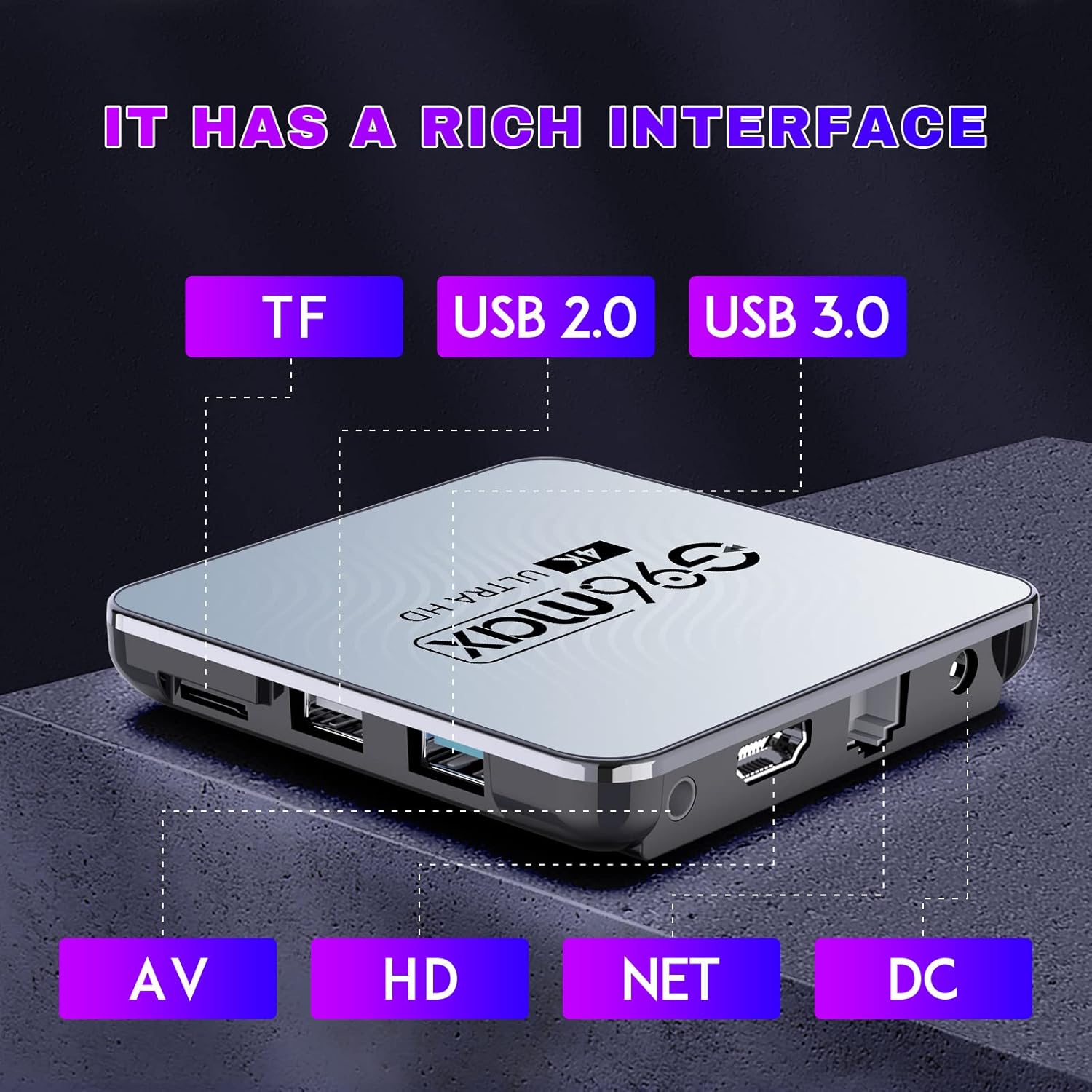
Image: A detailed view of the CHROX G96max TV Box, highlighting its various input/output ports including TF card slot, USB 2.0, USB 3.0, AV, HDMI, Ethernet (NET), and DC power input.
Port Descriptions:
- TF Card Slot: For inserting a MicroSD/TF memory card to expand storage.
- USB 2.0 Port: For connecting USB devices such as flash drives, external hard drives, or a mouse.
- USB 3.0 Port: Offers faster data transfer speeds for compatible USB devices.
- AV Port: For connecting to older televisions using an AV cable (composite video and stereo audio).
- HDMI Port: For connecting to an HDTV or monitor using the provided HDMI cable for high-definition video and audio.
- NET (Ethernet) Port: For a wired internet connection.
- DC Power Input: For connecting the power adapter.

Image: The CHROX G96max TV Box displaying its wireless capabilities, including 2.4GHz and 5.8GHz Wi-Fi, built-in Bluetooth 4.0 (note: product description states BT5.0), and a USB 3.0 port.
4. Setup Guide
Follow these steps to set up your CHROX G96max TV Box:
- Connect to TV: Connect one end of the HDMI cable to the HDMI port on the TV Box and the other end to an available HDMI input on your television. If using an older TV, connect an AV cable to the AV port.
- Connect Power: Plug the power adapter into the DC power input port on the TV Box, then plug the adapter into a wall outlet. The device should power on automatically, or you may need to press the power button on the remote control.
- Select Input: Turn on your television and use its remote control to select the correct HDMI or AV input source that corresponds to where you connected the TV Box.
- Initial Setup Wizard: Upon first boot, the TV Box will guide you through an initial setup wizard. This typically includes language selection, screen adjustment, and network connection.
- Network Connection:
- Wi-Fi: Select your Wi-Fi network from the list, enter the password, and connect. The device supports dual-band 2.4G/5.8G Wi-Fi.
- Ethernet: If you prefer a wired connection, connect an Ethernet cable from your router to the NET port on the TV Box.
- Google Account: Sign in with your Google account to access the Google Play Store and other Google services. If you don't have one, you can create one.
- Wireless Mini Keyboard: If included, connect the USB dongle for the wireless mini keyboard to an available USB port on the TV Box. The keyboard should be automatically recognized.
5. Operating Instructions
5.1 Navigating the Interface
Use the provided IR remote control or the wireless mini keyboard to navigate the Android 12.0 interface. The remote typically includes directional buttons, an 'OK' button for selection, 'Back' button, 'Home' button, and volume controls.

Image: An illustration showing the progression of Android versions, highlighting Android 12.0 as the latest upgrade for the G96max TV Box.
5.2 Installing Applications
The CHROX G96max TV Box comes with the Google Play Store pre-installed, allowing access to thousands of applications.

Image: A visual representation of the Google Play Store interface, surrounded by numerous popular application icons, indicating the wide range of apps available for download.
- From the home screen, select the Google Play Store icon.
- Search for your desired application using the search bar.
- Select the app and click Install.
- Once installed, the app will appear on your home screen or in the app drawer.
5.3 Media Playback
The TV Box supports Ultra HD 4K/6K video playback, HLG Mode, and HDR10+ for enhanced visual quality.

Image: A visual comparison demonstrating the clarity and detail difference between 720p, 1080p, and 4K video resolutions, emphasizing the TV Box's 4K decoding capability.
- Use pre-installed media players or download preferred ones from the Google Play Store.
- Access local media files from connected USB drives or TF cards.
- Stream content from various online services through their respective applications.
6. Maintenance
- Cleaning: Use a soft, dry cloth to clean the device. Avoid liquid cleaners or abrasive materials.
- Software Updates: Periodically check for system updates in the device settings to ensure optimal performance and security.
- Storage Management: Regularly clear cache and uninstall unused applications to free up storage space and maintain system speed.
- Power Cycle: If the device becomes unresponsive, disconnect the power adapter for a few seconds and then reconnect it to perform a power cycle.
7. Troubleshooting
If you encounter issues with your CHROX G96max TV Box, refer to the following common problems and solutions:
| Problem | Solution |
|---|---|
| No power/Device does not turn on |
|
| No signal on TV screen |
|
| Wi-Fi connection issues |
|
| Remote control not working |
|
| Applications crashing or freezing |
|
8. Specifications
Key technical specifications of the CHROX G96max Android 12.0 TV Box:

Image: A close-up view of the Rockchip RK3318 processor, highlighting its role as a high-performance chip within the TV Box.
- Operating System: Android 12.0
- CPU: RK3318 Quad-Core 64bit Cortex-A53
- GPU: Mali-450 MP2
- RAM: 4GB (as per current model)
- Flash Storage: 64GB (as per current model)
- Wi-Fi: 2.4G/5G Dual Band, IEEE 802.11 a/b/g/n/ac/ax
- Bluetooth: BT 5.0
- USB Ports: 1 x Type-A USB 3.0, 1 x Type-A USB 2.0
- LAN: Ethernet 10/100M standard RJ-45
- Video Decoder Support: H.264/H.265/VP9 up to 8K@30fps, H.264/AVC BP/MP/HP profile @ level 5.1, H.265/HEVC Main/Main10 profile @ level 5.1 High-tier, VP9 P2 4KX2K @60fps, AVS2 4KX2K @60fps, MPEG-1, MPEG-2, MPEG-4
- Media Format Support: Avi/Ts/Vob/Mkv/Mov/ISO/wmv/asf/flv/dat/mpg/mpeg
- Music Format Support: MP3/WMA/AAC/WAV/OGG/DDP/HD/FLAC/APE
- Photo Format Support: JPEG/BMP/GIF/PNG/TIFF
- Resolution: Supports 1080p FW, 4k, 720p (up to 6K decoding)
- Special Features: Support Dual WiFi, HDR10+, HLG Mode, 3D Effect
- Compatible Devices: Television
9. Warranty and Support
CHROX provides 24-hour after-sales service for this product. If you have any questions, concerns, or require technical assistance, please contact our customer support. Your satisfaction is important to us.
Please refer to your purchase documentation or the seller's information for specific contact details and warranty terms.