Introduction
This manual provides instructions for the setup, operation, and maintenance of your FIFINE A8Plus USB Microphone and H3 Over-Ear Headset. Please read this manual thoroughly before use to ensure proper functionality and to maximize your experience with the product.
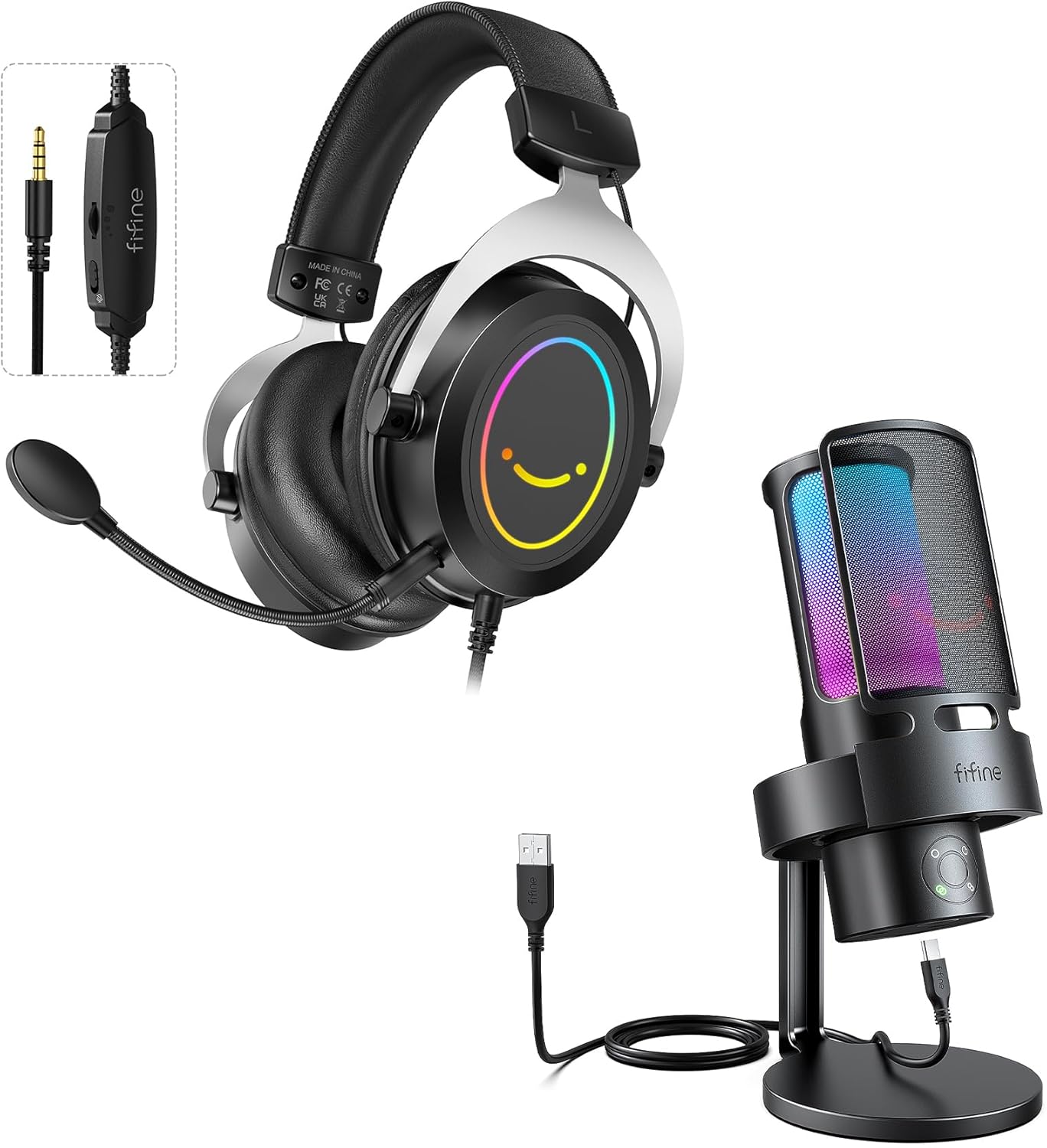
Image: The FIFINE A8Plus USB Microphone and H3 Over-Ear Headset, showcasing both devices and their connecting cables.
Package Contents
Verify that all items listed below are included in your package:

Image: Diagram illustrating all components included in the product package, such as the gaming headset, detachable microphone, in-line control, USB connector, 3.5mm connector, splitter cable, and user's manual.
- FIFINE A8Plus USB Microphone
- FIFINE H3 Over-Ear Headset
- Detachable Headset Microphone
- USB Cable (for A8Plus Microphone)
- 3.5mm Audio Cable (integrated with H3 Headset)
- 3.5mm Splitter Cable (for separate audio/mic jacks)
- User Manual
Setup Instructions
1. Connecting the A8Plus USB Microphone
- Connect the USB cable to the USB-C port on the bottom of the A8Plus microphone.
- Plug the other end of the USB cable into an available USB port on your computer or gaming console.
- The microphone is plug-and-play. Your operating system should automatically detect and install the necessary drivers.
- Verify the microphone is selected as the default input device in your system's sound settings.
2. Connecting the H3 Over-Ear Headset
- Attach the detachable microphone to the designated port on the H3 headset.
- For devices with a single 3.5mm audio jack (e.g., most laptops, gaming controllers), plug the headset's 3.5mm connector directly into the device's audio port.
- For devices with separate audio input (microphone) and audio output (headphone) 3.5mm jacks (e.g., desktop PCs), use the included 3.5mm splitter cable. Connect the headset's 3.5mm connector to the splitter, then plug the green splitter jack into the headphone output and the pink splitter jack into the microphone input on your device.
- Verify the headset is selected as the default output device and the headset microphone as the default input device in your system's sound settings.
Operating the A8Plus USB Microphone
Polar Pattern Selection
The A8Plus microphone features a triple capsule array with four selectable polar patterns. Use the polar pattern selection button on the microphone to cycle through the options. Each pattern is suited for different recording scenarios:

Image: Close-up of the FIFINE A8Plus microphone showing the polar pattern selection button and icons for Stereo, Omni-directional, Cardioid, and Bi-directional patterns.
- Cardioid: Minimizes sound from the sides and rear, focusing on sound directly in front of the microphone. Ideal for single-person streaming, podcasting, or voice-overs.
- Stereo: Captures sound from both the front and rear channels, providing a wider soundstage. Suitable for immersive audio recording or capturing environmental sounds.
- Omni-directional: Picks up sound equally from all directions around the microphone. Useful for group discussions, conference calls, or capturing ambient room sound.
- Bi-directional: Captures sound from the front and rear of the microphone while rejecting sound from the sides. Best for two-person interviews or face-to-face conversations.

Image: A visual representation of the triple capsule array within the FIFINE A8Plus microphone, highlighting its capability for four polar pattern options.
RGB Control
The A8Plus microphone features customizable RGB lighting. Use the RGB control key on the microphone to turn the lighting on/off or to cycle through various color choices.

Image: The FIFINE A8Plus microphone displaying its vibrant RGB lighting, with an inset showing the RGB control key for on/off and color selection.
Real-Time Monitoring and Gain Knob
The microphone includes a 3.5mm headphone jack for real-time audio monitoring. Plug your headphones into this jack to hear your voice and system audio without delay. The gain knob allows you to adjust the microphone's sensitivity, ensuring optimal input levels and preventing distortion.

Image: A user monitoring audio through headphones connected to the FIFINE A8Plus microphone, with visual cues for adjusting the gain knob (volume up/down) and the 3.5mm headphone jack.
Operating the H3 Over-Ear Headset
In-line Controls
The H3 headset features an in-line control unit on its cable for convenient audio management:
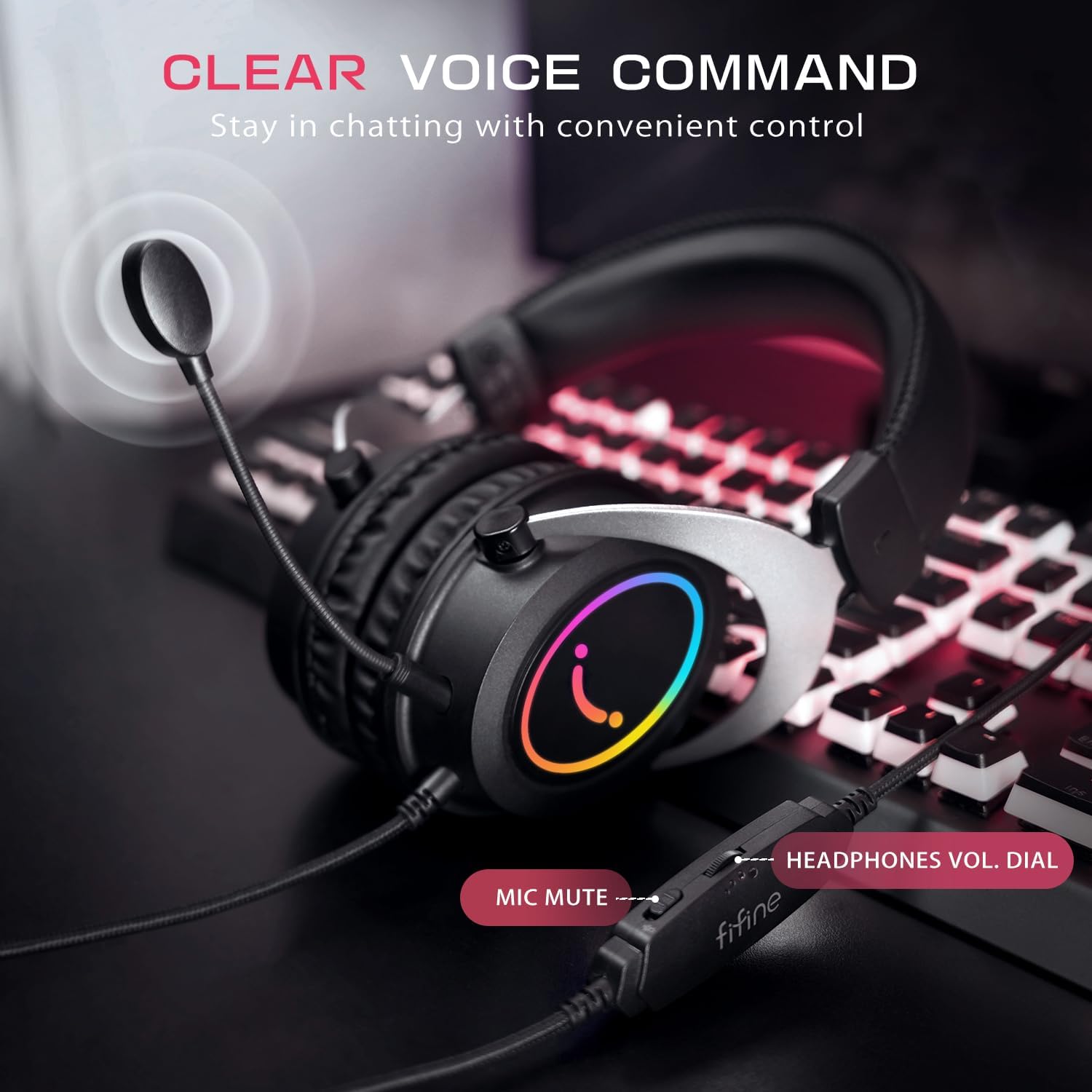
Image: Close-up of the FIFINE H3 headset's in-line control, showing the microphone mute switch and the headphones volume dial.
- Mic Mute Switch: Slide this switch to instantly mute or unmute your headset microphone.
- Headphones Volume Dial: Rotate this dial to adjust the listening volume of your headset.
Comfort and Audio Quality
The H3 headset is designed for extended use with soft ear cushions, an adjustable headband, and a lightweight design. It delivers powerful audio for an immersive experience.

Image: Visual representation of the FIFINE H3 headset's comfort features, including soft ear cushions, an adjustable headband, and its lightweight design (363.5g).

Image: An exploded view of the FIFINE H3 headset's ear cup, highlighting the internal audio components responsible for powerful sound delivery.
RGB Lighting
The H3 headset features dynamic RGB lighting on the earcups, which illuminates when connected to a power source (typically via the USB connector for RGB power only, if applicable, or through the 3.5mm connection if it supports power delivery).
Maintenance
- Cleaning: Use a soft, dry cloth to clean the surfaces of the microphone and headset. Avoid using harsh chemicals or abrasive materials.
- Storage: Store the devices in a cool, dry place away from direct sunlight and extreme temperatures.
- Cable Care: Avoid sharp bends or excessive pulling on the cables to prevent damage.
Troubleshooting
- No Sound from Microphone:
- Ensure the USB cable is securely connected to both the microphone and your device.
- Check your computer's sound settings to confirm the FIFINE A8Plus is selected as the default input device.
- Adjust the microphone's gain knob.
- Test on a different USB port or computer.
- No Sound from Headset:
- Ensure the 3.5mm jack (or splitter) is fully inserted into your device.
- Check your computer's sound settings to confirm the H3 Headset is selected as the default output device.
- Adjust the in-line volume dial on the headset cable.
- Test on a different device.
- Headset Microphone Not Working:
- Ensure the detachable microphone is securely attached to the headset.
- Check the in-line mic mute switch to ensure it is not in the muted position.
- If using the splitter cable, ensure both the green and pink jacks are correctly connected.
- Verify the headset microphone is selected as the default input device in your system's sound settings.
- RGB Lighting Not Working:
- For the A8Plus microphone, press the RGB control key to turn it on or cycle through modes.
- Ensure the USB connection is providing power (for both microphone and headset RGB, if applicable).
Specifications
| Feature | Specification |
|---|---|
| Brand | FIFINE |
| Model | A8Plus+H3 |
| Connectivity Technology | USB (Microphone), 3.5 mm Jack (Headset) |
| Hardware Platform | PC, Gaming Consoles (Xbox, PS4/PS5, NS Switch) |
| Microphone Polar Patterns | Cardioid, Stereo, Omni-directional, Bi-directional |
| Microphone Signal-to-Noise Ratio | 70 dB |
| Microphone Form Factor | Desktop (A8Plus), Headset (H3) |
| Special Features | RGB Lighting, Real-time Monitoring, Gain Knob, Detachable Mic |
Warranty and Support
FIFINE products are designed for reliability and performance. For warranty information, technical support, or service inquiries, please refer to the warranty card included in your package or visit the official FIFINE website. Keep your proof of purchase for warranty claims.


