
Crenova Pink
Crenova A4 Laminator Machine User Manual
Model: Pink
Brand: Crenova
1. Introduction
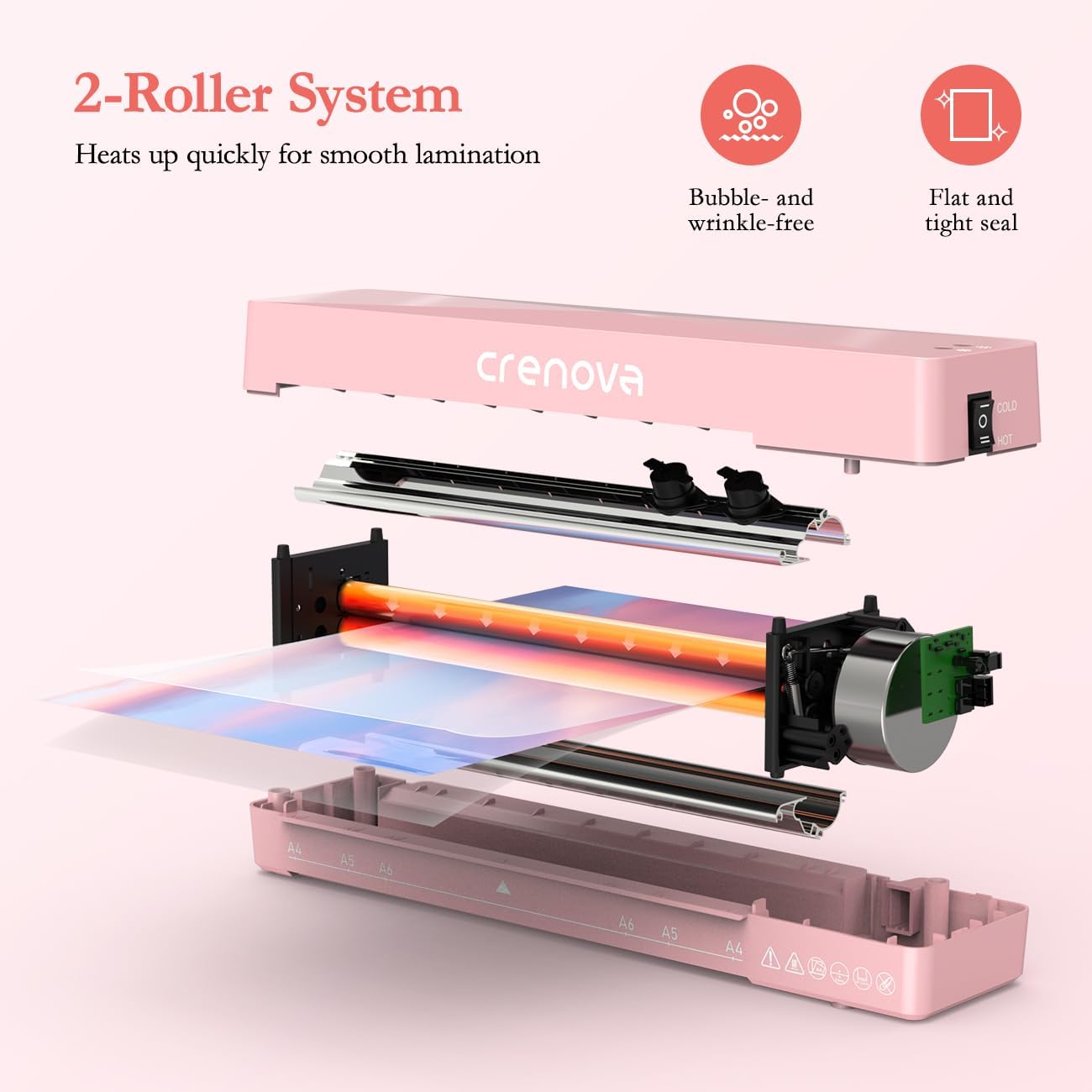
Thank you for choosing the Crenova A4 Laminator Machine. This versatile 4-in-1 personal desktop laminator is designed for both hot and cold lamination, providing a reliable solution for preserving documents, photos, and crafts. Its compact size and efficient operation make it ideal for home, office, school, and business use. This manual provides detailed instructions to ensure safe and effective use of your laminator.

The Crenova A4 Laminator Machine, highlighting its key features such as 2-minute warm-up, dual lamination modes, A4 inlet, portability, 2-roller system, and paper jam prevention.
2. Product Overview and Components
Familiarize yourself with the main components of your Crenova A4 Laminator Machine:

Numbered diagram showing the key parts of the laminator: 1. Indicator Lights, 2. Power/Mode Switch, 3. Pouch Exit, 4. Pouch Inlet.
- Indicator Lights: Display the status of the machine (e.g., power on, ready for lamination).
- Power/Mode Switch: Used to turn the machine on/off and select between HOT and COLD lamination modes.
- Pouch Exit: Where the laminated document exits the machine.
- Pouch Inlet: Where the laminating pouch is inserted.
- ABS Lever: Located at the back, used to release jammed pouches.
3. Setup
- Placement: Place the laminator on a flat, stable surface with adequate space around it for proper ventilation and for inserting/exiting pouches.
- Power Connection: Plug the power cord into a suitable electrical outlet.
- Select Mode: Use the Power/Mode switch to select either 'HOT' or 'COLD' mode.
- Warm-up (HOT Mode only): If 'HOT' mode is selected, the machine will begin to warm up. The indicator light will turn green (or similar) when the machine is ready for use, typically within 1-2 minutes. COLD mode does not require preheating.

Visual guide for operating the laminator, including switching modes, waiting for the indicator light, inserting the pouch, and switching off.
4. Operating Instructions
4.1 Hot Lamination
Hot lamination is suitable for most standard documents and photos, using thermal laminating pouches.
- Ensure the laminator is in 'HOT' mode and the ready indicator light is green.
- Place your document or item inside a thermal laminating pouch, ensuring it is centered and there is a small margin around the edges.
- Insert the sealed edge of the laminating pouch into the Pouch Inlet, ensuring it is straight. The machine will automatically feed the pouch through.
- Allow the laminated item to exit completely from the Pouch Exit. It may be warm; handle with care.
- For best results, allow the laminated item to cool on a flat surface.
4.2 Cold Lamination
Cold lamination is ideal for heat-sensitive materials, utilizing self-adhesive laminating pouches.
- Ensure the laminator is in 'COLD' mode. No warm-up is required.
- Place your document or item inside a self-adhesive laminating pouch, following the pouch manufacturer's instructions.
- Insert the sealed edge of the laminating pouch into the Pouch Inlet, ensuring it is straight. The machine will feed the pouch through.
- Retrieve the laminated item from the Pouch Exit.

The Crenova laminator in action, demonstrating the smooth feeding of a document through the machine.
4.3 Supported Pouch Sizes and Thickness
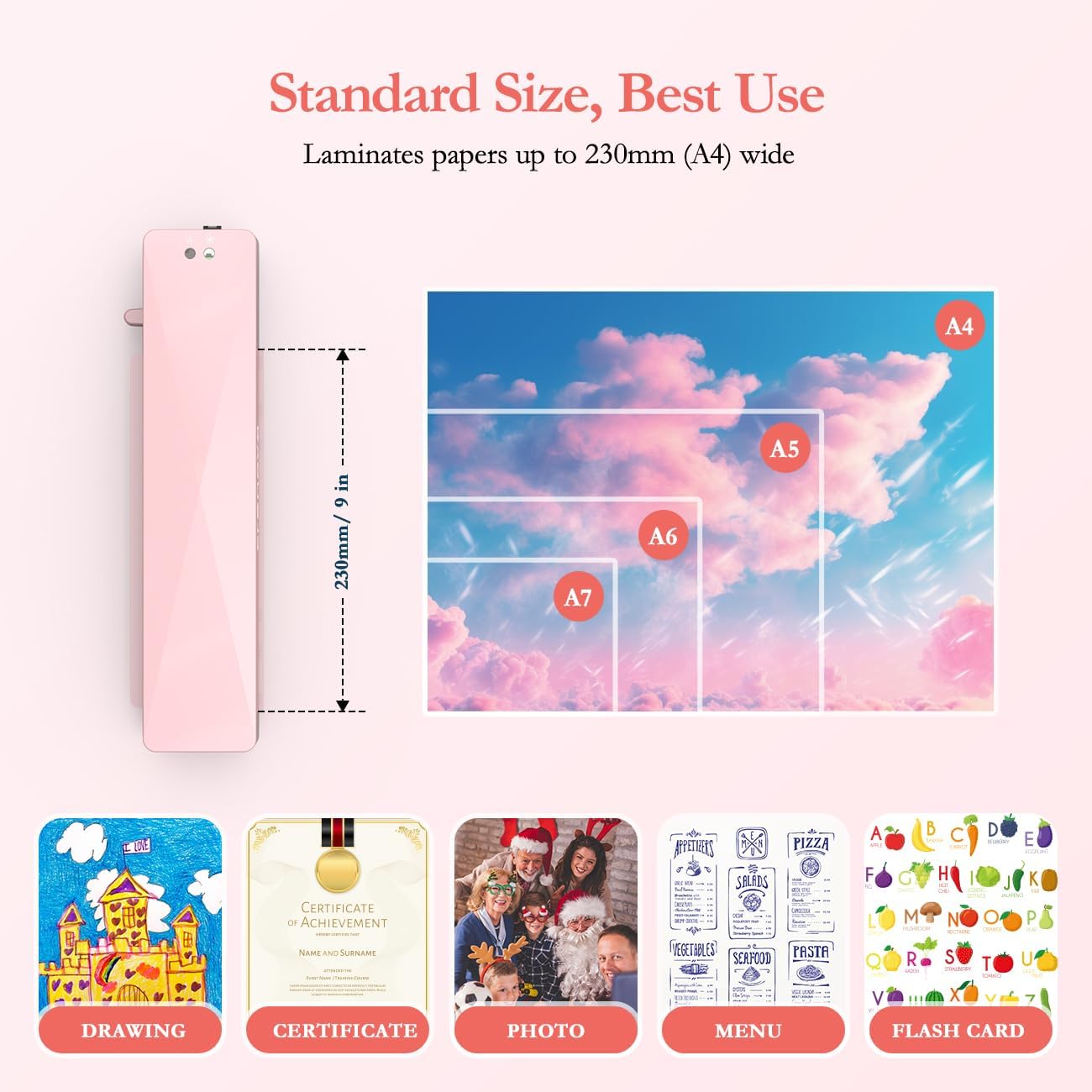
The laminator supports A4 wide inlet, accommodating various items up to 230mm (9 inches) in width. It is compatible with laminating pouches ranging from 80-125mic (2.5-4mil) in thickness.

The laminator supports standard paper sizes up to A4, suitable for drawings, certificates, photos, menus, and flash cards.
5. Maintenance
To ensure the longevity and optimal performance of your laminator, follow these maintenance guidelines:
- Cleaning: Regularly wipe the exterior of the machine with a soft, dry cloth. Do not use abrasive cleaners or solvents.
- Roller Cleaning: Periodically run a folded piece of paper through the laminator to help clean the rollers and remove any adhesive residue.
- Storage: When not in use, store the laminator in a cool, dry place, away from direct sunlight and extreme temperatures.
- Cool Down: After extended use, allow the machine to cool down before storing or turning off completely.
6. Troubleshooting
If you encounter any issues with your laminator, refer to the following common problems and solutions:
6.1 Paper Jam
If a pouch gets stuck or misfed during lamination:
- Immediately switch off the laminator.
- Locate the ABS lever at the back of the machine.
- Push and hold the ABS lever to release the pressure on the rollers.
- Gently pull the misfed pouch out of the inlet or exit.
- Release the ABS lever and restart the machine if needed.
Visual instructions for clearing a paper jam using the ABS lever.
6.2 Bubbles or Wrinkles After Lamination
This can occur due to various reasons. Consider the following:
- Pouch Insertion: Ensure the pouch is inserted straight and not tilted.
- Pouch Quality/Thickness: Use high-quality pouches within the recommended thickness range (80-125mic).
- Warm-up Time: For hot lamination, ensure the machine has fully warmed up and the ready indicator light is green before inserting the pouch.
- Overlapping Items: Do not laminate multiple items that overlap within a single pouch.
- Curled Sheets: Avoid laminating excessively curled or wrinkled documents.
- Roller Defects: In rare cases, a slight imperfection on the rollers can cause consistent bubble lines. If this occurs, contact customer support.
Important notes on proper plastic sealing techniques to avoid common lamination issues.
7. Specifications
| Feature | Detail |
|---|---|
| Brand | Crenova |
| Model | Pink |
| Item Weight | 1.87 pounds |
| Product Dimensions | 13.19 x 3.15 x 2.36 inches (or 13.19"L x 9"W x 2.56"H) |
| Sheet Size | A4 (max. width 230mm/9 inches) |
| Pouch Thickness | 80-125mic / 2.5-4mil |
| Warm Up Time | 1-2 minutes (Hot Mode) |
| Lamination Modes | Hot & Cold |
| Roller System | 2-Roller System |
| Noise Level | ≤55dB Low Noise |
8. Warranty and Support
For warranty information, technical support, or any inquiries regarding your Crenova A4 Laminator Machine, please visit the official Crenova store or contact their customer service directly.
Crenova Store: https://www.amazon.com/stores/Crenova/page/DF3ED710-CE1F-4D2B-88D3-C9C7D30CA0FD
9. Creative Uses
Beyond standard document protection, your Crenova laminator can be used for various creative projects:
9.1 Preserving Dried Flowers
Laminate dried flowers to create unique bookmarks, decorative pieces, or educational materials.

Instructions for laminating dried flowers: Place flowers inside a pouch, laminate, and run through the machine again if needed for smoothness.
9.2 Foiling with a Laminator
Add metallic foil accents to your printed designs for a professional and decorative finish.

Steps for foiling: Print art, select HOT mode, lay foil on design, cover with paper, insert into inlet, peel off foil after exiting.
9.3 Making Flash Cards
Create durable and reusable flash cards for learning or games.

Laminate custom-made flash cards for enhanced durability and repeated use.
Related documentsPink

Ask a question about this manual
Ask about setup, troubleshooting, compatibility, parts, safety, or missing instructions. Manuals+ will review the question and use this page’s manual context to help answer it.