
FOXWELL FOXWELL NT710 fit for GM vehicles
FOXWELL NT710 Diagnostic Scan Tool User Manual
Comprehensive Guide for GM Vehicle Diagnostics and Maintenance
1. Introduction
The FOXWELL NT710 is an advanced bi-directional diagnostic scan tool specifically designed for GM vehicles, including Chevrolet, Buick, GMC, and Cadillac. This device operates on an Android 9.0 system with a 5.5-inch touchscreen, offering comprehensive diagnostic capabilities and various maintenance services. It is suitable for both professional technicians and DIY enthusiasts.
This manual provides detailed instructions on setting up, operating, maintaining, and troubleshooting your NT710 scan tool to ensure optimal performance and accurate vehicle diagnostics.
2. What's in the Box
Upon opening the package, verify that all components are present:
- NT710 Scanner Unit
- Diagnostic Cable
- USB Type-C Cable
- Portable Carrying Case
- User's Manual
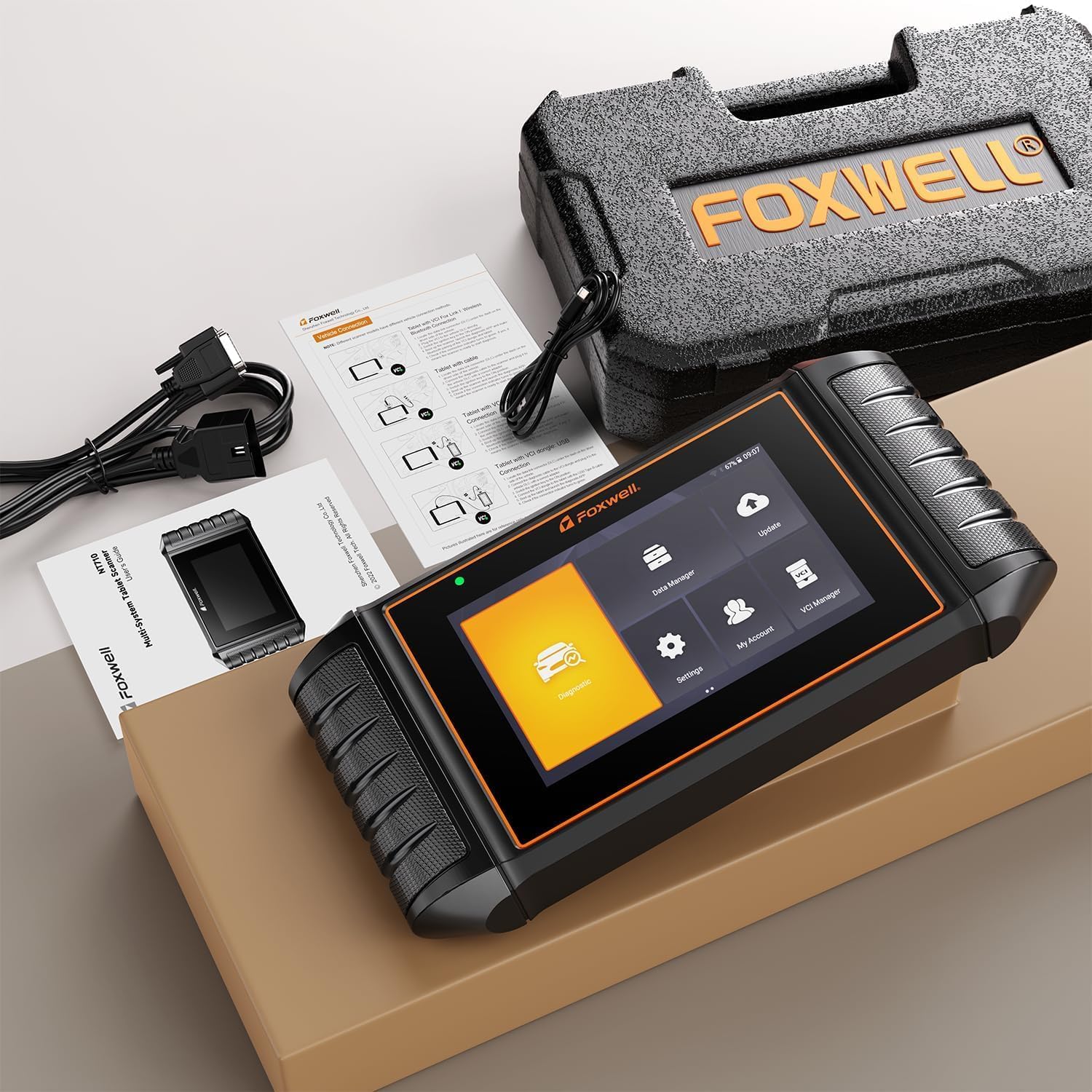
Figure 2.1: FOXWELL NT710 complete package contents.
3. Setup and Initial Use
3.1 Charging the Device
Before first use, ensure the NT710 scanner is fully charged. Connect the provided USB Type-C cable to the device and a suitable power source. A full charge is recommended for optimal performance.
3.2 Connecting to the Vehicle
Locate the OBD-II port in your GM vehicle, typically under the dashboard on the driver's side. Connect the diagnostic cable from the NT710 scanner to the vehicle's OBD-II port. Ensure a secure connection.

Figure 3.1: Connecting the NT710 to the vehicle's OBD-II port.
3.3 Powering On and Initial Setup
Once connected, the device will power on automatically. Follow the on-screen prompts for initial setup, including language selection and Wi-Fi connection. Wi-Fi is essential for software updates.
3.4 Software Updates
The FOXWELL NT710 offers lifetime free software updates via Wi-Fi. It is highly recommended to update the software regularly to ensure access to the latest vehicle models, diagnostic functions, and bug fixes. Navigate to the "Update" section on the main menu and follow the instructions.

Figure 3.2: Performing a software update on the NT710.
4. Operating the NT710
4.1 Main Menu Overview
The main menu provides access to key functions:
- Diagnostic: Access vehicle-specific diagnostic functions.
- Data Manager: Review saved data, reports, and screenshots.
- Update: Perform software updates via Wi-Fi.
- Settings: Configure device settings, language, and network.
- My Account: Manage your FOXWELL account.
- VCI Manager: Manage Vehicle Communication Interface.
Figure 4.1: Main menu of the NT710 scanner.
4.2 OE-Level All System Diagnosis
The NT710 can perform a comprehensive scan of all available systems in GM vehicles, including Engine, Transmission, ABS, Airbag, HVAC, and more. This allows for reading and clearing fault codes, viewing live data, and performing system scans.

Figure 4.2: All System Diagnosis capabilities.
4.3 Bi-Directional Control (Active Test)
This function allows the tool to send commands to the vehicle's components to test their functionality. Examples include testing windows, mirrors, headlights, fuel pumps, and radiator fans. This helps in quickly pinpointing faulty components.
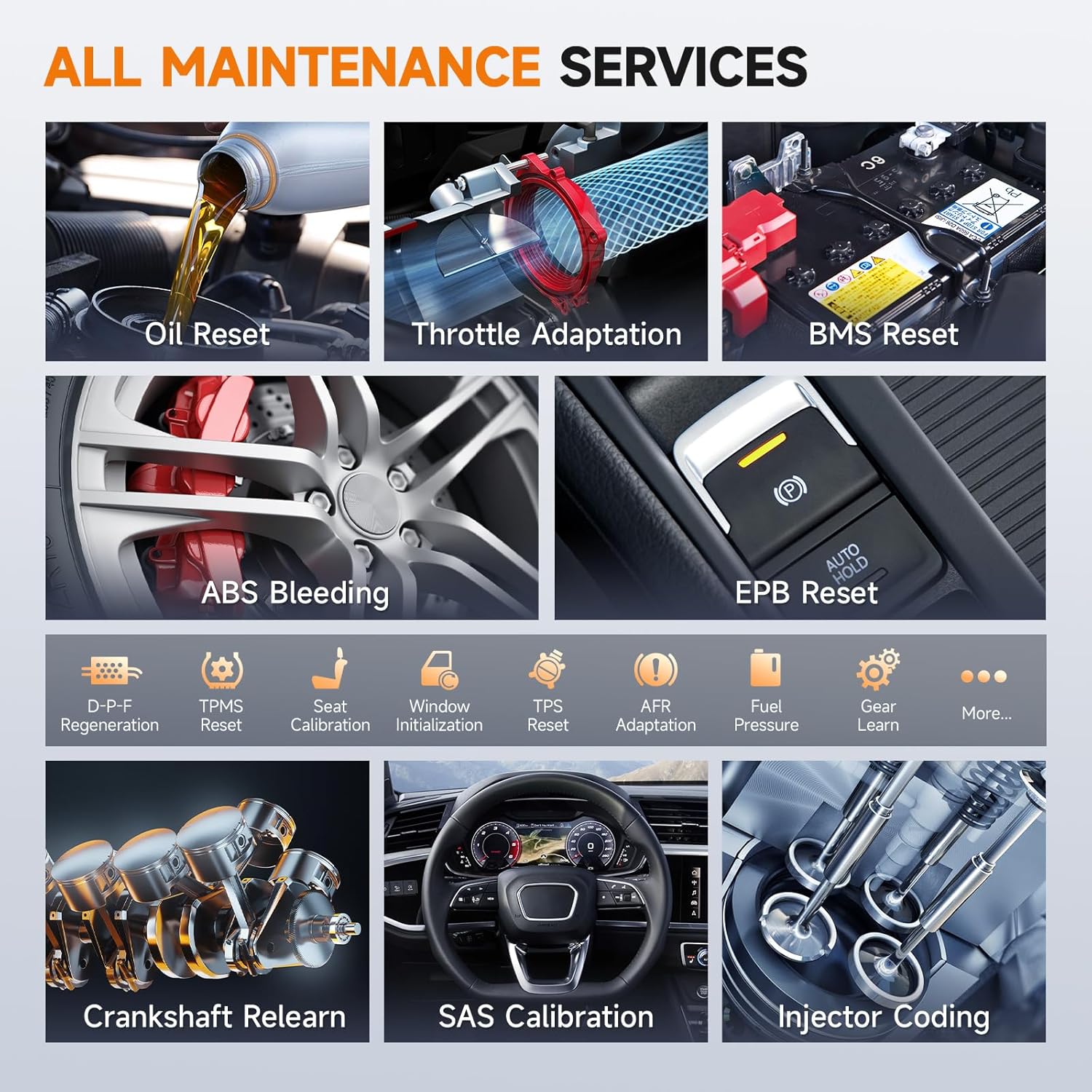
Figure 4.3: Bi-directional control in action.
Video 4.1: Demonstration of the NT710's bi-directional control capabilities, showing active tests on various vehicle components.
4.4 Maintenance Services
The NT710 supports numerous maintenance services for GM vehicles, including:
- Oil Reset
- EPB (Electronic Parking Brake) Reset
- SAS (Steering Angle Sensor) Calibration
- TPMS (Tire Pressure Monitoring System) Reset
- ABS Bleeding
- Throttle Adaptation
- BMS (Battery Management System) Reset
- DPF (Diesel Particulate Filter) Regeneration
- CKP (Crankshaft Position) Relearn
- Injector Coding
- And more.

Figure 4.4: Overview of supported maintenance services.
4.5 OBD2 Functions
The tool supports all 10 OBD2 test modes, crucial for emissions checks and general diagnostics:
- Read & Clear Codes
- Live Data Streams
- Freeze Frame Data
- I/M Readiness
- O2 Sensor Test
- On-Board Monitor Test
- EVAP System Test
- Component Test
- Vehicle Information (VIN, CIN, CVN)
- DTC Lookup
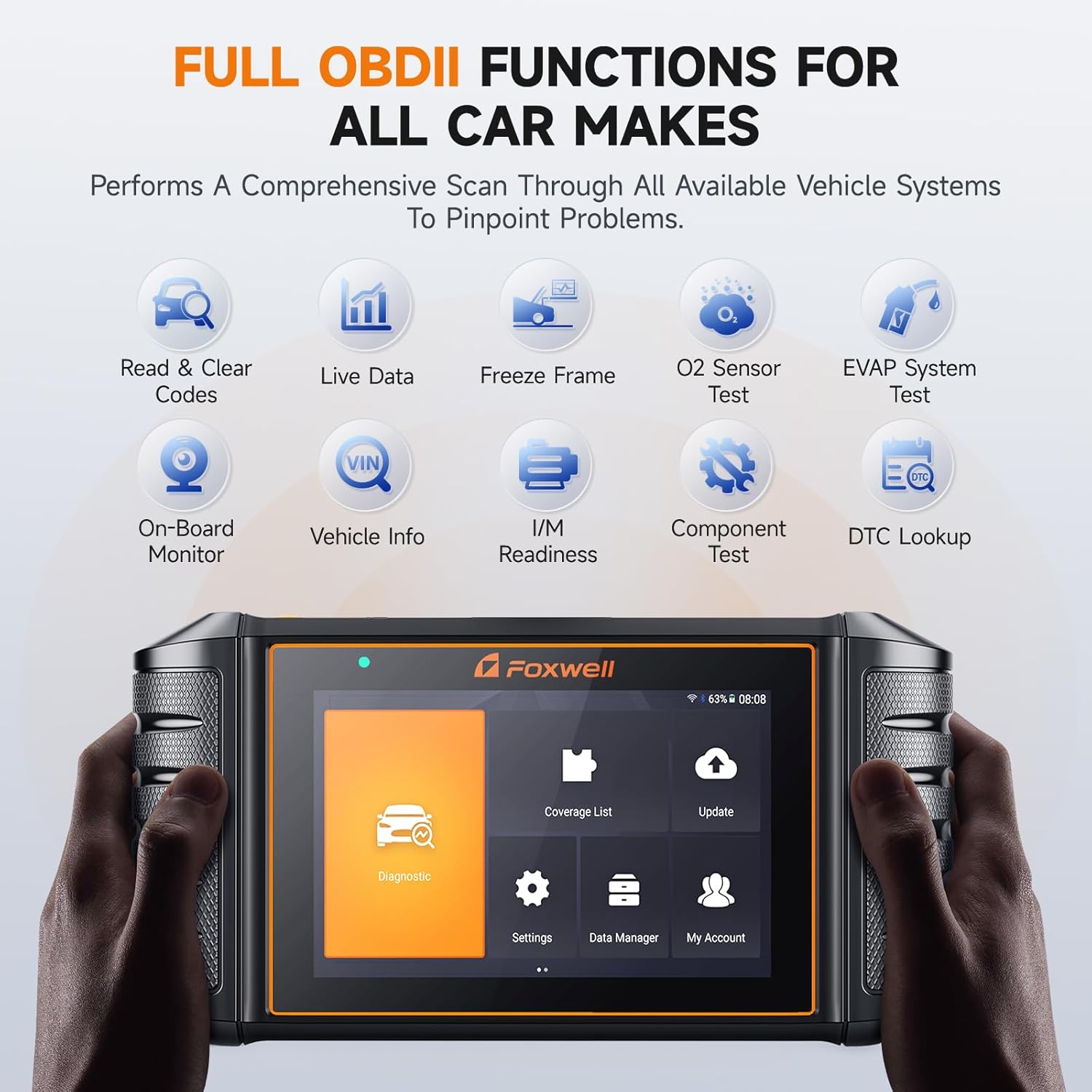
Figure 4.5: Full OBD2 functions interface.
4.6 Data Management and Reporting
The NT710 allows you to monitor up to 4 live data streams simultaneously in a graph format for easy comparison. You can also generate, share, or print professional PDF diagnostic reports directly from the device via Bluetooth or Wi-Fi.

Figure 4.6: Live data graphing and report sharing.
5. Maintenance of the Device
5.1 Cleaning the Device
Use a soft, damp cloth to clean the screen and exterior of the device. Avoid using abrasive cleaners or solvents that could damage the touchscreen or casing.
5.2 Storage
When not in use, store the NT710 in its portable carrying case to protect it from dust, moisture, and physical damage. Store in a cool, dry place away from direct sunlight and extreme temperatures.
5.3 Battery Care
To prolong battery life, avoid fully discharging the battery frequently. Charge the device regularly, especially if it will be stored for an extended period.
6. Troubleshooting
| Problem | Possible Cause | Solution |
|---|---|---|
| Device does not power on. | Low battery; Loose OBD-II connection. | Charge the device; Ensure diagnostic cable is securely connected to the vehicle's OBD-II port. |
| Unable to connect to Wi-Fi. | Incorrect Wi-Fi password; Out of range; Network issues. | Verify password; Move closer to Wi-Fi router; Restart router; Try connecting to a different Wi-Fi network. |
| Scan tool not communicating with vehicle. | Incorrect vehicle selection; Faulty OBD-II port; Damaged diagnostic cable. | Confirm correct vehicle model and year; Check vehicle's OBD-II port with another device; Contact support for cable replacement if suspected faulty. |
| Software update fails. | Unstable Wi-Fi connection; Insufficient storage. | Ensure stable Wi-Fi; Clear some data from the device if storage is low. |
6.1 Remote Technical Support
The NT710 supports remote technical assistance. If you encounter persistent issues, you can use the remote support feature to allow FOXWELL technicians to diagnose and resolve problems directly on your device. This requires an internet connection.

Figure 6.1: Remote technical support process.
7. Specifications
| Feature | Detail |
|---|---|
| Model | FOXWELL NT710 |
| Operating System | Android 9.0 |
| Display | 5.5-inch Touchscreen (1280x800 resolution) |
| Memory | 2GB RAM, 32GB Storage |
| Battery | 4000mAh Lithium Polymer |
| Connectivity | Wi-Fi, Bluetooth |
| Dimensions (L x W x H) | 9.3" x 1.5" x 4.9" |
| Weight | 3.12 pounds |
| Supported Vehicles | GM brands (Chevrolet, Buick, GMC, Cadillac) |
8. Warranty Information
FOXWELL provides a limited warranty for the NT710 diagnostic scan tool against defects in materials and workmanship under normal use. The warranty period typically starts from the date of purchase. Please refer to the warranty card included in your package or contact FOXWELL customer support for specific warranty terms and conditions.
This product also includes lifetime free software updates via Wi-Fi, ensuring your device remains up-to-date with the latest vehicle data and functions without additional subscription fees.
9. Customer Support
For technical assistance, product inquiries, or warranty claims, please contact FOXWELL customer support through the following channels:
- Amazon Messages: Reach out via the Amazon platform for prompt assistance.
- Email: Refer to the contact information provided in your product packaging or on the official FOXWELL website.
- Official Website: Visit the FOXWELL Store on Amazon for more information and support resources.
When contacting support, please have your product model (NT710) and any relevant purchase details ready to facilitate quicker service.
Related documentsFOXWELL NT710 fit for GM vehicles


Ask a question about this manual
Ask about setup, troubleshooting, compatibility, parts, safety, or missing instructions. Manuals+ will review the question and use this page’s manual context to help answer it.