
1. Introduction
The Hexgears M2 USB-C TKL Mechanical Gaming Keyboard is designed for an optimal typing and gaming experience. Featuring a compact 75% layout, hot-swappable switches, and a custom gasket mount, it delivers a creamy, quiet, and responsive performance. This manual provides detailed instructions for setting up, operating, maintaining, and troubleshooting your keyboard.
2. What's in the Box
- Purple Rain M2 Mechanical Keyboard
- Keycap Puller
- USB Cable

Image: The Hexgears M2 keyboard in purple and white, with its detachable USB-C cable shown above it.
3. Setup
3.1 Connecting the Keyboard
- Locate the USB-C port on the back of your Hexgears M2 keyboard.
- Connect the provided USB-C cable to the keyboard's port.
- Plug the other end of the USB-C cable into an available USB port on your computer (Laptop, PC, Xbox, Tablet, MAC).
- The keyboard is plug-and-play and should be recognized automatically by your operating system.

Image: The Hexgears M2 keyboard with its USB-C cable connected, illustrating the wired connection.
3.2 Adjustable Feet and Cable Routing
The Hexgears M2 features adjustable feet to customize your typing angle for ergonomic comfort. The keyboard also includes concealed grooves on the underside for efficient cable management, allowing you to route the USB cable to the left, right, or center.


Image: Left: The adjustable feet of the keyboard in two different height settings. Right: The underside of the keyboard showing the concealed grooves for cable routing.
4. Operating Instructions
4.1 Function (FN) Key Combinations
The Hexgears M2 keyboard utilizes FN key combinations to access various multimedia and system functions. Press and hold the FN key, then press the corresponding function key.
| Combination | Function |
|---|---|
| FN + ESC | Long press 5S to restore factory default |
| FN + F1 | My computer |
| FN + F2 | |
| FN + F3 | Search |
| FN + F4 | Refresh |
| FN + F5 | Music |
| FN + F6 | Previous Song |
| FN + F7 | Play/Pause |
| FN + F8 | Next Song |
| FN + F9 | Mute |
| FN + F10 | Volume - |
| FN + F11 | Volume + |
| FN + F12 | Lock all keys |
| FN + DEL | Backlight switch |
| FN + HOME | Pause |
| FN + END | ScrLk |
| FN + PAGE UP | PrtSc |
| FN + TAB | Hold down 5S Switching between the Win and Mac systems. |
| FN + WIN | Win lock |
| FN + INS | Custom light mode |
| FN + CTRL | Backlight effect cycle switch |
4.2 Backlight Control
The keyboard features a white backlight. You can adjust lighting patterns and brightness using the FN key combinations or through the dedicated software (if available). The software allows for extensive customization of lighting effects.

Image: The Hexgears M2 keyboard illuminated with its white backlight, enhancing the aesthetic of a workspace.
4.3 Macro Configuration
The Hexgears M2 supports programmable macros, enabling you to assign specific and complex keystroke sequences for streamlined and repetitive tasks. Macro configuration is typically done via the keyboard's software. Refer to the software's user interface for detailed instructions on recording and assigning macros.
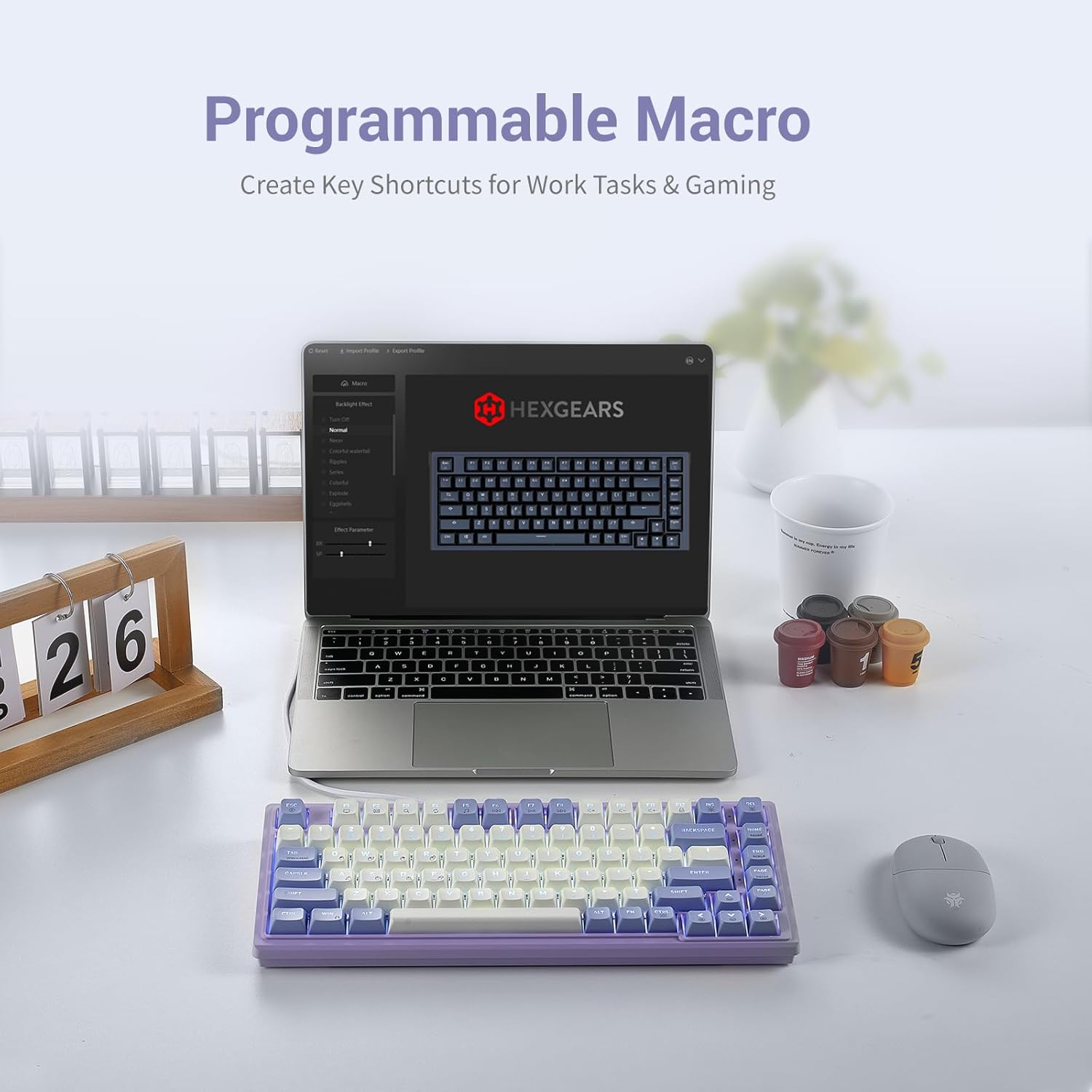
Image: The Hexgears M2 keyboard shown with a laptop displaying the macro configuration software interface.
Video: A demonstration of macro recording and keybinding on the Hexgears M2 keyboard using its software interface.
4.4 Hot-Swappable Switches
The Hexgears M2 features hot-swappable 5-pin linear-red mechanical switches and pre-lubed stabilizers, allowing for easy customization of your typing experience without soldering. You can swap out switches to experiment with different tactile sensations.

Image: A hand using a switch puller to remove a hot-swappable switch from the Hexgears M2 keyboard.
Video: A demonstration of removing and installing hot-swappable switches and keycaps on the Hexgears M2 keyboard.
5. Maintenance
5.1 Cleaning the Keyboard
- Use a soft, lint-free cloth dampened with a small amount of water or a mild cleaning solution to wipe down the keycaps and keyboard surface.
- For deeper cleaning, use the provided keycap puller to remove keycaps and clean dust or debris from underneath.
- Avoid spraying liquids directly onto the keyboard.
5.2 Switch and Keycap Care
- When removing keycaps, pull straight up to avoid damaging the switch stem.
- When inserting switches, ensure the pins are aligned correctly with the PCB sockets to prevent bending.
- Store extra keycaps and switches in a dry, dust-free environment.
6. Troubleshooting
| Problem | Possible Cause | Solution |
|---|---|---|
| Keyboard not responding | Loose USB connection, driver issue, or system conflict. | Check USB cable connection. Try a different USB port. Restart your computer. Ensure drivers are up to date. |
| Backlight not working or inconsistent | Backlight turned off, brightness too low, or software issue. | Press FN + DEL to toggle backlight. Adjust brightness using software or FN key combinations. Reinstall keyboard software. |
| Specific keys not working | Faulty switch, debris under keycap, or key lock enabled. | Remove keycap and clean. If hot-swappable, try swapping the switch with a known working one. Check if FN + F12 (Lock all keys) is active. |
| Macros not executing | Incorrect macro setup or software conflict. | Verify macro settings in the software. Ensure the macro is assigned to the correct key. Restart the software or keyboard. |
7. Specifications
| Feature | Detail |
|---|---|
| Product Dimensions | 14.88 x 9.69 x 1.42 inches |
| Item Weight | 1.4 pounds |
| Manufacturer | HEXGEARS |
| Item Model Number | 7029385f-e611-474c-8d6b-ffeb135e587f |
| Date First Available | August 2, 2023 |
| Brand | Hexgears |
| Compatible Devices | Laptop, PC, Xbox, Tablet, MAC |
| Connectivity Technology | USB-C |
| Keyboard Description | Gaming |
| Recommended Uses For Product | Gaming |
| Special Feature | Gasket Structure, Backlit, Hot-Swappable |
| Color | WhiteViolet |
| Number of Keys | 83 |
| Keyboard Backlighting Color Support | Single Color |
| Style | Modern |
8. Warranty and Support
For warranty information and technical support, please refer to the official Hexgears website or contact their customer service. Keep your purchase receipt as proof of purchase for any warranty claims.
Official Hexgears Store: Hexgears Amazon Store