
1. Introduction
This manual provides detailed instructions for the DSD TECH SH-C31A USB to CAN Adapter. The SH-C31A is a non-isolated USB to CAN adapter based on the open-source hardware project Canable 2.0, designed to facilitate communication with CAN and CAN-FD networks via a USB interface.
It features a robust design and supports both CAN and CAN-FD protocols, making it suitable for various industrial and automotive applications. The device comes with pre-installed candlelight firmware, but can be updated to slcan firmware for CAN FD functionality.
2. Package Contents
Verify that all items are present in your package:
- 1 x DSD TECH SH-C31A USB to CAN Adapter
- 1 x 3PIN Terminal Block
- 1 x User Guide (this document)

Image: Contents of the DSD TECH SH-C31A package, showing the adapter, a 3-pin terminal block, and a user guide.
3. Product Overview
The DSD TECH SH-C31A is a compact USB to CAN adapter. It features a transparent casing, allowing visibility of the internal circuitry. Key components include a USB-A connector, a 3-pin terminal block for CAN bus connections, and a boot switch for mode selection.
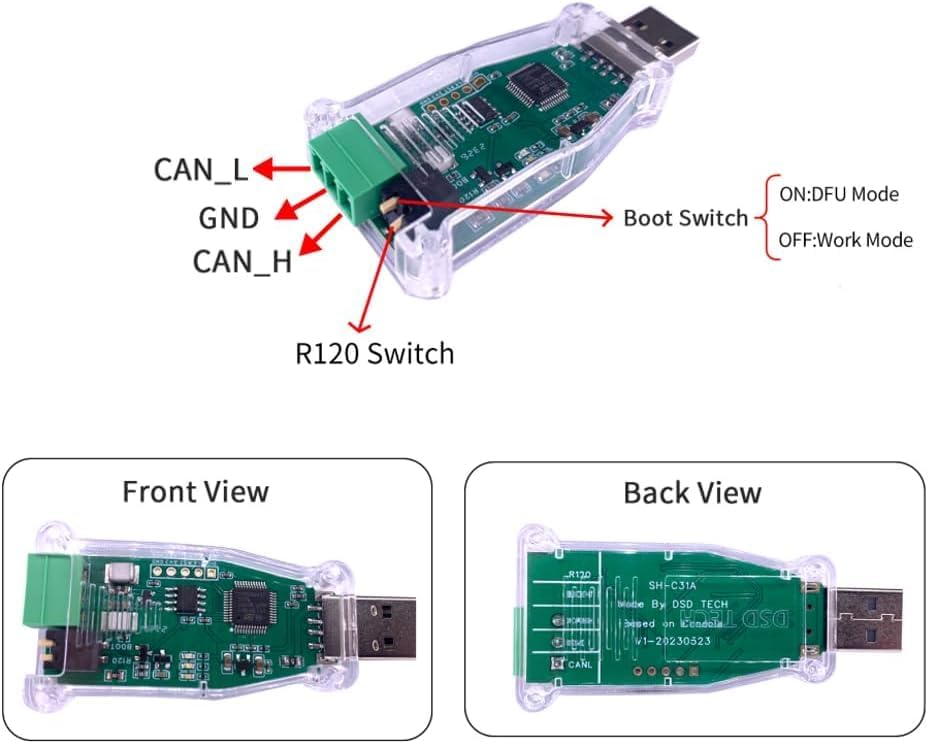
Image: Detailed view of the SH-C31A adapter, highlighting the CAN_L, GND, CAN_H pins, the Boot Switch (ON: DFU Mode, OFF: Work Mode), and the R120 Switch. Separate images show the front and back views of the device.
3.1. Pinout Description
- CAN_L: CAN Low signal line.
- GND: Ground connection.
- CAN_H: CAN High signal line.
3.2. Boot Switch
- OFF Position: Work Mode. The adapter operates with its current firmware (default is candlelight).
- ON Position: DFU (Device Firmware Upgrade) Mode. Used for flashing new firmware to the device.
4. Setup and Connection
Follow these steps to connect your DSD TECH SH-C31A USB to CAN Adapter:
- Connect CAN Bus Wires: Insert the CAN_H, CAN_L, and GND wires from your CAN network into the provided 3-pin terminal block. Ensure correct polarity.
- Attach Terminal Block: Securely plug the terminal block into the corresponding connector on the SH-C31A adapter.
- Connect to Computer: Plug the USB-A connector of the SH-C31A adapter into an available USB port on your desktop or laptop computer.

Image: Step-by-step visual guide showing how to connect the CAN bus wires to the removable 3-pin terminal block, and then how to insert the terminal block into the SH-C31A adapter. The terminal block is included in the package.

Image: Illustrates the process of securing the CAN bus wires into the 3-pin terminal block using a small screwdriver, ensuring a firm connection before attaching the block to the SH-C31A adapter.
5. Operating Instructions
5.1. Work Mode (Default)
In Work Mode, the Boot Switch should be in the OFF position. The adapter will operate with its currently installed firmware. By default, the SH-C31A comes with candlelight firmware, which supports standard CAN frames but not CAN FD frames.
To use the adapter in Work Mode with software like Cangroo or BUSMASTER:
- Ensure the Boot Switch is in the OFF position.
- Connect the adapter to your computer and CAN bus as described in Section 4.
- Open your preferred CAN analysis software (e.g., Cangroo, BUSMASTER).
- Configure the software to recognize the "candleLight USB to CAN adapter" or similar device under Universal Serial Bus devices.
- Initiate measurement or communication within the software.
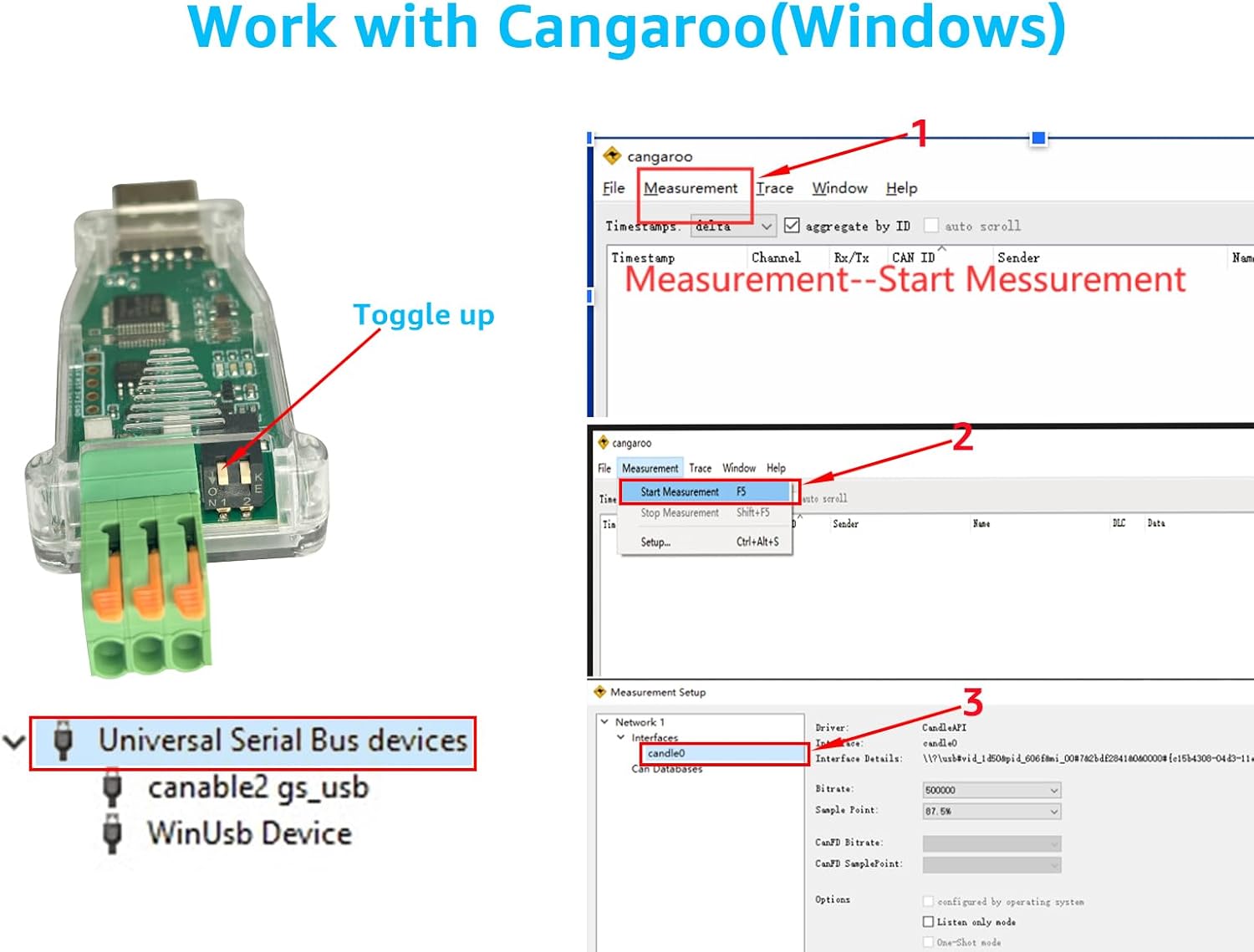
Image: Demonstrates the SH-C31A adapter connected and recognized by Cangroo software on Windows. It shows the device listed under "Universal Serial Bus devices" and steps to start a measurement within Cangroo.
5.2. Firmware Update (DFU Mode)
If you require CAN FD functionality, you must flash the firmware to slcan firmware. This process involves putting the device into DFU Mode.
- Enter DFU Mode: Move the Boot Switch to the ON position.
- Connect to Computer: Plug the SH-C31A adapter into your computer's USB port. The device should appear as "STM Device in DFU Mode" in your device manager.
- Access Firmware Updater: Navigate to the official CANable 2.0 firmware updater website: https://www.canable.io/updater/canable2.html
- Select Firmware: On the website, select the desired firmware (e.g., "slcan with FD support") from the dropdown menu.
- Flash Firmware: Click "Connect and Update" and follow the on-screen prompts to flash the new firmware.
- Exit DFU Mode: After successful flashing, return the Boot Switch to the OFF position. Unplug and replug the device to start with the new firmware.

Image: Illustrates the process of flashing firmware. The SH-C31A is shown with its boot switch toggled to DFU mode, and a screenshot of the CANable 2.0 updater website is displayed, showing the selection of 'slcan with FD support' firmware.

Image: A comparative diagram showing how the SH-C31A is recognized by a computer in Work Mode (as "candleLight USB to CAN adapter") versus DFU Mode (as "STM Device in DFU Mode"), along with a summary of features for each mode.
5.3. Official Product Video
Video: An official product video from DSD TECH demonstrating the SH-C31A USB to CAN Adapter, including its physical features, connection process, and basic operation with software. This video provides a visual guide to the adapter's functionality.
6. Maintenance
The DSD TECH SH-C31A USB to CAN Adapter is designed for durability and requires minimal maintenance. To ensure optimal performance and longevity:
- Keep the device clean and free from dust and debris. Use a soft, dry cloth for cleaning.
- Avoid exposing the adapter to extreme temperatures, humidity, or direct sunlight.
- Do not attempt to open the casing or modify the internal components, as this will void the warranty.
- Ensure connections are secure but do not overtighten the terminal block screws.
7. Troubleshooting
If you encounter issues with your DSD TECH SH-C31A adapter, consider the following troubleshooting steps:
- Device Not Recognized:
- Ensure the adapter is securely plugged into a functional USB port.
- Check your computer's Device Manager to see if the device is listed (e.g., "candleLight USB to CAN adapter" or "STM Device in DFU Mode").
- Try a different USB port or computer.
- If in DFU mode, ensure the Boot Switch is in the ON position. If in Work Mode, ensure it's OFF.
- No CAN Communication:
- Verify that the CAN_H, CAN_L, and GND connections are correct and secure.
- Check the CAN bus termination resistors if applicable to your network.
- Ensure your software is correctly configured for the adapter and the CAN bus parameters (e.g., baud rate).
- If using CAN FD, confirm that the slcan firmware has been successfully flashed.
- Firmware Update Issues:
- Ensure the Boot Switch is in the ON position before connecting for DFU mode.
- Use a compatible web browser (e.g., Chrome) for the CANable updater website.
- If on Linux, you may need to add a udev rule for proper device recognition. Refer to the CANable documentation for details.
For further assistance, please contact DSD TECH customer support.
8. Specifications
| Feature | Description |
|---|---|
| Brand | DSD TECH |
| Model Number | SH-C31A |
| Hardware Interface | USB |
| CAN Protocol Support | CAN, CAN FD (with slcan firmware) |
| Data Link Protocol | USB |
| Data Transfer Rate | 5 Megabits Per Second |
| Compatible Devices | Desktop, Laptop |
| Isolation | Non-Isolated |
| Item Weight | 0.02 Kilograms |
| UPC | 794251080989 |

Image: A comparison table detailing different DSD TECH USB CAN series adapters (SH-C30A, SH-C30G, SH-C31A, SH-C31G), showing their base CANable version, ASIN, CAN FD support, isolation status, CAN pinout, and interface type.
9. Warranty and Support
DSD TECH provides a manufacturer warranty for 12 months from the date of purchase for the SH-C31A USB to CAN Adapter. Additionally, DSD TECH offers permanent technical support and a 1-year product replacement service.
For technical assistance, warranty claims, or product replacement inquiries, please contact DSD TECH customer support through their official website or the platform where the product was purchased.
Further documentation, including schematics, BOM lists, and Gerb files, for this open-source hardware product is publicly available on the DSD TECH website.