
1. Introduction
This manual provides detailed instructions for the installation, operation, and maintenance of your WENMENGDE 9.7" Vertical Screen Android Car Radio. Please read this manual thoroughly before using the product to ensure proper function and to prevent damage.
2. Product Overview
The WENMENGDE 9.7" Vertical Screen Android Car Radio is a versatile multimedia system designed for vehicle integration. It features a 9.7-inch IPS vertical display with a resolution of 768*1024, powered by a Quad Core 1.1GHz CPU and Android 14 operating system. Key functionalities include wireless and wired CarPlay, Android Auto, GPS navigation, Wi-Fi connectivity, Bluetooth 4.1, and support for rear view cameras.

Figure 2.1: Key Features Overview
3. What's in the Box
Verify that all components are present before beginning installation:
- 1x Head Unit
- 1x Power Adapter
- 1x RCA Cables
- 1x GPS Antenna
- 1x Reverse Cable
- 2x USB Cables
- 2x Metal Brackets
- 1x Backup Camera
- 1x Microphone
- 1x User Manual
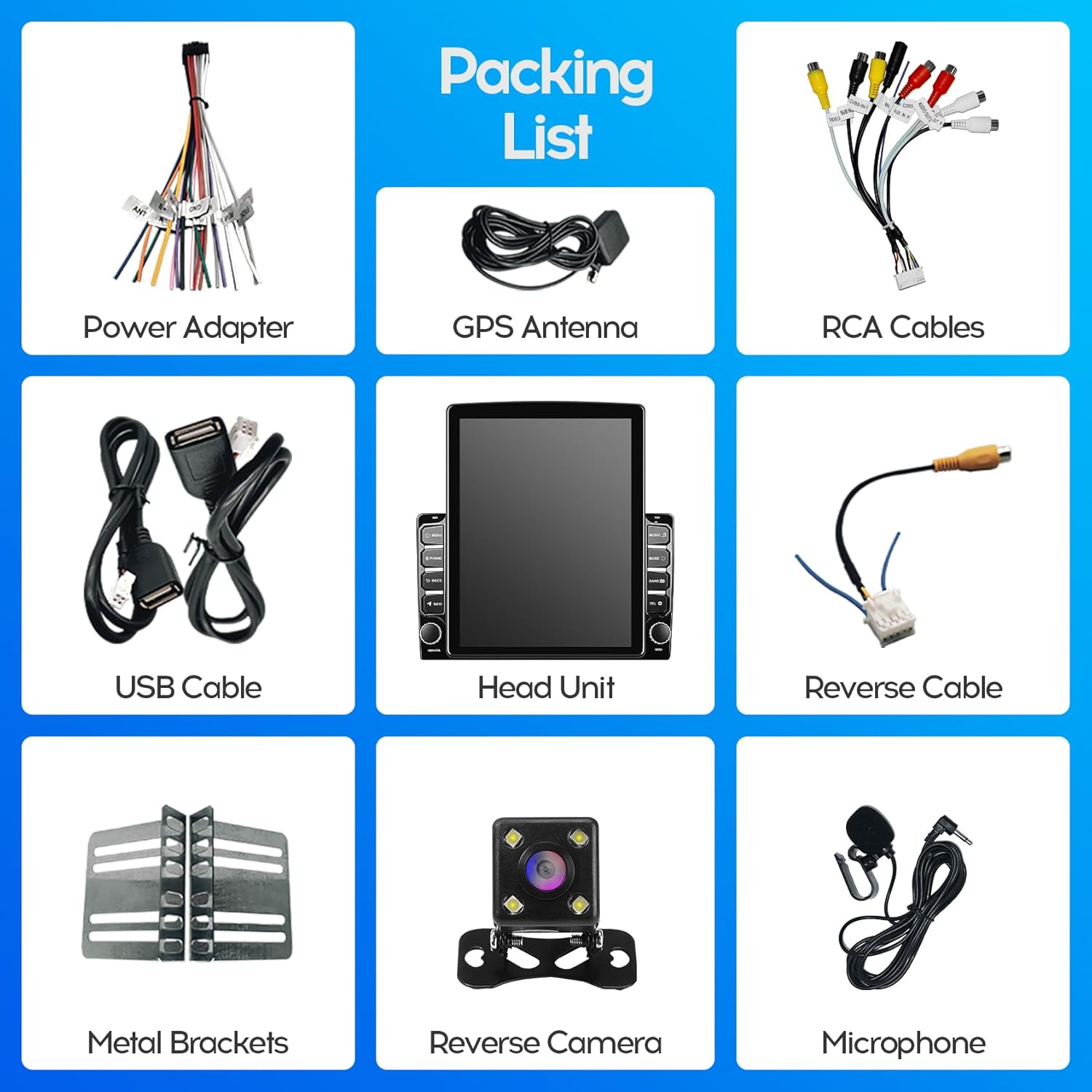
Figure 3.1: Included Components (Packing List)
4. Installation Guide
4.1 General Compatibility
This head unit is designed to fit most general-purpose 2-DIN car center consoles. Its vertical display style is compatible with dedicated 9-inch plastic frames, as the lower part of the head unit's back structure matches a 9-inch horizontal display style.
4.2 Physical Installation
The unit can be installed as a universal head unit into any car model with a 2-DIN size radio panel. Metal brackets are provided for secure fixing.

Figure 4.1: Universal 2-DIN Installation Example
Alternatively, it can be paired with a specific 9-inch or 10-inch special panel for specialized vehicle types, ensuring a seamless fit.

Figure 4.2: Installation with 9-inch Special Panel

Figure 4.3: Installation with 10-inch Special Panel
4.3 Wiring Connections
Connect the provided power adapter, RCA cables, GPS antenna, reverse cable, and USB cables to their respective ports on the head unit and your vehicle's wiring harness. Refer to your vehicle's specific wiring diagram for accurate connections. Ensure all connections are secure to prevent intermittent issues.

Figure 4.4: Rear Panel Connections and Dimensions
5. Operating Instructions
5.1 Power On/Off
Press and hold the power button (usually a physical knob or button on the unit) to turn the device on or off. A short press typically mutes or unmutes the audio.
5.2 Touchscreen Interface
The 9.7-inch capacitive 2.5D tempered glass touch screen allows for intuitive control. Navigate through menus, select applications, and adjust settings by tapping, swiping, and pinching.
5.3 Bluetooth Connectivity
The unit features built-in Bluetooth 4.1 with A2DP. To connect your phone:
- Go to the Bluetooth settings on the car radio.
- Enable Bluetooth on your mobile phone and search for available devices.
- Select the car radio from the list (e.g., "Car BT") and pair.
- Once connected, you can make hands-free calls, synchronize your phone book, and stream music.

Figure 5.1: Bluetooth Calling Interface
Video 5.1: Demonstration of the WENMENGDE 9.7 inch car radio's user interface, including music playback, radio tuning, Bluetooth pairing, and CarPlay functionality.
5.4 CarPlay & Android Auto
The device supports both Apple CarPlay and Android Auto, offering both wireless and wired connection options.
- Wireless Connection: Connect your mobile phone's Bluetooth to the car radio. Then, open the pre-installed application named "Zlink" on the head unit and wait for automatic connection.
- Wired Connection: Connect your mobile phone to the head unit using a USB cable.

Figure 5.2: CarPlay Interface Display
5.5 GPS Navigation
The car radio receiver includes a GPS module. Offline maps are available via the pre-installed "Maps" application. For online maps and real-time traffic updates, connect the unit to Wi-Fi.
5.6 Radio Functionality
The unit features an MT6625LN Radio Module for stable signal reception and clear sound. You can tune into FM radio stations and save your favorite frequencies as presets.
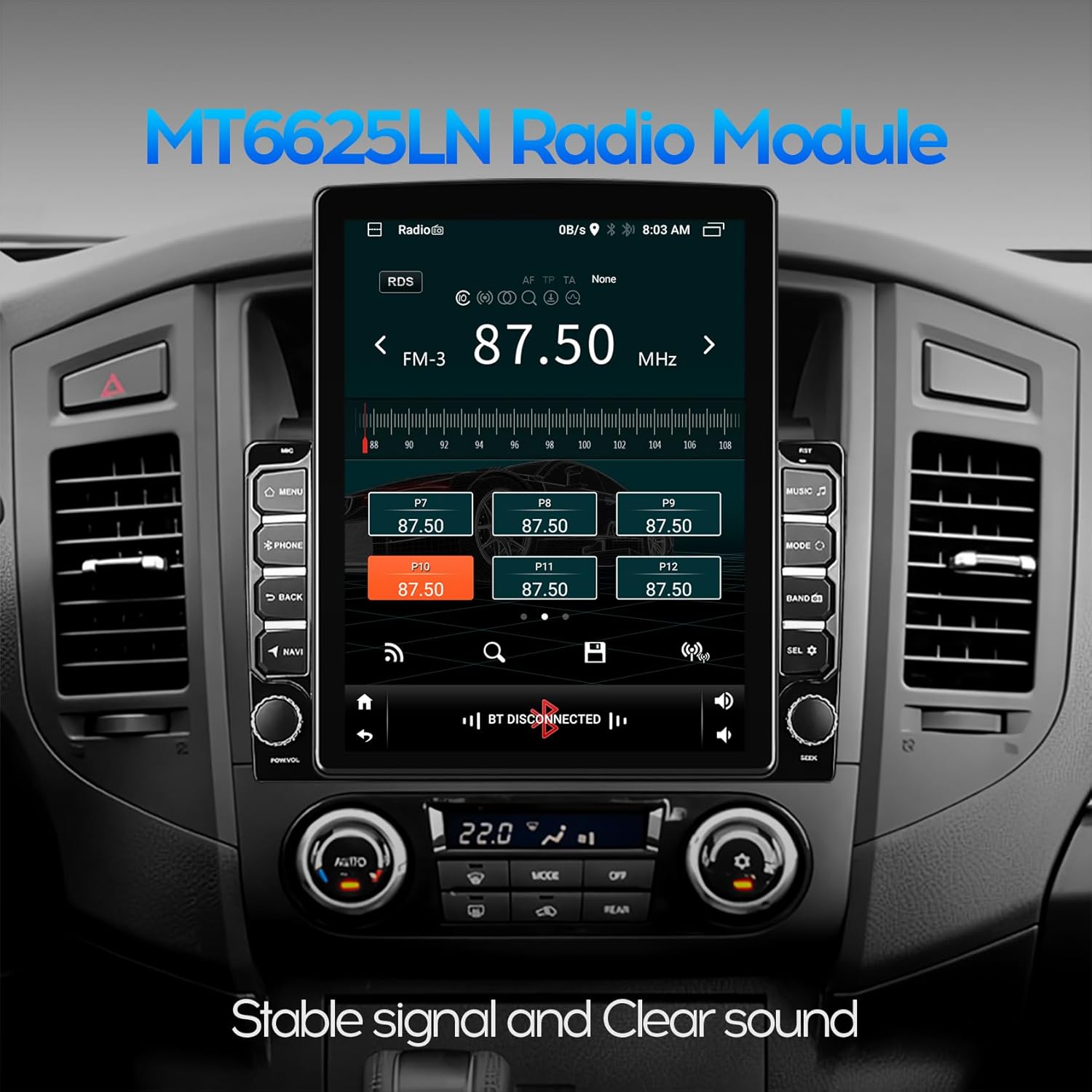
Figure 5.3: FM Radio Interface
5.7 Multimedia Playback
The Android system allows for playback of various audio and video formats. You can also download streaming applications like YouTube, TikTok, and Spotify via the Play Store when connected to Wi-Fi.
5.8 Rear View Camera & DVR Function
The car radio is equipped to display images from a waterproof night vision reversing camera (included). When the vehicle is shifted into reverse gear, the car stereo will automatically display the rear view. The unit also supports video input for connecting a USB dash cam.

Figure 5.4: Reverse Rear View Display
5.9 Steering Wheel Control (SWC)
The unit supports analog steering wheel controls. Manual learning is required to map your vehicle's steering wheel buttons to the radio functions. The two Key/SW wires are used for this purpose, enabling hands-free calling, music switching, and volume control.
5.10 Split Screen Mode
The split screen (PIP) feature allows you to run two applications simultaneously, such as navigation and music playback, enhancing convenience during driving.
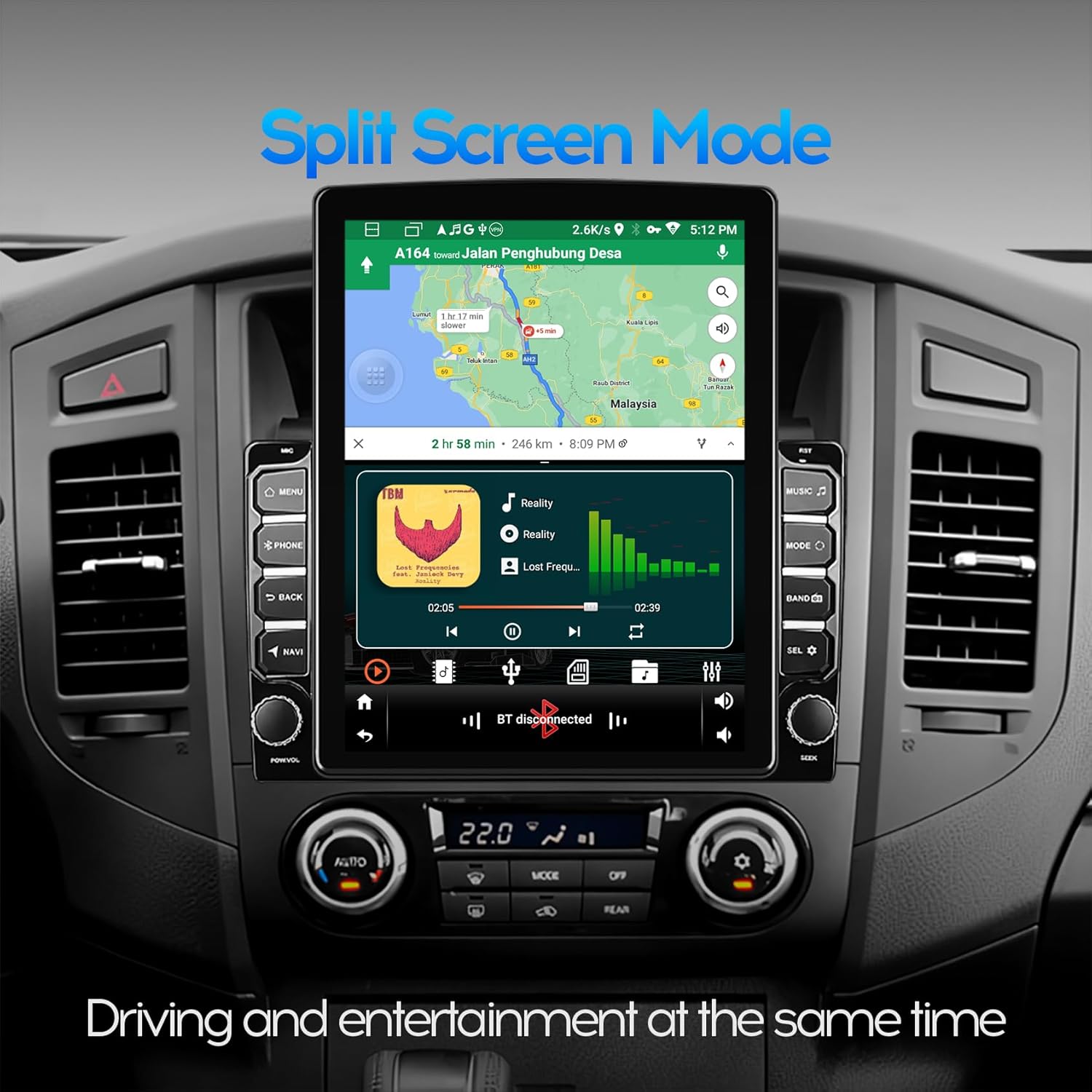
Figure 5.5: Split Screen Mode Display
6. Specifications
| Feature | Specification |
|---|---|
| Screen Size | 9.7 Inches |
| Resolution | 1024 x 600 |
| Operating System | Android 14 |
| CPU | 4Core 1.1GHz |
| Memory (RAM) | 2GB |
| Storage (ROM) | 32GB |
| Connectivity Technology | Bluetooth 4.1, WiFi |
| Special Features | Bluetooth, Touchscreen, CarPlay, Android Auto, GPS, Split Screen |
| Audio Output Mode | Stereo |
| Mounting Type | Dashboard Mount (2-DIN compatible) |
| Item Weight | 3.3 pounds |
| Package Dimensions | 11.89 x 10.39 x 3.58 inches |
7. Troubleshooting
- No Power: Ensure all power cables are securely connected and the vehicle's fuse for the radio is intact.
- No Sound: Check speaker connections, volume levels, and audio output settings. Ensure the unit is not muted.
- Bluetooth/CarPlay/Android Auto Connection Issues:
- Ensure Bluetooth is enabled on both the phone and the head unit.
- For wireless connections, confirm the "Zlink" app is open and attempting to connect.
- For wired connections, try a different USB cable or port.
- Restart both the phone and the head unit.
- If connection remains spotty, ensure no other devices are interfering with the Bluetooth signal.
- GPS Signal Loss: Ensure the GPS antenna is properly installed and has a clear line of sight to the sky. Check GPS settings within the unit.
- Steering Wheel Controls Not Working: Perform the manual learning process for steering wheel controls as described in section 5.9. Ensure the SWC wires are correctly connected.
- Screen Unresponsive: Try restarting the unit. If the issue persists, a factory reset may be necessary (consult support).
8. Care and Maintenance
- Cleaning: Use a soft, dry cloth to clean the screen and exterior. For stubborn smudges, lightly dampen the cloth with water. Avoid harsh chemicals or abrasive materials.
- Temperature: Avoid exposing the unit to extreme temperatures, direct sunlight for prolonged periods, or high humidity.
- Software Updates: Periodically check for software updates to ensure optimal performance and access to new features.
9. Warranty and Support
For any questions or technical assistance with your WENMENGDE product, please contact the WENMENGDE professional support team. They are available to reply within 24 hours to address your concerns.
Refer to your purchase documentation for specific warranty terms and conditions.