
1. Introduction
This manual provides detailed instructions for the installation, operation, and maintenance of your Ctronics CTIPC-790C-EU 5MP PTZ Wi-Fi Security Camera. Please read this manual thoroughly before using the product to ensure proper function and safety. This camera is designed for both indoor and outdoor surveillance, offering high-resolution video, advanced detection features, and flexible connectivity.

Figure 1: Front view of the Ctronics 5MP PTZ Wi-Fi Security Camera. This image displays the camera's dome shape, lens, and LED illuminators.
2. Package Contents
Verify that all items listed below are included in your package. If any items are missing or damaged, please contact customer support.
- Ctronics CTIPC-790C-EU 5MP PTZ Wi-Fi Security Camera
- Power Adapter
- Charging Cable
- Instruction Manual
- Mounting Bracket
- Mounting Screws
3. Product Overview
The Ctronics CTIPC-790C-EU camera offers advanced surveillance capabilities:
- 5MP Ultra HD Resolution: Provides clear 2560x1920 pixel video and images, offering more detail than 1080P or 4MP cameras.
- Dual-Band Wi-Fi (2.4/5GHz): Supports both 2.4GHz for extended range and better penetration, and 5GHz for faster transmission and reduced interference.
- PTZ Functionality: Pan 355° and Tilt 90° for comprehensive area coverage.
- AI Human Detection & Auto Tracking: Intelligent technology reduces false alarms by up to 95% and automatically tracks detected human movement.
- Color Night Vision: Achieves full-color night vision up to 25 meters or infrared night vision up to 30 meters for clear visibility in low-light conditions.
- Two-Way Audio: Built-in microphone and speaker for remote communication.
- IP66 Weatherproof: Durable construction suitable for outdoor use in various weather conditions.
- Flexible Storage Options: Supports continuous 24/7 recording to a microSD card (up to 128GB), cloud storage, or FTP.

Figure 2: This image illustrates the superior clarity of 5MP resolution compared to 2MP, highlighting finer details in a vehicle.
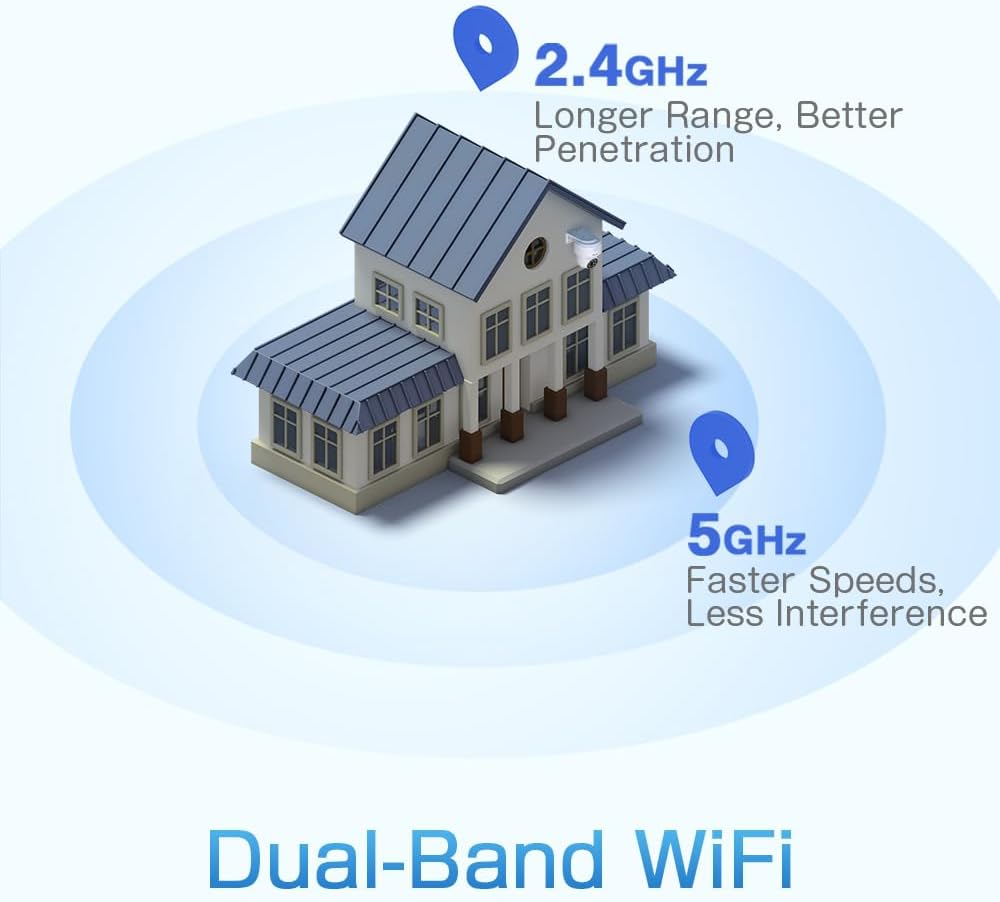
Figure 3: A diagram depicting a house with Wi-Fi signals. The 2.4GHz signal offers longer range and better penetration, while the 5GHz signal provides faster speeds and less interference.
4. Setup
4.1 Physical Installation
The camera can be mounted on a wall or ceiling. Ensure the mounting location provides a clear field of view and is within Wi-Fi range.
- Choose a Location: Select a suitable indoor or outdoor location. The camera is IP66 waterproof, making it resistant to dust and water jets.
- Mounting:
- Wall Mount: Use the provided mounting bracket and screws to secure the camera to a wall.
- Ceiling Mount: The camera can also be mounted directly to a ceiling.
- Adjust Angle: After mounting, adjust the camera's orientation as needed.

Figure 4: This image displays two installation methods: wall mounting using a bracket and ceiling mounting.

Figure 5: This image illustrates both ceiling and wall installation options, emphasizing the camera's IP66 waterproof rating by showing it under simulated rain.
4.2 Power Connection
Connect the provided power adapter to the camera's power input and then plug it into a standard electrical outlet. Ensure the connection is secure.
4.3 Network Connection
The camera supports both 2.4GHz and 5GHz Wi-Fi networks. For initial setup, it is recommended to place the camera near your Wi-Fi router.
- Download App: Download the Ctronics Pro or CamHi Pro app from your smartphone's app store (available for iOS and Android). For PC, use HiP2P Client software.
- Register Account: Open the app and register a new account or log in if you already have one.
- Add Camera: Follow the in-app instructions to add your camera. This typically involves scanning a QR code on the camera or manually entering its ID.
- Connect to Wi-Fi: Select your desired 2.4GHz or 5GHz Wi-Fi network and enter the password. The camera will connect to the network.
5. Operating Instructions
5.1 Live View and PTZ Control
Once connected, you can access the live video feed through the Ctronics app or PC software.
- Live Feed: Tap on the camera in the app to view the real-time video stream.
- Pan/Tilt: Use the directional controls within the app to rotate the camera horizontally (pan 355°) and vertically (tilt 90°).
- Zoom: Digital zoom is available through the app.
- Preset Positions: Set up to 8 preset positions for quick navigation to specific areas.
5.2 AI Human Detection & Auto Tracking
The camera's intelligent detection system can identify human shapes and track their movement.
- Enable Detection: In the app settings, enable AI Human Detection.
- Adjust Sensitivity & Area: Customize the detection sensitivity and define specific detection zones to minimize false alarms.
- Auto Tracking: When enabled, the camera will automatically follow detected human movement within its field of view.
- Alerts: Receive instant notifications via the app or email when motion is detected. The camera can also trigger customizable sound and light alarms.

Figure 6: This image shows the camera detecting a person at night, with an alarm notification displayed on a smartphone, illustrating the human detection and auto-tracking features.
5.3 Night Vision
The camera offers enhanced night vision capabilities:
- Full-Color Night Vision: When spotlights are activated, the camera can provide full-color video in low-light conditions up to 25 meters.
- Infrared Night Vision: In complete darkness, the camera automatically switches to infrared mode, providing clear black and white video up to 30 meters.

Figure 7: An image showing the camera mounted outdoors at night, with its spotlights illuminated to provide full-color night vision. A smartphone displays the live feed.
5.4 Two-Way Audio
Use the two-way audio feature to communicate with individuals near the camera.
- Speak: Press and hold the microphone icon in the app to speak through the camera's speaker.
- Listen: Enable the speaker icon to listen to audio from the camera's microphone.
5.5 Recording and Storage
The camera supports various recording and storage methods:
- MicroSD Card: Insert a microSD card (up to 128GB, not included) into the designated slot for local 24/7 continuous recording.
- Cloud Storage: Subscribe to a cloud storage service (if available) for off-site video backup.
- FTP: Configure FTP settings in the app to upload recordings to an FTP server.

Figure 8: This image illustrates the camera's 24/7 recording capability and various recording modes, including a timeline view on a smartphone and a filmstrip showing recorded events.
6. Maintenance
6.1 Cleaning
Regularly clean the camera lens and housing to ensure optimal image quality and performance.
- Use a soft, damp cloth to wipe the camera's exterior.
- For the lens, use a specialized lens cleaning cloth and solution to avoid scratches.
- Do not use harsh chemicals or abrasive cleaners.
6.2 Firmware Updates
Periodically check for firmware updates through the Ctronics app. Keeping your camera's firmware updated ensures access to the latest features and security enhancements.
7. Troubleshooting
If you encounter issues with your camera, refer to the following common solutions:
| Problem | Possible Solution |
|---|---|
| Camera not connecting to Wi-Fi |
|
| Poor image quality |
|
| No motion detection alerts |
|
| MicroSD card not recording |
|
For further assistance, please contact Ctronics customer support.
8. Specifications
Key technical specifications for the Ctronics CTIPC-790C-EU camera:
| Feature | Specification |
|---|---|
| Model Name | CTIPC-790C-EU |
| Resolution | 5MP (2560x1920) |
| Wireless Technology | Wi-Fi (2.4GHz/5GHz) |
| Pan Angle | 355 Degrees |
| Tilt Angle | 90 Degrees |
| Night Vision Range | 25 Meters (Color), 30 Meters (IR) |
| Water Resistance Level | IP66 (Waterproof) |
| Storage Options | MicroSD (up to 128GB), Cloud, FTP |
| Power Source | Electric Cable (12 Volts, 12 Watts) |
| Mounting Type | Wall Mount, Screw-in |
| Material | Acrylonitrile Butadiene Styrene (ABS) |
| Compatible Devices | Computer, Smartphone, Tablet |
| Operating System Support | Android, iOS, Windows, Mac OS |
9. Warranty and Support
Ctronics products are designed for reliability and performance. For warranty information and technical support, please refer to the official Ctronics website or contact their customer service directly. Keep your purchase receipt as proof of purchase for warranty claims.
- Online Support: Visit the Ctronics official website for FAQs, troubleshooting guides, and software downloads.
- Email Support: Contact Ctronics customer service via email for technical assistance.


