
1. Introduction
This manual provides detailed instructions for the E-YEEGER S60 Dual Dash Cam. Please read this guide thoroughly before operating the device to ensure proper installation and functionality. Keep this manual for future reference.
2. What's in the Box
- 1 x S60 Dash Cam
- 1 x Rear Camera (22.5ft cable)
- 1 x Car Charger (11.5ft cable)
- 1 x 360° Suction Mount
- 1 x Wire Tools
- 1 x User Manual
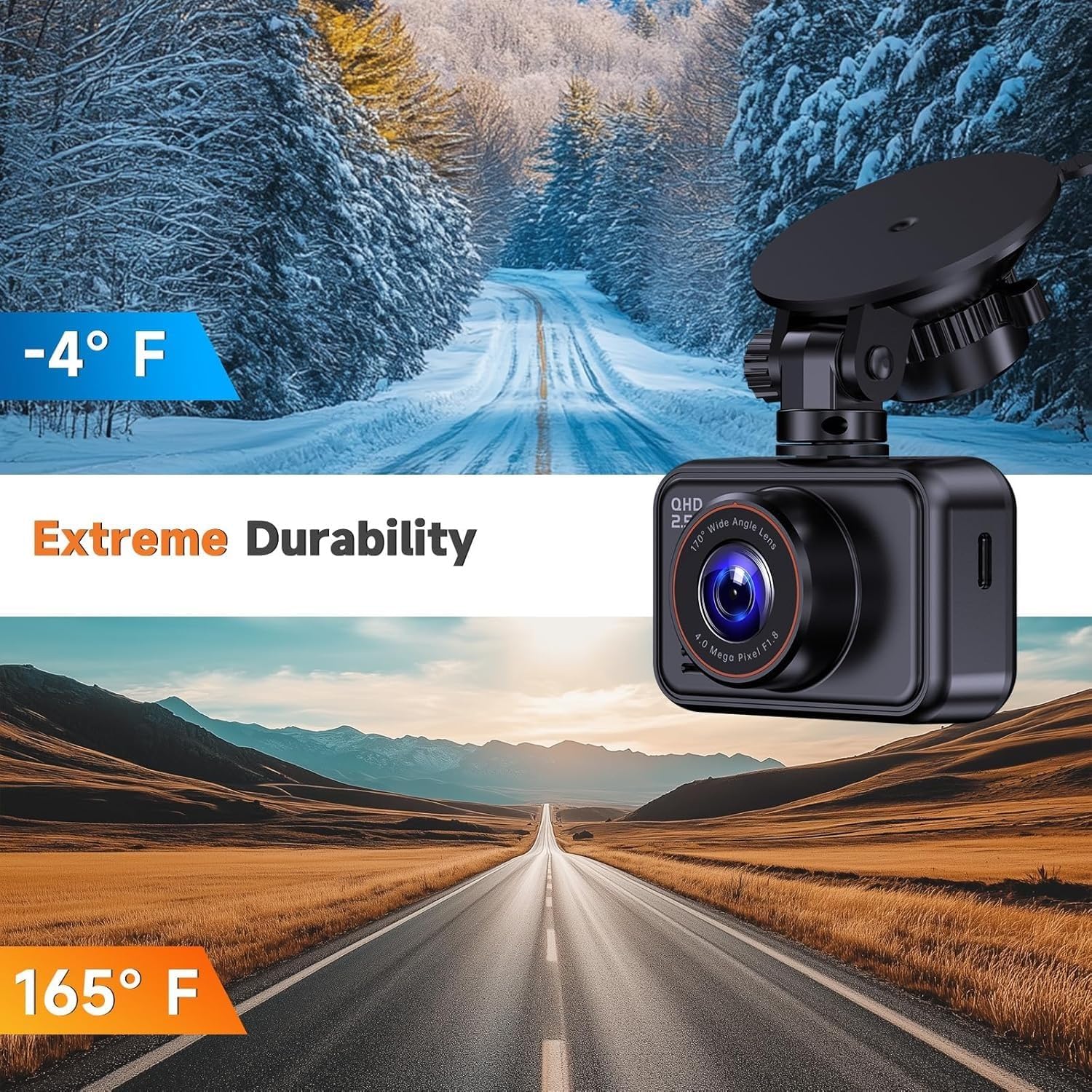
Image: All components included in the E-YEEGER S60 Dash Cam package.
3. Setup
3.1 Mounting the Dash Cam
Attach the 360° suction mount to your vehicle's windshield. Ensure the mounting location does not obstruct your view. The rotatable brackets allow for precise angle adjustment of the dash cam.

Image: The E-YEEGER S60 Dash Cam attached to a windshield via its 360° suction mount, illustrating its compact size and adjustable viewing angles.
3.2 Connecting Power
Connect the provided car charger to the dash cam's USB-C port and plug the other end into your vehicle's 12V power outlet. The dash cam will power on automatically when the vehicle starts.

Image: The E-YEEGER S60 Dash Cam connected via its USB-C port for power.
3.3 Installing the Rear Camera
Mount the rear camera on your vehicle's rear windshield. Route the rear camera cable discreetly along the vehicle's interior trim to connect it to the main dash cam unit. Use the included wire tools to assist with cable management.

Image: Diagram illustrating the installation process for both front and rear cameras, including cable routing.
Video: An overview of the E-YEEGER S60 Dash Cam, demonstrating its front and rear recording capabilities and general setup.
4. Operating Instructions
4.1 Inserting an SD Card
The dash cam requires a microSD card (not included) for recording. It supports cards up to 256GB. Insert the microSD card into the designated slot on the dash cam. Ensure the card is formatted before first use for optimal performance.

Image: The E-YEEGER S60 Dash Cam highlighting its microSD card slot and support for up to 256GB storage.
4.2 Basic Recording
Once powered on, the dash cam will automatically begin recording. The 2" IPS screen displays the live view from the front and rear cameras. You can adjust basic settings directly on this screen using the physical buttons.
4.3 Loop Recording
The dash cam features loop recording, which automatically overwrites the oldest unprotected video files when the memory card is full. This ensures continuous recording without manual deletion.
4.4 G-Sensor (Emergency Lock)
The built-in G-sensor detects sudden impacts, hard braking, or collisions. When such an event occurs, the G-sensor automatically locks the current video clip, preventing it from being overwritten by loop recording. This protects important footage for incident analysis.

Image: Visual representation of the G-Sensor locking footage during an impact and the continuous nature of loop recording.

Image: The Emergency Video Lock feature, activated by the G-sensor, securing critical footage in case of an incident.
4.5 24-Hour Parking Monitor
The S60 supports a 24-hour parking monitor function with time-lapse recording. This feature requires a compatible Type-C hardwire kit, which is not included and must be purchased separately. When enabled, the dash cam will monitor your vehicle while parked, providing protection against theft or vandalism.

Image: The 24-hour parking monitor feature, showing the dash cam protecting a parked car (hardwire kit required).
4.6 Accessing Recordings
Recorded videos can be viewed directly on the dash cam's 2" IPS screen. For more detailed viewing or to save footage, remove the microSD card and insert it into a compatible device (e.g., computer, tablet).
5. Key Features
5.1 High-Resolution Dual Recording
The S60 records 2560x1440P (2.5K) video from the front camera and 1080P video from the rear camera. The front camera features a 170° wide-angle lens, and the rear camera has a 160° lens, providing extensive coverage of the road ahead and behind your vehicle.

Image: Illustration of the E-YEEGER S60's dual vision recording, showing 2.5K front and 1080P rear camera views with wide angles.
5.2 WDR Night Vision
Equipped with a starlight night vision sensor and a 6-layer glass lens, the S60 enhances video clarity in low-light conditions. Wide Dynamic Range (WDR) technology balances bright headlights and darker areas, improving footage readability at night, in tunnels, and in varying light environments.

Image: The Super Night Vision capability of the E-YEEGER S60 Dash Cam, demonstrating clear recording in low-light city conditions.
5.3 Compact Design
The S60 features a mini design with a 2" IPS screen, allowing it to be discreetly hidden behind the rearview mirror without obstructing your view. The compact form factor ensures it blends seamlessly into your car's interior.

Image: The E-YEEGER S60 Dash Cam's main unit, showcasing its 2" LCD display, 2.5K Dual HD recording, Super Night Vision, G-sensor, Loop Recording, and F1.8 Aperture.
5.4 Extreme Durability
The dash cam is designed to operate reliably across a wide temperature range, from -4°F to 165°F, ensuring performance in various climates.

Image: The E-YEEGER S60 Dash Cam demonstrating its extreme durability across a wide temperature range, from cold snowy conditions to hot desert environments.
6. Maintenance
6.1 SD Card Care
To maintain optimal recording performance and prevent data corruption, it is recommended to format the microSD card regularly (e.g., once a month). Always power off the dash cam before inserting or removing the SD card.
6.2 Cleaning
Use a soft, dry cloth to clean the dash cam's lenses and screen. Avoid using abrasive cleaners or solvents, as these can damage the device. Keep the suction mount clean to ensure a secure attachment to the windshield.
7. Troubleshooting
- Dash cam does not power on: Ensure the car charger is securely connected to both the dash cam and the vehicle's power outlet. Check if the vehicle's 12V outlet is functioning.
- Recording stops unexpectedly: Verify that a compatible microSD card is inserted and has sufficient free space. Format the SD card regularly. Ensure the card is not faulty.
- Poor video quality: Clean the camera lenses. Ensure the protective film has been removed from the lenses. Check video resolution settings.
- SD card not recognized: Reinsert the SD card. Try formatting the card on a computer or with the dash cam's menu. Ensure the card is not damaged or incompatible.
- Parking monitor not working: Confirm that a Type-C hardwire kit is correctly installed and connected. The parking monitor requires continuous power, which the standard car charger does not provide when the vehicle is off.
8. Specifications
| Feature | Specification |
|---|---|
| Brand | E-YEEGER |
| Model Name | S60 |
| Front Video Resolution | 2560x1440P (2.5K) |
| Rear Video Resolution | 1080P |
| Front Field of View | 170 degrees |
| Rear Field of View | 160 degrees |
| Screen Size | 2 inches IPS |
| Max SD Card Support | 256 GB (microSD) |
| Special Features | WDR Night Vision, G-Sensor, Loop Recording, 24H Parking Monitor (requires hardwire kit), Built-In Microphone, Speaker |
| Connectivity | USB (Type-C Port) |
| Operating Temperature | -4°F to 165°F |
| Mounting Type | Windshield Mount (360° adjustable) |
| Item Weight | 1.76 ounces |
9. Warranty and Support
This E-YEEGER S60 Dash Cam includes a 12-Month Replacement Service and a 45-Day Refund Guarantee. For any inquiries, setup assistance, or troubleshooting, please contact customer support at support@customerafter-sales.com. Our team is available to help you with any questions or concerns.