
1. Introduction
This manual provides detailed instructions for the installation, configuration, and operation of the Grandstream GWN7003 11-Port Wired Gigabit VPN Router. The GWN7003 is designed to establish robust wired, wireless, and VPN networks for various environments, offering advanced features for network management and security.
2. Product Overview
2.1 Key Features
- 1x GbE RJ45 port with IEEE 802.3af/at PoE Input.
- 2x GbE RJ45 ports with 48V Passive PoE output or IEEE802.3af.
- Multiple Gigabit RJ45 ports and Gigabit SFP ports for flexible connectivity.
- Integrated VPN support for secure remote access to corporate networks.
- Built-in firewall for enhanced network security.
- Multi-WAN capabilities for load balancing and failover.
2.2 Front Panel Layout
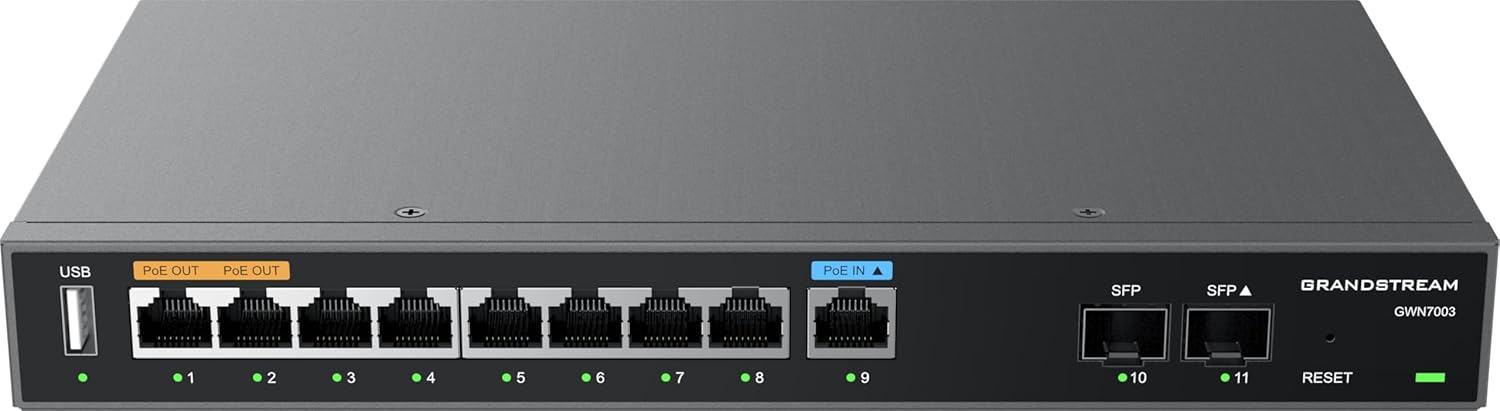
Figure 1: Front view of the Grandstream GWN7003 router, showing the USB port, PoE OUT ports, PoE IN port, standard Ethernet ports, SFP ports, and reset button.
- USB Port: For future use or external storage.
- PoE OUT Ports (Orange): Provide Power over Ethernet to compatible devices.
- PoE IN Port (Blue): Receives Power over Ethernet to power the router itself.
- Ethernet Ports (1-9): Standard Gigabit Ethernet ports for network connections.
- SFP Ports (10-11): Gigabit SFP ports for fiber optic connections.
- Reset Button: Used to reset the device to factory defaults.
- LED Indicators: Indicate port status (link/activity) and device power.
2.3 Top View

Figure 2: Top view of the Grandstream GWN7003 router, showcasing its compact and durable metal casing.
3. Setup Guide
3.1 Package Contents
Before proceeding, ensure all items are present:
- Grandstream GWN7003 Router
- Power Adapter (if not using PoE IN)
- Ethernet Cable
- Quick Installation Guide
3.2 Physical Installation
- Power Connection: Connect the provided power adapter to the router's power input port, or connect an 802.3af/at compliant PoE source to the PoE IN port (blue).
- WAN Connection: Connect your internet service provider's modem or main network cable to one of the WAN-configured Gigabit Ethernet ports. The GWN7003 supports multiple WAN ports for redundancy or load balancing.
- LAN Connection: Connect your local network devices (computers, switches, access points) to the available LAN Gigabit Ethernet ports. Use the PoE OUT ports (orange) for devices requiring Power over Ethernet.
- SFP Connections (Optional): If using fiber optic connections, insert compatible SFP modules into the SFP ports and connect fiber cables.
3.3 Initial Access to Web Interface
- Ensure your computer is connected to one of the router's LAN ports.
- Open a web browser (e.g., Chrome, Firefox).
- Enter the default IP address of the router in the address bar. The default IP address is typically
192.168.1.1. Refer to the Quick Installation Guide for the exact default IP. - Enter the default username and password (usually
adminfor both, or as specified in the guide). - Follow the on-screen wizard for initial configuration, including changing the default password for security.
4. Operating Instructions
4.1 Network Configuration
The web interface allows for comprehensive network configuration:
- WAN Settings: Configure internet connection type (DHCP, Static IP, PPPoE).
- LAN Settings: Manage IP address range, DHCP server, and VLANs.
- Multi-WAN: Set up load balancing or failover policies for multiple internet connections.
4.2 VPN Setup
The GWN7003 supports various VPN protocols for secure remote access:
- Navigate to the VPN section in the web interface.
- Configure VPN server or client settings based on your network requirements (e.g., OpenVPN, IPsec).
- Ensure proper firewall rules are in place to allow VPN traffic.
4.3 PoE Output Management
The router's PoE OUT ports can power compatible devices:
- Connect PoE-powered devices (e.g., IP cameras, VoIP phones, Wi-Fi access points) to the orange PoE OUT ports.
- Monitor PoE status and power consumption through the web interface.
5. Maintenance
5.1 Firmware Updates
Regularly update the router's firmware to ensure optimal performance, security, and access to new features:
- Visit the Grandstream website for the latest firmware for the GWN7003.
- Download the firmware file to your computer.
- Access the router's web interface and navigate to the System Maintenance or Firmware Upgrade section.
- Upload the downloaded firmware file and follow the on-screen instructions. Do not power off the device during the update process.
5.2 Factory Reset
To restore the router to its factory default settings:
- With the router powered on, press and hold the Reset button (located on the front panel) for approximately 10 seconds.
- Release the button when the LED indicators flash. The router will reboot with factory default settings.
- Alternatively, a factory reset option is available within the web interface under System Maintenance.
6. Troubleshooting
6.1 No Internet Connection
- Verify that the WAN cable is securely connected to the correct port and that your modem is operational.
- Check WAN settings in the web interface to ensure they match your ISP's requirements.
- Restart both the modem and the router.
6.2 Cannot Access Web Interface
- Ensure your computer is connected to a LAN port and has obtained an IP address from the router (or has a static IP in the same subnet).
- Verify the router's IP address. Try
192.168.1.1. - Clear your browser's cache or try a different browser.
- If all else fails, perform a factory reset (see Section 5.2).
6.3 PoE Devices Not Powering On
- Ensure the device connected to the PoE OUT port is PoE-compatible.
- Check the cable connection.
- Verify PoE settings in the router's web interface.
7. Specifications
| Feature | Detail |
|---|---|
| Model | GWN7003 |
| Product Dimensions | 10.24 x 11.81 x 2.17 inches |
| Item Weight | 3.12 pounds |
| Connectivity Technology | Wired (Gigabit Ethernet, SFP) |
| PoE Input | 1x GbE RJ45 port with IEEE 802.3af/at |
| PoE Output | 2x GbE RJ45 ports with 48V Passive PoE or IEEE802.3af |
| Special Feature | QoS, VPN Support, Multi-WAN |
| Operating System | Grandstream GWN OS |
| Manufacturer | Grandstream |
8. Safety Information
Please read and follow these safety guidelines to prevent damage to the device or injury:
- Do not expose the device to water or moisture.
- Do not place the device near heat sources or in direct sunlight.
- Use only the power adapter provided by the manufacturer.
- Ensure proper ventilation around the device.
- Do not attempt to open or repair the device yourself. Refer all servicing to qualified personnel.
9. Warranty and Support
The Grandstream GWN7003 router comes with a manufacturer's warranty. For detailed warranty information, technical support, or service inquiries, please visit the official Grandstream website or contact their customer support. Keep your purchase receipt for warranty validation.


