
1. Introduction
This manual provides essential instructions for the safe operation, maintenance, and troubleshooting of your TOPINCN Intelligent Sweeper Robotic Vacuum Cleaner, Model IS25. Please read this manual thoroughly before using the product and retain it for future reference.
2. Safety Information
- Ensure the product is charged using the provided USB cable and a compatible power source.
- Do not immerse the device in water or other liquids.
- Keep the device away from open flames or heat sources.
- This product is designed for indoor use on hard floors only. It is not suitable for carpets.
- Do not allow children or pets to play with the device.
- Regularly clean the brushes and dustbin to maintain optimal performance.
- If the device malfunctions, do not attempt to repair it yourself. Contact customer support.
3. Package Contents
Verify that all items are present in the package:
- 1 x TOPINCN Intelligent Sweeper Robotic Vacuum Cleaner (Model IS25)
- 1 x Instruction Manual
- 1 x USB Data Cable
- 2 x Rotation Brushes
- 1 x Cleaning Brush
- 1 x Mopping Cloth

Image: The complete package contents, showing the robotic vacuum cleaner, two rotating brushes, a small cleaning brush, a USB charging cable, and a mopping cloth.
4. Product Overview and Features
The TOPINCN Intelligent Sweeper is designed for efficient cleaning of hard floors, offering sweeping, mopping, and vacuuming functionalities.
Key Features:
- Intelligent Navigation: Features intelligent steering, anti-fall sensors, and obstacle avoidance for safe and efficient cleaning.
- Multi-Function Cleaning: Combines sweeping, mopping, and vacuuming to handle various types of debris and dirt.
- Powerful Suction: Equipped with a brushless motor for strong suction, capable of picking up large particles and common household garbage.
- Mopping Function: Imitates manual wiping for thorough floor cleaning.
- Long Battery Life: Built-in 1200mAh polymer battery provides up to 90 minutes of cleaning time.
- Quiet Operation: Noise reduction processing ensures a working noise level of approximately 55dB.
- USB Charging: Conveniently charges via a standard USB socket.

Image: Top view of the TOPINCN Intelligent Sweeper, showing its sleek white design and the power button located on the top surface.

Image: The robotic vacuum cleaner operating on a wooden floor, alongside an inset showing a detailed view of its side exhaust vent.
5. Setup
5.1 Initial Charging
- Connect the provided USB data cable to the charging port on the side of the robotic vacuum.
- Plug the other end of the USB cable into a standard USB power adapter (not included) or a computer USB port.
- Allow the device to charge for approximately 3 hours before first use. The indicator light will change to show charging status (refer to the device's specific light indicators if available).
5.2 Attaching Side Brushes
- Turn the robotic vacuum upside down.
- Align the two rotation brushes with their respective posts on the bottom of the device.
- Press firmly until the brushes click into place.

Image: The underside of the robotic vacuum cleaner, illustrating the locations where the two rotating side brushes are to be attached.
5.3 Attaching Mopping Cloth
- Dampen the mopping cloth with water.
- Attach the damp cloth to the designated mopping area on the underside of the vacuum. Ensure it is securely fastened.
6. Operating Instructions
6.1 Preparing the Cleaning Area
- Remove any large obstacles, loose cables, or small items from the floor that could entangle the brushes or impede the vacuum's movement.
- Ensure the area is free of excessive moisture if using the mopping function.
6.2 Starting and Stopping Cleaning
- Place the robotic vacuum on the floor in the area you wish to clean.
- Press the power button located on the top of the device to start the cleaning cycle. The vacuum will begin sweeping, mopping, and vacuuming automatically.
- To pause or stop the cleaning cycle, press the power button again.

Image: The TOPINCN Intelligent Sweeper positioned on a wooden floor, illustrating its compact design and readiness for operation.
6.3 Automatic Features
- The vacuum will automatically change direction when it encounters obstacles.
- Anti-fall sensors prevent the vacuum from falling down stairs or off elevated surfaces.
7. Maintenance
Regular maintenance ensures optimal performance and extends the lifespan of your robotic vacuum.
7.1 Emptying the Dustbin
- Turn off the robotic vacuum.
- Locate and open the dustbin compartment (usually on the top or side of the device).
- Remove the dustbin and empty its contents into a trash receptacle.
- Clean the dustbin and filter with the provided cleaning brush or a soft cloth. Ensure they are dry before reinserting.
- Reinsert the dustbin securely into the vacuum.
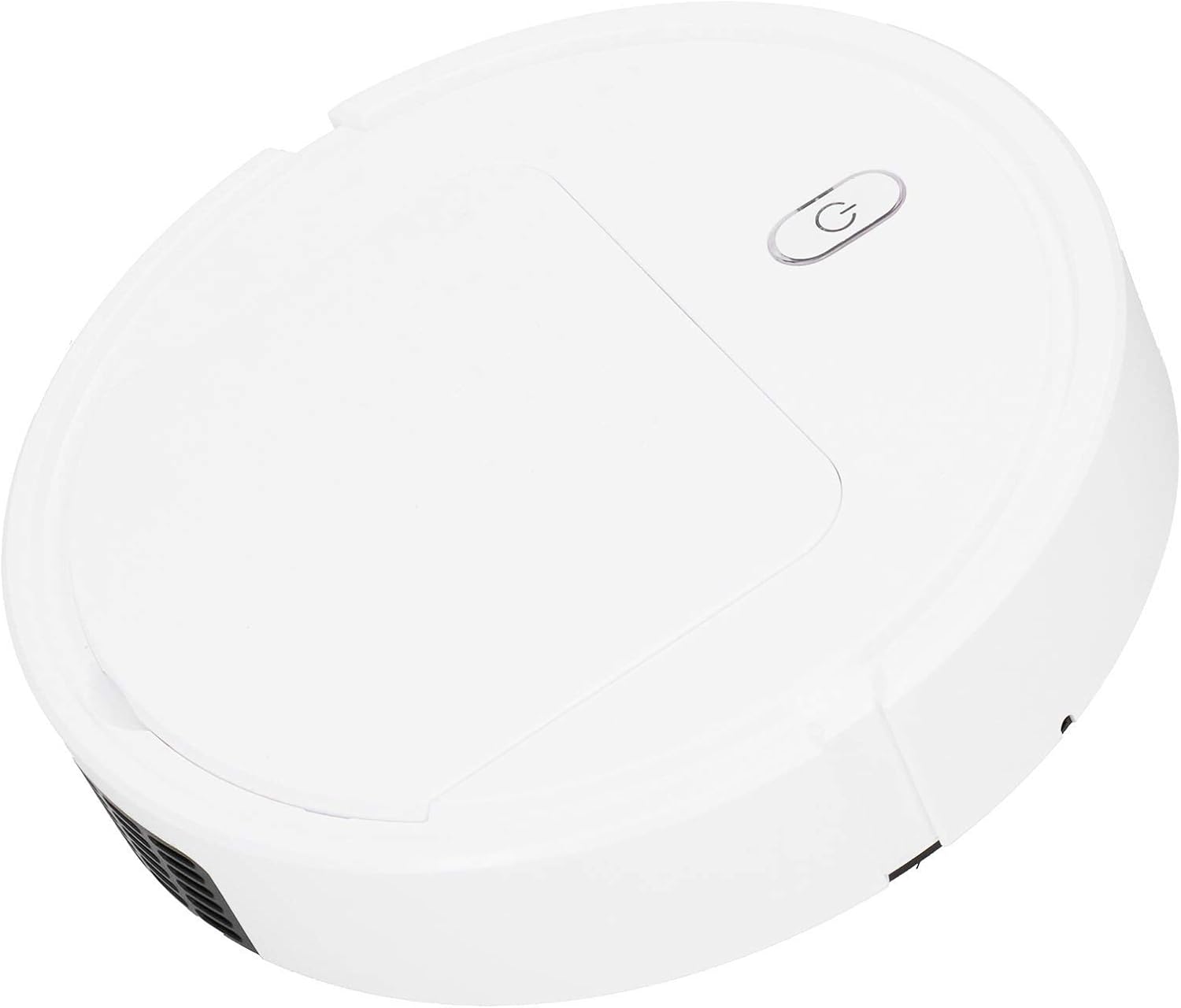
Image: The TOPINCN Intelligent Sweeper with its top cover lifted, revealing the dustbin compartment for easy access and emptying.
7.2 Cleaning Side Brushes
- Turn off the robotic vacuum and turn it upside down.
- Gently pull the side brushes upwards to remove them.
- Remove any hair or debris tangled around the brushes using the cleaning brush.
- Reattach the brushes by pressing them firmly onto their posts until they click.
7.3 Cleaning Mopping Cloth
- Remove the mopping cloth from the vacuum.
- Wash the cloth with water and mild detergent.
- Allow the cloth to air dry completely before reattaching or storing.
7.4 Cleaning Sensors
Wipe the anti-fall sensors and obstacle detection sensors (located around the perimeter and underside of the vacuum) with a clean, dry cloth to ensure proper function.
8. Troubleshooting
| Problem | Possible Cause | Solution |
|---|---|---|
| Vacuum does not turn on. | Low battery or no charge. | Charge the vacuum for at least 3 hours using the USB cable. |
| Vacuum stops unexpectedly. | Battery depleted; brushes or wheels tangled; dustbin full. | Recharge the vacuum; clean brushes and wheels; empty dustbin. |
| Poor cleaning performance. | Dustbin full; brushes dirty or worn; sensors obstructed. | Empty and clean dustbin; clean or replace brushes; wipe sensors. |
| Vacuum gets stuck frequently. | Obstacles in cleaning path; sensors dirty. | Clear the cleaning area; clean sensors. |
| Vacuum falls down stairs. | Anti-fall sensors are dirty or obstructed. | Clean the anti-fall sensors on the underside of the vacuum. |
9. Specifications
- Model: IS25
- Brand: TOPINCN
- Material: ABS
- Dimensions: Approx. 25 x 25 x 6 cm (9.8 x 9.8 x 2.4 inches)
- Weight: Approx. 852g (30.1oz)
- Battery: 1200mAh Polymer Battery (built-in)
- Battery Endurance: Up to 90 minutes
- Charging Method: USB Socket
- Charging Time: 3 hours
- Working Voltage: 3.7V
- Working Noise: 55dB
- Cleaning Area: Up to 200 square meters
- Functions: Sweeping, Mopping, Vacuuming
- Surface Recommendation: Hard Floors
- Special Features: Anti-Fall, Obstacle Avoidance, Intelligent Steering
10. Warranty and Support
For warranty information or technical support, please refer to the retailer's return policy or contact TOPINCN customer service through the platform where the product was purchased. Please have your purchase receipt and product model number (IS25) ready when contacting support.
Note: Please allow for minor measurement errors (1-2 inches) due to manual measurement. Product color may vary slightly from images due to monitor calibration.