Introduction
Welcome to the user manual for your KEXIN 64GB USB 2.0 Flash Drive 10 Pack. This guide provides essential information on how to set up, operate, maintain, and troubleshoot your new flash drives. Please read this manual carefully to ensure optimal performance and longevity of your product.

Image: The KEXIN 64GB USB 2.0 Flash Drive 10 Pack, showcasing the quantity and design of the drives.
Product Features
The KEXIN 64GB USB 2.0 Flash Drives are designed for reliable and convenient data storage. Key features include:
- High Compatibility: Supports Windows 7 / 8 / 10 / Vista / XP / Unix / 2000 / ME / NT Linux and Mac OS. Compatible with USB 2.0 and backward compatible with USB 1.1.
- Plug and Play: No software installation required for immediate use.
- Versatile Use: Compatible with PCs, laptops, TVs, car audio systems, and other devices. Ideal for storing music, videos, photos, documents, and software.
- Ample Capacity: Each 64GB drive can store approximately 23 hours of 1080P video (6Mbps), 20,000 photos (10MP/3Mb), or over 150,000 Office Word documents (400Kb).
- Retractable Design: Features a glide-in/out design that protects the USB plug when not in use, eliminating the need for a cap.
- Durable Construction: Designed to be dust-proof and shock-proof for enhanced data protection.

Image: Illustration of the retractable design, highlighting the capless and protective mechanism of the USB drive.
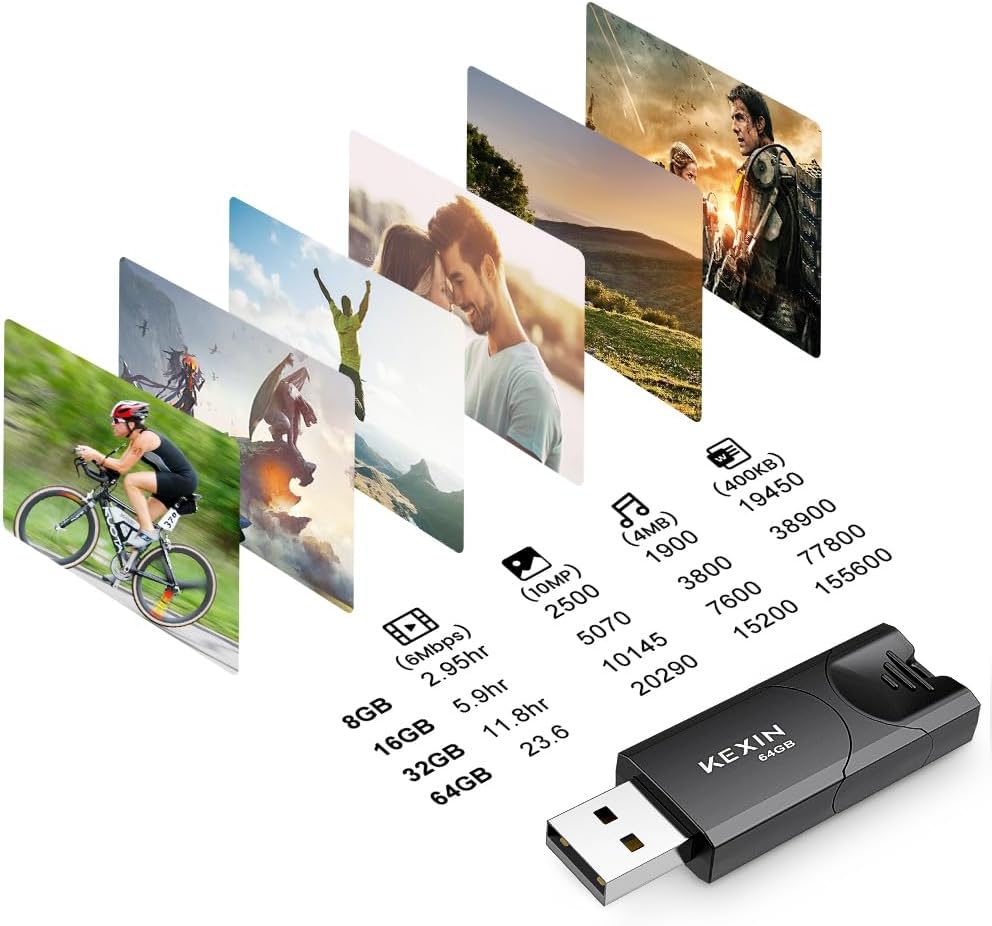
Image: Visual representation of the storage capacity, detailing how many hours of video, photos, or documents can be stored on various drive sizes, including 64GB.
Setup
Setting up your KEXIN USB flash drive is a straightforward process:
- Insert the Drive: Gently slide the USB connector out of its casing and insert the flash drive into an available USB 2.0 or USB 1.1 port on your computer or compatible device.
- Automatic Recognition: Most operating systems will automatically detect the drive and install necessary drivers (Plug and Play). The drive will appear as a removable disk in 'My Computer' (Windows) or on your desktop (Mac).
- Formatting (Optional): The drives come pre-formatted with exFAT. If you need to store individual files larger than 4GB, you may need to reformat the drive to NTFS.
To reformat the drive:
- Connect the USB drive to your computer.
- Open 'This PC' or 'My Computer' (Windows) or 'Disk Utility' (Mac).
- Right-click on the USB drive icon and select 'Format'.
- Choose 'NTFS' as the file system (for Windows) or 'Mac OS Extended (Journaled)' (for Mac) and click 'Start'.
- Important: Formatting will erase all data on the drive. Ensure you back up any important files before proceeding.

Image: A KEXIN USB flash drive connected to a laptop, demonstrating the plug-and-play setup.
Operating Instructions
Using your KEXIN USB flash drive for data transfer is simple:
- Access the Drive: Once recognized by your device, open the drive folder.
- Transfer Files: Drag and drop files or folders from your computer to the USB drive, or vice versa. You can also copy and paste.
- Monitor Transfer: A progress bar will indicate the status of your file transfer.
The KEXIN USB flash drives offer wide compatibility with various devices and operating systems, making them suitable for diverse applications.

Image: Icons illustrating the wide compatibility of the USB drive with devices such as laptops, PCs, TVs, cars, and music players.

Image: A banner highlighting the KEXIN USB 2.0 Flash Drive's versatility for various file types, ready for use anytime, anywhere.

Image: A user transferring files to a KEXIN USB flash drive connected to a laptop, demonstrating typical usage.
Maintenance
Proper care and maintenance will help extend the life of your KEXIN USB flash drives and protect your data:
- Safe Removal: Always use the 'Safely Remove Hardware' option (Windows) or drag the drive icon to the Trash (Mac) before physically disconnecting the drive. This prevents data corruption.
- Data Backup: Regularly back up important data stored on your flash drives to another storage medium (e.g., cloud storage, external hard drive) to prevent data loss.
- Physical Protection: While the drives are designed to be dust-proof and shock-proof, avoid exposing them to extreme temperatures, moisture, or strong impacts. Keep the retractable connector protected when not in use.
- Cleaning: If necessary, gently clean the exterior of the drive with a soft, dry cloth. Avoid using liquid cleaners.

Image: Visuals highlighting the dust-proof, shock-proof, and general protection features of the KEXIN USB flash drive, ensuring data safety.
Troubleshooting
If you encounter issues with your KEXIN USB flash drives, consider the following common solutions:
- Drive Not Detected:
- Try inserting the drive into a different USB port on your computer.
- Test the drive on another computer to rule out a port or system issue.
- Ensure the USB connector is fully extended and properly seated in the port.
- Cannot Transfer Large Files (over 4GB):
- The drive is likely formatted as exFAT, which has a 4GB file size limit. Reformat the drive to NTFS (Windows) or Mac OS Extended (Journaled) (Mac). Remember to back up data before formatting.
- Slow Transfer Speeds:
- Ensure you are using a USB 2.0 port for optimal speeds. USB 1.1 ports will result in slower transfers.
- Transferring many small files can be slower than transferring one large file of the same total size.
- Interference with Wireless Devices:
- If the USB drive is plugged in directly next to a wireless mouse transmitter, it may cause interference. Try moving the USB drive to a different port further away from the wireless receiver. This issue is more common with some USB 3.0/3.1 drives but can occasionally affect USB 2.0 devices in close proximity to wireless peripherals.
- Data Corruption:
- Always safely remove the drive before unplugging it. Unplugging abruptly can lead to data corruption.
- If data appears corrupted, try running a disk check utility on your computer.
Specifications
| Feature | Detail |
|---|---|
| Brand | KEXIN |
| Model Number | KEXIN_FLASH_64 |
| Memory Storage Capacity | 64 GB (per drive) |
| Hardware Interface | USB 2.0 |
| Connectivity Technology | USB |
| Flash Memory Type | USB |
| Write Speed | 5MB/S-8MB/S |
| Product Dimensions | 2.28"W x 0.77"D x 0.35"H |
| Item Weight | 0.282 ounces (per drive) |
| Special Feature | Lightweight, Fashion, Retractable Design |
| Color | Black |
Warranty and Support
KEXIN products are manufactured to high-quality standards. For any warranty claims or technical support inquiries, please refer to the contact information provided with your purchase or visit the official KEXIN website. Keep your proof of purchase for warranty validation.
For additional assistance, you may also refer to the KEXIN store on Amazon: KEXIN Amazon Store.


